Word to PDF
Convert your Word document (.docx) into a professional PDF file instantly. Preserves layout and formatting for perfect results.
Click to upload or drag and drop
Only 1 Word file (.docx) at a time (Max 50MB)

Convert your Word document (.docx) into a professional PDF file instantly. Preserves layout and formatting for perfect results.
Click to upload or drag and drop
Only 1 Word file (.docx) at a time (Max 50MB)
Converting...
Word to PDF converter makes it simple to turn any .docx file into a clean, properly formatted PDF without losing your original layout. The program takes care of everything from there; simply drop your Word file into the upload area, change your output settings, and click convert. Whether you’re handling one file or many at a time, the process remains quick and easy. The process remains quick and easy. Get your Word to PDF converter results ready for download in just a few clicks
Upload one Word file, choose your settings, and convert it in a few clicks.
Drag and Drop Word Converter The upload area fully supports drag-and-drop interaction alongside standard file browsing — no extra steps required to get your files into the tool.
PDF Page Size Settings Before converting, choose your preferred output format from three options: A4 (Standard), Letter, or Legal — matching the exact page size you need.
Portrait Landscape PDF Control Switch between Portrait and Landscape orientation directly from the settings panel before conversion begins.
Live Progress Tracking A progress bar fills in real time as each file converts, with status text confirming which file number is currently being processed out of the total.
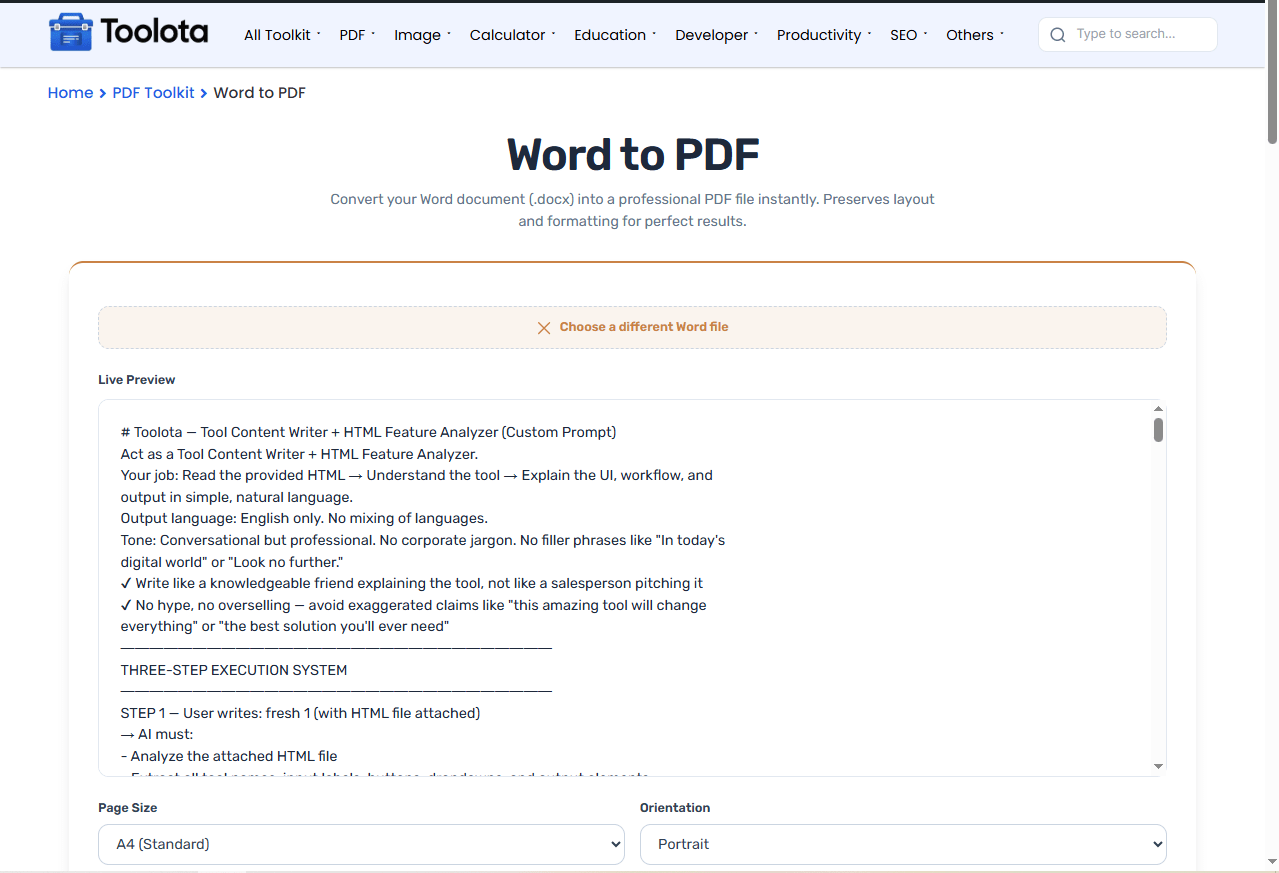

Click the upload zone or drag and drop one or more .docx files directly onto it. Each file must be under 50MB. Uploaded files appear in the Word Files list with name and size shown.

After uploading, the settings panel appears. Select your preferred page size — A4, Letter, or Legal — and choose between Portrait or Landscape orientation for the output PDF.

Scroll through the live thumbnails to confirm every page looks correct.

Once conversion is complete, the Convert button is replaced by a Download button. Single file — downloads as a .pdf file directly.
The interface has a dotted upload area in the middle where users may choose or drop. docx files that are up to 50 MB in size apiece. The file list is accompanied by controls for page size (A4, Letter, Legal) and orientation (Portrait or Landscape) after the files have been loaded. The “Convert to PDF” button triggers the conversion with a live progress bar showing file-by-file status. After completion, a download button replaces the convert button — single files save directly as PDF, multiple files package automatically into a ZIP.
Need to edit the PDF’s content again after converting? PDF to Word brings it back into an editable format.
Generated several PDFs from DOCX files and want them in one document? Combine them with Merge PDF.
Before sharing the final PDF, add a password with Protect PDF if it contains sensitive content.
The tool renders everything client-side into standard PDF — an ISO 32000-recognized file format that keeps your document’s layout consistent across any device.
The entire word to pdf converter process runs directly in your browser using Mammoth.js and html2pdf — no file is sent to any server.
The tool converts .docx content including images, paragraphs, and structure into PDF with formatting maintained at 95% image quality and 1.6x render scale.
Remove individual files from the queue or clear everything at once without affecting files already converted — the tool separates queue management from output state.
Three page sizes and two orientation options give you precise control over how your final pdf page size settings appear before a single conversion runs.
This word-to-PDF converter gives you direct control over two output variables before conversion starts — page size and orientation. Selecting A4 produces output sized to international document standards, while Letter fits North American print requirements, and Legal extends the page length for contracts or legal documents. The portrait/landscape PDF toggle changes the page axis entirely — Portrait keeps the standard vertical layout, while Landscape rotates for wide-format content like tables or slides. Since these settings are applied at the jsPDF rendering level during conversion, the resulting PDF will accurately reflect your choices rather than a default fallback.
Only .docx files are supported. The file input is restricted to .docx format and files outside this type will not be processed.
Yes. Each individual file must be 50MB or under. This limit is shown directly in the upload zone
Currently the tool handles one Word file at a time. For several files, convert them one after another.
When more than one file is converted, the download converted pdf output is automatically packaged into a ZIP file named converted_documents.zip for a single download.
Yes. Images embedded in .docx files are rendered into the PDF with max-width scaling and auto height to fit within the page boundaries.
Toolota is your all-in-one online tools platform. Fast, simple, and free utilities designed to make everyday digital tasks easier and smarter.
