View and navigate your JSON data in a clear, collapsible tree-view structure.
A JSON Viewer Online parse, format, and explore complex JSON data in seconds. Whether you’re debugging an API response, analyzing configuration files, or working with large datasets, this tool gives you a clean collapsible tree view alongside a code editor. Upload a file, paste raw JSON, or fetch it directly from a URL. Use the built-in formatting tools to beautify JSON, minify it, or validate its structure instantly.
Drag and drop JSON file upload
Load JSON directly from a URL
Paste JSON into a monospace editor with line numbers
Auto-update tree view as you type
Collapsible tree view with expand/collapse all
Sort object keys alphabetically
Search within tree by key or value
Beautify (pretty-print) JSON with customizable tab spacing
Minify JSON to a single line
Validate JSON with error messages
Download JSON as a file
Word wrap toggle for the editor
Font size controls for the editor
Big number support for large integers
Fullscreen mode for the tree panel
Breadcrumb path display with copy path
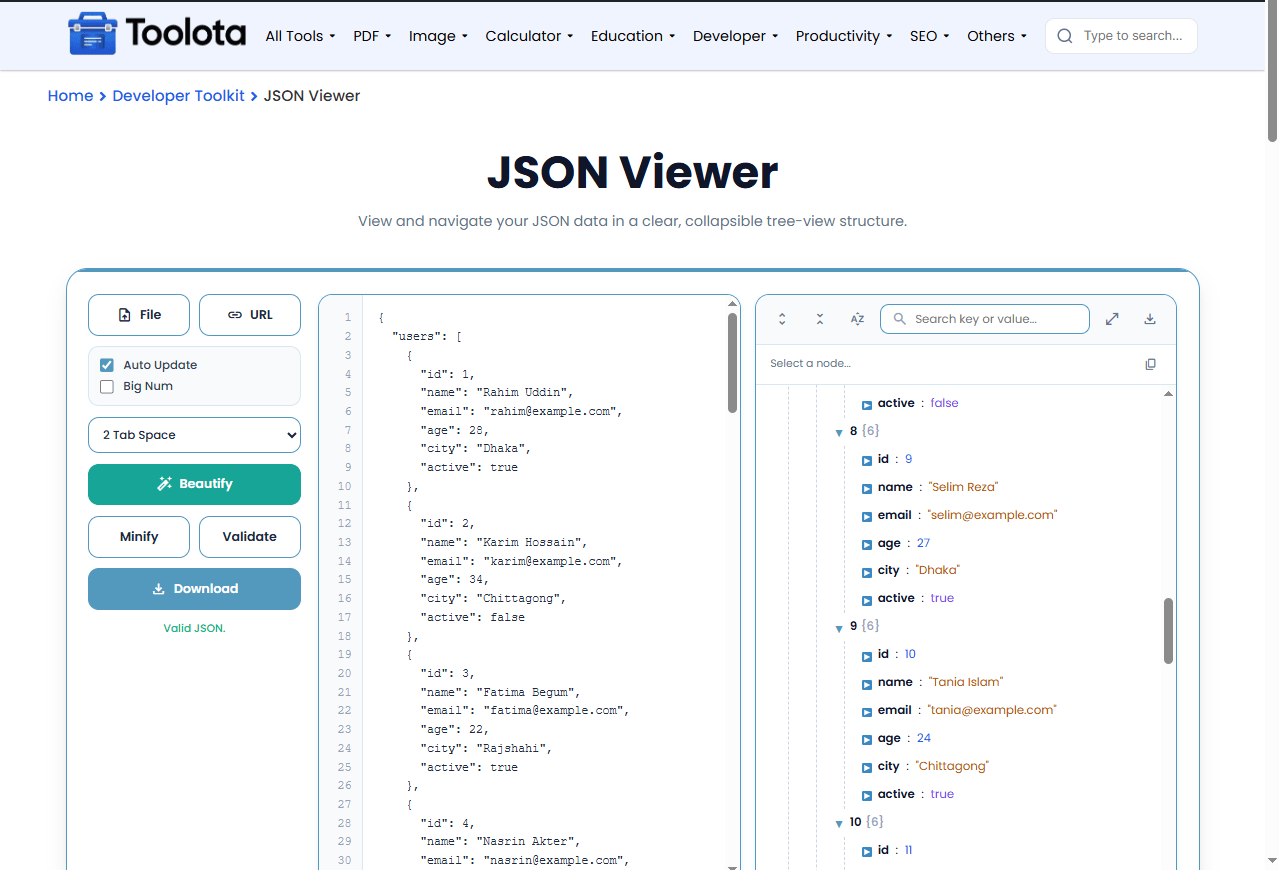

Upload a JSON file using the File button, or paste your code directly into the editor.

Fetch JSON from any URL using the URL button.

The tree view updates automatically when Auto Update is enabled.

Click the toggle arrows (▼/▶) to expand or collapse nested objects and arrays.

Use Beautify, Minify, or Validate buttons to format or check your JSON.
“How do I view JSON online? Just paste your code, upload a file, or fetch from a URL — the tree view builds instantly.”
Upload a file, paste raw JSON, or fetch from any URL. Whatever your workflow, the tool adapts.
Adjust font size, toggle word wrap, and view line numbers and character position.
Auto-update the tree as you type, or use the Validate button to check for errors.
Toggle support for large integers to avoid parsing errors.
Expand or collapse all nodes at once, sort keys alphabetically, and search by key or value.
Beautify JSON with 2-space, 4-space, or tab indentation. Minify to a single line instantly.
Download the formatted JSON as a file with a single click.
Search the tree by key or value, and copy the path of any selected node.
Enable Auto Update to see tree changes instantly as you edit.
Use the search box to quickly find specific keys or values in large JSON files.
Toggle Sort Keys A-Z before downloading to organize your output consistently.
The collapsible tree view transforms raw JSON into an interactive visual hierarchy. Objects appear with curly braces {} and arrays with square brackets [], each showing the number of children. Clicking a node displays its full path in the breadcrumb, and you can copy that path instantly. String values appear in orange, numbers in blue, booleans in purple, and null values in gray. You may quickly distinguish between data kinds and confidently browse deeply nested structures with the aid of this color-coded system.
It helps developers read, navigate, and debug JSON data by displaying it in a collapsible tree structure with formatting tools.
Yes, use the File button or drag and drop a .json file directly into the editor area.
Yes, the Validate button checks your JSON for errors and shows clear messages if something is wrong.
No, everything runs locally in your browser. Your data never leaves your device.
Yes, click the URL button and enter any JSON endpoint to load data directly.
Keys appear in bold, string values in orange, numbers in blue, booleans in purple, and null values in gray.
Toolota is your all-in-one online tools platform. Fast, simple, and free utilities designed to make everyday digital tasks easier and smarter.
