
Recent Tools
No tools found matching your search.
↑↓ Navigate
←→ Category
↵ Select
esc Close
Calculate population or sample standard deviation with full statistics — mean, median, mode, variance, range, and dot plot.
This Standard Deviation Calculator turns a list of numbers into a complete statistical summary in one click. Whether you need population standard deviation or sample standard deviation, the tool automatically adjusts its formula. It instantly shows the mean, variance, range, and even a dot plot, giving you a clear answer ready for reports or analysis.

Type or paste your numbers into the "Enter Your Data" text area. The placeholder 4, 7, 13, 2, 9, 11, 5 shows the correct format.

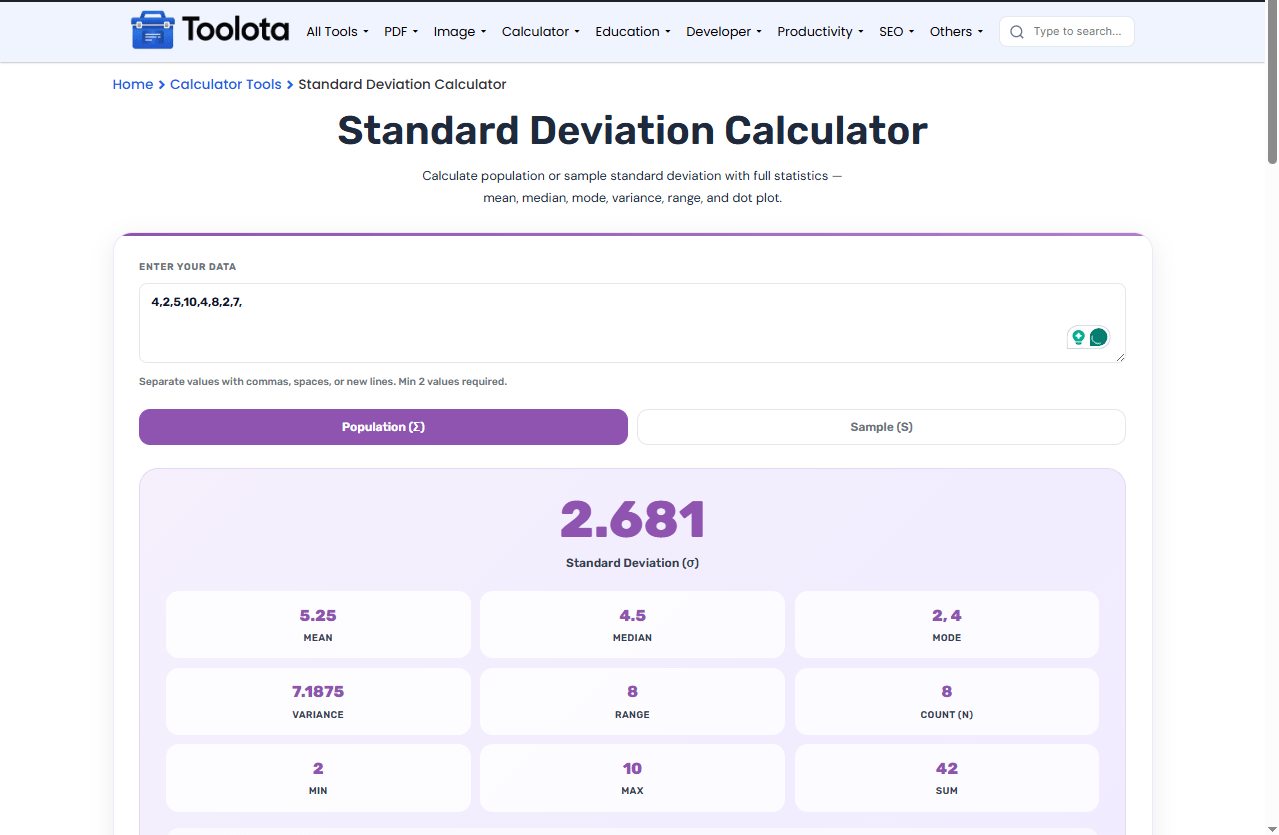
Click either "Population (σ)" or "Sample (s)" depending on your data set. The active button turns purple.

Press the purple "Calculate" button. The result shows the standard deviation in large text at the top, followed by the mean, variance, range, and a full statistical breakdown.
Population & Sample Modes – Toggle between “Population (σ)” and “Sample (s)” using dedicated buttons. The calculator updates the formula and label instantly.
Complete Statistics Output – Automatically calculates and displays mean, median, mode, variance, range, count, min, max, and sum.
Interactive Dot Plot – Visualizes every data point as a dot, with a green marker for the mean, helping you see data distribution at a glance.
Flexible Data Input – Enter numbers separated by commas, spaces, or new lines inside the large text area.
Clear & Calculate Actions – One button runs the calculation, another clears all fields and results with a single click.
If your dataset comes from survey scores or class grades, the GPA Calculator can help you interpret individual results alongside the spread you calculate here.
Comparing consistency across two groups? Run each dataset separately and cross-check the averages with the Average Calculator.
If your numbers represent measurements in different units, convert them first with the Unit Converter before calculating standard deviation.
A low standard deviation means your data points cluster tightly around the mean, while a high one signals more variability — this is why SD is one of the most common ways to describe spread in a dataset.
No need for multiple tools. This calculator provides mean, median, mode, variance, and range all on one screen.
Paste data, switch modes, and recalculate without refreshing the page.
Divides by n in population mode and by n − 1 in sample mode.
The dot plot lets you spot outliers and see how tightly numbers cluster around the mean.
This Standard Deviation Calculator includes a built-in dot plot that activates every time you calculate. Below the statistics grid, each number from your list becomes a small purple dot. If you need to find range or understand spread, the dots show gaps and clusters instantly. A green dot marks the mean position. For people who learn better visually, this turns abstract numbers into a clear picture of how your data behaves.
Population standard deviation divides by n (total count), while sample standard deviation divides by n-1 to better estimate a larger group.
Yes, the results panel displays mean, median, and mode together for easy comparison.
The calculator works with any set of 2 or more numbers. The dot plot scales automatically.
The dot plot stays the same. Switching modes changes only the standard deviation and variance, because the mean and the data points do not depend on the mode.
Yes, variance appears in the statistics grid right below the mode value.
Toolota is your all-in-one online tools platform. Fast, simple, and free utilities designed to make everyday digital tasks easier and smarter.
