No tools found matching your search.
Image to PDF - Image Tools

Image to PDF

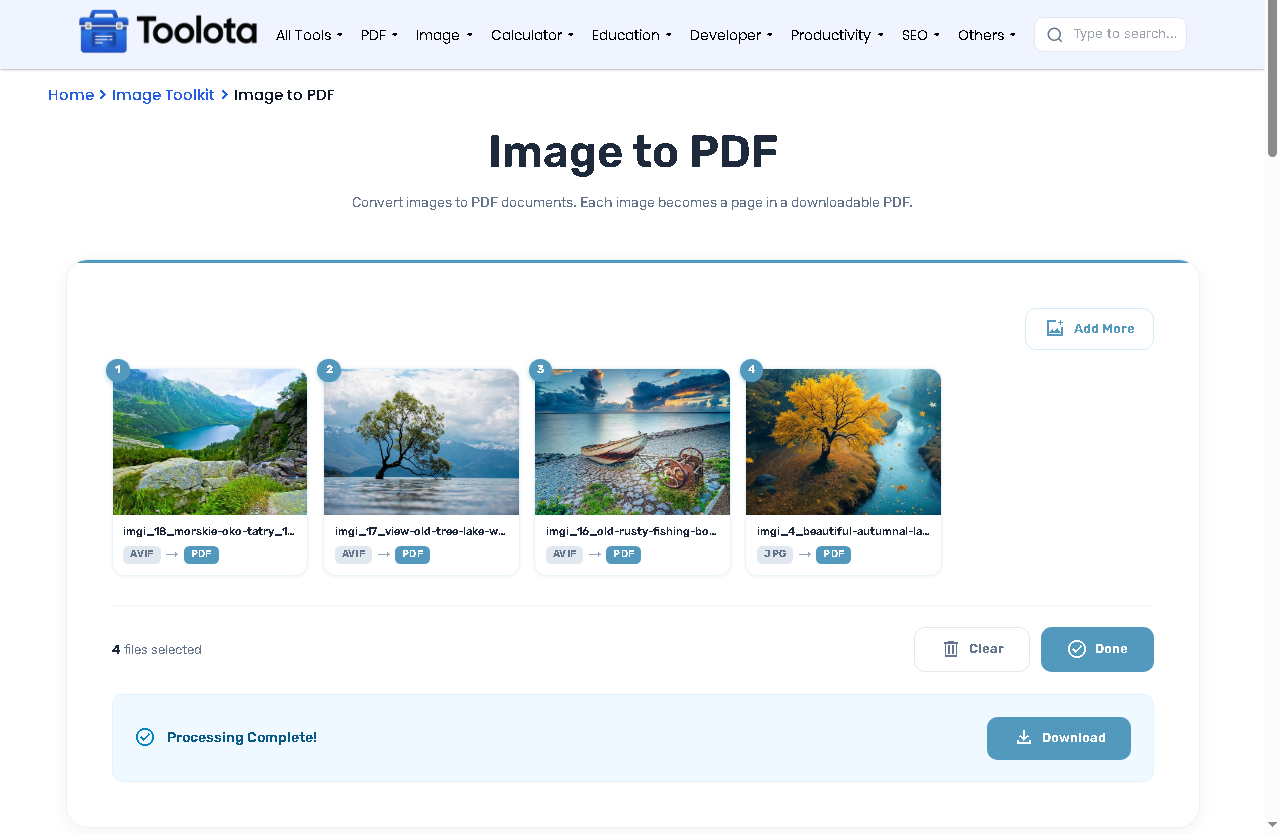
Convert images to PDF documents. Each image becomes a page in a downloadable PDF.

cloud_upload

Drag & Drop your images here

or click anywhere in this box to browse files
Preview
1 / 1

Other Tools

PNG to JPG
SVG to PNG
PDF to JPG
Remove Background
Resize Image
Crop Image
Compress Image
Image to PDF
PDF to JPG

Convert Image to PDF - Free PDF Maker Into Any Image

Need to convert Image to PDF quickly? This tool lets you drag and drop images, turning each one into a separate PDF page. Whether you have JPGs, PNGs, or other image types, the image to PDF converter processes them in seconds. You can reorder pages before finalizing, then download a single document — making this a complete PDF maker tool for any image format.

Page Reorder & Smart Preview: Convert Image to PDF with Control

Convert Image to PDF Tols

3 Steps to Convert Image to PDF Using the PDF Maker

1

Add Your Images

Click inside the drop zone or drag files directly. The tool accepts any image type.

2

Reorder Pages (Optional)

Use the move arrows (↑ ↓ ← →) on each file card to rearrange page order. Page badges update automatically.

3

Convert and Download

Click the "Convert to PDF" button. Once processing completes, hit "Download" to save your PDF.

Pro Tips for Best Results

Click any thumbnail image to open the lightbox and inspect details before converting.

Use the “Clear” button to remove all images and start over instantly.

The progress bar shows exactly which image is being processed during conversion.

Download buttons appear only after conversion completes — look for the green success banner.

Why Choose This Image to PDF Converter?

📁 Drag & Drop Simplicity —

No complex menus. Just drop images into the zone.

🖼️ Clickable Thumbnails —

Zoom any image with the built-in lightbox popup.

✅ Success Banner —

Clear visual confirmation when your PDF is ready to download.

🔁 Live Page Reordering —

Move images up, down, left, or right before conversion.

⚡ Batch Processing —

Add unlimited images; each becomes one PDF page.

Smart Page Arrangement: Rearrange Before You Convert Image to PDF

Most tools permanently lock your image order. This PDF maker lets you drag, drop, and use arrow buttons to rearrange images even after uploading. Each file card shows a page number badge that updates in real time. Want image 3 to become page 1? Just click the up arrow. The final PDF respects your custom order exactly.

Frequently Asked Questions

Can I convert multiple images into one PDF?

Yes. Drop all your images at once; each image becomes a separate page in the same PDF document.

Use the move arrows (up, down, left, right) on any file card to change page order instantly.

No. The tool accepts any number of images and processes them one by one.

A progress bar shows processing status, then a success banner appears with a download button.

Yes. Click any image thumbnail to open a full-size lightbox popup with zoom.

Yes. Every image card displays a page number badge that updates when you reorder.