Resize your images to exact pixel dimensions, by percentage, or use social media presets. Live preview included.
Drag & Drop your images here
or click anywhere in this box to browse files
Processing images...
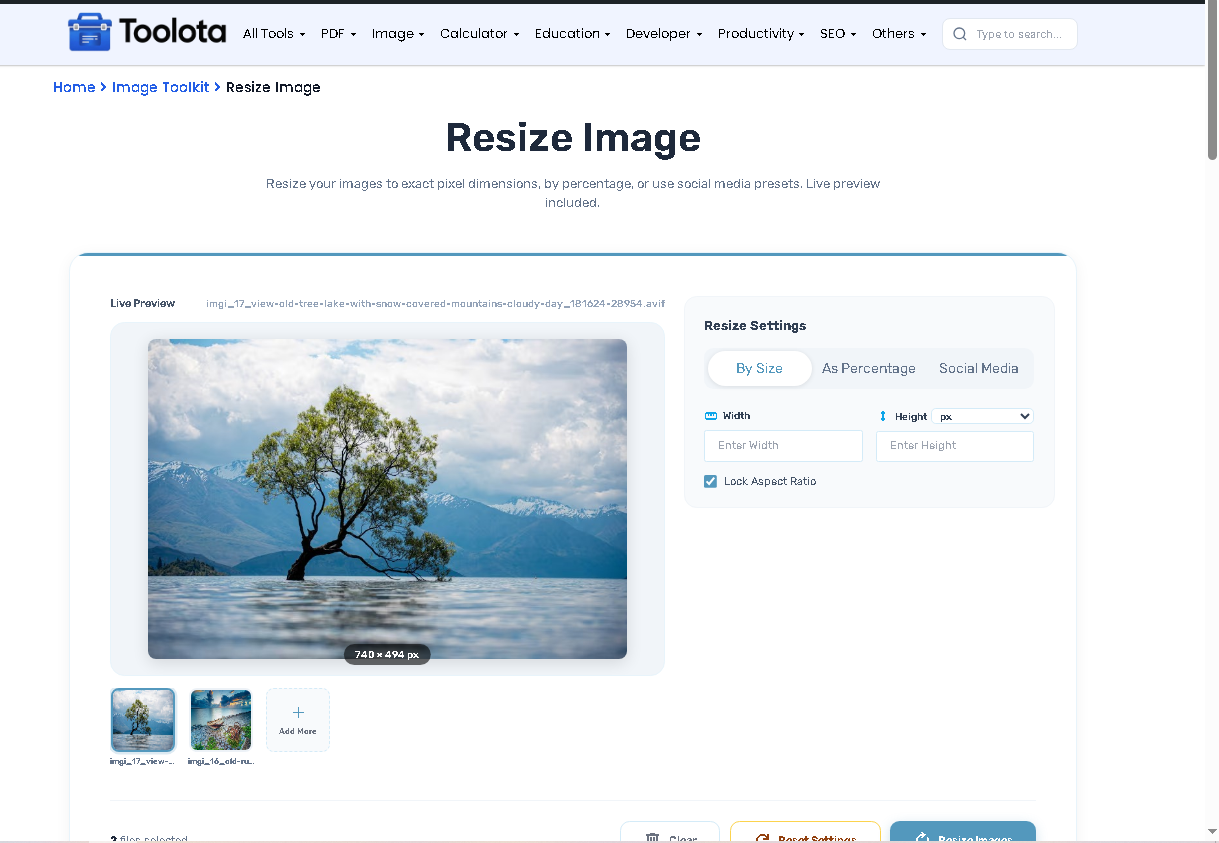
To resize image online quickly, this tool gives you three flexible methods: exact pixel dimensions, a percentage slider, or popular social media presets. You can upload multiple pictures and see the result update instantly in the live preview panel. This means you get a visual confirmation of the new image resizer tool output before you save any file, making it ideal for preparing social media image sizes like YouTube thumbnails or Instagram stories.
All controls come from the HTML interface, ensuring every feature is clickable and functional.
Resize by Dimensions: Enter exact Width and Height. Toggle “Lock Aspect Ratio” to prevent distortion. Switch units between Pixels (px), Centimeters (cm), or Inches (in).
Resize by Percentage: Use a slider range from 1% to 400% to scale your image resizer tool output relative to the original size.
Social Media Presets: Select from YouTube, Instagram, Facebook, Twitter, LinkedIn, and TikTok. Each platform updates to show specific presets (e.g., YouTube Thumbnail: 1280×720).
Background Fill: For social media crops, enable “Background Fill” to add a solid color or transparent background when the aspect ratio doesn’t match the target.
Rotate, Flip & Crop: Each image thumbnail has buttons to open dedicated modals for rotating clockwise, flipping horizontally, or cropping with a draggable selection box.
Follow these steps based on the actual interactive elements found in the tool.

Click the drop zone or drag & drop your files. The interface accepts multiple images at once.

Click the tabs at the top of the settings panel: "By Size", "As Percentage", or "Social Media".

To resize image online, type in new width/height, move the percentage slider, or select a platform preset like "Instagram Square Post".

The main canvas and thumbnail strip update immediately, showing the exact dimensions (e.g., 1080 × 1080 px).

Click the "Resize Images" button. After processing, choose "One by One" or "Download as Zip" and click the "Download" button to save your converted pictures.

Everything happens inside your browser – no upload to any server.
Maintain Quality: When using the “By Size” tab, always keep “Lock Aspect Ratio” checked to avoid stretching your photo.
Use Zip for Batch Jobs: If you need to resize multiple images (more than 5), select the “Download as Zip” option in the success banner for a faster, organized download.
Transparent Background: To save an image with a transparent background, you must select “PNG” as your original file type and choose “Transparent” under the Background Fill options in the Social Media tab
The HTML structure reveals several unique benefits for anyone needing to resize image online.
Upload multiple files and resize multiple images at once. The thumbnail strip lets you navigate between them, and you can remove specific images using the "X" button on each thumbnail.
When you change image dimensions using the "By Size" tab, enabling "Lock Aspect Ratio" automatically calculates the matching height based on your original picture’s proportions.
Crop & Rotate: Use the rotate (clockwise) and crop (crop icon) buttons on any thumbnail. These open separate modals where you can experiment before applying changes permanently to that specific picture.
The main preview area uses a canvas element to render the final output. This gives you a true "what-you-see-is-what-you-get" result, including any background fills or cropping adjustments.
Unlike a basic image resizer tool, this one contains a dynamic dropdown system for social media image sizes. When you select “YouTube” from the platform menu, the “Preset Type” dropdown automatically populates options like “Thumbnail (1280×720)” or “Channel Art (2560×1440)”. If you need to crop image online for Instagram Stories, just switch the platform, and the width/height fields update to 1080×1920. The tool also intelligently handles mismatched aspect ratios by giving you a “Background Fill” section with a color picker or a transparent option, ensuring your picture fits the required frame perfectly.
Select the “By Size” tab, enter your desired Width and Height, and ensure “Lock Aspect Ratio” is on to keep proportions.
Yes, upload several files, and the batch image resizer will process all of them. You can then download them as a single ZIP file.
The tool activates “Background Fill” to add a solid color or transparent bars to fit the picture into the exact preset dimensions without cropping.
Yes, click the rotate button (top-left) on any image thumbnail to open a modal where you can rotate clockwise or flip the image.
Click the crop button (bottom-left) on the thumbnail. A modal will open with a draggable selection box and handles to define your exact crop area.
Toolota is your all-in-one online tools platform. Fast, simple, and free utilities designed to make everyday digital tasks easier and smarter.