
RTF to PDF
Converts Rich Text Format (.rtf) files to PDF. Preserves formatting, headings, and styling.
Click to upload or drag and drop
Rich Text Format files (.rtf) only — Max 50MB
Converts Rich Text Format (.rtf) files to PDF. Preserves formatting, headings, and styling.
Click to upload or drag and drop
Rich Text Format files (.rtf) only — Max 50MB
filename.rtf
—
Converting...
Need to convert RTF to PDF quickly? This tool transforms your Rich Text Format files into professional PDFs while keeping all formatting intact. Whether you’re asking “how do I save an RTF as a PDF?” or searching for a RTF to PDF converter that works in your browser, this is your answer. Just upload, preview, and download – no software required. The conversion maintains the exact appearance of your original document, including bold text, italic styling, underlines, paragraph structure, and even special characters.
| Feature | What It Does |
|---|---|
| Drag & Drop Upload | Click or drag your .rtf file into the upload zone |
| Live Document Preview | See your Rich Text Format content before converting |
| Page Size Options | Choose A4 (Standard), Letter, or Legal page dimensions |
| Orientation Control | Switch between Portrait and Landscape layout |
| Progress Indicator | Watch real-time conversion status with percentage bar |
| One-Click Download | Save your PDF instantly after conversion completes |
| File Removal | Remove current file and start over with Clear button |
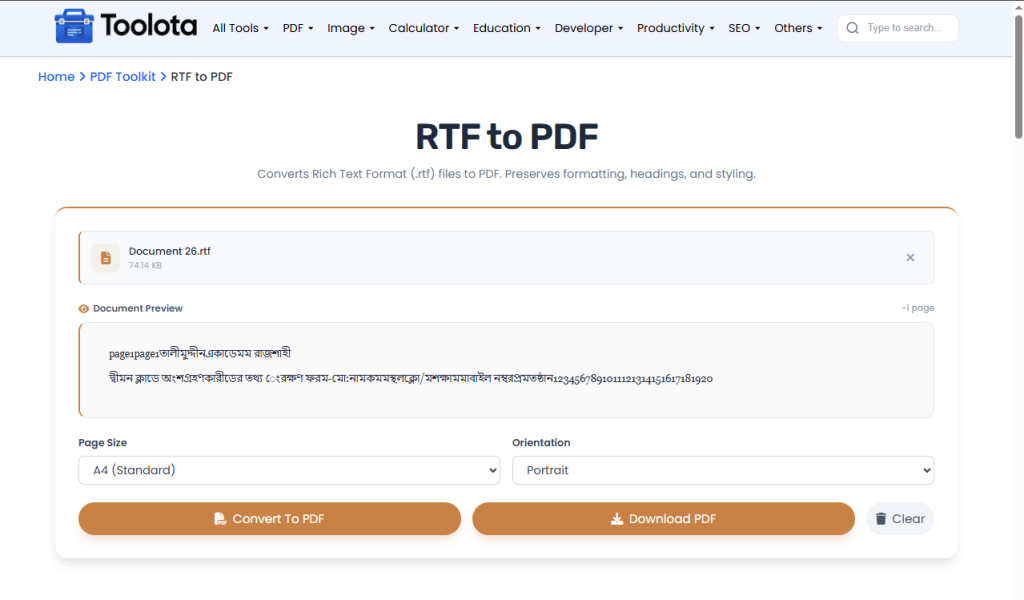

Click the upload area or drag-and-drop your Rich Text Format file directly onto the drop zone. The tool accepts .rtf files up to 50MB. You'll see a file information bar appear with your document name and size.

Once uploaded, the tool automatically generates a live preview panel showing how your RTF content appears. The preview shows approximate page count and displays all formatting – bold headings, italic text, underlined sections, and paragraph breaks.

Choose your preferred page size from A4, Letter, or Legal. Select Portrait for standard documents or Landscape for wider content like tables or certificates.

Click the orange Convert button. Watch the progress bar fill from 10% to 100%. Once complete, the Download button appears – click it to save your PDF instantly.
Use A4 for standard documents – Most printers and readers expect A4 size for letters, reports, and forms
Switch to Landscape for wide tables – If your RTF contains data tables or wide images, landscape orientation prevents clipping
Preview before converting – Always check the live preview to catch formatting issues early
Convert smaller files first – Test with a short RTF to verify settings before processing large documents
Clear between conversions – Start a fresh file by resetting the tool entirely using the Clear option.
Bold, italic, underline, font styles, and paragraph structure remain intact
All processing happens in your browser – your files stay private
Use Clear button to remove current file and start a new conversion
See exactly what your PDF will look like before converting
Control page size (A4/Letter/Legal) and orientation (Portrait/Landscape)
Visual progress bar shows conversion status step by step
Yes – the tool preserves bold, italic, underline, paragraph structure, and special characters exactly as they appear in your original RTF file.
Yes – the tool works entirely in your browser with no registration, no watermark, and no hidden fees.
You can select A4 (Standard), Letter, or Legal page sizes from the Settings dropdown before converting.
Upload your file using drag-and-drop or click the upload area, preview the content, adjust page settings, click Convert, then download your PDF.
All processing happens locally in your browser – your RTF file never uploads to any server, keeping your documents completely private.
The tool processes one file at a time. Click Clear after each download to convert another RTF file.
Yes – Portrait works best for standard letters and documents, while Landscape is ideal for wide tables, certificates, or brochures.
Toolota is your all-in-one online tools platform. Fast, simple, and free utilities designed to make everyday digital tasks easier and smarter.