Add Page Numbers
Insert page numbers into your PDF document with custom positioning and styling.
Drag & Drop PDF here
or click anywhere in this box to browse
Insert page numbers into your PDF document with custom positioning and styling.
Drag & Drop PDF here
or click anywhere in this box to browse
Add page numbers to PDF documents directly in your browser — no installation, no account needed. Upload your file, configure the number placement exactly where you want it, and get a clean numbered PDF ready to download. Whether you need bottom-center numbering for a report or a custom starting number for a chapter, this tool handles it with full visual control. Since the whole procedure takes place on the client side, your file never leaves your computer.
Drag & Drop Upload Zone Click or drag a PDF into the upload area — invalid formats trigger an alert instantly.
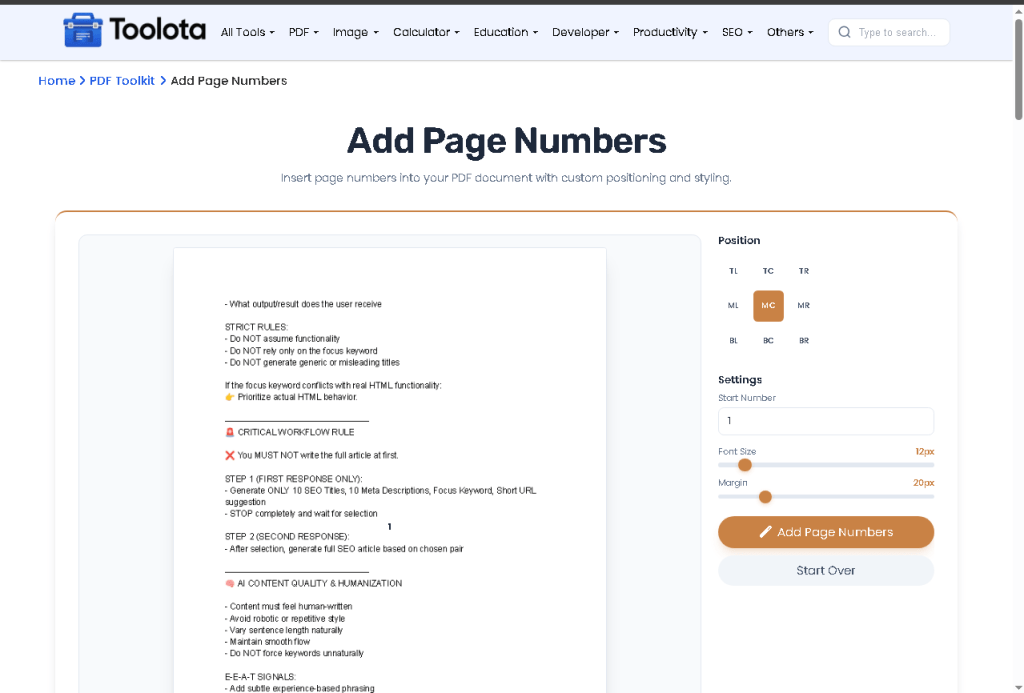
9-Point Position Grid Nine buttons (TL, TC, TR, ML, MC, MR, BL, BC, BR) select number placement. Active button highlights in orange. Default is MC.
Start Number Input Number field sets the first page value. Default is 1.
Font Size Slider Range 8px–48px. Live value updates beside the label. Default 12px.
Margin Slider Range 0px–100px. Controls distance from page edge. Default 20px.
Live Preview Canvas First page renders with a real-time number overlay — updates instantly on every setting change.
Add Page Numbers Button Triggers full document processing. Shows spinner during run. Auto-downloads as numbered_[filename].pdf.
Start Over Button Clears file, resets editor, returns to upload zone.

Drag your PDF into the upload zone or click to browse. The tool accepts only valid PDF files and confirms the upload by switching to the editor view.

Click any button on the 9-point grid to choose where numbers appear on each page. The preview overlay updates immediately so you can see the placement before committing.

Enter the number you want on page one. Every page after that increments by one automatically. Default is 1.

Drag the Font Size slider to scale the number text between 8px and 48px. Watch the live value and the preview overlay update together as you move the slider.

Use the Margin slider to push the number inward from the page edge. Range is 0px to 100px. Increase this for printed or bound documents to avoid trim cutoff.

Click the "Add Page Numbers" button. The tool stamps every page sequentially and auto-downloads the finished file as numbered_[filename].pdf. No extra steps needed.
→ Preview first — Always confirm overlay on page one before processing large files.
→ Cover page skip — Set start number to 0 so page 2 displays as
→ Print margin — Use 40px–60px margin for bound documents to avoid trim cutoff.
→ Font size guide — 10px–14px is clean for A4. Above 20px competes with edge content
→ Formal docs — BC or TC matches most report and academic formatting standards.
Nine buttons cover every zone — corners, edges, and center. One click locks the position and the preview confirms it instantly.
Start from any value. Perfect for multi-section documents that continue from a previous file — the tool counts forward automatically.
Scale number text from 8px to 48px. The preview overlay reflects every change in real time so you always see the result before processing.
Numbered PDF downloads directly to your device the moment processing finishes. No extra steps.
Set the gap between the number and the page edge from 0px to 100px. Works for both screen documents and print-ready files.
Every setting change — position, size, margin — updates the canvas overlay instantly. No surprises in the final output.
Every page stamped in one run. Large files handled with frame-by-frame rendering so the browser stays responsive.
This tool calculates placement individually for every page using the actual page dimensions — not a fixed template.
Your start number applies to page one and increments by one per page automatically. The output saves as a brand new file — your original PDF is never modified.
Yes. All pages are processed in one run. Each page receives its own number starting from your set value and incrementing by one per page.
Yes. The 9-point grid covers all corners, both side edges, top center, bottom center, and middle center — nine options total.
Page one gets number 5, page two gets 6, page three gets 7, and so on across the entire document.
Yes. The first page renders as a live preview canvas. The number overlay updates in real time as you change any setting.
The output saves as numbered_ followed by your original filename. Your source file is never changed.
Yes. The tool uses frame-by-frame batch rendering to keep the browser stable during processing of large documents.
No. The entire process runs inside your browser. Your file never leaves your device.
Click “Start Over” to reset the tool completely, then upload your next PDF.
Toolota is your all-in-one online tools platform. Fast, simple, and free utilities designed to make everyday digital tasks easier and smarter.