Reduce PDF Size – Fast & Reliable PDF Compressor | Toolota
Table of Contents
Description Section
Ever tried sending a huge PDF via email or uploading it to a site with strict file limits? You know how annoying that can be. Lots of people—students, professionals, and businesses—need to make their PDFs smaller. That’s where Toolota’s free Reduce PDF Size comes in handy. It’s an online tool you can use right in your browser to really cut down the size of your PDFs.
Why Choose Us (Toolota)
It’s really important to pick the right tool when you need to shrink a PDF. You’re looking for something dependable, quick, and above all, safe for your data. Here’s why Toolota is a great choice:
Trustworthiness & Safety: Your documents are handled with top-notch security. We use encrypted connections, and importantly, files are automatically wiped from our servers right after they’re processed. This means your sensitive details don’t stick around or get mishandled.
Precision & Quality: Our compression method is clever. It’s not just about making PDFs smaller; it’s about getting them to the best possible size. The tool thoughtfully adjusts the compression to keep the quality high, so your text stays sharp and images remain clear even after the file size is reduced.
Efficiency: Since it’s a web-based tool, there’s no need to wait for downloads or updates. You can start right away. The actual compression takes just a few seconds, really living up to the promise of a speedy solution for shrinking PDFs.
Special Extras: Toolota goes beyond basic shrinking. It lets you pick your compression level (like “Low,” “Medium,” or “High”), giving you control over how much quality you’re willing to trade for a smaller file size—a feature you might not find in free tools.
How This Tool Works
Toolota’s Reduce PDF Size is designed to be both straightforward and effective. Here’s a closer look at how you can use it to shrink your PDF files efficiently:
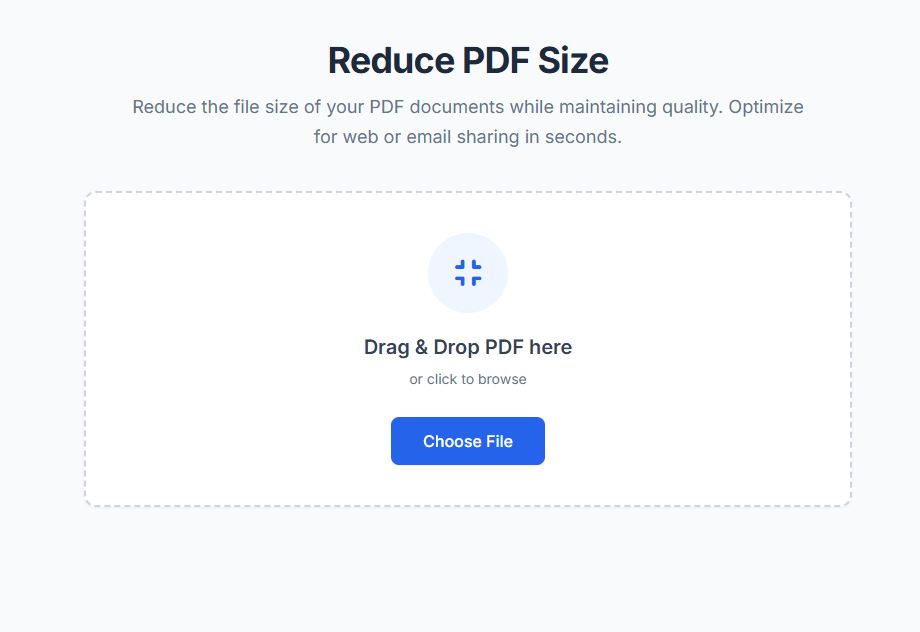
1.The Upload Area: The main part of the tool is a big box right in the middle. You can easily drag your PDF file directly into this box from your computer folders, or you can click the “Choose File” or “Browse” button to find and select your document. This is how you get started with reducing your PDF’s size.
2.Compression Level Option (Advanced): Before or after you upload your file, you’ll usually see a dropdown menu or a slider. This handy feature lets you decide how much you want to compress the file. “Low Compression” keeps the quality high while still making the file a bit smaller, whereas “High Compression” makes the file much smaller, which is great for web use when you don’t need perfect quality.
3.The “Compress” or “Reduce Size” Button: Once your file is uploaded and you’ve set your preferences, you’ll see a clear button (often labeled “Compress,” “Reduce Size,” or “Shrink PDF”) that becomes ready to use. Just one click on this button gets our powerful algorithms working to analyze and shrink your PDF.
4.Processing and Progress Feedback: After you click the button, you’ll see a progress bar or a spinning icon appear. This shows you that your file is being processed safely. Our algorithms get to work on resizing images, tidying up document details, and making the PDF’s inner structure more efficient to reduce its size.5.The Output & Download Panel: Once the process is finished, you’ll see the interface change. It will show you the original file name and size, right next to the new, smaller size of your compressed file. This clearly displays the percentage of reduction you’ve achieved. There will also be a large, easy-to-spot “Download” button. Just give that a click to save the lighter PDF straight to your computer. Sometimes, you might also get a little thumbnail preview of the file.
6.Right Panel / Side Features: You might notice a clean sidebar or panel with some extra helpful information. This could include useful tips on getting the best compression (like, “For the best results, make sure your images are under 5MB before you create the PDF”). It might also show a list of files you’ve recently processed, which is handy as this list is saved right in your browser.
Key Benefits
Using Toolota to shrink your PDF files comes with plenty of great benefits that make managing digital documents much easier:
Keeps Quality Intact: It manages to cut down file sizes a lot while still keeping your document perfectly readable and looking good.
Speedy Processing: Here, “content generation” means creating a new, smaller file version. The whole process, from uploading to downloading, usually takes less than a minute, even for big files.
Helps with SEO (for Webmasters): If you run a website, smaller PDFs load faster, and faster loading times are something search engines like Google really like. So, using Toolota to make your site’s PDFs smaller can indirectly give your SEO a boost.
Works Everywhere: Since it’s a web tool, it works smoothly on all sorts of computers—Windows, Mac, Chrome OS, and Linux—and it’s compatible with popular browsers like Chrome, Firefox, Safari, and Edge.
Super Easy to Use: You don’t need to learn anything new; the design is so straightforward that anyone can jump right in and start shrinking their PDFs, no matter their tech skills.
Important Conditions
To get the best results when you use Toolota to shrink your PDF file, keep these points in mind:
How Much It Shrinks Depends on the Original File: How much smaller your PDF can get really depends on what’s inside it. A PDF packed with high-quality pictures will shrink a lot more than a text-only PDF that’s already stored efficiently.
We Recommend a Quick Check: Our compression works well, but for really important documents, it’s smart to quickly look over the file you download to make sure all the pages and key images look correct.
Only Use It for Legal Reasons: Please only use this tool for legitimate purposes. It should not be used to compress documents for any harmful reasons, to break copyright laws, or to share anything illegal.
Frequently Asked Questions (FAQ) About the PDF to JPG Converter