HTML to PDF - PDF Tools

HTML to PDF

Convert HTML code or rich text to PDF format.
.

PDF Settings

Convert HTML to PDF Easily: Toolota Magic

In today’s digital workspace, we all need to easily turn web content into professional, shareable documents. That’s why a solid HTML to PDF converter is so important. Our free online tool, Toolota Magic, is just what you need to bridge the gap between HTML and PDF files. It lets you turn any piece of HTML—whether it’s basic text formatting or something more complex with styles—into a sleek PDF document in just seconds, right from your browser.

Table of Contents

2. Why Choose Toolota for HTML to PDF?

When you’re looking for a conversion tool, finding something that’s reliable and easy to use is really important. Here’s why our HTML to PDF converter is a great choice:

Super Reliable & Accurate: We use a strong rendering engine to make sure your PDF looks exactly like your original HTML. Every detail, from fonts and colors to spacing and images, stays exactly as you intended. Say goodbye to those annoying formatting errors!

Super Fast: See your conversion happen right before your eyes! No waiting around, no server delays. As soon as you click “Convert,” your PDF is practically ready in an instant, saving you valuable time.

Flexible Inputs: We’ve got options for everyone, whether you’re tech-savvy or not. Choose between a direct HTML code editor for developers or a user-friendly rich-text editor (like a word processor) for those who like a “What You See Is What You Get” approach.

Simple & Intuitive Interface: We believe powerful tools shouldn’t be confusing. Our interface is clean, well-organized, and easy to figure out. Everything is clearly labeled, and you can even see a live preview of your PDF before you create it to make sure it looks perfect.

Great for Content Creators: With the built-in visual editor that has tools for bolding, italics, lists, and more, you can write and style your content right in the tool itself. Then, just convert it to PDF. It’s a handy one-stop solution for both creating and converting your work.

3. How This Tool Works: A Detailed Walkthrough

Let’s take a closer look at the Toolota Magic HTML to PDF converter and see just how powerful it is, step by step.

Step 1: Add Your Content

To get started, you’ll pick how you want to add your content using the clearly marked tabs at the top.

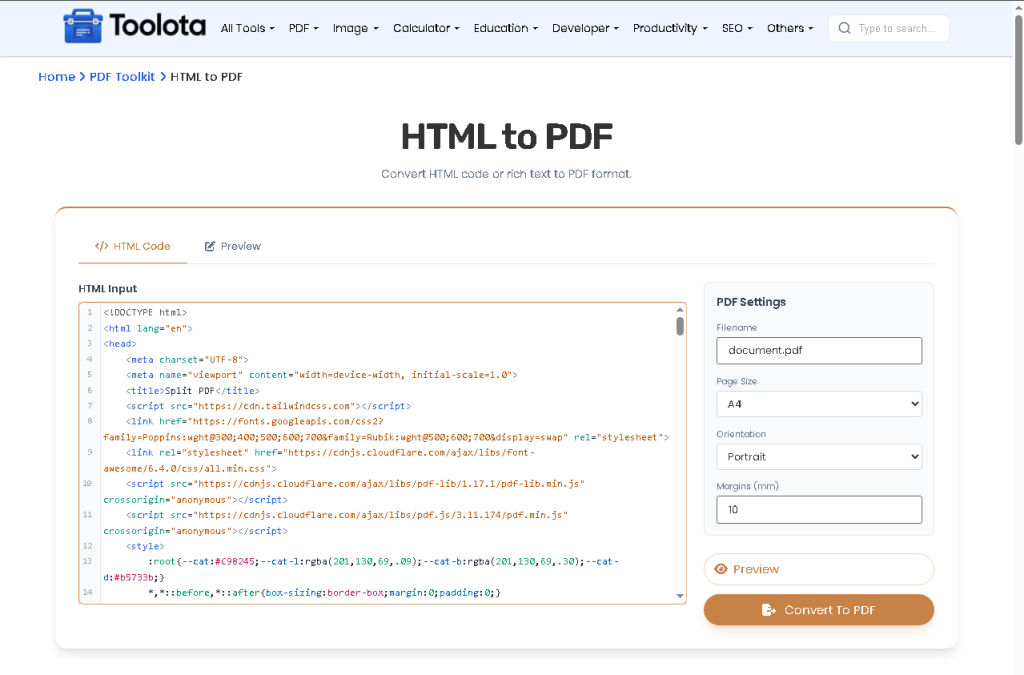
HTML Code Input: If you head to this tab, you’ll see a dark code editor ready for you. This is where you can paste your HTML, CSS, and even JavaScript code directly. It’s ideal if you’re a developer with code ready to go or if you’re testing out specific parts of a webpage. For instance, you could paste something like this: `<h1>My Report</h1><p>This is a paragraph with <strong>bold text</strong>.</p>`.

Rich Text Editor Input: Switch over to this tab if you prefer a more visual way to create your content. The editor here has a familiar toolbar with all the usual formatting options: B for making text bold, I for italics, buttons for lists, alignment tools, and more. You can type right into it, paste text from another document, or use it to tidy up and style your content however you like.

Step 2: Personalize Your PDF Settings (Right Panel)

Before you convert your content, you can tweak the settings on the right side to get your PDF just right:

Filename: Decide what you want your PDF to be called when you download it (for example, my-document.pdf).

Page Size: Pick a standard size like A4, Letter, or Legal.

Orientation: Choose whether you want your pages to be Portrait (taller than wide) or Landscape (wider than tall).

Margins: Set the space around the edges of your pages in millimeters to make sure everything looks neat and spaced out just how you want it.

Step 3: Check and Create

Update Preview Button: Give this a click to see how your content will look in the “Live Preview” area below. It’s a handy way to spot any problems with how things are displayed before you make the PDF.

Convert to PDF Button: This is the key button that does the work! Once you click it, it starts turning your content into a PDF. It uses a tool called html2pdf.js to take your content, apply the settings you chose, and create the PDF file. As it works, the button will change to say “Generating…” so you know it’s busy.

Step 4: Get Your PDF and Go

After the PDF is ready, it will download straight to your computer automatically. The tool takes care of all the tricky stuff behind the scenes, so you get a neat, ready-to-use file.

How This Tool Works: The Most Detailed Section

Let’s take a look at exactly how you can use the Toolota platform to fix PDF files. We’ll go through the easy-to-follow steps from start to finish.


The Main Upload Area: When you first visit the Toolota website, you’ll see a big, easy-to-use box for uploading files. You can simply drag your broken PDF right into this box, or click on it to find the file on your computer. This makes starting the repair process super simple.


Processing and Analyzing Your File: After you upload your file, it jumps right into the repair queue. You’ll see a progress bar and a message like “Analyzing PDF structure…” to let you know what’s happening. Behind the scenes, our special engine carefully examines the file to find out where the problems are—whether it’s in the header, a table that tracks different parts of the PDF, the font information, or the images.


The Safe Repair Engine: This is the heart of the Toolota tool. It works on Toolota’s secure servers and uses smart guessing techniques (called heuristic algorithms) to fix any problems with the file’s structure, save any readable information, and put together a PDF that follows Adobe’s rules. Importantly, it never changes your original file, so there’s no risk of making things worse.


Downloading Your Fixed PDF: Once the repair is done, you’ll see a preview of the fixed document (if a preview is possible) and a clear “Download Repaired PDF” button. Just one click starts the download. Everything you need—from uploading your file to downloading the fixed version—happens right on one clean webpage.


Rich Text & Editor Tools (For Result): Even though our main job is fixing PDFs, we make sure the end result is actually useful. The tool guides you through the process with clear instructions. Plus, if the PDF we fix looks like a standard document, we’ll even suggest some programs you can open it with. This way, you can easily use common formatting features like bolding text, italics, creating lists, and highlighting in different colors for any further work you need to do.


How Inputs Convert to AI Output: The “smarts” behind our tool comes from how well it recognizes patterns. It doesn’t just blindly guess at fixing the file; instead, it’s learned what common types of damage look like by processing millions of documents. This learning allows it to make smart corrections, essentially “healing” the file. It’s not just pulling out raw text; it aims to keep the original layout and design looking right.

Key Benefits of Using Our HTML to PDF Tool

Accuracy and Fidelity: As mentioned, our tool really shines when it comes to keeping your original HTML looking exactly the same, which is super important for professional work.

Rapid Content Generation: Instead of needing print dialogs or complex software setups like before, you can now create PDFs with just one click. This really speeds up how you get things done.

SEO-Optimized Output: Even though the PDF is meant for sharing, the tool helps make clean, well-organized documents that search engines can find easily if you put them online.

Privacy-Focused: Since the conversion happens right in your browser using JavaScript, your HTML code and content never leave your computer. This means your data stays completely private.

User-Friendly Interface: Everything, from the tabbed design to the clearly marked settings and the live preview, is made to make using the tool feel smooth and easy.

Toolota Magic HTML to PDF Converter Interface with Live Preview
5. Important Conditions for Optimal Results

To get the best PDF results from your HTML, keep these pointers in mind:


Your Input Matters: The quality of your final PDF really depends on how good your HTML is to start with. Clean, well-organized HTML will give you the best outcome. Keep in mind that complicated CSS or certain external resources (like fonts or images from specific CDNs) might not always display exactly as expected.

It’s Wise to Double-Check: Even though our tool is quite precise, it’s always smart to use the “Update Preview” feature to take a look at your results before you convert anything, especially if it’s an important document.

Purpose Policy: This tool is meant for legitimate uses only. Please don’t use it to create or share anything harmful, illegal, or copyrighted material without having the proper permissions.

Browser Basics: For everything to work correctly, you’ll need a modern web browser that’s up to date (such as Chrome, Firefox, Safari, or Edge) with JavaScript turned on.

Frequently Asked Questions (FAQ) About the PDF to JPG Converter

Q1: Is the HTML to PDF conversion process truly free with Toolota Magic?

A1: Absolutely yes. Our HTML to PDF converter is completely free to use with no hidden charges, watermarks, or page limits. You can convert as many documents as you need.

A2: The current version of our tool is designed for converting HTML code or rich text content that you paste directly into the editor. For converting live web pages via URL, a backend service is typically required due to security restrictions (CORS). Our tool focuses on providing the fastest and most private direct HTML to PDF conversion.

A3: The Rich Text Editor allows users who aren’t familiar with HTML code to format their text visually using buttons for bold, italics, lists, etc. This editor generates clean HTML in the background, which is then used for the HTML to PDF conversion, ensuring anyone can create professionally formatted PDFs.

A4: Your privacy and security are our top priority. The entire HTML to PDF conversion process is executed locally within your own web browser. Your code or content is never uploaded to our servers or stored anywhere, guaranteeing maximum safety for your sensitive information.

Toolota – 350+ Free Online Tools for PDF, AI, Design & More. Use any place, any time with out paying and signup needed.

Popular Catalogory

Popular Tools

2025 ©Toolota- All copyright reserved