Typography Previewer – Live Font Preview Tool | Toolota
Take control of your website’s look and feel using the ultimate Typography Previewer. This live font preview tool from Toolota gives designers and developers the power to create, see, and export flawless typography systems instantly. Say goodbye to the hassle of switching back and forth between code and browser.
Our interactive Typography Previewer puts detailed control over Google Fonts, sizes, weights, and spacing right in your hands, and it generates clean CSS code with just one click. Tap into the power of 30+ top fonts and revolutionize your design process starting today.
Table of Contents
What This Tool Does
A Typography Previewer is a must-have tool for web designers, acting like a creative playground where you can try out different font styles. Toolota’s version of this tool is a dynamic, browser-based app built using HTML, CSS, and JavaScript. It lets you personalize the typography of key HTML elements—like headings (H1, H2), paragraph text, and buttons—using more than 30 popular Google Fonts.
This tool tackles the tricky issue of separating design from development by giving you a live preview panel that updates in real time as you tweak settings. Front-end developers, UI/UX designers, and content creators can use this Typography Previewer to create a consistent typographic structure, check readability, and lock in visual styles before even touching production CSS, which really speeds up the prototyping process.
Why Choose Toolota
Picking the right Typography Previewer really makes a difference when it comes to getting things done right and accurately. Toolota’s tool is special because it’s made after carefully considering what developers actually need in their day-to-day work. Unlike those basic font dropdown menus, our tool lets you tweak each element individually. We’ve used a responsive grid layout for both the control panel and the preview area in the HTML, so you can use the tool no matter what device you’re on.
The JavaScript behind it keeps things tidy by managing a clean state for each element like h1, h2, p, and button. This means you can reset things easily and experiment without worrying about messing anything up. The tool is reliable because it directly connects with Google Fonts and uses pure CSS properties, ensuring the preview you see is exactly what your final code will look like. Features like live CSS output, the ability to copy things with just one click, and visual cues that show you which element is active right now make this Typography Previewer a must-have in any modern web designer’s toolkit. It’s all about boosting your productivity and making you feel more confident in your creative choices.
How This Tool Works: The Most Detailed Section
This section takes a closer look at the tool’s interface and what it does, explaining how every HTML part and script comes together to create the live Typography Previewer experience.
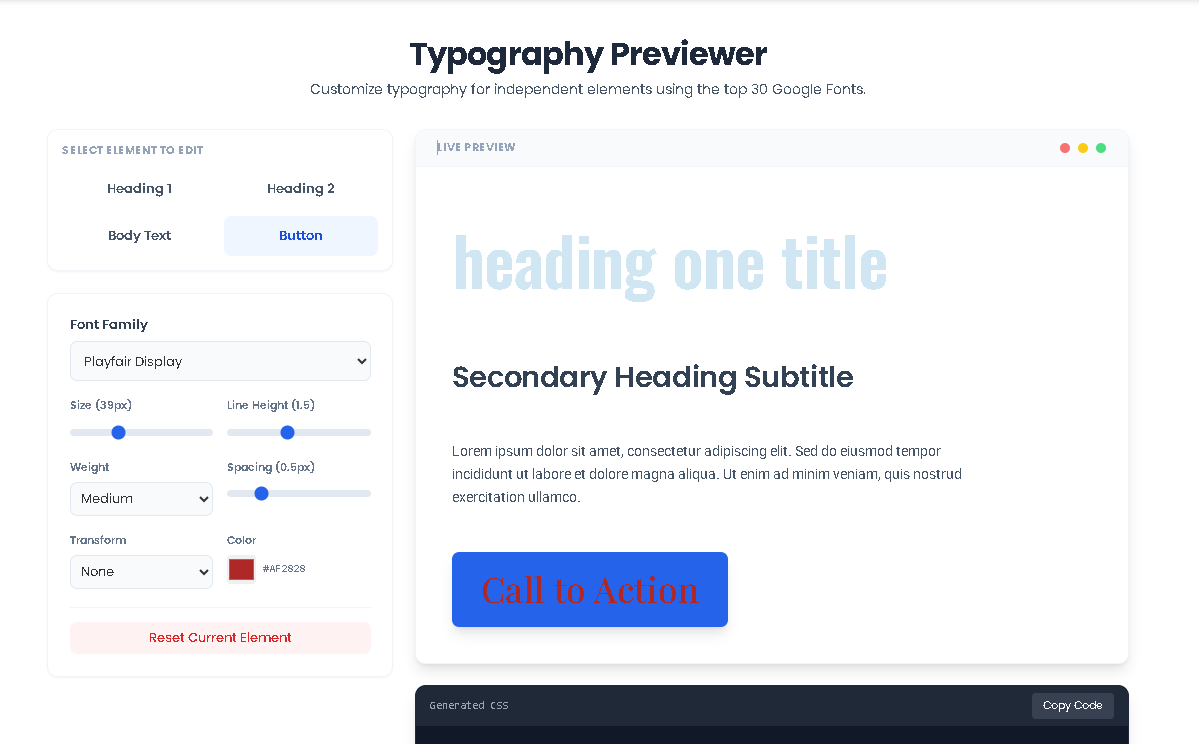
1. The Control Panel & Element Selector: Over on the left side, you’ll find the control panel – it’s built using Tailwind CSS for styling. All the controls are gathered here. At the very top is the Element Selector, which uses a grid of button tags. Each button has a special function attached (like selectElement('h1')), which calls a main JavaScript function to change what you’re currently editing. The button you’re using is clearly marked with blue borders and background, and this highlighting is managed by simply switching some CSS classes on and off.
2.Choosing a Font Family: The Font Family dropdown menu (with the ID “font-family”) gets filled in automatically using JavaScript. When the init() function runs, it goes through each font in the googleFonts list and makes an <option> for every one. Each option also gets its font style set, so the dropdown shows a live preview of what each font looks like. When you pick a font, the handleInput function changes the current settings and applies the new style to the preview.
3. Live Slider Controls: Font Size and Line Height: These sliders let you adjust the details precisely. As you move them, the current values show up right next to the sliders in the spots labeled “font-size-val” and “line-height-val”. The JavaScript code reads these values as numbers (whole or decimal) and updates both the settings and the preview area’s style directly.
Letter Spacing: This slider is special because it can go both ways—from -2px up to 10px. That means you can tighten or loosen the spacing between letters with exact control, which is something simpler preview tools often miss.
4. Dropdowns for Weight and Transform: The Font Weight and Text Transform dropdown menus give you a set of professional font options. When you choose something like “Semi Bold (600)” or “Uppercase,” the JavaScript updates the corresponding properties in the current settings. Then, those changes are applied as regular CSS to the preview area.
5. Using the Color Picker: The color control features a standard color input field paired with a display area (color-val). When you pick a color, it instantly updates the hex code shown and the text color of the element. This visual change appears right away in the live preview panel of the Typography Previewer.
6. The Live Preview Area: On the right side, you’ll see the preview panel (preview-container), which shows how your text will look. Each preview element—like H1, H2, P, and Button—is wrapped in its own div with styling and a click handler. This means you can click directly on any text to select it for editing. The applyStyle() function adjusts the inline styles of these elements, giving you that real-time, live preview effect. Hovering over elements shows dashed outlines and their tags to make it easier to use.
7. The CSS Code Generator and Output Panel: This is a really important part of the tool. The updateCSS() function goes through the currentState object, and for each type of element, it creates a neatly formatted CSS rule string using template literals. It includes all the properties that have been set, like font-family, size, line-height, and so on. This CSS string is then put into the <code id="css-output"> section, which has a dark theme to make it easy to read. When you click the Copy Code button, it uses the modern navigator.clipboard.writeText() API to copy the CSS, and a little “CSS copied” message pops up for a moment to let you know it worked.
8. The Reset Function: The “Reset Current Element” button has an event listener attached to it. When you click it, it replaces the current element’s style in currentState with a fresh version from the defaults object. Then it calls syncControlsToState(), applyStyle(), and updateCSS() to make sure the whole interface is up to date. This shows how the tool keeps track of its state in the Typography Previewer.
Benefits This Tools
See changes happen right before your eyes as you work, cutting out all the guesswork and saving you from endless browser refreshes. This Typography Previewer transforms the usually slow, back-and-forth process of typography design into a smooth, creative session.
Get pixel-perfect accuracy every time. The CSS it generates is spot-on and ready for production, so what you design is exactly what you’ll deploy. You even have control over decimal values for line-height and letter-spacing, guaranteeing precision.
Lay a strong foundation for SEO and accessibility. A clear typographic hierarchy created with this tool improves how your content is structured and read, which is great news for both users and search engines.
Make collaborating a breeze. Share a single URL to the Typography Previewer to chat with stakeholders and nail down the typography, or simply copy the generated CSS for a seamless handoff to your development team.
Enjoy a clean and intuitive interface. Built with Tailwind CSS, the UI is uncluttered, responsive, and totally focused on the task of styling your typography.
Experience ultimate convenience. Features like one-click copy and a live code panel mean your finished styles are always just moments away from being implemented in your project.
Important Conditions & Guidelines for Use
While this Typography Previewer is a really useful tool, there are a few things to keep in mind:
What You See Depends on You: The tool gives you the controls, but making the text look truly great relies on the choices you make. Think about things like contrast, size, and which fonts you pair together.
Always Give it a Test Run: It’s a good idea to test the CSS it creates right in your own project. Check it out on different browsers and devices to make sure it looks perfect everywhere.
Use It Responsibly: Please use this tool only for projects you have the right to style. If you’re using fonts beyond the included Google Fonts, make sure you have the proper licenses, especially if it’s for commercial use.
Great for Learning: This previewer is also an excellent way for beginners to see exactly how different CSS settings affect how text looks on the screen.
Frequently Asked Questions (FAQ)