
Image Filter Editor
Upload an image and apply various filters using HTML5 Canvas. Adjust parameters and download your edited image instantly.
Upload an image and apply various filters using HTML5 Canvas. Adjust parameters and download your edited image instantly.
In our modern, digital-focused world, great visuals are absolutely crucial if you want to catch people’s attention. Whether you’re posting on social media, writing a blog, or running an online shop, the quality of your pictures really makes the difference between engaging your audience or missing the mark. That’s why having a top-notch Image Filter Editor is so important. Toolota’s Image Filter Editor is designed to be a fast online photo editor, giving you professional-level editing tools right at your fingertips without the hassle of heavy desktop software. You can easily turn a plain photo into something truly eye-catching in just a few seconds, all from your web browser. The best tools should make your creative process easier, not harder.
An Image Filter Editor is a handy software tool, usually available online, that lets you tweak and improve your digital photos. Basically, it uses smart algorithms to change the individual pixels in an image, transforming how it looks. This can be as simple as adjusting brightness and contrast, or as creative as applying fancy artistic effects that make a photo look like a painting or an old film. It’s kind of like having a digital darkroom where you can instantly control every detail of your photo’s vibe and sharpness. The main aim is usually to fix any flaws—like bad lighting—or to give the picture a certain style to evoke a feeling or match a brand’s look. A great Image Filter Editor, such as the one from Toolota, brings together these fixing and styling features in an easy-to-use setup, making sophisticated photo editing possible for marketers, bloggers, small business owners, and social media managers.
Picking the right online tool really makes a difference when it comes to getting things done efficiently and keeping your work looking sharp. That’s where Toolota‘s Image Filter Editor really shines—it puts a strong emphasis on making things easy for users while still packing a powerful punch. You won’t find it bogged down with ads or holding you back with low-quality results like many other online editors do. Instead, Toolota offers a clean, focused space to work in. We’ve built our tool using reliable tech to make sure your edits go on smoothly and your images stay high-quality when you download them. We’ve also made sure the interface is super simple, guiding you from uploading your picture to exporting it without any confusion. And we’re always looking to get better—Toolota is dedicated to regularly updating the Image Filter Editor with new filters and features based on what users like you tell us.
This part takes you through the complete process of using our online Image Filter Editor, with a detailed look at every feature.
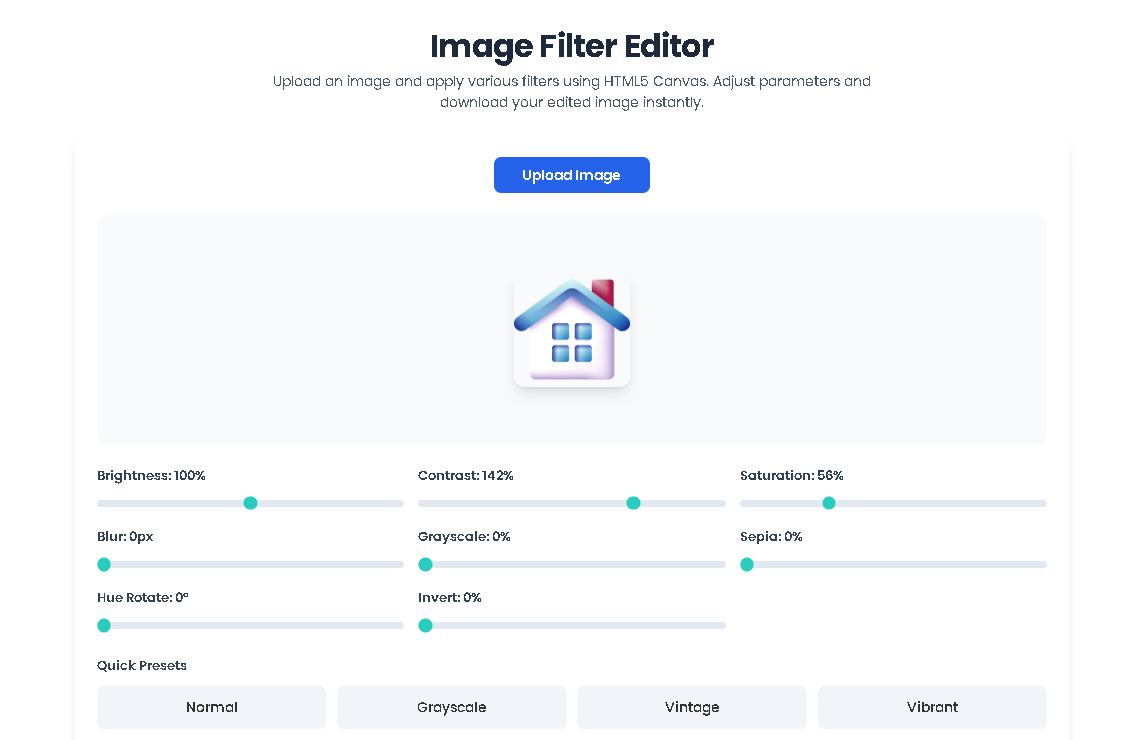
1. The Upload Area: Your editing adventure starts the moment you open the Toolota editor. You’ll notice a big “Upload Image” button right in the middle of the screen, or a spot where you can simply drag and drop your photo. We’ve made it super easy to use, so you can upload common file types like JPG, PNG, and WebP. After you upload, the system will quickly show you a little preview of your image right in the main editing space.
2. The Main Editing Space and Toolbar: Once your image is ready, the main editing space is where you’ll work your magic. Right around it is the toolbar, which is where you’ll find all the tools you need to make your changes. Whether you are looking for an image editor or a Box Shadow Generator, Toolota ensures a seamless experience.
Adjustment Tools: Think of these as your basic, essential corrections. You’ll find sliders and input fields that let you easily fine-tune things like Brightness, Contrast, Saturation, Hue, Exposure, and Sharpness. And the best part? You get to see exactly how each change looks on your image right away.
Filter & Effect Library: This is where the real fun begins, it’s the heart of the Image Filter Editor. Imagine scrolling through a panel filled with little picture previews showing off different filter styles: Vintage, Black & White, Portrait Enhance, Vibrant Colors, Dramatic, and more. Just click on any filter you like, and it pops onto your photo instantly. Plus, many filters come with a slider so you can dial the effect in just right – subtle or strong, whatever you prefer.
Basic Manipulation Tools: Simple, essential tools like Crop, Rotate, and Flip are right at your fingertips, easy to find. When you use the crop tool, you can choose popular preset shapes (like the square 1:1 for Instagram or the wide 16:9 for banners) or just crop it freely however you like.
Focus & Blur Tools: These are a bit more advanced and let you be really creative. Tools like Tilt-Shift (which creates that cool miniature look) and Radial Blur let you decide exactly what part of your picture is sharp. You can artfully blur the background or foreground to make your main subject really stand out.
3. The Advanced Settings Panel: If you’re looking for even more control over every little detail, check out the “Advanced” or “Pro” tab. Clicking it will open up a whole new set of more detailed controls on Toolota.
Color Grading: Here you get separate sliders just for Shadows, Midtones, and Highlights. This lets you adjust the colors in each part of your photo separately, achieving a professional, movie-like look.
Noise Reduction & Vignette: Use these to clean up those grainy photos (often from low-light situations) and also to add a nice, subtle darkening around the edges of your picture. This helps draw the viewer’s eye right to the center of your image. Just as a Box Shadow Generator adds depth to elements, these tools add depth to your photos.
Texture & Overlay: Want to add some extra character? This section gives you options to include things like light leaks, film grain, or other subtle textures that can really make your photo unique on Toolota.
4. Finishing Touches (Right Side Panel): Once you’re happy with how your image looks, use the panel on the right to wrap things up.
Before & After Preview: This handy button lets you instantly flip between the original image and your edited version, so you can clearly see all the changes you’ve made.
Export Settings: This is where you prepare your image for saving. You can give your file a new name, choose the format you need (like JPG or PNG), and adjust the quality using the slider. There’s even a tool that estimates the final file size, helping you find the sweet spot between great quality and a size that works well online.
Action Buttons: Big, easy-to-find buttons are here to help you finish the job. Use “Download” to save the edited picture straight to your computer, or “Copy to Clipboard” to grab it instantly for pasting into a document or social media post. And if you change your mind, the “Reset” button lets you start fresh.
5. How It All Works (Real-Time Processing): While you’re making all those adjustments, Toolota‘s Image Filter Editor is quietly working behind the scenes, responding to every single change you make. It uses smart, optimized methods to apply your edits in a way that keeps your original image data safe – mostly untouched until you export. This means you have lots of flexibility to tweak things and can easily undo changes. For the more complex filters, the heavy lifting happens on our servers. This ensures everything runs smoothly and quickly, no matter what device or browser you’re using. If you need other tools like a Box Shadow Generator, Toolota provides the same level of performance.
Get things done faster and more easily: Being a cloud-based tool means you don’t need to download or install anything. You can edit your projects from any device with a web browser and an internet connection, which is perfect for making quick changes when you’re out and about with Toolota.
Affordable Professional Quality: You get access to lots of features usually found in expensive desktop software, but without the subscription costs or the steep learning curve. That’s a great deal!
Better SEO and More Engagement: Visually attractive images that match your style will keep people looking at your pages longer and might even boost how often they click through, which indirectly helps your search engine rankings. Plus, our editor on Toolota helps you get the right file sizes for your images, which speeds up page loading times—a factor Google actually considers when ranking sites.
Simplify Your Content Creation: Quickly apply your brand’s specific look to lots of images at once. This ensures everything looks consistent, whether it’s blog graphics or posts for Instagram. If you’re designing layouts, you might also find our Box Shadow Generator very useful.
Easy-to-Use Design: The layout is straightforward, so you won’t waste time trying to figure out how it works. You can jump right into creating. It’s simple to get the hang of, so almost anyone can become skilled with it in no time on Toolota.
To make sure everyone has a great time using our tool and to keep everything running smoothly, here are a few things to keep in mind:
Original Quality Matters: The way your edited image turns out really depends on the picture you start with. If the original isn’t super clear or detailed, our tool can’t magically add those things that weren’t there to begin with.
You’re in Charge: Please remember that you’re responsible for the images you upload and any changes you make to them. We ask that you don’t use the tool for anything illegal, harmful, misleading, or to infringe on others’ rights.
Using It Fairly: You’re welcome to use the Image Filter Editor for both personal projects and your work, as long as it’s within reasonable limits. Just like using our Box Shadow Generator, we expect fair usage. We might need to limit using automated scripts for editing lots of images at once to make sure the service stays fast and reliable for everyone.
Real-World Service: We do our very best to keep the tool running perfectly all the time, but no service is ever 100% trouble-free. Toolota can’t guarantee that things will never go down or that errors will never happen.
Toolota’s Image Filter Editor focuses on a balance of powerful features and exceptional ease of use. We avoid cluttering the interface while providing advanced controls like color grading and noise reduction in an accessible way, all within a fast, ad-light processing environment.
No, you do not. Toolota’s Image Filter Editor is designed for instant access. You can upload, edit, and download your images immediately without any sign-up process, making it truly a quick and hassle-free online tool.
Absolutely. The Image Filter Editor is built with a responsive design that adapts to smartphones and tablets. The touch-friendly interface ensures all sliders and buttons work seamlessly on mobile browsers, allowing you to edit photos directly from your device.
Yes. We take privacy seriously. Uploaded images are processed temporarily to generate your edited version and are not stored permanently on our servers or used for any other purpose. They are automatically purged from our system shortly after your editing session ends.
Toolota is your all-in-one online tools platform. Fast, simple, and free utilities designed to make everyday digital tasks easier and smarter.