Favicon Generator from Image
Upload an image and generate favicons in multiple sizes (16x16, 32x32, 48x48). Download as a ZIP file ready for your website.
A Favicon Generator from Image is a handy online tool that takes your logo, graphic, or photo and turns it into that small, recognizable icon you see in browser tabs, bookmarks, and your browser history. This particular tool from Toolota takes care of the tricky technical stuff—resizing and formatting your image into the different square sizes (like 16×16 or 32×32 pixels) that work across all modern browsers and devices. Instead of having to manually crop and resize your image using design software, this Favicon Generator does it all for you in seconds, giving you a ready-to-use package. It’s a great solution for website owners, developers, and anyone creating content who wants a professional-looking favicon but doesn’t have the time or know-how for graphic design.
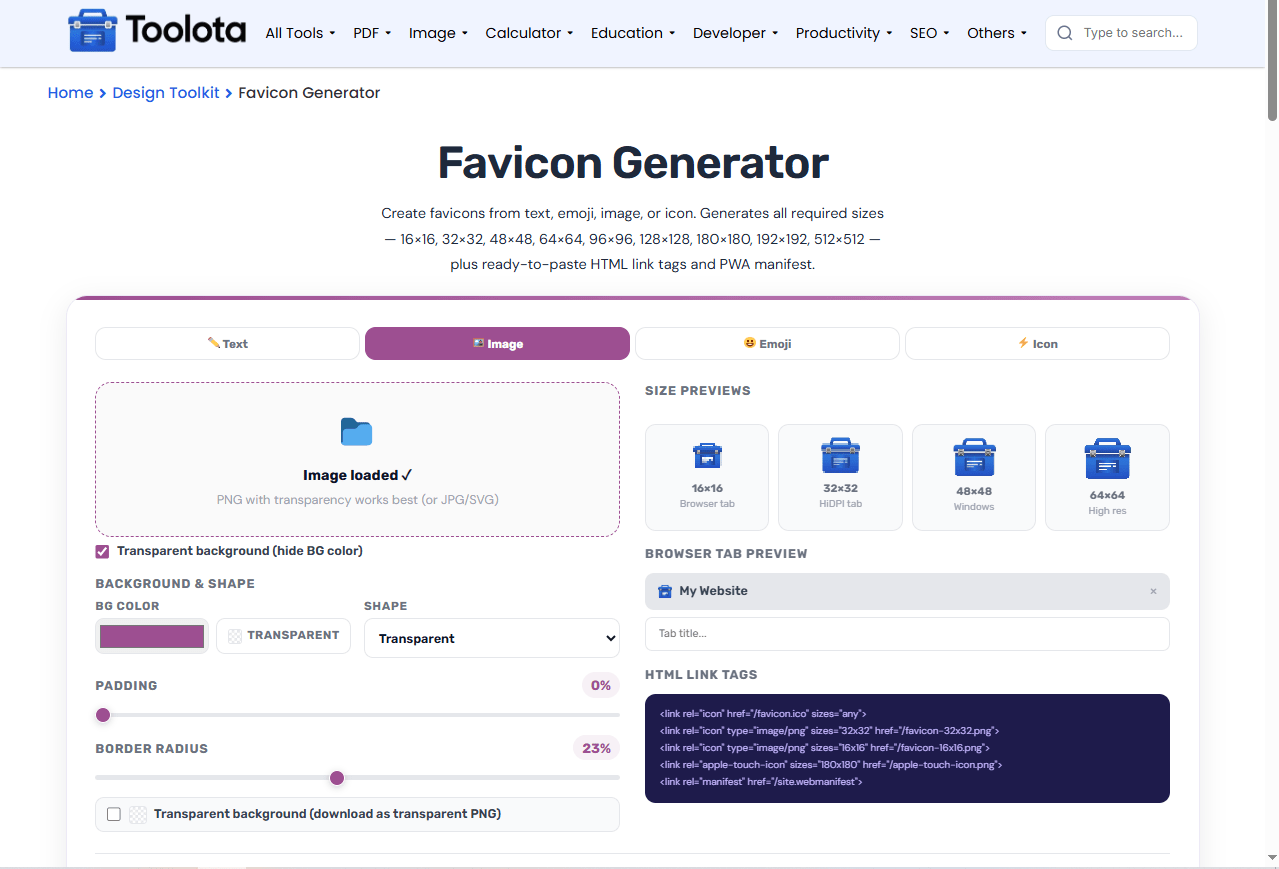
Going with Toolota‘s Favicon Generator from Image is a smart choice for a smooth, trustworthy solution that really cares about making things easy for you. Looking at the HTML code makes it clear why this tool is so handy. Its clean, user-friendly design, made with Tailwind CSS, makes the whole process—uploading to downloading—super simple. You can count on it because everything happens right on your computer; your picture never leaves your browser, which means your privacy is protected and it works fast. Cool features like seeing what it looks like right away on a preview screen and checking out all the different sizes (16×16, 32×32, 48×48, 64×64) in a grid give you a clear picture before you download anything.
This section gives a detailed look at each HTML element and the step-by-step process inside the Favicon Generator from Image.
1. The User Interface & Input Elements:
File Upload Trigger: The process kicks off with a nicely styled <label> element that works like a button for a hidden <input type="file">. This design creates a clean, clickable spot labeled “Upload Image” that accepts standard image formats (accept="image/*").
Visual Preview Canvas: The <canvas id="canvas"> element is the main spot where you see the visuals. When an image is loaded, JavaScript sets its size to 256×256 pixels and uses the Canvas API (ctx.drawImage) to show a clear, scaled preview. This lets you check exactly how your image will look as a square icon before you generate it.
Preview Grid Container: The <div id="preview-grid"> uses CSS Grid (grid-cols-4) to neatly arrange the generated favicon previews. JavaScript fills this container with the previews after the image has been processed.
2. Taking a Closer Look at How It Works (JavaScript Details):
Loading Images: When you pick a file, the FileReader API changes it into a special web-friendly URL called a Data URL. We then use this URL to set up a new image object. Once the image is fully loaded, we know it’s ready to work with, and we save it as originalImage so we can use it later.
Making the Previews (The generatePreviews Function): This part of the code sets up an array that lists all the target sizes we want. For each size in the list, here’s what happens:
Canvas Creation: It makes a tiny canvas element in the computer’s memory, just the right size (like 16×16 pixels).
Image Resizing: It takes the original full-size image and draws it onto this small canvas, which automatically resizes the image.
Data URL Conversion: It turns the resized image on the canvas into another Data URL.
Visual Display: It creates a little preview box with a small image (using the new Data URL) and a label, and adds this box to a grid on the screen so you can easily compare all the different sizes side by side.
3. The Output & Download System:
The Download Button: When you click the button with the ID <button id="download-btn">, it kicks off the packaging process. First, it checks to see if an originalImage has been uploaded.
ZIP File Creation: This tool uses the JSZip library to handle the ZIP creation. It goes through the sizes array, and for each size, it recreates the canvas and Data URL. A key step here is taking the Base64 part of the Data URL (that’s dataUrl.split(',')[1]) and adding it as a named file (like favicon-16x16.png) to the ZIP archive, making sure to use the { base64: true } option.
Final Delivery: The zip.generateAsync function builds the final ZIP file as a blob. Then, the script creates a temporary, hidden <a> link element. It sets the link’s href to the blob’s URL and its download attribute to “favicons.zip”. By programmatically clicking this link, it tells the browser to open the download dialog. Lastly, it cleans up by removing the temporary URL to save memory.
This smooth process—from selecting an image to getting a downloadable ZIP—really shows how modern web APIs work together to make an efficient Favicon Generator from Image.
It’s obvious why this particular Image-based Favicon Generator is so useful, just by looking at what it offers:
Speed: It creates a full set of favicon files super fast—ready in under 10 seconds.
Accuracy: It makes icons that are perfectly sharp and sized exactly right for all browsers and platforms.
SEO Boost: Having a proper favicon makes your site easier for visitors to spot in tabs and bookmarks, which indirectly helps your site’s ranking because it improves their experience.
Versatile Input: You can start with common image types like JPG, PNG, or SVG.
Easy Editing & Preview: See how your icon looks right away. If it’s not quite right, you can quickly change your original image and upload it again.
Simple Interface: The design is clean and easy to use, so you won’t get confused or need instructions.
Ultimate Convenience: Just one click gets you a ZIP file containing everything you need, all named and formatted correctly, so you can upload it instantly to your site’s main folder or use it with your theme customizer.
Keep a few things in mind when using the Favicon Generator from Image, even though it’s designed to be user-friendly:
Output Quality Relies on Your Input: How clear your final favicon turns out depends a lot on the resolution and quality of the image you start with. For the best results, use a simple, high-contrast logo.
Processing Happens on Your Device: No data is sent anywhere. That means your computer or phone does all the work, so you’ll need a modern web browser with JavaScript turned on.
Intended Use: This tool is meant for creating favicons for your own websites, projects, or for clients. Please don’t use it for anything illegal or harmful.
Always Test: Although the tool makes favicons in standard sizes, it’s a good idea to check how it looks in different browsers and on various devices to make sure it displays perfectly everywhere.
Toolota’s Favicon Generator from Image stands out due to its completely client-side, private processing and its all-in-one ZIP download. Your image data never leaves your computer, ensuring privacy. Furthermore, it generates a preview of all standard sizes simultaneously and packages them into one organized file, saving you multiple manual download steps.
Not at all. The Favicon Generator from Image is built for simplicity. You only need to provide an image file. The tool automatically handles the complex resizing, square formatting, and technical file preparation. The real-time preview lets you see the result instantly, making it accessible to complete beginners.
For the best results with this Favicon Generator from Image, upload a high-quality PNG or JPG with a simple, clear design. While the tool accepts various formats, PNG is generally recommended for its support of transparency, which can be beneficial for favicon design. The output will always be in the universally supported PNG format.
After using the Favicon Generator from Image and downloading the ZIP file, extract it to find your PNG files (e.g., favicon-16x16.png). Typically, you upload the main favicon.ico file (or the relevant PNGs) to the root directory of your website via FTP or your hosting panel. Many CMS platforms like WordPress also have a “Site Identity” or “Favicon” section in the customizer where you can upload the file directly.
Toolota – 350+ Free Online Tools for PDF, AI, Design & More. Use any place, any time with out paying and signup needed.