Decode a Base64 string back to plain text with URL-safe support.
Base64 Decode Online is the quickest way to turn encoded strings back into readable text. Whether you’re debugging API responses, inspecting tokens, or recovering email content, this tool handles it all in one click. Simply upload, retrieve, or paste your Base64 string, and the result will show right away. There is no guesswork, no restrictions, and no registration required.
You can also decode base64 from a file, a URL, or your clipboard. The interface includes smart options to handle url-safe base64 and ignore extra whitespace, so you get clean, accurate results every time. Ideal for programmers, testers, or anybody who deals with encrypted information.
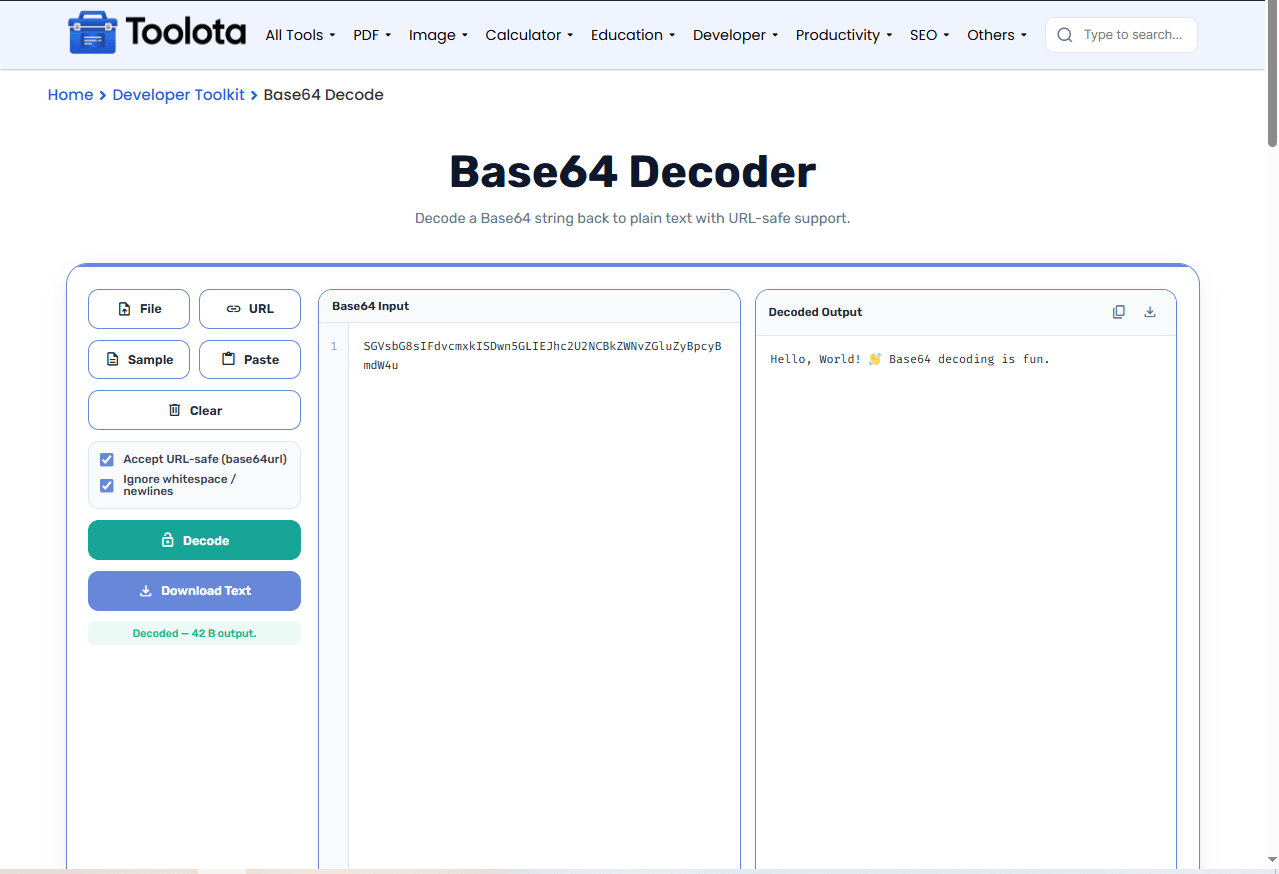
Large input text area with line numbers and word-wrap toggle
File upload button to load .txt files directly
URL fetch button to pull Base64 content from any web address
Sample button to load a demo string instantly
Paste button to grab text from your clipboard
Clear button to reset the input field
URL-safe checkbox to automatically handle - and _ characters
Ignore whitespace checkbox to strip spaces and newlines before decoding
Decode button to process your string on demand
Download Text button to save the output as a .txt file
Copy output icon to copy results to your clipboard
Font size controls to adjust text readability in the editor

type it, upload a file, fetch from a URL, or paste from the clipboard.

check "Accept URL-safe" and "Ignore whitespace" if needed.

or simply let the tool auto-run as you type.

the decoded result appears in the right panel instantly.

use the copy icon or Download Text button to save your output.
How do I decode base64 quickly? Just hit Decode after pasting your string, and the output box will show the readable text. There you have it.
The tool processes your input immediately as you type, so you never have to wait.
Automatically fixes - and _ encoding and strips unwanted spaces for accurate results.
Save your decoded text as a .txt file directly from the output panel.
Upload local text files or fetch Base64 directly from a live URL for batch or remote decoding.
Paste from your clipboard with one click, or copy the decoded output just as easily.
Change font size and toggle word wrap to make the input area comfortable for any screen.
Always enable “Ignore whitespace” – this removes accidental line breaks or spaces that can break decoding.
Use the File button for large strings – copy‑pasting big Base64 blocks is error‑prone; upload a file instead.
Check the URL-safe box when working with web tokens like JWT or OAuth‑related strings to avoid padding issues.
The output panel shows your original text exactly as it was before encoding. If the original data was plain ASCII, you’ll see readable characters. If the source included non‑UTF‑8 bytes, the tool falls back to raw byte representation. This ensures that you receive the most precise outcome, regardless of the kind of stuff you start with.
Base64 decoding converts an encoded string back into its original binary or text format using a standard 64‑character alphabet.
Yes, simply check the “Accept URL-safe” box, and the tool replaces - with + and _ with / before decoding.
Yes, click the File button, select a .txt file, and the content loads into the input area automatically.
If you enable “Ignore whitespace,” the tool strips all spaces and newlines before decoding to prevent errors.
No. All processing happens inside your browser. Nothing is sent to a server or stored anywhere.
The raw decoded bytes may contain non‑textual data. This is normal for binary‑encoded Base64 strings.
Toolota is your all-in-one online tools platform. Fast, simple, and free utilities designed to make everyday digital tasks easier and smarter.
