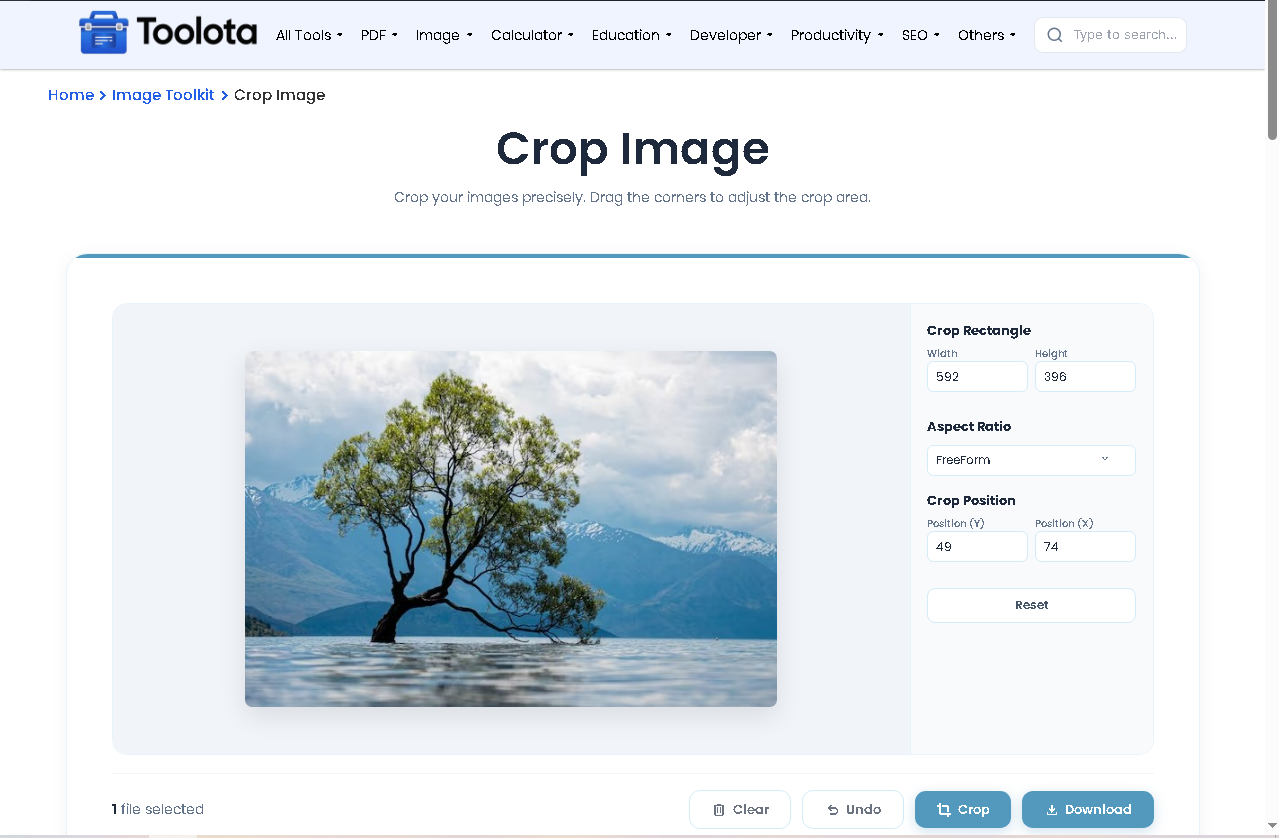
Crop your images precisely. Drag the corners to adjust the crop area.
or click anywhere in this box to browse files
1 file selected
Crop images online with exact dimensions in seconds. Just drag and drop your photo, resize the crop area by dragging the corners, and enter the exact width and height you need. You can also choose from 30+ ready-made aspect ratio presets for Instagram, YouTube, Facebook, LinkedIn, thumbnails, banners, and more. Everything works directly in your browser — your images are never uploaded, keeping your files fast, private, and secure.

Drag an image into the drop zone or click anywhere to browse your files. The tool instantly displays your picture inside the cropping area.

Grab any corner or edge of the visible rectangle. Drag inward or outward to select exactly the portion you want to keep. The grid guides help you frame the perfect shot.

Use the X (horizontal) and Y (vertical) position inputs to move the crop box exactly where you want it.

Click "Apply Crop" to see your cropped result. Review the preview image before saving.

Click "Save Cropped Image" to download instantly. The file name gets "-cropped" added automatically.
Need a different image? Press “Clear” to start over
Use aspect ratio presets – Select 16:9 for YouTube thumbnails, 1:1 for Instagram posts
Manual dimensions – Enter exact pixel values for banner ads or profile pictures
X/Y positioning – Use number inputs for pixel-perfect alignment, not just dragging
Preview before save – Always check the cropped preview before downloading
Reset is your friend – If crop goes wrong, click Reset to start fresh
Square, widescreen, Facebook post, YouTube thumbnail, Instagram story, paper sizes A4/A5, and more
Fine-tune crop box location precisely without dragging
Your image never uploads to any server. All cropping happens locally
Enter custom width and height numbers for pixel-perfect crops
Preview your crop first, then download – no surprises
One button restores the original crop box instantly
Unlike basic crop tools that download immediately, this online crop image tool uses a two-step process. First, click “Apply Crop” – your cropped image appears in a preview panel. Check the quality, framing, and dimensions. Then click “Save Cropped Image” only when you’re satisfied. The original canvas hides after cropping, giving you a clean preview view. Need to adjust? Use “Clear All” and start over. This visual cropping tool also disables zooming, keeping your photo at natural size for accurate framing.
Drag your photo into the drop zone. The tool uses Cropper.js entirely in your browser – no server upload means your image stays private.
Yes. Grab any corner or edge of the crop box and drag again. The overlay remains editable until you click “Crop & Download.”
The tool detects your original file type. PNG images export as PNG. JPG images export as high-quality JPG.
No. Only the cropped area is extracted. The remaining pixels keep their original sharpness and color accuracy.
Yes. The interface adjusts to smaller screens. Drag and drop works, or tap the drop zone to browse photos from your camera roll.
Yes. Use the X (Position) and Y (Position) number inputs to move the crop box precisely.
Over 30 presets including 1:1 square, 16:9 widescreen, 4:3 monitor, Facebook Cover (820×312), YouTube Thumbnail (1280×720), Instagram Story (1080×1920), and paper sizes A4, A5, A6.
Toolota is your all-in-one online tools platform. Fast, simple, and free utilities designed to make everyday digital tasks easier and smarter.
