
Recent Tools
No tools found matching your search.
↑↓ Navigate
←→ Category
↵ Select
esc Close
Convert Apple QuickTime .MOV videos into the universally compatible MP4 format — real encoding (not a screen capture), fully in your browser.
MOV to MP4 turns your Apple QuickTime clips into the MP4 format that plays almost everywhere — phones, laptops, editing apps, you name it. If you’ve ever tried opening a MOV file on a non-Apple device and gotten nothing but a blank screen, this quicktime video converter fixes that in one step. Everything runs locally through a real video encoder built into your browser, so your footage never leaves your device. Upload your file, choose your settings, and get an online MOV-to-MP4 conversion experience without installing anything.
Drag-and-drop or click-to-upload dropzone for MOV, M4V, and QuickTime files
Live video preview player with playback controls once your file is added
Fast Remux quality mode — repackages video into MP4 with no quality loss
High Quality (CRF 18), Balanced (CRF 23), and Smaller File (CRF 28) encoding options
Resolution control — keep original, or resize to 1080p, 720p, or 480p
Optional trim tool with custom start and end time in seconds
Real-time progress bar showing conversion percentage
Runs entirely in-browser using a WebAssembly video engine — no server upload
Automatic fallback conversion engine if the main engine can’t load
Individual file download button after conversion completes
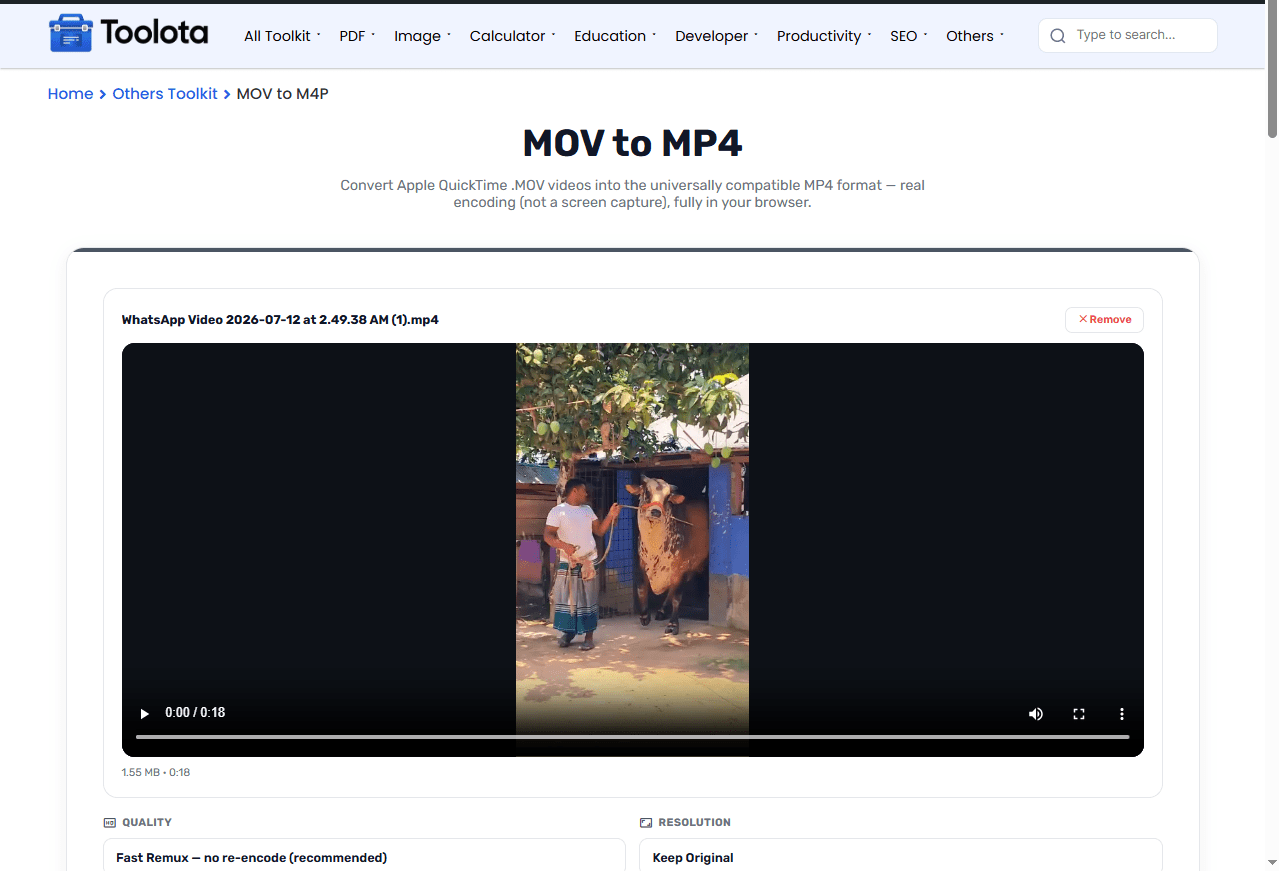

drag and drop your MOV clip or click to browse.

choose Fast Remux for instant, lossless conversion, or a CRF setting for a smaller file.

keep the original size or resize to 1080p, 720p, or 480p.

expand the trim panel and set a start and end point.

Click Convert to MP4 and download your file once it's ready.
So, how do I convert a MOV file to MP4 without installing software? You just do it right here in the browser — no app, no account, no upload.
Conversion happens locally through a browser-based encoder, so your video is never uploaded to a server.
Fast Remux repackages the video stream instead of re-encoding it, keeping the original quality intact.
Switch between CRF-based quality levels when you need a smaller file instead of a straight remux.
Cut your clip down to a specific start and end point before converting, no separate editor needed.
Once conversion finishes, grab your finished MP4 file with a single download button.
After converting QuickTime video footage to the widely compatible MP4 format, extract sound tracks using the MP4 to MP3 converter.
Turn short video highlights into animated looping images using the MP4 to GIF converter.
Convert subtitle timing files into web-friendly formats for your videos with the SRT to VTT converter.
Standardizing video assets using the widely supported H.264 video encoding specification ensures seamless cross-platform browser compatibility.
When you hit convert, the tool checks whether your MOV file’s video stream already fits inside an MP4 container. If it does, Fast Remux just repackages it — same pixels, same audio, just a new wrapper, which is why it’s instant and lossless. If you’ve chosen a resolution change or a specific quality level, the tool switches to full re-encoding using H.264 video and AAC audio instead, which takes a bit longer but gives you control over file size. Either way, the result panel tells you exactly which method was used.
No. Conversion runs locally in your browser using a WebAssembly video engine, so your file stays on your device the whole time.
Not with Fast Remux — it repackages the file without re-encoding. Choosing a CRF quality setting instead may slightly compress the video.
Yes. An optional trim panel lets you set a start time and end time in seconds before converting.
You can keep the original resolution or resize to 1080p, 720p, or 480p during conversion.
Some MOV codecs aren’t compatible with a plain remux, so the tool automatically switches to re-encoding to complete the conversion.
Open the tool in your mobile browser, upload the MOV file, choose your settings, and tap Convert to MP4 — no app needed.
Toolota is your all-in-one online tools platform. Fast, simple, and free utilities designed to make everyday digital tasks easier and smarter.
