
Recent Tools
No tools found matching your search.
↑↓ Navigate
←→ Category
↵ Select
esc Close
Locally enlarge and upscale your images for better quality without blur.
Drag & Drop your images here
or click anywhere in this box to browse files
Select an image from the left to compare
Select an image to adjust upscaling
Upscale Image to 4k enlarges any photo right in your browser, scaling it up to eight times its original size while keeping detail sharp. It works as a fast image upscaler with no uploads and no waiting — just drop your photo in, pick a scale between 1.5x and 8x, and drag the compare slider to see the difference before you download. It suits small photos that need a larger canvas, for example a 1000-pixel-wide image enlarged 4x to about 4000 pixels.

Drag your image in, or click the box to browse and select files.

Adjust the scale slider per image, or turn on "Apply to All" for one setting.

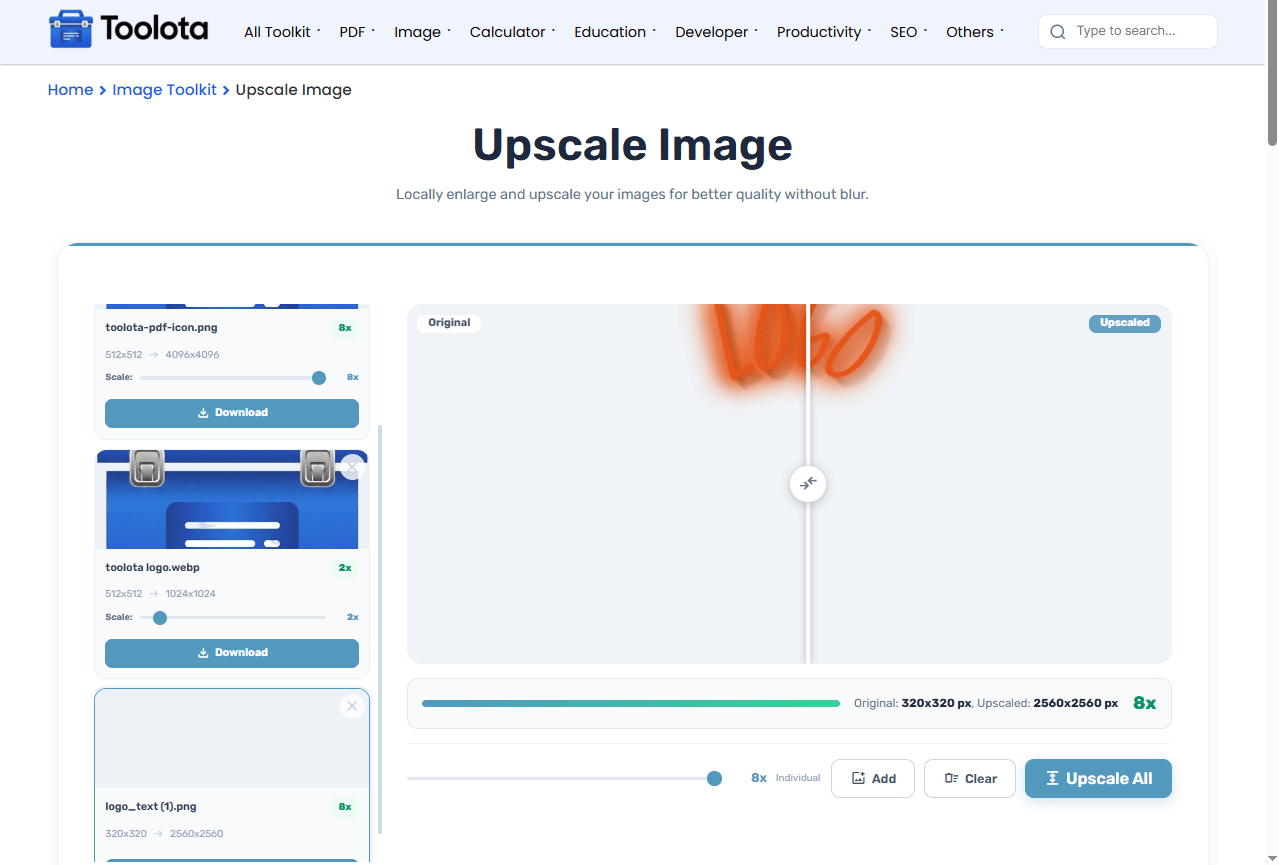
Drag the compare slider to check original quality against the upscaled version.

Click "Upscale All" to process every image in your batch.

Pick "One by One" or "Zip," then hit "Download Files."
If you’re wondering how do I upscale image to 4k without losing quality, the answer sits right in the compare slider — drag it before downloading, and if the result looks soft, just bump the scale down a notch.
Working from a very small or blurry source photo? Try Resize Image first if you just need standard dimensions without AI enhancement.
After upscaling, tighten the framing on your subject with Crop Image.
Once you have your sharper 4K result, keep the file size manageable with Compress Image.
Upscaling in a browser canvas enlarges an image by interpolating between existing pixels, so it adds size rather than new detail. That is why very small or blurry photos can still look soft at high scales.
Every image is processed locally in your browser, so nothing gets uploaded anywhere.
Choose anywhere from 1.5x to 8x, per image or applied to your whole batch at once.
Grab files one by one or bundle them into a single Zip.
Locally enlarge your images up to 8x right in your browser.
Drag the compare slider to confirm sharpness before you commit to a download.
Works directly in your browser tab with nothing to install.
When you drag the handle across the preview, you’re not looking at a filter or an effect — you’re seeing the exact pixel dimensions before and after, printed right below the image as “Original: WxH px, Upscaled: WxH px.” That number updates live as you move the scale slider, so the percentage shown in the corner always matches what you’d actually get in the downloaded file.
It enlarges photos using your browser’s canvas, scaling them up to 8x their original size.
Enlarging cannot add real detail, so some softness is normal. Start from the best original you have, check the before/after compare view, and lower the scale if edges look blurry.
Adjust the scale slider, then check the before/after compare view. If the result looks soft, lower the scale until it stays sharp.
Yes. Upload several images, then either set each one’s scale individually or turn on “Apply to All” for one shared setting.
No. Everything runs locally in your browser using canvas rendering — your files never leave your device.
Every upscaled image is exported as a PNG file, named with “-Upscaled” added to the original filename.
Choose “Zip” in the download mode selector, then click “Download Files” to get every image in one compressed folder.
Toolota is your all-in-one online tools platform. Fast, simple, and free utilities designed to make everyday digital tasks easier and smarter.
