
Protect PDF File
Secure your PDF file by adding a strong password. Private and extremely fast.
Click to upload or drag and drop
PDF files (.pdf) only (Max 50MB each)
Secure your PDF file by adding a strong password. Private and extremely fast.
Click to upload or drag and drop
PDF files (.pdf) only (Max 50MB each)
❌ Passwords do not match. Please try again.
Protecting PDF...
Need to protect PDF file content from unauthorized eyes? This tool lets you add a strong password to your document instantly. Simply upload, set your password, and download a locked version that requires the password to open on any device.
Drag and drop upload zone – Click or drag your PDF file into the designated area for quick selection
Password input field with show/hide toggle – Enter your desired password and verify it by revealing the text
Clear button – Remove the selected file and reset the entire form with one click
Progress bar with percentage indicator – Watch the encryption process page by page in real time
Download button – Save your password-protected PDF instantly after processing completes
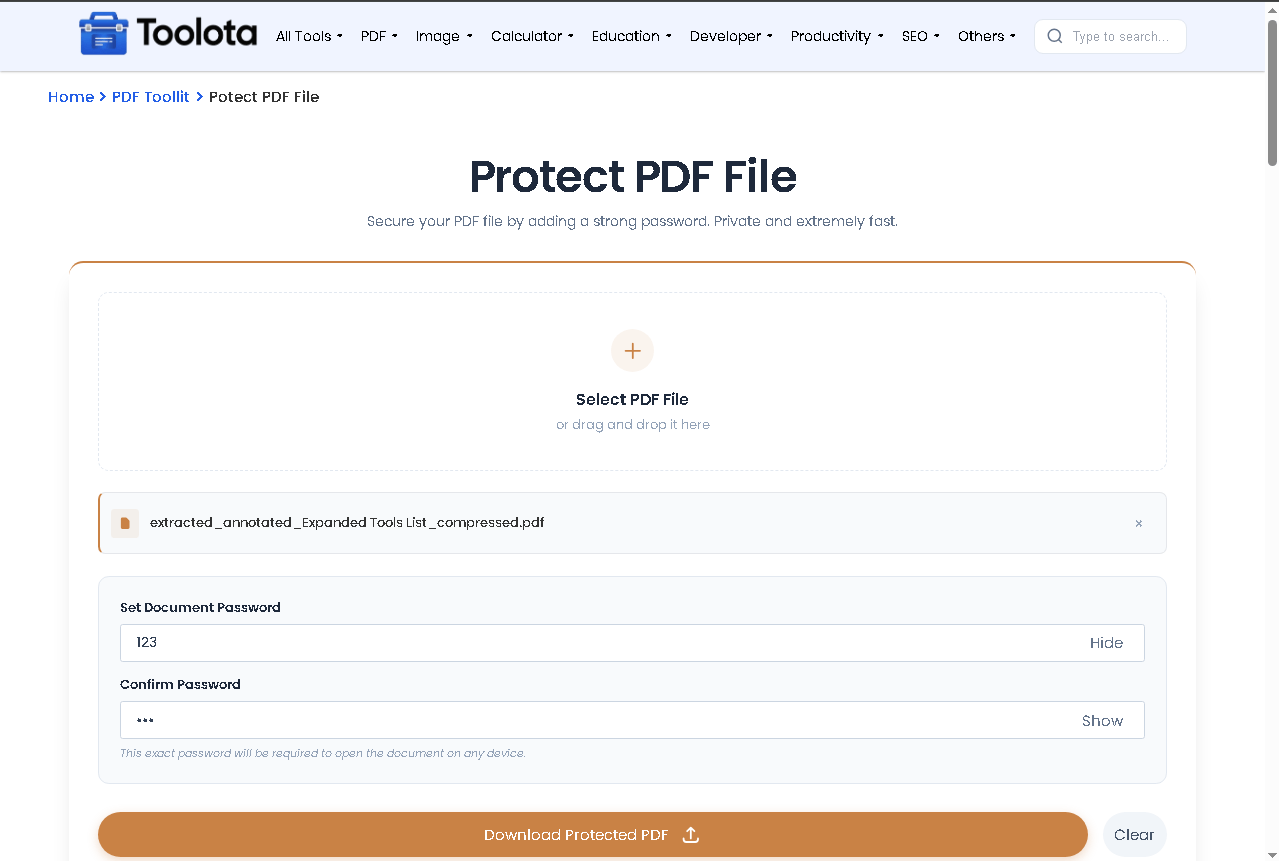
Following the on-screen controls makes it easy to protect PDF file documents.

Select your PDF file by clicking the upload area or dragging and dropping it into the drop zone. The file name appears in the list below.

Enter your desired password in the "Set Document Password" field. Use the Show/Hide button to confirm your entry.

Click the blue Protect PDF button. A progress bar shows each page being encrypted with a percentage update.

Once complete, the Protect button becomes a Download Protected PDF button. Click it to save your secured file.

Use the Clear button anytime to remove the current file and start over with a new document.
Use strong passwords – Combine uppercase, lowercase, numbers, and symbols for maximum security
Test before sharing – Download the protected file and try opening it with your password to confirm it works
Save password separately – Store your password in a password manager since there is no recovery option
Clear after each use – Use the Clear button to remove file data from the interface between documents
Check file size – The encryption process converts pages to JPEG, which may affect file size depending on original content
Every feature described below exists exactly as shown in the HTML interface.
Confirmation – The password field includes a Show/Hide toggle so you can verify what you typed before encrypting.
No complicated menus. Drop your PDF directly into the designated zone for instant selection.
After encryption finishes, the Download Protected PDF button appears ready to save your locked document.
A visible progress bar with percentage text updates as each page of your PDF is processed.
The Clear button removes your file and hides all settings, giving you a fresh start in one click.
When you protect PDF file documents using this tool, each page gets processed individually. With built-in encryption activated, the utility reconstructs the PDF after converting each page into a compressed JPEG image and rendering it onto a canvas. Your entered password becomes both the user password and owner password, with permissions for printing, copying, and modifying already applied. You will never wonder whether the tool is still functioning since the progress bar displays the precise page that is being encrypted.
No. The HTML interface shows no registration or login fields. You upload, set a password, and download directly.
There is no password recovery feature. The tool encrypts your PDF with the exact password you enter, so store it safely.
The encryption applies user permissions including print, copy, and annot-forms by default. The interface does not offer custom permission toggles.
Based on the HTML, all processing happens locally in your browser using PDF.js and jsPDF libraries. No server upload is mentioned or required.
The tool processes each page individually to apply encryption. The progress bar updates after every completed page.
The file input and drop zone logic restricts to a single file. You must protect one PDF file at a time.
Toolota is your all-in-one online tools platform. Fast, simple, and free utilities designed to make everyday digital tasks easier and smarter.