No tools found matching your search.
JPG to PDF Converter - Professional Tool

JPG to PDF

Convert your images to a single, professional PDF document. Drag to reorder pages and customize the layout.

Click to upload or drag and drop

Supports JPG, PNG, and WebP (Max 10MB per image)

Convert JPG to PDF directly from your browser — no account, no software, no waiting. Drop in one image or a full batch, set your layout preferences, and get a clean, ready-to-download PDF in moments. This JPG to PDF online tool gives you page size control, orientation options, and drag-to-reorder before a single conversion runs. The process is always quick and easy, regardless of how many pages you require—one or twenty.

Features of This Convert JPG to PDF Tool

This free JPG to PDF tool is built around real usability — every feature listed here comes directly from the interface.

Multi-Image Upload Support — Upload multiple JPG, PNG, or WebP files in one go. The drop zone accepts both click-to-browse and direct drag-and-drop, so getting files in is instant.

Drag-to-Reorder Page Control — After upload, every image appears as a draggable card inside a preview grid. Rearrange the page order exactly how you want before converting.

Page Size Selection — Choose between A4 (Standard), US Letter, or Fit to Image Size. The tool adjusts each PDF page to match your selected format.

Orientation Options — Set pages to Portrait, Landscape, or let the tool decide automatically with the Auto (Smart) setting based on each image’s dimensions.

Add More Files Anytime — An “Add More” button stays visible inside the workspace, letting you bring in additional images without clearing what’s already uploaded.

  • Individual File Removal — Each preview card shows a trash icon on hover. Remove any single image without disrupting the rest of the batch.
  •  

Live Progress Tracking — A real-time progress bar displays conversion status page by page — from “Initializing PDF engine” through to “Done.”

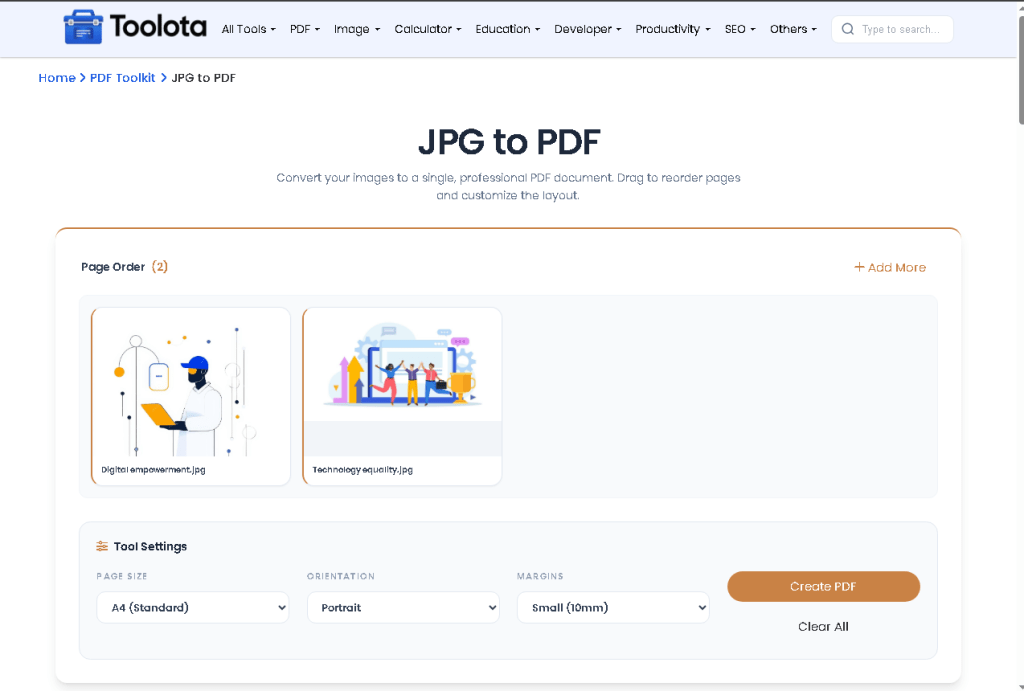
Convert JPG to PDF online tool interface on desktop

Instant PDF Download — Once complete, the Download PDF button generates the file and triggers the save immediately. No redirect, no waiting screen.

Start New / Clear All — Two reset controls let you wipe everything and start a fresh conversion without reloading the page.

How to Convert JPG to PDF Using This Tool

1

Upload Your Images

Click the upload zone or drag your JPG, PNG, or WebP files directly onto it. Each file must be under 10MB. Multiple files can be added in a single selection.

2

Reorder Pages

Onec uploaded, images appear as cards in the Page Order grid. Drag and drop them into the sequence you want for the final PDF.

3

Add More Files if Needed

Use the "Add More" button to bring in additional images without clearing the current set. The file count updates automatically.

4

Configure Layout Settings

Open the Tool Settings panel and choose your Page Size (A4, US Letter, or Fit to Image), Orientation (Portrait, Landscape, or Auto), and Margin (No Margin, 10mm, or 20mm).

5

Click "Create PDF"

Open the Tool Settings panel and choose your Page Size (A4, US Letter, or Fit to Image), Orientation (Portrait, Landscape, or Auto), and Margin (No Margin, 10mm, or 20mm).

6

Download Your PDF

When the result screen appears with "Conversion Complete," click Download PDF. The file saves instantly to your device. Use "Start New" to run another conversion.

PRO TIPS

Reorder before you convert — The page sequence is locked in at the moment you click Create PDF. Drag cards into the right order first.

Use “Fit to Image Size” for non-standard photos — If your images aren’t A4-proportioned, this setting avoids white borders and keeps the output tight.

Mix portrait and landscape in one PDF — Set orientation to Auto (Smart) and the tool assigns the correct page direction per image automatically.

Keep files under 10MB each — Files above the limit are rejected at upload with a clear alert. Split large scans before uploading.

No Margin setting for full-bleed output — If you want images to fill the entire page edge-to-edge, select No Margin before converting.

Why Choose This Convert JPG to PDF Tool

🖼️ Supports JPG, PNG & WebP

Not limited to JPG — this image to PDF tool accepts PNG and WebP files in the same batch, so mixed image types convert together without extra steps.

📐 Fit to Image Size Option

Unlike fixed-format tools, the Fit to Image Size page setting wraps the PDF canvas around the actual image dimensions, preserving the original proportions without cropping or scaling.

⚡ Browser-Based, No Installation

Everything runs client-side. No file is sent to a server. The JPG to PDF online process happens entirely within your browser using the built-in PDF engine.

↕️ Smart Auto Orientation

The Auto (Smart) orientation setting reads each image's dimensions individually and assigns Portrait or Landscape per page — no manual switching needed.

🔃 Drag-and-Drop Page Ordering

The JPG to PDF tool lets you reorder pages before conversion using a live drag-and-drop grid — the final PDF reflects exactly the sequence you set.

🗑️ Remove Files Without Restarting

Individual images can be deleted from the queue using the per-card trash button. The rest of the batch stays intact and ready to convert.

How the Image-to-PDF Conversion Actually Works Inside This Tool

When you click Create PDF, the tool reads the page order from your drag-and-drop grid and initializes the PDF using your chosen size, orientation, and margin settings. Each image is scaled proportionally to fit within the available canvas space — centered and never cropped. With Auto orientation selected, the tool assigns Portrait or Landscape per image based on its own dimensions. The output is immediately downloaded to your device with a timestamped file name as a PDF blob once all pages have been created.

Frequently Asked Questions

What image formats does this tool accept?

The upload input accepts JPG, PNG, and WebP files. All three formats can be mixed in a single batch.

The tool does not display a fixed image count limit. Each individual file must be under 10MB.

The Page Order grid supports drag-and-drop reordering. Move any card to any position before clicking Create PDF.

It resizes each PDF page to match the actual pixel dimensions of the image (converted to millimeters), rather than fitting the image into a fixed A4 or Letter canvas.


It checks each image’s width and height individually. If width is greater than height, the page is set to Landscape. If height is greater, it uses Portrait — applied per image across the entire PDF.

Yes. Hover over any preview card and click the trash icon to remove that image only. The rest of the queue stays unchanged.

No. The entire convert JPG to PDF process runs inside your browser. No files are transmitted externally.


It updates page by page — starting at 10% during initialization, incrementing as each image is processed, and reaching 100% when the PDF is ready.