
Recent Tools
No tools found matching your search.
↑↓ Navigate
←→ Category
↵ Select
esc Close
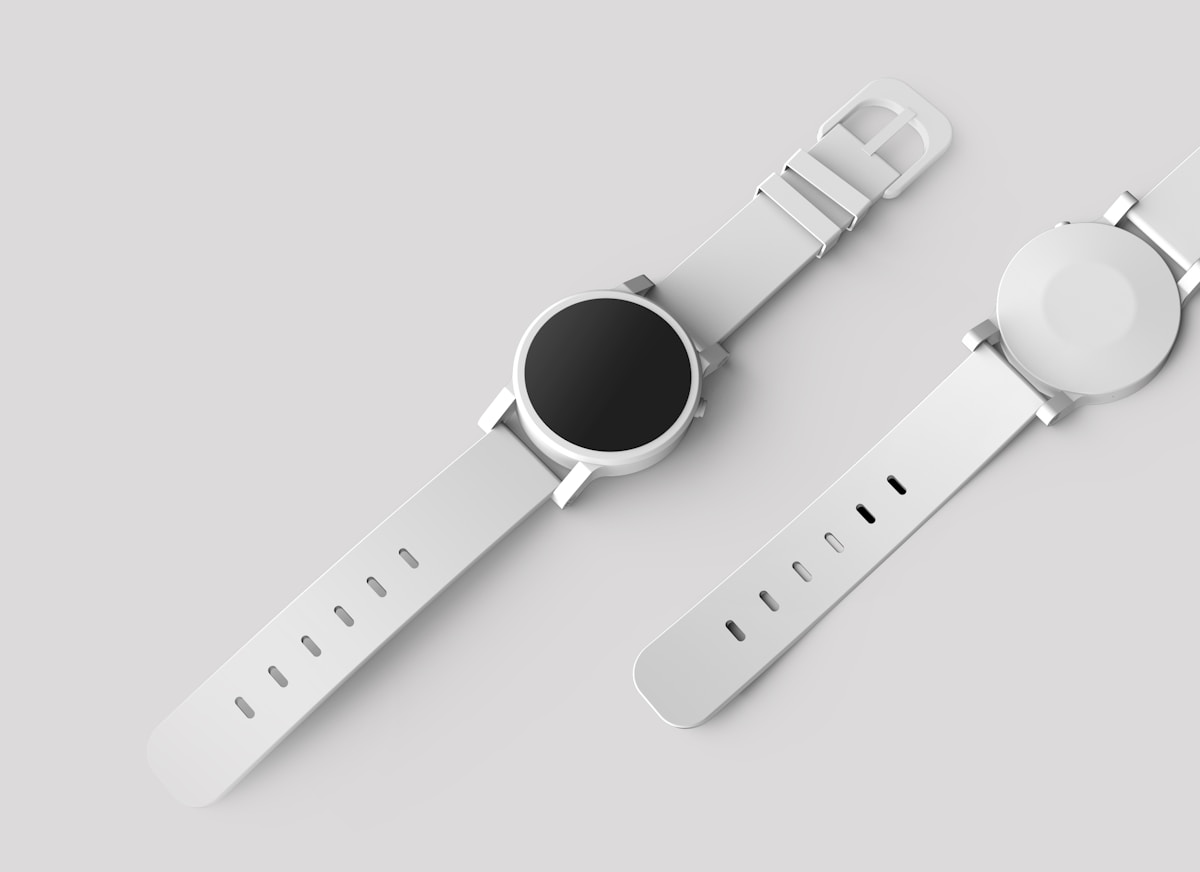
Product Image Zoom Viewer lets you magnify every part of a product image simply by hovering or tapping. It is a practical way to inspect product images online without losing clarity. Whether you are checking quality or exploring textures, the tool gives you real-time feedback. Just move your cursor, and the zoomed area appears instantly in a dedicated viewport. This tool is useful for checking product photos before you decide whether to buy.
Hover or touch the main image to activate the zoom lens.
Adjust zoom power from 2x to 15x using the Zoom Power slider.
Choose from three lens sizes (XS, MD, XL) to control the viewport area.
See the magnified output clearly in the Macro Output Viewport.
Upload your own image using the file upload dropzone.
Load any image from a URL using the input field and Load URL button.
Reset All restores the zoom power, lens size, and the default product image.
Real-time scale readout showing the current magnification level.
Smooth lens tracking that follows your cursor closely.


Place your cursor over the main image, and the lens appears instantly.

Drag your mouse (or swipe on touch) to shift the lens across the product.

Slide the Zoom Power control to increase or decrease the magnification.

Tap XS, MD, or XL to expand or shrink the viewing area.

Look at the right-side viewport to see the enlarged section in real-time.
How do I zoom into a product photo? Hover over the image, and the lens follows your cursor. On a phone, touch and drag the image.
See fine details in your product photo, as far as the original image resolution allows.
Upload your own product shots or paste a URL to analyze your personal image library.
Tweak the zoom power and lens size to match exactly how you want to examine every surface.
The zoom updates in real-time as you move your cursor, giving you real-time updates as you move your cursor.
Works on phones and tablets using touch controls.
Before inspecting product photography details, resize oversized e-commerce photo assets using resize image online.
Convert web graphics to lightweight formats to speed up store load times using convert webp to jpg.
Remove distracting backgrounds from product shots before zooming using remove background free.
Implementing high-resolution image inspection relies on viewport zoom interaction principles to improve product page user experience.
The right-side viewport does not just show a blurry enlargement; it pulls a scaled-up slice from the original source file. As you move the lens across the left image, the background position shifts dynamically to mirror your exact cursor location. The tool uses slight smoothing so the view stays steady when your hand moves. The tool primarily functions as a digital magnifying glass, allowing you to highlight particular areas of your image without modifying or reducing it.
It magnifies specific parts of a product photo when you hover or touch it, showing the detail in a separate viewport.
Yes, use the upload dropzone to add any image file directly from your computer or phone.
Simply slide the Zoom Power slider left or right between 2x and 15x to adjust instantly.
Double-check the URL for typos; the tool will show an alert if the image fails to load.
Yes, touch the screen to activate the lens on any touchscreen device.
Click the Reset All button in the toolbar to revert to the default image and settings.
Toolota is your all-in-one online tools platform. Fast, simple, and free utilities designed to make everyday digital tasks easier and smarter.
