
Recent Tools
No tools found matching your search.
↑↓ Navigate
←→ Category
↵ Select
esc Close
Compress WAV audio into MP3 with adjustable bitrate, channels, and sample rate — perfect for sharing, podcasts, and streaming.
Wav To Mp3 compression helps you shrink large audio files into manageable MP3s without sacrificing the sound quality you need. Whether you’re preparing a podcast episode, trimming a voice-over, or simply saving space on your device, this tool gives you full control over bitrate, channels, and sample rate. This tool shrinks large WAV recordings into MP3 files you can share more easily. You can always know what to expect from your output thanks to the built-in file size estimator, which shows you the approximate result even before you hit convert.
Based on the actual tool interface, here is everything you can do with this converter:
Drag-and-drop file upload – Click the dropzone or drag your audio files directly into the browser window.
Adjustable audio bitrate – Choose from 64 kbps (smallest, best for voice) all the way up to 320 kbps (maximum quality for music).
Flexible channel control – Keep the original channel count, force stereo, or downmix to mono to cut file size in half.
Sample rate selection – Retain the original sample rate or lock it to a specific value like 44.1 kHz (CD quality) or 16 kHz (optimized for speech).
Estimated output size preview – See a rough prediction of your final MP3 file size based on your selected bitrate before you convert.
Batch processing – Upload multiple WAV, FLAC, or OGG files and convert them all in one go.
Individual downloads – Download each converted MP3 separately or grab everything as a single File.
Audio metadata display – View the duration and final file size of each converted track right inside the results panel.
LAME encoder integration – Uses the industry-standard LAME MP3 encoder for consistent, high-quality audio encoding.
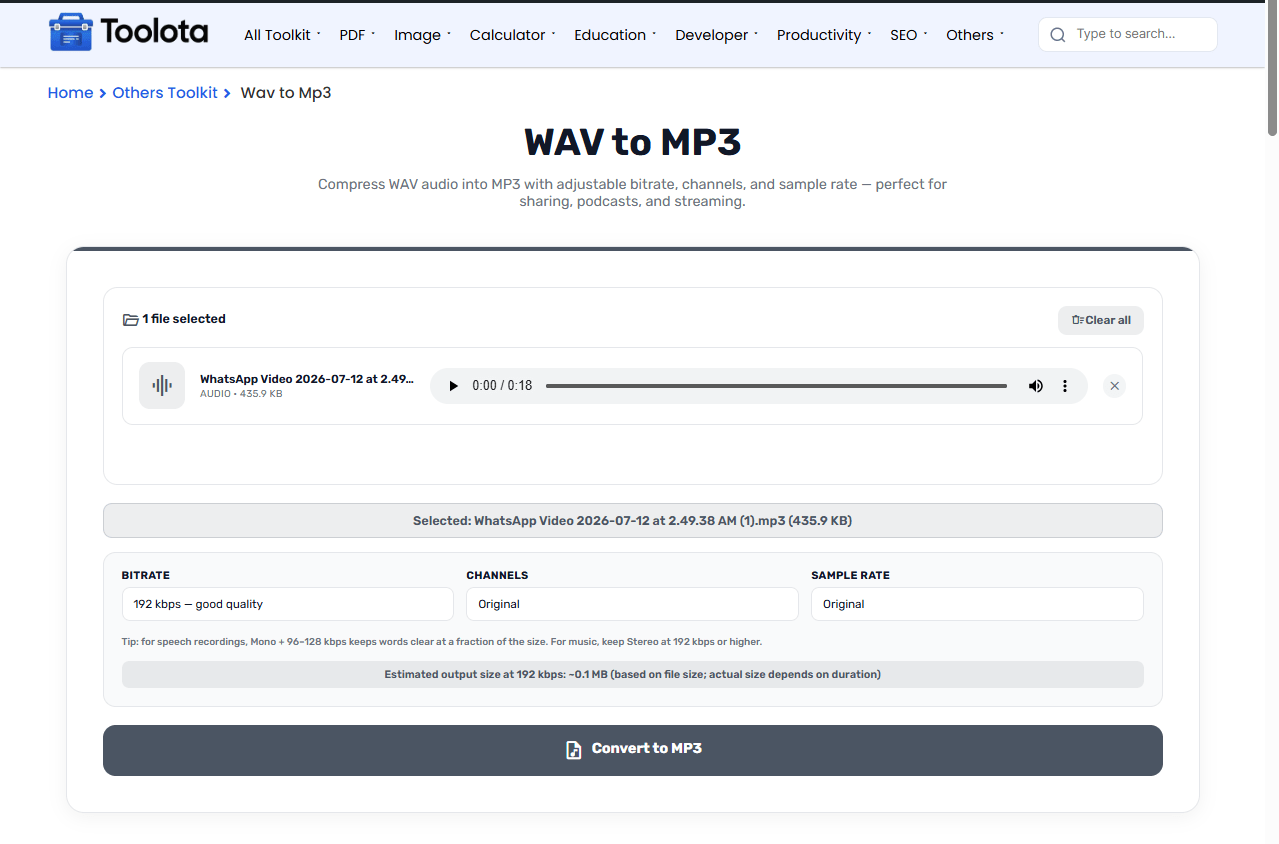

Click inside the dropzone or drag your audio file directly onto it.

Use the three dropdowns to select your desired bitrate, channel configuration, and sample rate. The estimate box updates automatically.

Look at the preview panel to see roughly how much space your compressed MP3s will take up.

Click the "Convert to MP3" button. The tool processes each file sequentially using the LAME encoder.

Download your result – Click 'Download' to save your converted MP3 file.
Just upload your audio, pick your settings, and let the tool handle the rest. How do you know which bitrate to choose? For spoken word, stick with 96–128 kbps in mono. For music, 192 kbps or higher in stereo usually hits the sweet spot between quality and size.
Select several WAV recordings at once and convert them together. No need to run each file through a separate session when you have a dozen voice-over clips or song stems to compress.
Get a rough output size forecast before you commit. This feature helps you decide whether to drop the bitrate further for email attachments or push it higher for archival purposes.
Choose bitrate, channels, and sample rate to balance audio quality and file size.
Save files one by one or pack all your freshly converted MP3s into a ZIP archive with one click. This keeps your downloads folder tidy and your workflow smooth.
After compressing your uncompressed studio tracks into compact MP3s, you can convert them back anytime using the MP3 to WAV converter when high-fidelity editing is required.” -> “Keep your original WAV files for editing. MP3 is a compressed format, so converting an MP3 back to WAV will not restore lost detail. Use the MP3 to WAV converter only when you need WAV for compatibility.
Test your speakers or headphones to ensure audio clarity and balance after compression using our speaker audio test tool.
If you are preparing audio clips from raw video sources instead of standalone audio tracks, extract them directly using the MP4 to MP3 tool.
Understanding how perceptual noise shaping works during lossy audio compression helps you select the ideal bitrate for balancing file size and acoustic quality.
Once the processing completes, the results panel gives you a clear breakdown of every converted track. Alongside the download button, you will see the exact duration of the audio (in minutes and seconds) and the final file size. This is where you can double-check that your chosen bitrate actually delivered the file size you expected. If a track failed to convert — maybe due to a corrupted header or an unsupported sample rate — the tool surfaces that error in the same panel so you know exactly which file needs attention. You can easily modify your settings and re-run the conversion until everything matches your needs thanks to the combination of immediate feedback and fine-grained output data.
It supports WAV, FLAC, and OGG files.
Select 64–128 kbps for voice or 192–320 kbps for music to balance quality and file size.
Yes, mono cuts the data roughly in half compared to stereo, which is great for podcasts and spoken audio.
Yes. Upload several WAV, FLAC, or OGG files together. The tool converts them one after another, and you can download each MP3 separately.
The estimator calculates a rough output size based on your bitrate and the source file duration to help you plan ahead.
Click the ‘Download’ button that appears after conversion to save your file.
Toolota is your all-in-one online tools platform. Fast, simple, and free utilities designed to make everyday digital tasks easier and smarter.
