HTML to PDF
Convert HTML code or rich text to PDF format.
HTML Code
Preview
Hello World
Enter your HTML here...

Convert HTML code or rich text to PDF format.
Enter your HTML here...
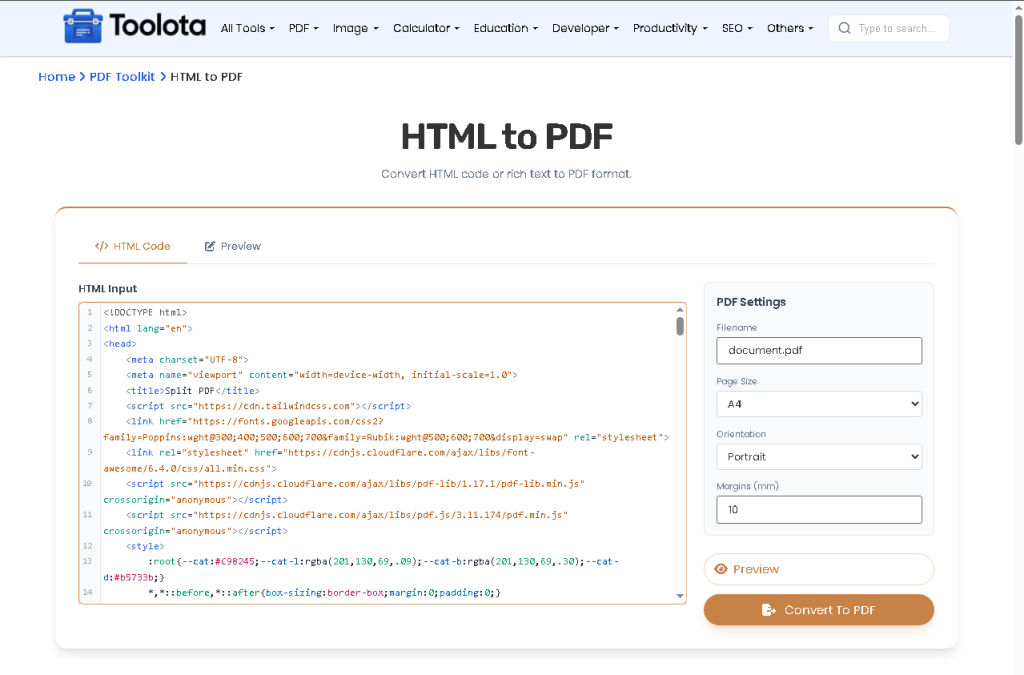
Use this HTML to PDF tool to turn your markup or live‑edited rich text into a downloadable document. Switch between the code view and the visual preview tab as you work. Create your PDF with one click after changing the filename, page size, orientation, and margins.
Once your PDF is generated, add sequential numbering with Add Page Numbers before sending it out.
Building a multi-section document? Convert your HTML pages separately, then bring them together with Merge PDF.
If the exported file feels bulky, shrink it afterward with the PDF Compressor tool.
Need the same content in Word instead? Run the finished PDF through PDF to Word.

Type or paste code in the HTML Code tab

Click the Preview tab to see and modify content in the WYSIWYG rich editor.

Set the Filename, Page Size (A4/Letter/Legal), Orientation (portrait/landscape), and Margins (mm) in the right panel.

Click the Preview button to jump to the "Preview tab" and confirm your design.

The PDF uses the tab you have open when you click Convert to PDF.
Switch freely between raw HTML code (with syntax coloring) and a live visual preview. No separate software needed.
The Convert to PDF button triggers html2pdf.js instantly, showing a loading spinner and then the download.
All PDF settings (size, orientation, margins, filename) are grouped in a single, clearly labeled card.
Scoped CSS ensures the converter looks clean inside any container without breaking global styles.
When you clickConvert to PDF, the tool reads the content from the currently active tab (HTML Code or Preview). It creates a temporary invisible<div>, fills it with that HTML, and then passes it to the html2pdf.js library. The library uses html2canvas to render the HTML as a high‑quality image (scale 2, JPEG quality 0.98) and jsPDF to build the PDF with your chosen format, orientation, and margin value. The final file, all within your browser with no server upload, is saved under your custom filename.
Yes – click the Preview button or the Preview tab. The tool will show your HTML as a formatted rich text area.
A4, Letter, and Legal – all available in the Page Size dropdown.
Use the Orientation select menu in the PDF Settings panel.
Images load when their website allows it. Fonts that are not available in the browser may not appear as expected in the PDF.
Yes – the wrapper uses responsive Tailwind CSS, and the CodeMirror editor height adapts to smaller screens.
Toolota is your all-in-one online tools platform. Fast, simple, and free utilities designed to make everyday digital tasks easier and smarter.
