
Recent Tools
No tools found matching your search.
↑↓ Navigate
←→ Category
↵ Select
esc Close
Turn short MP4 clips into looping animated GIFs — control frame rate, size, quality, and trim, all rendered locally in your browser.
MP4 to GIF turns a short video clip into a smooth, looping animation you can drop straight into a chat, a tweet, or a forum post. If you’ve ever needed a video to gif maker that skips the upload step and just works from your browser, this is exactly that. The tool captures frames directly from your clip and encodes them locally, so nothing leaves your device while it renders. Set your frame rate, pick a width, trim to the good part, and you’ve got a shareable loop ready in moments — a genuinely handy way to make a GIF from video without extra software.
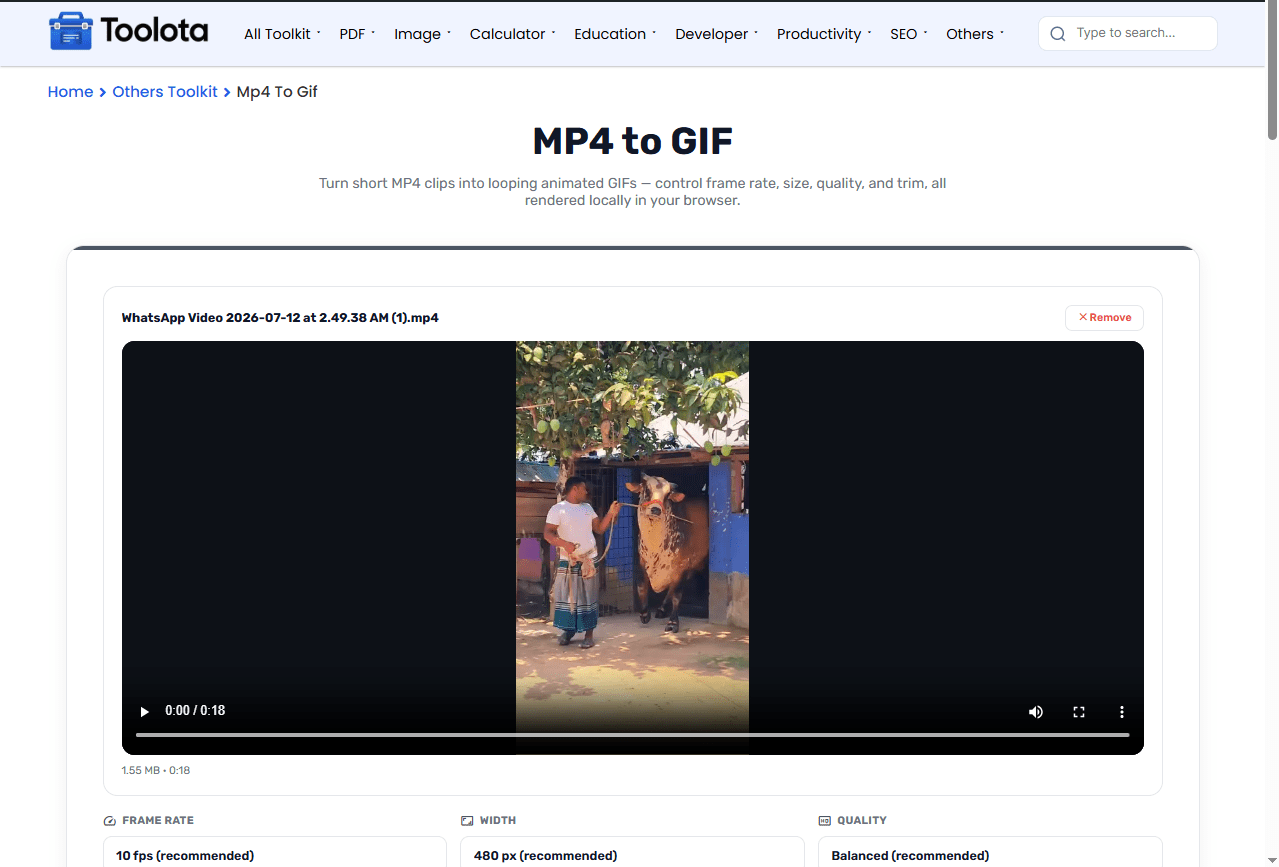

drag and drop your MP4 or WebM file, or click to browse.

lower fps keeps the file small, higher fps looks smoother.

balance sharpness against file size for where you're sharing it.

set a start and end point within the allowed length.

Click Convert to GIF and download your finished loop.
So, how do I turn a video into a GIF without installing anything? You just upload the clip here, adjust a few settings, and download the result straight from your browser.
Frame capture and GIF encoding happen locally in your browser, so your video is never sent to a server.
Adjust frame rate, width, quality, and trim settings to create the GIF you need.
See a thumbnail of your finished GIF along with its exact resolution, fps, and file size before downloading.
Pick anything from 5 to 24 fps Choose from six frame rates, from 5 fps to 24 fps
Cut down to just the moment you want using a simple start and end time in seconds.
Before converting video clips into animated graphics, standardize non-standard video formats using the MOV to MP4 converter.
If you also need to extract separate background audio from the video clip, use the MP4 to MP3 tool.
To showcase product animation frames side by side on product pages, inspect high-res visuals using the product image zoom viewer.
Managing frame rates and color palettes when converting video frames to GIF animation standards helps minimize image pixelation while keeping file sizes small.
Once you hit convert, the tool steps through your clip frame by frame at the frame rate you picked, drawing each one onto a canvas at your chosen width. Those frames get stitched into a single looping GIF using the quality setting you selected, with higher quality taking a little longer to render. Because higher frame rates mean more frames per second, the tool automatically shortens the maximum clip length as fps goes up, keeping the final file a reasonable size instead of ballooning out of control.
No. The conversion runs entirely in your browser by capturing frames on a canvas, so your file stays on your device.
Higher frame rates create more frames per second, so the length cap automatically shortens at high fps to keep the GIF file manageable.
Yes. You can set a custom start time and end time in seconds so only your chosen moment gets converted.
10 fps is the recommended setting for chat and social sharing, balancing smooth motion with a smaller file size.
Yes. You can choose a width from 240px up to the original video size, and the height scales automatically.
Open the tool in your mobile browser, upload your MP4 clip, adjust the settings, and tap Convert to GIF.
Toolota is your all-in-one online tools platform. Fast, simple, and free utilities designed to make everyday digital tasks easier and smarter.
