
Excel to PDF
Convert your spreadsheets (.xlsx, .xls, .csv) to professional PDF documents instantly. Perfect formatting every time.
Click to upload or drag and drop
Excel files (.xlsx, .xls, .csv) only (Max 50MB each)
Convert your spreadsheets (.xlsx, .xls, .csv) to professional PDF documents instantly. Perfect formatting every time.
Click to upload or drag and drop
Excel files (.xlsx, .xls, .csv) only (Max 50MB each)
Converting...
Excel to pdf converter lets you transform spreadsheet files into structured PDF documents without any formatting loss.Use the drag and drop area or the click-to-upload option to upload your CSV, XLS, or XLSX file straight from your device. The tool automatically processes each sheet once you set your preferred page size and orientation prior to pressing convert. Your PDF file becomes ready for download in seconds — no software, no sign-up required.
Multi-Format Spreadsheet Support
Accepts .xlsx, .xls, and .csv file formats — all three spreadsheet types handled in a single tool without switching between converters.
Drag & Drop Upload Zone
The upload area supports both drag and drop and direct click-to-browse. Drop multiple files at once and the tool queues them all for batch conversion.
Batch File Conversion
Add multiple Excel files in one session. The tool converts each file individually and makes all outputs available under a single Download Files button.
Page Size Selection
Choose from four page size options before converting — A4, Letter, Legal, and A3. Each option is available from a dropdown directly on the tool interface.
Browser-Based Processing
All compression runs locally — no file is sent to any server
Multi-Sheet PDF Output
Every worksheet inside your Excel file is converted. Each sheet renders as a separate page inside the final PDF, with the sheet name printed as a heading.
Real-Time Progress Tracking
A progress bar appears during conversion showing which file is being processed and the percentage completed across the full batch.
50MB Per File Limit
Each uploaded file can be up to 50MB in size. Files exceeding the limit are flagged immediately with an inline error before conversion begins.
Individual File Removal
Each file in the queue has its own remove button. Delete a specific file from the list without clearing the entire batch.
Orientation Control
Switch between Portrait and Landscape orientation. Landscape is pre-selected by default as it suits most spreadsheet layouts better.

Click the upload zone or drag your .xlsx, .xls, or .csv file directly onto it. Multiple files can be added at once and will appear in a list below the drop area.

Once files are added, a settings panel appears. Select your preferred page size from the dropdown — A4, Letter, Legal, or A3. Then set orientation to Portrait or Landscape based on your spreadsheet width.

Press the Convert to PDF button. A progress bar activates and shows real-time conversion status. Each file in the batch is processed one by one.

After conversion completes, the Convert button is replaced by a Download Files button. Click it to save all converted PDFs to your device instantly.
Use Landscape for wide spreadsheets —
the orientation dropdown defaults to Landscape because most Excel sheets have more columns than rows. Keep it selected unless your data is narrow.
A3 works best for large data tables —
if your sheet has many columns, switching to A3 page size prevents content from being cut off in the PDF output.
Remove unwanted files before converting —
each file in the list has an individual × button. Use it to drop any file from the batch without clearing everything and starting over.
Check sheet names before upload —
sheet names appear as headings on each PDF page. Rename sheets inside Excel first if you want cleaner labels in the final document.
Batch all files in one session —
add all your Excel files before clicking Convert. The tool processes the full queue and bundles all PDFs under one download action.
XLSX, XLS, and CSV files are all accepted. No need to re-save or reformat your spreadsheet before uploading.
Page size and orientation settings are available before conversion starts — giving you control over the final PDF layout without any guesswork.
Multi-sheet workbooks are fully supported. Each tab inside your Excel file is converted to a separate page in the PDF, with the sheet name displayed as a label.
The entire conversion runs inside your browser. No file is sent to any external server — processing starts immediately after you click convert.
Convert multiple spreadsheets and download all resulting PDFs through a single button. No need to download files one by one.
The tool checks file type and size before conversion begins. Invalid or oversized files are rejected with a clear message so nothing unexpected enters the queue.
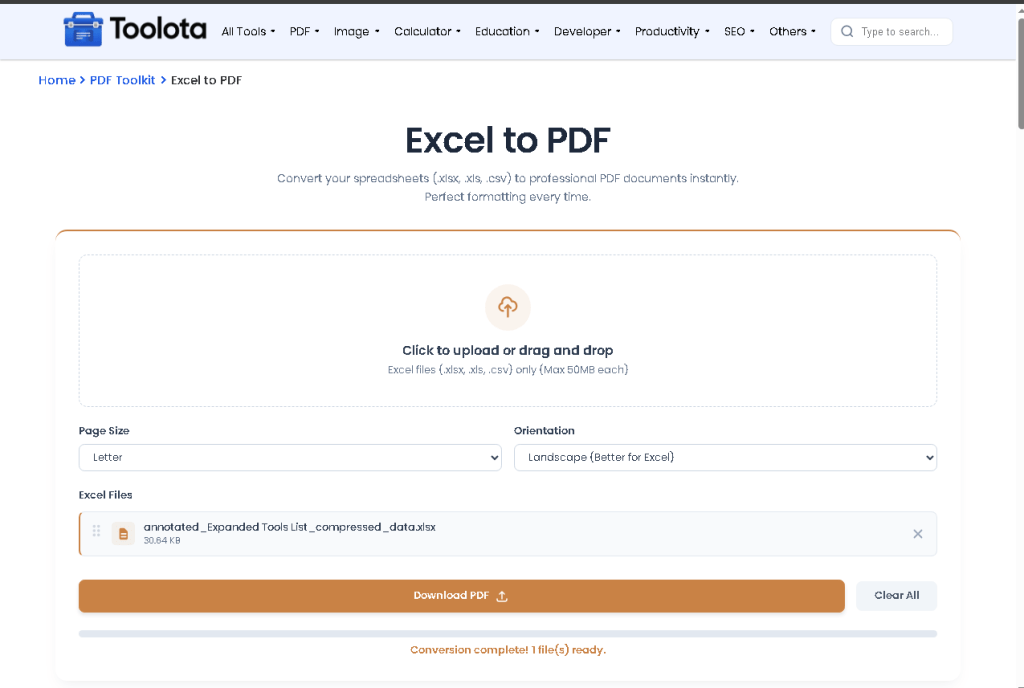
The interface opens with a clean drag-and-drop upload zone at the center. Once files are added, page size and orientation dropdowns appear directly below — no separate settings page. The tool reads every sheet inside the workbook, converts each one into a table with a striped layout, and prints the sheet name as a heading on each corresponding PDF page. Progress is tracked live through a bar that fills as each file completes. When all files finish, the convert button disappears, and the download button takes its place for instant access.
The tool accepts .xlsx, .xls, and .csv files. All three formats are processed without any pre-conversion required on your end.
Each uploaded file must be under 50MB. Files above this limit are rejected before conversion starts and a message is shown in the upload area.
Yes. The tool supports batch conversion. Add as many files as needed, configure settings once, and convert them all in a single session.
Every sheet inside a workbook is converted. Each sheet becomes a separate page in the PDF output with its sheet name printed as a heading at the top of that page.
Yes. A settings panel appears after uploading files with dropdowns for page size (A4, Letter, Legal, A3) and orientation (Portrait or Landscape).
No installation required. The entire conversion runs inside your browser using local processing — no software download, no account needed.
The tool validates each file on upload. Non-Excel files trigger an error message listing which files were rejected, and only valid files are added to the queue.
After conversion completes, a Download Files button replaces the Convert button. Clicking it triggers automatic download of all converted PDFs at once.
Toolota is your all-in-one online tools platform. Fast, simple, and free utilities designed to make everyday digital tasks easier and smarter.