No tools found matching your search.

JPG to PDF

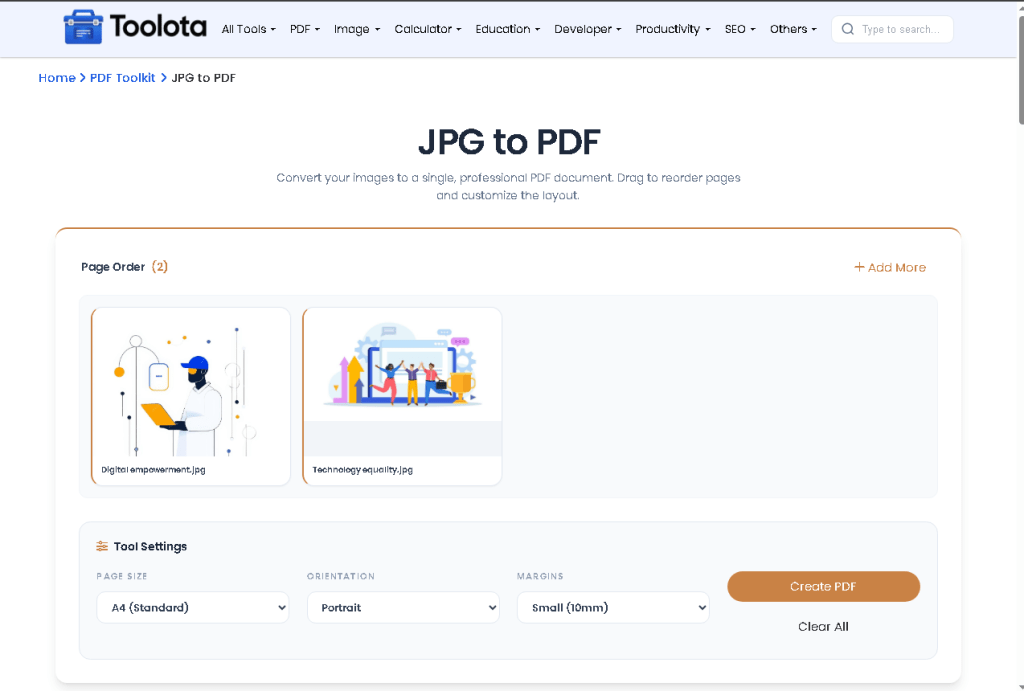
Convert your images to a single, professional PDF document. Drag to reorder pages and customize the layout.

Click to upload or drag and drop

Supports JPG, PNG, and WebP (Max 10MB per image)

Other Tools

JPG to PDF Converter – Convert Images to PDF Online Free

JPG to PDF Converter lets you combine multiple images into a single, well-formatted PDF document in just a few clicks. Whether you are scanning receipts, compiling photo albums, or preparing presentation materials, this tool gives you full control over how your final PDF looks. Upload your JPG, PNG, or WebP files, drag them into the right order, and adjust page size, orientation, and margins to suit your needs. The tool processes everything locally in your browser, so you can convert images to PDF quickly without uploading sensitive files to any server. Once the conversion finishes, you get a high-quality, downloadable PDF ready to share or archive.

Features Of This JPG to PDF Converter

Upload multiple images at once via click or drag-and-drop

Supports JPG, PNG, and WebP formats (max 10MB per file)

Real‑time thumbnail preview of every uploaded image

Drag‑and‑drop reordering to arrange pages exactly how you want them

Click any thumbnail to view it enlarged in a popup

Popup includes a “Remove this image” action for quick deletions

Page size dropdown: A4, Fit to Image Size, or US Letter

Orientation options: Portrait, Landscape, or Auto (Smart) detection

Margin controls: No Margin, Small (10mm), or Large (20mm)

“Add More” button to keep uploading additional images

Visual progress bar and status updates during PDF generation

Download button to save the final PDF locally

“Clear All” and “Start New” buttons for a fresh start

JPG to PDF Converter Toolota

Pro Tips For Better PDF Results

If you want to confirm the image format before creating your PDF, convert your iPhone photos to JPG first with HEIC to JPG converter.
Once the PDF is created, use Compress PDF to reduce the file size before sharing or emailing.

If you have a Word document instead of an image, you can work directly with the Word to PDF converter.

There is no loss of quality during image to PDF conversion because JPEG itself is a lossy compression format, and that compressed data is embedded directly into the PDF page.

How To Use This JPG to PDF Converter

1

Upload Your Images

Click the drop zone or drag image files into it. You can select multiple files at once.

2

Reorder Pages

Drag any thumbnail left or right to rearrange the order. The final PDF will follow this sequence.

3

Customize your PDF settings

Choose a page size, orientation, and margin from the dropdowns in the Tool Settings panel.

4

Create the PDF

Hit the "Create PDF" button. The tool will process each image and show you a progress bar.

5

Download Your File

Once the conversion is complete, click "Download PDF" to save the merged document to your device.

How do I combine multiple JPGs into one PDF?” Just upload, reorder, choose your settings, and hit Create PDF — the tool handles the rest for you.

Why Choose This JPG to PDF Converter

🖼️ Drag-and-Drop Upload Zone

The upload area responds to both click and drag actions. It highlights visually when a file is dragged over it, giving clear feedback before you drop.

🔄 Auto Smart Orientation

The orientation selector includes an "Auto (Smart)" mode. The tool reads each image's width-to-height ratio and automatically sets portrait or landscape per page.

📊 Page-by-Page Progress Display

The progress bar shows exact status text — "Processing page 2 of 5" — so you always know where the conversion stands, not just a generic spinner.

📐 Fit to Image Size Option

Beyond standard A4 and US Letter, the page size dropdown includes a "Fit to Image Size" option — the PDF page dimensions match each image's actual pixel dimensions converted to mm.

✂️ Per-Image Delete Control

Every preview card shows a trash icon on hover. Delete individual images from your list without clearing the entire session or starting over.

⬇️ Timestamped File Download

The downloaded PDF uses an auto-generated filename with a timestamp (images_to_pdf_[timestamp].pdf), preventing accidental overwrites when converting multiple batches.

Understanding Your PDF Output

When you convert images into a PDF, the tool maps each uploaded file to a separate page in the final document. The page size setting determines the canvas dimensions; if you choose “Fit to Image Size”, every page adapts to its own image’s proportions. The margin value adds white space around the image on each page, which can make the document look cleaner and more readable. Orientation works per page — Auto mode checks each image’s aspect ratio and rotates the page accordingly, so a wide landscape photo doesn’t get squashed into a tall portrait frame. The result is a unified PDF that keeps your images crisp and correctly positioned.

Frequently Asked Questions

Can I convert multiple images at once?

Yes, you can upload multiple JPG, PNG, or WebP files in one go and the tool will merge them into a single PDF with one page per image.

The dropdown offers A4 (standard), Fit to Image Size (custom per image), and US Letter.

Simply drag any thumbnail in the preview grid left or right — the PDF will follow that new order.

Each image must be under 10MB. The tool warns you if a file exceeds that limit.

No, everything runs inside your browser. Your images stay on your device the whole time.

It removes every uploaded image and resets the tool to its initial upload state, ready for a new batch.