No tools found matching your search.
JPG to PDF Converter - Professional Tool

JPG to PDF

Convert your images to a single, professional PDF document. Drag to reorder pages and customize the layout.

Click to upload or drag and drop

Supports JPG, PNG, and WebP (Max 10MB per image)

JPG to PDF Converter – Convert Images to PDF Online Free

JPG to PDF converter lets you turn multiple images into a single, professional PDF document right from your browser. Upload your JPG, PNG, or WebP files, arrange them in the exact order you need, configure the layout settings, and generate a ready-to-download PDF in seconds. The entire conversion process from JPG to PDF takes place right on your device; no software is necessary. The tool handles it neatly, regardless of whether you’re generating a picture PDF or combining scanned materials.

Benefits of Using a Merge PDF Online Tool

Multi-Format Image Support Upload JPG, PNG, and WebP files — up to 10MB per image. The tool accepts multiple files in a single session and adds each as a separate page in the output PDF.

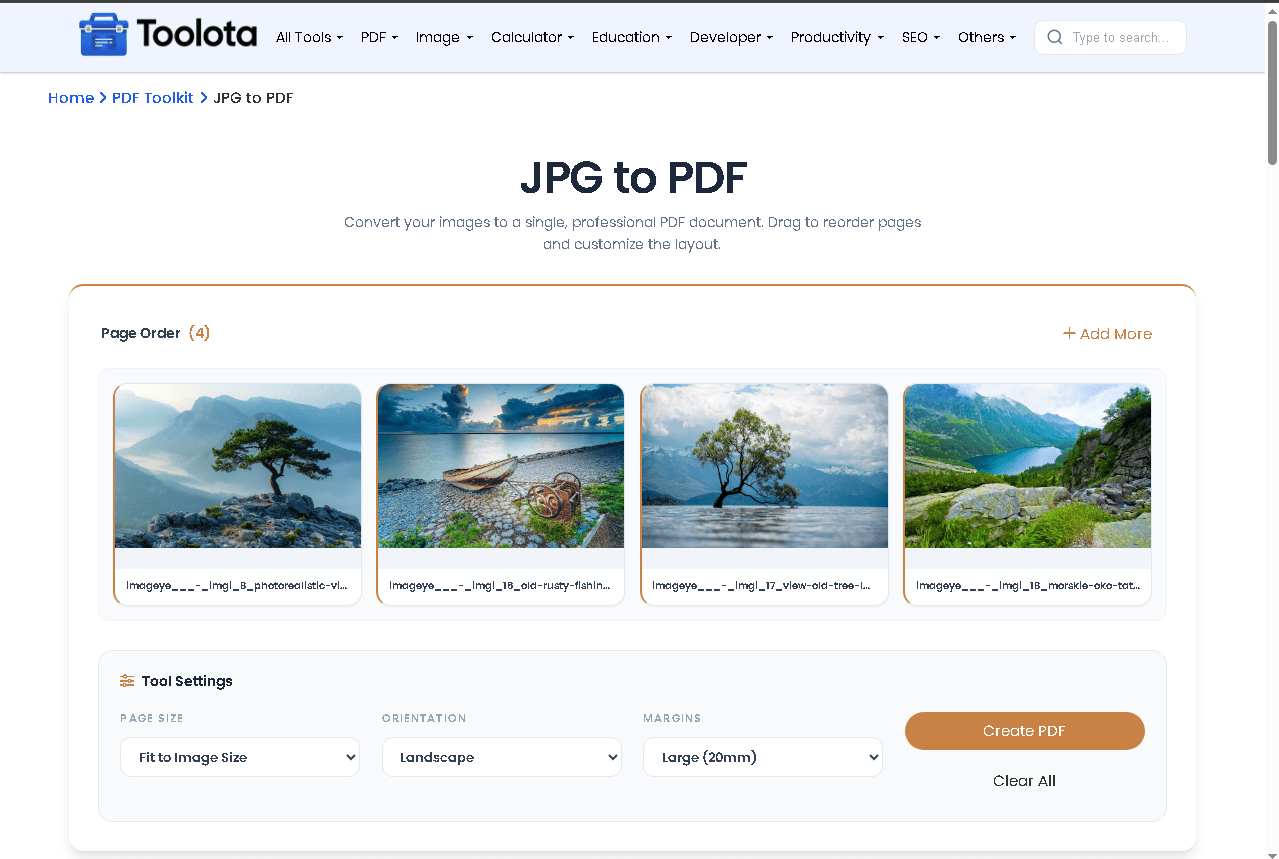
Drag-to-Reorder Page Control After uploading, a visual preview grid displays all your images as cards. Drag and drop them to set the exact page sequence before converting. The live page counter updates as you add or remove files.

Add More Files Anytime The workspace continues to have an Add More button available. Before clicking Create PDF, you may add to your list of files at any time without having to restart the session.

Three-Setting Layout Panel A dedicated Tool Settings panel lets you control three PDF output options: page size (A4, Fit to Image, US Letter), orientation (Portrait, Landscape, Auto Smart), and margins (No Margin, Small 10mm, Large 20mm).

Live Progress Tracking During conversion, a progress bar tracks processing page by page — from “Initializing PDF engine” through each image, up to 100% Done. Status text updates in real time.

Instant PDF Download Once conversion completes, a “Download PDF” button appears. The file saves with a timestamped filename. A “Start New” button resets the tool for the next batch.

JPG to PDF converter upload interface with drag and drop zone

PRO TIPS

Use Auto Smart orientation for mixed batches — if your images include both landscape photos and portrait scans, the Auto mode assigns the correct orientation per page automatically without manual switching.

Set “Fit to Image Size” for exact-dimension output — when your images need to stay pixel-accurate (screenshots, diagrams), this option prevents any rescaling to standard paper sizes.

Select No Margin for edge-to-edge layouts — if you’re converting full-bleed photos or design mockups, removing the margin fills the entire PDF page with the image.

Add files in batches using Add More — you don’t have to upload everything at once. Upload an initial set, reorder, then add remaining files using the Add More button before converting.

Use Clear All to reset without refreshing — the “Clear All” button wipes all uploaded files and returns to the drop zone, keeping the tool ready for a fresh session instantly.

HOW TO USE THIS PDF TO WORD TOOL

1

Upload Your Images

Click the drop zone or drag your files directly onto it. Accepts JPG, PNG, and WebP — up to 10MB per file. Multiple files can be added at once.

2

Reorder Pages

Your images appear as preview cards in a grid labeled "Page Order." Drag them into the sequence you want. Remove any image using the trash icon on hover.

3

Configure PDF Settings

Open the Tool Settings panel. Choose your page size, set orientation to Portrait, Landscape, or Auto Smart, and select a margin size. Default margin is Small (10mm).

4

Create the PDF

Click the "Create PDF" button. The tool initializes the PDF engine, processes each image page by page, and tracks progress with a live bar and status message.

5

Download Your File

When the progress bar hits 100%, the result screen shows "Conversion Complete." Click "Download PDF" to save the file. Use "Start New" to convert another batch.

WHY CHOOSE PDF TO WORD TOOL

🖼️ Drag-and-Drop Upload Zone

The upload area responds to both click and drag actions. It highlights visually when a file is dragged over it, giving clear feedback before you drop.

🔄 Auto Smart Orientation

The orientation selector includes an "Auto (Smart)" mode. The tool reads each image's width-to-height ratio and automatically sets portrait or landscape per page.

📊 Page-by-Page Progress Display

The progress bar shows exact status text — "Processing page 2 of 5" — so you always know where the conversion stands, not just a generic spinner.

📐 Fit to Image Size Option

Beyond standard A4 and US Letter, the page size dropdown includes a "Fit to Image Size" option — the PDF page dimensions match each image's actual pixel dimensions converted to mm.

✂️ Per-Image Delete Control

Every preview card shows a trash icon on hover. Delete individual images from your list without clearing the entire session or starting over.

⬇️ Timestamped File Download

The downloaded PDF uses an auto-generated filename with a timestamp (images_to_pdf_[timestamp].pdf), preventing accidental overwrites when converting multiple batches.

How this JPG to PDF converter interface and process works

Drop zone sits at the center of the screen — click it or drag files straight onto it to begin. Once images load, the workspace switches to a preview grid showing each file as a card with its filename. To establish the page order, drag cards, then choose the size, orientation, and margins in the settings pane. The program processes photos one after another, giving live progress updates before displaying a download-ready result screen, when you click Create PDF.

Frequently Asked Questions

What image formats does this tool accept?

What image formats does this tool accept? The tool accepts JPG, PNG, and WebP files. Any file that does not start with an image MIME type is rejected automatically with an error message.

Yes. Each image must be 10 MB or less. Files exceeding this limit are flagged and excluded — the remaining valid files still process normally.

Yes. After uploading, every image appears as a draggable card in the Page Order grid. Drag them into any sequence before clicking Create PDF.

Three options: A4 (Standard), Fit to Image Size, and US Letter. “Fit to Image Size” creates pages sized to match each image’s actual dimensions.

A result screen appears with a “Download PDF” button and a “Start New” button. The PDF downloads with an auto-generated timestamped filename.