Extract text and table data from your PDF into a structured Excel spreadsheet.
Drop your PDF here
or click anywhere in this box to select
Data Preview
No text data found on this page
This page may be image-only or blank
Building Excel file...
A PDF to Excel converter should feel direct and visual. This tool starts the moment you drop a file onto the dashed zone. It reads every page’s text blocks, organizes them by position, and builds a clean Excel workbook where each PDF page becomes a separate sheet – no manual copying required.
The interface opens with a premium card containing a bold upload zone. A drag‑drop upload box lights up when you hover a PDF over it. The tool counts total pages and shows an info pill – “0 pages” becomes the actual page number after loading.

Click anywhere inside the dashed drag area or use the hidden file input. The tool accepts only .pdf files. After selection, the workspace appears and the original drop zone hides.

The PDF to Excel converter processes every page automatically. A progress indicator shows the current page number (e.g., “3 / 10”). No extra button is needed – extraction starts right after the file is loaded.

Use the page tabs to inspect each sheet’s data. The table shows up to 50 rows per page for a quick sanity check. Then click the orange Download Excel button. The tool writes an .xlsx file named after your original PDF with _data appended.
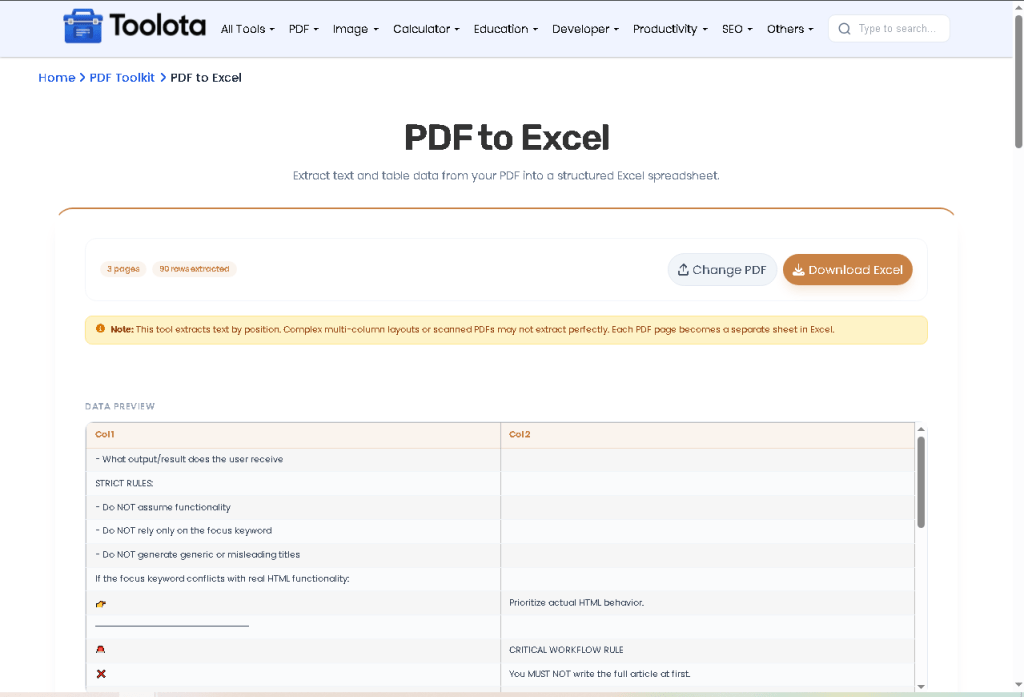
The PDF to Excel converter bundles consolidate all page information into one Excel workbook. Column widths automatically adjust according to the length of the longest cell content (ranging from 8 to 50 characters). The download button activates only after extraction is complete – no ambiguity
Unlike visual table detectors, this PDF to Excel converter uses a simple but effective rule: every text item on a PDF has an X and Y coordinate. The script rounds each Y value by a tolerance of 3 pixels, then groups items that share the same rounded Y into a single row. Inside each row, items are sorted from left to right by their X position.
Many converters assume simple tables. This tool reads PDF text extraction by grouping text items based on their Y‑position (with a 3‑pixel tolerance). It then sorts columns by X‑coordinate. That means multi‑line paragraphs and columnar layouts are preserved as rows.
A Change PDF button resets all stored data – pdfDoc, origBytes, allPageData – and brings back the upload zone. You can test multiple files in the same session without reloading.
The file never leaves your browser. pdf.js and SheetJS run entirely on your machine. The page‑by‑page export happens via arrayBuffer and local memory. Your data stays private – no cloud processing.
If your PDF has 15 pages, the final Excel workbook contains 15 sheets named “Page 1”, “Page 2”, etc. Pages with no extractable text show a default message: “No text data found on this page”.
Once the PDF is processed, the workspace reveals clickable page tabs. Each tab displays a table preview with auto‑generated column headers (Col 1, Col 2…). The data preview area lets you check extracted rows before export. If a page has no text, a friendly empty state appears.
The HTML does not include any password handling. The tool expects a standard, unprotected PDF. If the file triggers an error, the alert “Please select a valid PDF file” will appear.
The PDF to Excel converter does not detect semantic headers automatically. It groups text by position. You can rename columns inside Excel after download.
The empty-state div becomes visible with an icon and the message: “No text data found on this page. This page may be image‑only or blank.” In the final Excel file, that sheet will contain a single row saying “No text data found on this page”.
The HTML includes a responsive viewport and Tailwind CSS. The drag‑drop area says “click anywhere in this box to select”, so touch devices can use the file picker. However, large PDFs may be slower on mobile due to local processing.
No. The script loops from page 1 to pdfDoc.numPages and extracts all pages. But you can delete unwanted sheets after downloading the Excel workbook.
Yes. You can switch between Medium, High, and Low at any point before clicking “Compress PDF.”
Toolota is your all-in-one online tools platform. Fast, simple, and free utilities designed to make everyday digital tasks easier and smarter.
