Precise millisecond stopwatch with lap tracking. Start, pause, record laps, and reset — right in your browser.
A stopwatch online gives you a simple way to measure elapsed time down to the millisecond. Whether you’re timing a workout, tracking cooking intervals, or managing study sessions, this tool lets you start, pause, record laps, and reset with one click. It works like a physical stopwatch but lives in your browser, making it a versatile timer for many daily activities. You can see your total time and each split instantly without needing a separate device.
Millisecond display – Shows hours, minutes, seconds, and hundredths of a second for precise timing.
Start / Resume button – Begins the timer from zero or continues after a pause.
Pause button – Stops the timer instantly without losing your current elapsed time.
Lap button – Records the current elapsed time as a lap without stopping the main timer.
Reset button – Clears the timer and removes all recorded laps in one action.
Status indicator – Displays “Ready”, “Running”, or “Paused” so you always know the timer state.
Lap history list – Shows every lap you’ve recorded with split and total times.
Best lap badge – Automatically highlights your fastest split with a “Best” label.
Slowest lap badge – Marks your slowest split with a “Slow” label.
Lap counter – Updates the total number of laps recorded as you go.
Responsive layout – Works on desktop, tablet, and mobile screens.
Font icons – Uses clear icon labels for each action (play, pause, flag, restart).
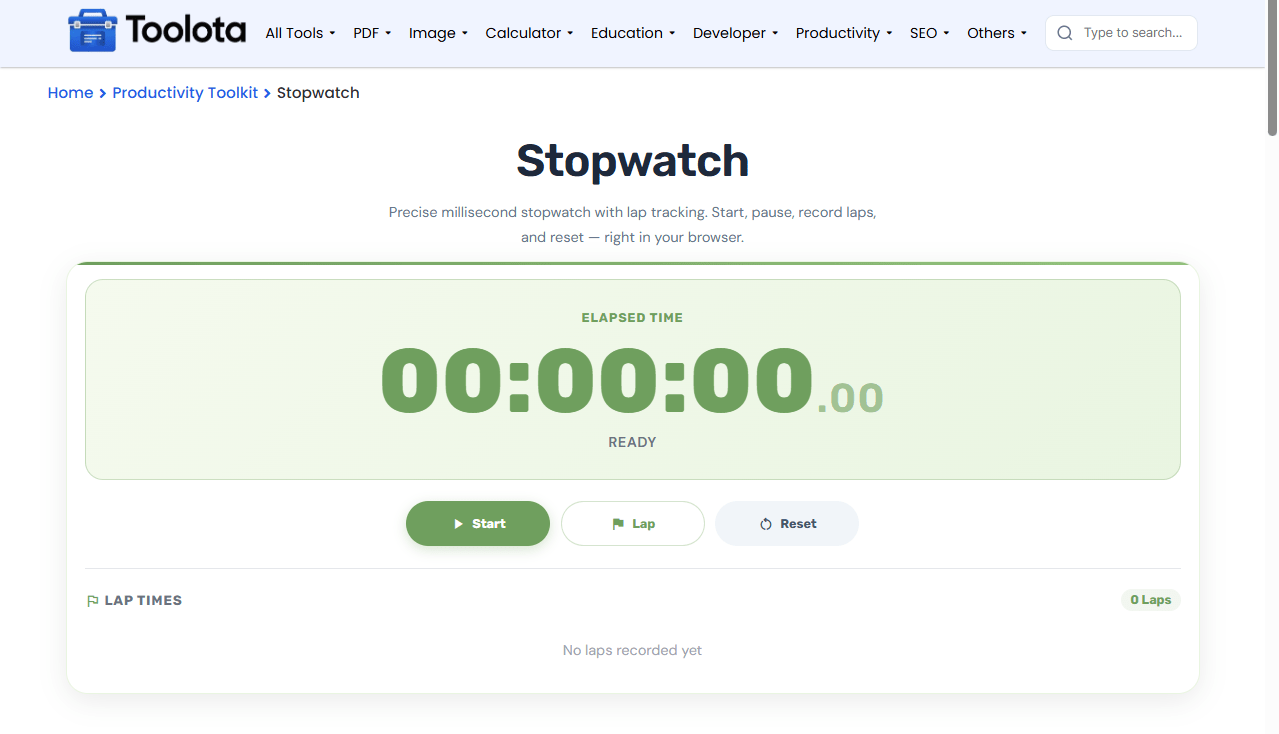

Click the green Start button to begin counting elapsed time.

Tap the Lap button anytime to save the current split without stopping the timer.

Hit the Reset button to return the display to 00:00:00.00 and clear all lap data.

Press the Pause button to freeze the display; then resume when you're ready.
How do I track my daily walks with this tool? Just start it at the beginning of your route, hit Lap at each kilometer, and review your splits at the end. To use it specifically as a study timer, begin counting at the start of your focus session and pause during short breaks to keep your total study time accurate.
See hundredths of a second, so you get precise timing for any activity.
Instantly see which lap was your fastest and which was your slowest.
The layout adjusts to your device, so it's as easy to use on a phone as on a laptop.
Record multiple laps without stopping the main timer, perfect for lap tracking during runs or reps.
Clear the timer and all laps simultaneously to start fresh.
The display refreshes every 30 milliseconds, so you always see the current elapsed time. The program instantly calculates the split—the difference between consecutive laps—and records each lap you log as a total elapsed time. That split is what gets highlighted with a Best or Slow badge. The lap feature is especially handy if you are using this as a study timer to break down each subject block, or as a walk timer to see if your pace is improving across segments.
Use laps for interval training – Hit Lap at the end of each repeat to track per-set times without losing your overall running duration.
Pause before resetting – If you need to check a reading, pause first so you don’t accidentally wipe your lap history.
Scroll through long lap lists – The lap area scrolls, so you can review all recorded splits even after recording many laps.
Click the green Start button, and it will begin counting from 00:00:00.00.
Yes, press Pause to freeze the time, then click Resume (the Start button changes label) to continue counting.
The current elapsed time is saved as a lap, shown in the lap list with its split from the previous lap.
Yes, although it counts up instead of down. Start it when you put food in the oven and check the elapsed time when your recipe is done.
Yes, Reset clears both the main timer and all recorded laps at the same time.
Absolutely. Start it at the beginning of a session and pause during breaks to track net focused time.
Toolota is your all-in-one online tools platform. Fast, simple, and free utilities designed to make everyday digital tasks easier and smarter.
