Split PDF Online – Easy & Quick PDF Page Separator | Toolota
Table of Contents
What is a PDF Splitter?
Looking for a way to split PDFs online for work, school, or personal projects? You’re definitely not alone in needing this! Millions of people deal with the daily challenge of managing large PDF files that often bundle multiple documents, chapters, or pages into one big file. Trying to manually pull out pages is such a drag and really eats up your time. That’s where a dedicated Split PDF Online tool comes in as the modern solution.
Splitting a PDF online basically means taking one big, multi-page PDF file and breaking it down into several smaller files, or just extracting the specific pages you need into a brand new document. This is super useful when you only want to share certain parts of a report, submit specific pages from a form, or keep the chapters of an e-book neatly separate.
How does it work? It’s pretty straightforward. You just upload your PDF file to a secure web-based platform (like Toolota). The tool quickly looks over your document and gives you easy-to-use options for picking which pages you want. You can choose to split every page into its own file, select a custom range (say, pages 5 through 12), or even pick specific, non-consecutive pages. With just one click, the tool does its thing and gives you downloadable, split files—all without you needing to install any software.
Who should use this? Pretty much anyone who works with digital documents regularly—students, professionals, administrators, researchers, content creators, and more. It’s a great way to tackle the usual headaches of dealing with huge files, messy organization, and inefficient sharing by giving you precise control over your PDF content.
Why Choose Toolota to Split PDF Online?
Toolota is the go-to choice in a crowded online tool market when you need to split PDFs. It’s the platform creators and pros rely on for these reasons:
You Can Count On Us: Our solid technology means the site is up and running 99.9% of the time. When you need to split a PDF online, Toolota is always there when you need it.
Perfect Results Every Time: We promise that every page you pick comes out exactly right. No messed-up formatting, no blurry images, no wonky layouts—your fonts, pictures, and design stay perfect.
Lightning-Fast Speed: We built Toolota for speed. It handles your files in seconds, not frustrating minutes, so you can get back to work fast.
Smart & Flexible Features: We do more than just basic splitting. You can pick specific page ranges, grab every page individually, or choose just the ones you need. Plus, you get a clear preview to double-check your selection before you even start.
Easy as Pie Interface: We’ve kept things simple. The design is super clear and easy to use, so anyone—from tech beginners to seasoned pros—can jump right in and get the job done without any fuss.
Ideal for Creative Folks: If you’re putting together online courses, organizing digital files, or prepping reports for clients, being able to quickly split PDFs online really speeds up your work and makes your final product look more professional.
How This Tool Works: Split PDF Online in 3 Steps
Looking to split your PDFs online quickly and easily? Toolota’s Split PDF Online tool is designed to make the process as efficient as possible. Here’s a simple, step-by-step guide on how to use it, based on understanding how it works:
Step 1: Get Your Document Ready
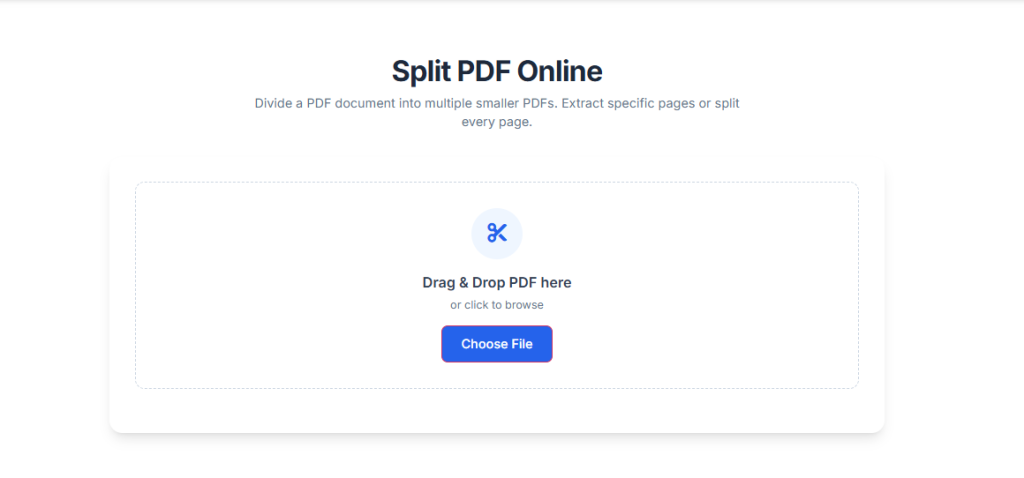
You’ll start on a clean and straightforward main page. There’s a clear area where you can upload your PDF. Just drag and drop your file right into that space, or click on it to browse your computer for the file you need. The tool can handle various file sizes, and it clearly lets you know any limits to keep things running smoothly. Once it’s uploaded, you’ll see a small preview or the file name, confirming everything went through correctly.
Step 2: Set Up How You Want to Split It (The Control Panel)**
This is where you decide exactly how you want to split your PDF. After you upload your file, you’ll see some options appear:
See Your Document: Usually on the right side, you’ll find a scrollable preview of all your PDF pages. This helps you quickly check what’s inside.
Choose Your Splitting Method: You’ll see clear options, often like radio buttons or tabs, to pick how you want to divide the pages:
Extract Every Page”: This creates a brand new PDF file for each individual page.
“Select Page Range”: If you need a continuous chunk, this lets you enter a starting and ending page (like “From Page [ ] To Page [ ]”).
Select Custom Pages”: Need specific pages? You can type in the numbers you want, separated by commas (for example: “1, 3, 5-7, 10”).
Click to Select: Many tools also let you click directly on the little page pictures (thumbnails) in the preview area to choose or unchoose them. The ones you’ve selected will usually be highlighted so you know they’re picked.
Step 3: Go For It & Get Your Files
When you’re happy with your choices, just hit that main button – it’ll probably say something like “Split PDF” or “Extract Pages”. You’ll see a little progress bar pop up for a second, and then, voilà, it’s done! You’ll be shown a section with:
A List of Your Files: You’ll see each of the new PDFs you created, often with a name like “document_page_1.pdf”. Easy enough, just click the “Download” button next to the one you want.
One-Click Download: Or, if you want them all, there’s a handy “Download All as ZIP” button. This bundles everything into a single zip file, making it super simple to move around.
tart Over: Feeling ambitious? The “Split Another PDF” button lets you jump right back in and start the whole process again without missing a beat.
The whole thing happens right in your browser – it’s safe, private, and super speedy. You won’t find any confusing settings to mess with; the tool is designed to be smart and straightforward, guiding you from start to finish in under a minute.
Key Benefits of Using Our Split PDF Online Tool
Using Toolota to split your PDFs online gives you some clear benefits right away:
Keep it Just Right: Our system makes sure every page you pull out looks exactly like it did in the original PDF. We keep the quality, the links, and all the formatting intact. What you choose is exactly what you’ll get.
Quick Results: Turn that massive, hard-to-handle document into perfectly sized files in less than a minute. That kind of speed can change document handling from a hassle into a breeze.
Smart for SEO: If you’re a webmaster or digital marketer, breaking down big PDF guides or reports into smaller, topic-specific pages can create great content pieces that boost your SEO and engage your audience.
Works Everywhere, for Everyone: Since it’s a web tool, you can use it on any device with a browser—Windows, Mac, Linux, Chromebook, you name it. Our interface is straightforward and easy to understand, no matter what language you’re used to.
Simple and Clean: The design is super simple, so it’s all about getting the job done. No confusing menus, no annoying ads—just a clear path to splitting your PDF.
More Than Just Splitting: Even though we’re focused on splitting PDFs, our dedication to a clean look carries over to the rest of Toolota’s tools. You’ll find powerful text editing, formatting, and organizing features that are always easy to use.
Important Conditions & Best Practices
To make sure you have the best possible experience when you split your PDFs online using Toolota, please keep the following pointers in mind:
File Quality Matters: The tool works with the PDF you give it. Be sure your original file isn’t damaged or locked with a password (unless you can provide the password when you upload it, if that option is available).
Give it a Quick Check: Even though our tool is pretty accurate, it’s always smart to open the split files yourself to make sure everything looks good, especially if it’s an important document.
Keep it Legal and Safe: Toolota is meant for regular, honest use, whether it’s for personal or work stuff. Please don’t use it to process anything you don’t own, or any files that have harmful, illegal, or offensive content.
Simple Tips for Using the Tool: For the best results, make sure you have a steady internet connection while you’re uploading and downloading. If you run into any unexpected issues, try clearing your browser’s cache. Also, take a look at the file size limits mentioned on the tool’s page.
Frequently Asked Questions (FAQ) About the PDF to JPG Converter