Organize PDF – Smart & Easy PDF Page Arranger | Toolota
Table of Contents
Alright, managing digital documents is something almost everyone deals with every day, whether you’re a student, a working professional, or someone in a creative field. A really common headache? PDF files. You know the drill: pages are out of order, some need to be rotated, or there’s just stuff in there you don’t need. Pretty much everyone wants a way to get these PDFs sorted out quickly. Think about getting a scanned contract where the page you need to sign is upside down, or trying to put together a report where the chapters are all jumbled. Trying to fix these things by hand is just so tedious and takes forever.
What is the Organize PDF Tool?
Toolota’s Organize PDF tool is an online app that lets you visually manage the pages in a PDF file. It turns what’s usually a set-in-stone file type into something flexible and interactive. Basically, it tackles the common headaches of managing pages. Need to rearrange the pages, delete ones you don’t need, or rotate pages that were scanned upside down? This tool lets you do all that without messing up the quality of the other pages.
Why Choose Toolota to Organize PDF?
When you’re looking for an online tool to get your PDF documents in order, you really want something that’s dependable, easy to use, and keeps your files safe. That’s exactly what Toolota’s tool focuses on, giving it a clear edge over those run-of-the-mill file converters.
It’s incredibly reliable and accurate: The tool taps into strong, industry-proven libraries like PDF-Lib and PDF.js to handle your files. This makes sure that any changes you make—like rearranging pages, rotating them, or deleting some—are done perfectly in the end result. Your text, images, and formatting all stay just the way they should.
It works super fast: You won’t have to sit around waiting for queues or deal with server lags. Most of the work happens right in your browser, which speeds things up a lot. Making thumbnail previews and putting the final document together is super quick, so you can get your PDFs organized and download them in no time.
It has a unique visual drag-and-drop interface: This is what really sets it apart. Being able to see all your pages and just drag them around to get them in the right order makes the editing process super intuitive. It beats those command-line tools or editors that make you type in page numbers every time.
The interface is clean and really user-friendly: It’s designed to be simple and not cluttered at all. Everything from the upload area to the toolbar and the page display is clear and straightforward. You won’t need a manual to figure it out, which means anyone, no matter their tech skills, can easily start organizing their PDFs.
Privacy by Design: We believe your data should remain yours. That’s why every step of organizing your PDF happens right on your device. We never store your file on our servers, so you can confidently manage sensitive documents without worry.
Ideal for Content Creators: If you’re putting together an e-book, building a portfolio, or making a lesson plan, being able to quickly rearrange your documents is really important. This tool makes it easy for creators to tweak and refine their PDF layouts with no fuss.
How This Tool Works (A Detailed Step-by-Step Guide)
Let’s dive into exactly how to use the Toolota Organize PDF tool by taking a closer look at each part of the interface and what it does, as shown in the HTML code provided.
1.The Upload Zone (#drop-zone):
The fun starts in the big, central drag-and-drop area. This spot is clearly marked with an icon and easy-to-read text. You can either click the “Choose File” button (which activates a hidden file input) or simply drag a PDF file from your computer and drop it right into this area. The setting `accept=”.pdf”` makes sure that only PDF files can be picked. Once you successfully drop or select a file, the `handleFile` function kicks in.
2.File Processing & Thumbnail Generation:
After you’ve picked a file, the real magic happens behind the scenes. The original PDF bytes are loaded using the `pdfjsLib` library. The `renderPages()` function then goes through each page of the PDF. For every page, it:
– Creates a canvas element.
– Renders a scaled-down view of the PDF page onto that canvas (at a 0.3 scale for the best thumbnail size).
– Wraps this canvas in a div container (page-card) which becomes the draggable unit.
– Adds control buttons for rotation and deletion, and a page number label.
This array of `pageData` is stored, keeping track of each page’s original index and current rotation state.
3.The Interactive Workspace (#workspace):
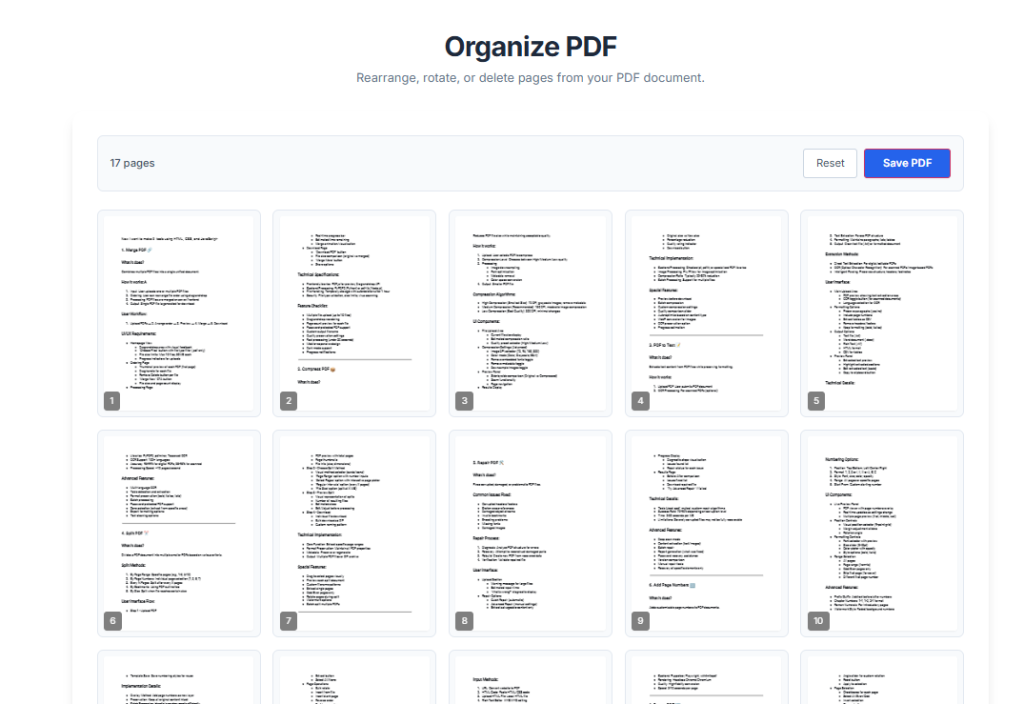
Once the file is processed, the upload area disappears, and you’ll see the workspace. This space includes:
The Toolbar: It shows you the current number of pages and has two handy buttons: “Reset” and “Save PDF.” If you click “Reset,” it will reload the original file, wiping out any changes you’ve made.
The Page Grid (#page-grid): This part uses a responsive grid layout (showing 2 columns on small screens and 5 on larger ones) to display thumbnail previews of all your pages. Thanks to the Sortable.js library, you can easily rearrange these pages. Just drag and drop any thumbnail wherever you want it. When you drop a page, the `updatePageDataOrder()` function runs automatically to make sure the internal list of pages matches the new order you’ve set.
4.Page Manipulation Controls:
Hover over any thumbnail, and you’ll see two buttons appear:
Rotate Button (onclick=”rotatePage(this, 90)”): Clicking this will rotate the specific page by 90 degrees. The system finds the page’s data, updates its rotation value, and applies a CSS rotation effect so you can see the change immediately. This rotation information is saved and will be included when you finally save the PDF.
Delete Button (onclick=”deletePage(this)”): This removes the selected page entirely. It takes the page card out of the layout, updates the internal list of pages using `updatePageDataOrder()`, and also adjusts the page count displayed in the toolbar.
Key Benefits of Using Our PDF Organizer
Okay, here’s that text rephrased to sound more natural and conversational:
Getting your PDF files in order with Toolota’s tool comes with a bunch of great benefits that really simplify how you handle your documents:
Pinpoint Accuracy: The tool makes sure every change you make—like rearranging pages, rotating them, or deleting some—shows up exactly right in the final PDF. It keeps the text and pictures looking just like they did originally.
Speedy Results: Tasks that used to take minutes with complicated software are now done in seconds. Its visual interface makes it easy to see what you’re doing, so you can quickly decide and make the changes you need without any guesswork.
Helps Your Content Shine (Even Though It’s Not for Websites): While this tool isn’t for creating web pages, it’s super useful for businesses. If you make downloadable guides, reports, or e-books, being able to quickly organize your PDF content means you can produce great lead magnets and resources faster. These are the kinds of things that attract and keep your audience engaged.
Instantly Available, No Hassle: You can use this tool on any modern browser and any device. You don’t need to sign up for an account, pay for a subscription, or install any software. It’s designed to be as easy to start using as possible.
Super Easy to Use: With features like drag-and-drop, little picture previews of each page, and helpful controls that pop up when you hover, it feels really natural and powerful to use. You won’t need any time to figure it out.
Everything You Need (Without the Overwhelm): It focuses on the most useful PDF editing tasks, giving you all the essentials: reordering pages, rotating them, deleting pages, a visual reset option, and a single click to save your work. It covers about 95% of the common things you’d want to do with individual PDF pages.
Important Conditions & Best Practices
To make sure you have the best experience when you use our tool to organize your PDFs, here are a few things to keep in mind:
What you put in affects the outcome: Our tool works with the PDF you upload. But if your file is very complex, has strong encryption, fancy scripts, or certain kinds of form fields, the tool might not handle it perfectly.
Give it a quick check: Even though the tool is pretty good, it’s always smart to quickly look over the final PDF before you share it or print it, just to make sure everything turned out right.
Play by the rules: This tool is meant for regular document management. Please don’t use it to organize PDFs that have illegal, copyrighted material (unless you have permission), or anything harmful.
A few simple tips: For the tool to run smoothly, try using PDFs that are 500 pages or less – this helps with showing the small preview images faster. You’ll need a steady internet connection when you first load the tool, but the actual processing of your files happens right on your device afterwards.
Frequently Asked Questions (FAQ) About the PDF to JPG Converter