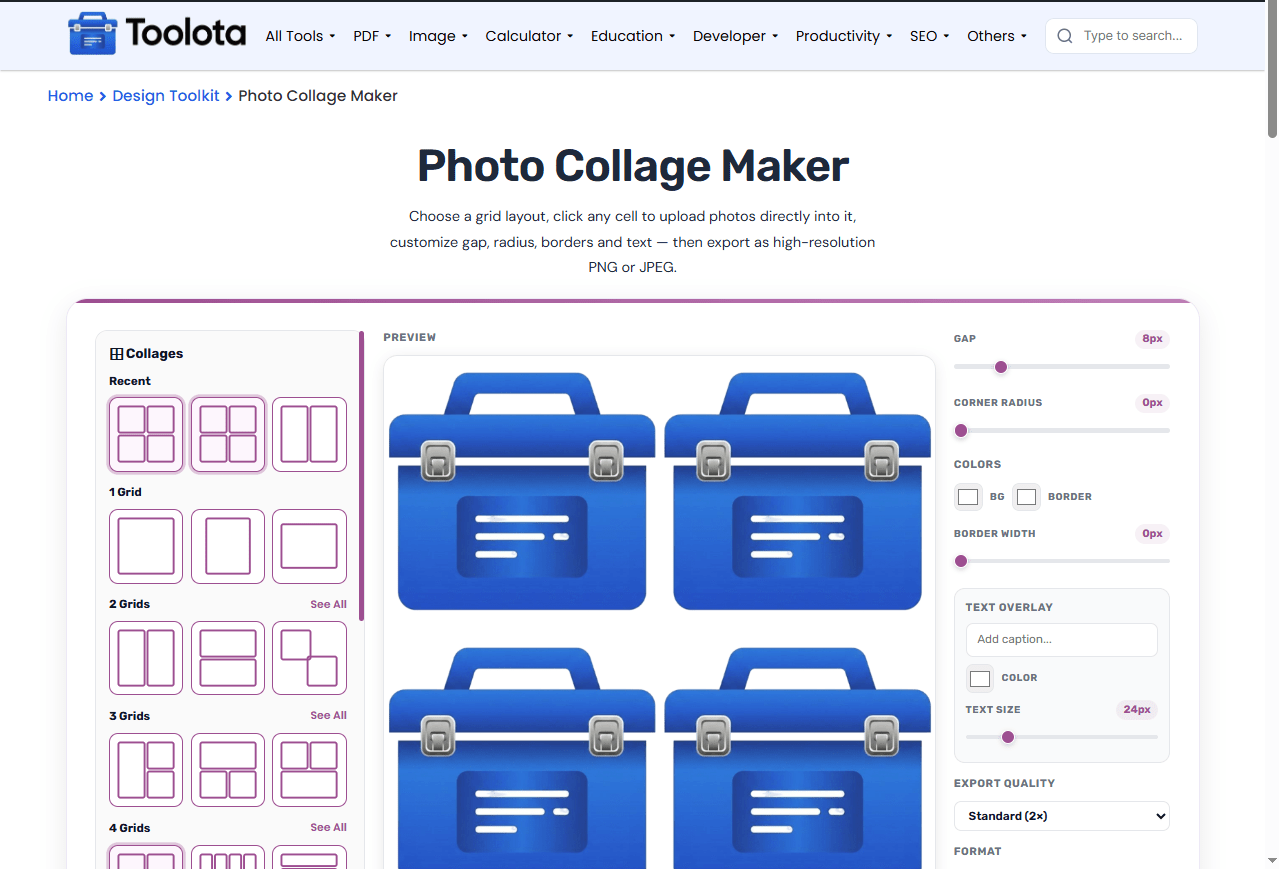
Choose a grid layout, click any cell to upload photos directly into it, customize gap, radius, borders and text — then export as high-resolution PNG or JPEG.
A photo collage maker lets you combine multiple images into a single stunning layout. This tool is designed for quick, drag-and-drop collage creation with adjustable grids, gap spacing, rounded corners, and text overlay. To add your photo, just click on any cell, and the collage will refresh right away. Whether you require a 2×2 grid for Instagram or a sophisticated 10-cell mosaic, the layout gallery provides more than 70 ready-made templates. Modify the border size, background shade, and corner curvature using sliders, and then save your collage as a PNG or JPEG file. This is a comprehensive tool for creating photo collages suitable for social media, printing assignments, or personal memories.
The custom collage maker comes packed with controls that give you full creative freedom. Every feature is accessible directly from the interface:
70+ Pre-Built Grid Layouts — From 1 to 10 cells, organized by grid size for quick browsing
Gap Control — Slide from 0 to 40px to adjust spacing between photos
Corner Radius Slider — Round cell corners from 0 to 40px for softer edges
Border Width & Color — Add borders around each cell with customizable thickness and color
Background Color Picker — Choose any solid color as your canvas background
Text Overlay — Add captions with adjustable font size and color
Cell-Level Upload — Click any cell to upload an image directly to that position
Drag & Drop Support — Simply drag images into any cell
Replace & Delete Tools — Hover over any filled cell to swap or remove its photo
Export Quality Options — Choose 1×, 2×, 3×, or 4× resolution
PNG & JPEG Export — Select transparent background (PNG) or solid background (JPEG)
Reset & Clear All — Start fresh with one click
Follow these steps to create your custom collage in under a minute:

Browse the left panel and click any grid pattern that fits your needs

Click any empty cell to open the file picker, or drag an image directly into it

Use the right panel sliders to modify gap, corner radius, border, and background color

Type your caption in the text overlay field and customize its color and size

Select your preferred quality and format, then click the Download Collage button
“How do I add photos to my collage?” Just click any empty cell and select your image from your device. The photo appears instantly.
Here are the reasons that make this image collage maker a convenient option for achieving fast, polished outcomes:
Open the tool and start creating immediately. No sign-up or login needed.
Your exports are clean and watermark-free. Perfect for sharing or printing.
Every slider and color change updates the canvas instantly, so you see exactly what you're building.
Choose between PNG (transparent support) and JPEG, with quality scaling from 1× to 4×.
The canvas automatically arranges your uploaded photos based on the selected grid template. Each cell acts as an independent container. When you upload an image, the tool crops and scales it to fit the cell’s exact dimensions. The gap slider adds breathing room between cells, while border width and corner radius let you fine-tune the visual style. Background and text layers sit behind and in front of your photos, giving you complete compositional control. Export resolution proportionally adjusts all elements — a 2× export will increase the canvas dimensions twofold without altering the layout, text, and spacing.
Use the gap slider to create separation between busy photos — 8–12px usually works well for most layouts
Match border color to your background for a seamless look, or choose a contrasting color to frame each photo
Keep text short — one or two words work best as captions, especially on smaller grid cells
Export at 2× for most social media uses — it gives you crisp quality without huge file sizes
Yes. Simply drag any image file from your computer and drop it directly onto an empty cell in the preview area.
The tool accepts any standard image format — JPEG, PNG, GIF, WebP, and BMP all work.
No. All exports are completely watermark-free.
Yes. Switching layouts will reset all uploaded photos — so choose your grid before adding images.
PNG supports transparent backgrounds and lossless quality, while JPEG offers smaller file sizes with solid backgrounds.
Toolota is your all-in-one online tools platform. Fast, simple, and free utilities designed to make everyday digital tasks easier and smarter.