Merge PDF Free - Professional Tool

Merge PDF Free

Combine multiple PDF files into a single organized document. Drag and drop to reorder pages.

Click to upload or drag and drop

PDF files only (Max 100MB)

Easy Reordering

Simply drag and drop your files to arrange them in the perfect order before merging.

100% Secure

Files are merged locally in your browser. No data is ever sent to a server.

Lightning Fast

Optimized for speed, allowing you to combine large documents in seconds.

Toolota: Merge PDF Free | 100% Local, No Uploads Needed

Are you finding it tricky to manage separate reports, different chapters, or lots of scanned forms? A lot of students, professionals, and people dealing with digital documents often need to put various PDFs together into one neat file. Doing this manually can really be a drag and take up a lot of your time. That’s exactly where a good, free PDF Merger Free tool comes in handy. Toolota’s PDF Merger Free is designed to tackle this issue head-on, providing a safe, speedy, and completely browser-based solution that gives you full control. You won’t have to deal with clunky software installations or worry about online services that might store your information. 

What is the PDF Merger?

Toolota’s PDF Merger Free is a top-quality online tool created to help you combine many PDF files into one complete document. The best part? It works right in your web browser, so your files never actually leave your computer and go to any external servers. This makes sure your privacy and security are always protected.

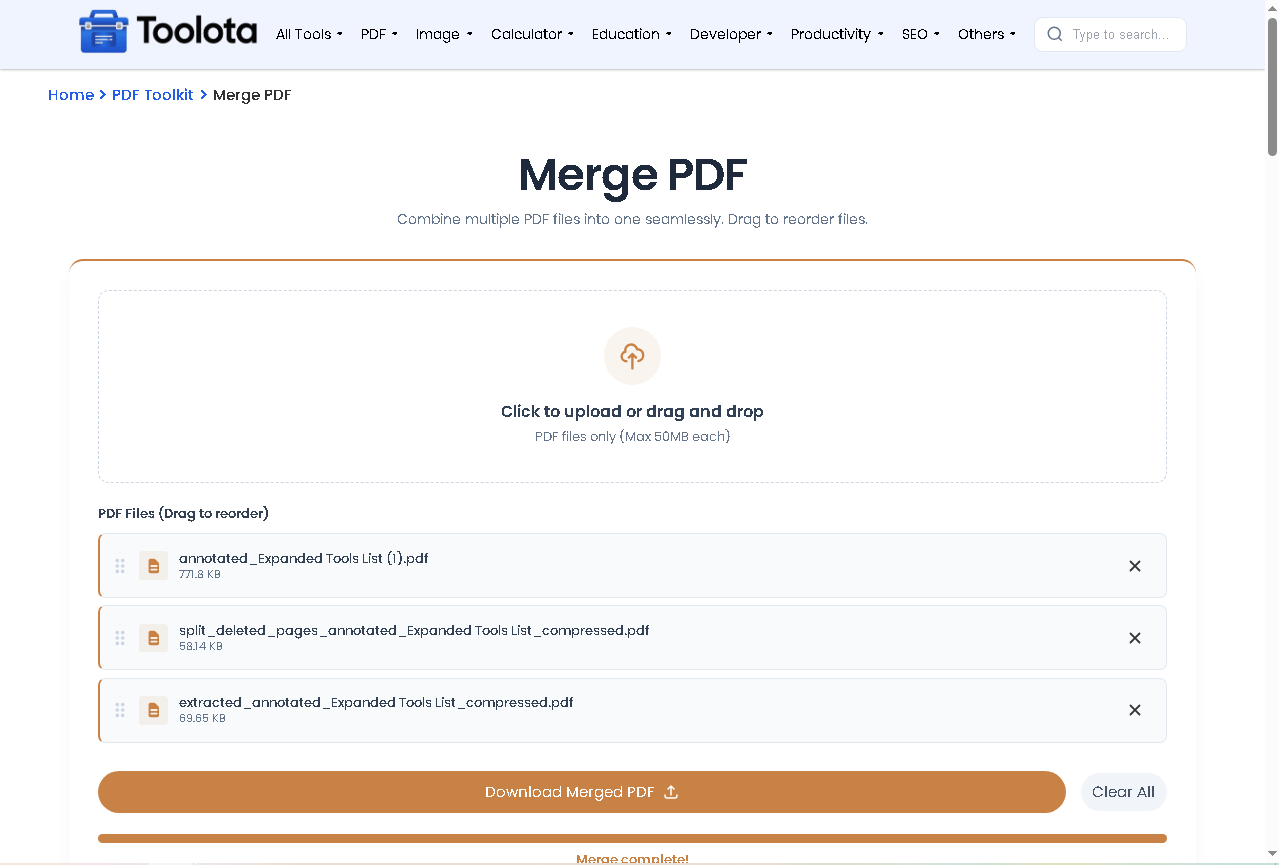
How it works: You can easily upload your PDF files by clicking or using the drag-and-drop feature into a specific area. The tool will then show you exactly which files you’ve selected. If you need to change the order, you can simply drag and drop them to rearrange. When you’re ready, just hit the “Merge PDFs” button. The tool uses smart JavaScript technology to combine your files in the order you set, and then it lets you download the finished, merged PDF file in just a few seconds.

Who should use it: This tool is fantastic for students putting together research projects, professionals creating business reports, administrators organizing forms and records, authors merging book chapters, or anyone who needs to bring multiple digital documents together to share or save.

What problem it solves: It gets rid of the frustration of dealing with complicated desktop software, the cost of paid online services, and the worry about keeping your private data safe. It meets the need for a fast, dependable, and completely free way to merge PDF documents.

Why Choose Toolota’s PDF Merger?

It really does matter which tool you pick. Toolota’s PDF Merger Free is definitely worth checking out because it’s built on some solid principles. They really dug into what users actually need and considered modern web practices, which is why you’ll notice its clean HTML/CSS/JS code.

You get great value and peace of mind with this tool. The big reason is that it works 100% right on your computer. It uses the pdf-lib and FileSaver.js libraries through its HTML code to do all the work in your browser. This means your sensitive contracts, personal files, or any private reports never go anywhere near the internet. Handling confidential stuff? This local processing makes it a really smart choice.

Simplicity leads to reliability here. Toolota’s tools are dependable because they use strong, well-kept open-source libraries and have a super simple, easy-to-use interface. The HTML is built with a responsive Tailwind CSS framework, so it works perfectly whether you’re on a desktop, tablet, or phone. No hidden costs, no need to create an account, and no annoying watermarks—just a clear promise to help you merge PDFs for free.

What makes this tool special goes beyond just basic merging. Its unique selling point is the interactive way you work with it. Thanks to the Sortable.js library, you can easily drag and drop your files to get them in the right order before merging. This kind of flexibility is often missing in simpler merging tools. Plus, the clean look with real-time progress bars and helpful visual cues (like seeing when you’ve dragged something over the drop zone) makes the whole experience feel professional and trustworthy.

Boosting Your Work and Output: For people who create content, do research, or work in teams, this tool makes getting documents ready much smoother. It means you won’t have to spend time on tedious file management, freeing you up to focus on what really matters. Sending out a neat, single PDF not only makes it easier for others to read but also shows a professional touch. Plus, it makes keeping track of digital files simpler, all of which helps improve the quality and speed of the work you produce.

How This Tool Works: A Detailed Walkthrough

Let’s take a peek under the hood at how the PDF Merger works, piece by piece. We’ll see how HTML elements and JavaScript functions join forces to create the smooth experience you use every day. Getting a grasp on this process really shows how clever this tool is.

1.The User Interface & Input Area:

The tool’s design is built to be clear and easy to understand. The main spot where you interact is the drop zone, marked by `<div id=”drop-zone”>`. It has a dashed border and a clear message telling you what to do. Hidden inside this zone is a file input element (`<input type=”file” id=”file-input”>`). This setup gives you options – you can click the zone itself or use the traditional file input button – making it easier for everyone to use. Plus, the zone gives you visual clues: when you drag a file over it, its appearance changes (thanks to adding a ‘drag-over’ class) to let you know it’s ready to accept your files.

  1. File Handling & Validation:

Whether you drop files onto the zone (triggering the ‘drop’ event) or pick them using the file input (triggering the ‘change’ event), the JavaScript function `handleFiles()` kicks in. Its first job is to sort through the files you’ve provided, checking if `file.type` is `’application/pdf’`. This makes sure only PDFs make it through, preventing any accidental uploads of the wrong file type. If a file is valid, it gets added to the main list of selected files (stored in the `selectedFiles` array), which then automatically triggers the `updateFileList()` function to refresh the display.

  1. Dynamic File List & Interactive Reordering:

The file list section (`#file-list`) starts off hidden. When users add files, the `updateFileList()` function creates a visual entry for each one. Each entry shows the filename, a nicely formatted file size (using the `formatSize()` function), a PDF icon, and a button to remove that file. 

Here’s the key part: the Sortable library is set up on the `#file-list` container. This makes it possible to drag and drop items to reorder them. As users drag an item, a transparent “ghost” version (with the `sortable-ghost` class) appears. Once they drop it in a new spot (triggering the `onEnd` event), the JavaScript updates the `selectedFiles` array to match the new order. This guarantees that the PDFs will merge in the exact sequence the user arranged.

  1. Action Controls & State Management:

The action area (`#action-area`), which has the Merge and Clear buttons, only appears after files are added. The Clear All button (`#clear-btn`) wipes the `selectedFiles` array, hides both the file list and action area, and also resets the file input field. The Merge PDFs button (`#merge-btn`) is what kicks off the merging process

  1. The Main Merging Process (Here’s What Matters Most):

When you hit the merge button, it turns itself off for a second (so you don’t accidentally click it twice) and shows the progress area. Then, behind the scenes, an async function kicks off:

Creating the PDF Base: It starts by making a completely new, blank PDF document (this is done with `await PDFDocument.create()`).

Going Through Each File: It then takes the files you’ve selected (in the order you arranged them) and processes them one by one.

For every file, it updates the text showing you which file is being worked on (`#progress-text`) and grabs the file’s raw data (`await file.arrayBuffer()`).

It loads that raw data into a temporary PDF object (`await PDFDocument.load(arrayBuffer)`).

From that temporary PDF, it copies every single page (using `pdf.getPageIndices()`) into your main, new PDF document (`mergedPdf.copyPages()`).

Each copied page gets added to this master PDF.

As it goes, the progress bar (`#progress-bar`) fills up more and more, so you can see how far along the process is.

Finishing Up and Saving: Once all the pages from all the files are copied over, the master PDF is saved into a binary format (`await mergedPdf.save()`). This binary data is turned into a Blob, and then the FileSaver.js library’s `saveAs()` function is used to pop up your browser’s “Save As” window, suggesting you save it as `merged_document.pdf`.

  1. Rich Text & UI Feedback:

At every step of the way, the interface makes sure you know exactly what’s happening. You’ll see clear visual cues, like buttons changing color when you hover over them (hover:bg-blue-700), the merge button looking faded and unclickable while it’s busy (opacity-75, cursor-not-allowed), and the progress bar moving smoothly thanks to CSS transitions. All of these thoughtful details, built right into the HTML and JavaScript, take a potentially tricky technical task and turn it into a straightforward three-step process: Add, Arrange, and Merge.


Key Benefits of Using Our Free PDF Merger

Lightning-Fast Performance: By using special browser tools, this tool works right on your device. Because it processes everything locally, merging your files is super quick—often done in just a few seconds, depending on how big the files are and how many there are.

Top-Notch Security & Privacy: Your information stays completely private and right on your computer. Since no files ever leave to go to a server, there’s zero chance of anyone intercepting them, no risk of data mining, and no unauthorized access. This is especially important when you’re merging sensitive PDFs.

Smartly Organized Output: Think of this like organizing web pages for search engines. This tool helps you organize your documents too. It creates a single, neatly arranged PDF file that’s easier to find, store, and manage in your digital library, whether it’s for personal or work use.

Simple Drag-and-Drop Control: You can easily see and rearrange your files right before you merge them. This hands-on approach lets you control the order, just like you would if you were physically arranging pages, making it super easy for everyone, regardless of tech skills.

Clean and Responsive Design: Built with a modern design system, the tool has a clean, attractive look and feels great to use. It works perfectly on any screen, whether you’re on a phone, tablet, or computer.

Totally Hassle-Free:** You don’t need to sign up, install anything, or deal with watermarks. Once your files are merged, you can download the result with just one click. The handy “Copy” feature for your file list is as easy as saving the final PDF.

Merge PDF Free image
Important Conditions for Use

The quality of the JPG you get is directly tied to how well your original Word document was put together. Basically, the clearer and better formatted your Word file is, the crisper the JPG will turn out.

While Mammoth.js generally handles everyday formatting quite well, it might struggle with highly complex Word layouts, fonts that aren’t web-friendly, or advanced features like text boxes. These might not look exactly right in the final JPG.

It’s important to make sure you actually have the right to turn your document into a JPG and share it. You definitely shouldn’t use this tool to convert content that’s protected by copyright unless you have permission to do so.

Since this tool runs right in your browser, how well it works can depend on a few things, like which browser you’re using and how much memory your computer has, especially if you’re trying to convert a very large document.

Frequently Asked Questions (FAQ) About the PDF to JPG Converter

1. Is it truly free to merge pdf free with Toolota's tool?

Yes, absolutely. Toolota’s PDF Merger is completely free. There are no hidden charges, subscription fees, or watermarks on your merged documents.

The tool works 100% in your browser. Your PDF files are never uploaded to any server; they are read, processed, and combined locally on your own computer, ensuring maximum data security.

While the interface suggests a guideline, the limit depends on your device’s memory. For best performance when you merge pdf free, we recommend merging files under 100MB in total. For larger documents, consider splitting them into batches.

Yes! Before merging, you can drag and drop the files in the list to arrange them in any sequence you want. The tool will combine them in that exact order.