
Word to JPG
Convert your Word documents (.docx) to high-quality JPG images instantly. Each page becomes a separate image file.
Click to upload or drag and drop
Word files (.docx) only (Max 50MB each)
Convert your Word documents (.docx) to high-quality JPG images instantly. Each page becomes a separate image file.
Click to upload or drag and drop
Word files (.docx) only (Max 50MB each)
Converting...
Word to JPG converter makes it simple to turn any DOCX file into clean, high-quality JPG images — directly in your browser.Each page is rendered as a distinct picture file when you upload one or more Word documents. Choose your preferred image quality level before converting, and then instantly download the result. Words are converted to JPG output quickly and accurately in seconds, without the need for installation or signup.
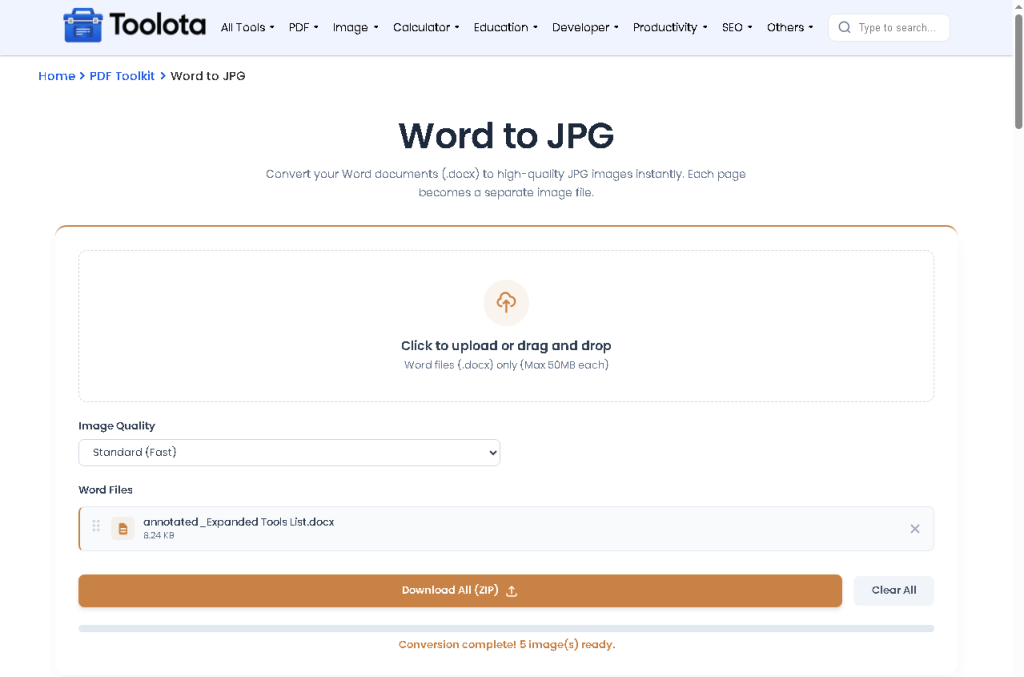
Multiple File Upload — Upload more than one DOCX file at once using the drag-and-drop zone or file picker
Three Image Quality Modes —
Choose Standard (Fast), High Quality, or Ultra (Slow) from the quality selector before converting
Page-by-Page Conversion —
Each page of your Word document is rendered as a separate JPG image automatically
Live Progress Bar —
A progress tracker shows which file is being processed and how many are remaining
Instant Image Preview Grid—
All generated images appear in a scrollable preview grid right after conversion
Full-Size Modal Preview—
Click any image thumbnail to open it in a full-size lightbox modal with a download button inside
Individual Image Download —
Each preview card has its own download icon to save a single page JPG
ZIP Download for Multiple Files —
When more than one image is generated, the download button packages all JPGs into a single ZIP file

Click the upload zone or drag and drop your .docx file directly onto it. Multiple files are supported in one go.

Once a file is added, the quality selector appears. Pick Standard for speed, High Quality for balanced output, or Ultra for maximum sharpness.

the "Convert to JPG" button. A progress bar tracks each file as it processes page by page.

After conversion, a grid of generated images appears below. Click any thumbnail to open a full-size preview in a popup modal.

Download each image individually using the card icon, or click "Download All (ZIP)" to get every image packaged in one file. Single-image output downloads directly as a JPG.
Use Ultra mode: only for documents with small text or detailed tables — it’s slower but produces sharper output at high zoom
Standard mode: It’s ideal when all you need are screen-resolution pictures because it converts much more quickly than Ultra.
Every page of your Word document is converted to its own JPG — layout, headings, tables, and inline images all preserved in A4 format.
Standard, High Quality, and Ultra modes give you direct control over output sharpness versus processing speed — selected before conversion starts.
When multiple pages or files are converted, the tool automatically switches the download button to "Download All (ZIP)" — no manual bundling needed.
Every generated JPG is visible in a grid immediately after conversion. Click to open full-size in a modal — inspect before you download.
Add multiple .docx to jpg files in one session. The tool processes each file and tracks progress with a file counter during conversion.
Non-DOCX formats and files above 50MB are blocked at upload with a clear error alert — preventing failed conversions before they start.
A dashed upload zone sits at the top of the card — click it or drag a docx file straight onto it to begin. Once files are loaded, a quality dropdown and action buttons appear below the file list. Hit “Convert to JPG,” and the tool renders each document page inside an isolated frame at A4 dimensions, then captures it as a JPEG at 92% quality. Finished images land in a preview grid with per-card download icons. Multi-page or multi-file output bundles automatically into a download JPG zip — single images download directly as JPG.
Only .docx files are supported. PDF, .doc, or other formats are rejected automatically at upload.
Yes. Each uploaded Word file must be under 50MB. Files above this limit are blocked with an error message.
Yes. Every page in your word document to image output is rendered as an individual JPG file — named by page number.
When multiple images are generated, the download button changes to “Download All (ZIP)” and packages every JPG into a single zip file automatically.
Yes. After conversion, a grid of thumbnails appears. Click any thumbnail to open that image in a full-size modal with a direct download button inside.
It controls the render scale. Standard (1.5x) is fastest, High Quality (2x) is the default, and Ultra (3x) produces the sharpest output but takes longer to process.
Yes. The upload zone accepts multiple .docx files. Each is processed in sequence and all output images are available for individual or bulk ZIP download.
Toolota is your all-in-one online tools platform. Fast, simple, and free utilities designed to make everyday digital tasks easier and smarter.