
Note Book
Save and organize your notes efficiently with categories and search functionality for easy retrieval.
Your Notes (0)
No notes yet
Create your first note above
Save and organize your notes efficiently with categories and search functionality for easy retrieval.
No notes yet
Create your first note above
Created:
Updated:
In today’s information-heavy world, keeping your thoughts, tasks, and research neatly organized is a constant challenge. Digital clutter can be just as frustrating as physical mess. Enter the Free Note Book Organizer: Edit, Search & Export | Toolota. This isn’t just another app; it’s a thoughtfully designed, browser-powered hub that puts you back in control of your information. Note Book with Toolota solves digital clutter at its root by providing a minimalist yet profoundly powerful space to write, edit, delete, and find notes with unparalleled speed. Say goodbye to scattered text files and overwhelming, complex software. This guide will show you exactly how this Note Book tool transforms simplicity into your greatest productivity asset.
The Note Book by Toolota is a fully client-side web application that functions as a complete digital notebook. It runs directly in your browser—no downloads, installations, or user accounts required. All your data is stored locally on your device using your browser’s storage, ensuring privacy and immediate access. The core philosophy behind this Note Book in Toolota is functional minimalism. It strips away the bloat of advanced formatting or cloud sync (which can be distractions) and focuses laser-sharp on the essential jobs of a notebook: capturing information, organizing it logically, and retrieving it instantly.
The tool operates on a simple yet profoundly effective principle: dedicated, uninterrupted work periods (traditionally 25 minutes) followed by short breaks. Our study timer brings this methodology to life with an intuitive visual interface featuring a circular progress indicator that shows exactly how much time remains in your current session. This real-time visual feedback is crucial for maintaining focus without constantly checking numerical countdowns. The study timer also includes comprehensive statistics tracking, allowing you to monitor your productivity patterns over days and weeks.
Designed for students, remote workers, freelancers, and anyone needing structured focus time, this study timer requires no downloads, installations, or subscriptions. It works instantly in any modern web browser while preserving your data through local storage. Whether you’re preparing for exams, working on a complex project, or trying to establish better work habits, this study timer provides the framework you need to succeed.
This tool is meticulously crafted for individuals who value efficiency and clarity:
Students: Perfect for organizing lecture notes, research points, and study materials by subject or week.
Professionals: Keep meeting notes, project ideas, and to-do lists separated and actionable.
Researchers & Writers: Catalog ideas, sources, and drafts in a dedicated research or ideas category.
Anyone Seeking Digital Decluttering: If you have notes scattered across sticky notes apps, text files, and emails, this Note Book provides a single, searchable home.
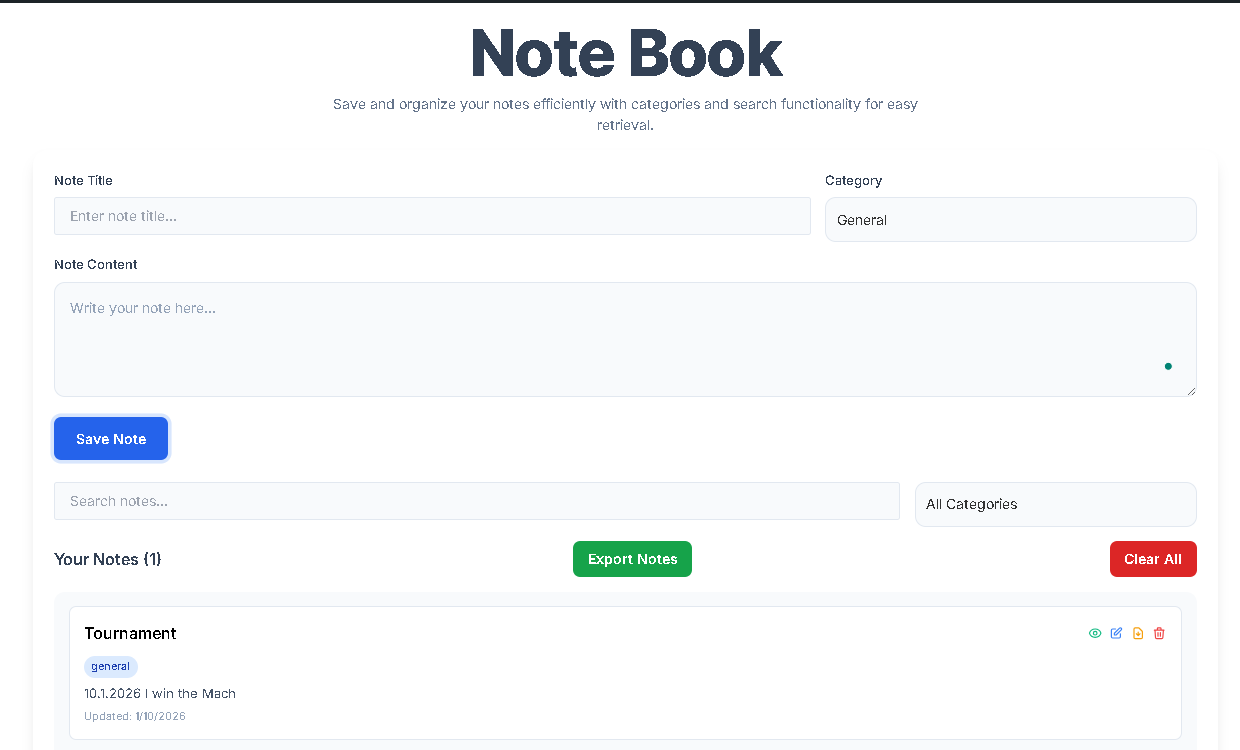
Let’s walk through the exact process of using the tool, matching the real interface you analyzed.
Step 1: Creating Your First Note
Navigate to the Note Book tool.
In the “Note Title” field, enter a clear, descriptive title (e.g., “Q2 Project Brainstorm”).
From the “Category” dropdown, select the most relevant one (e.g., Meeting Notes or Ideas).
In the large “Note Content” textarea, write your full note. You can paste text here as well.
Click the “Save Note” button. Your note is now saved to your browser’s local storage and will appear at the top of the notes list on the right.
Step 2: Viewing a Note in Detail
To read a note in full without editing:
In the notes list, find the note and click the “eye” icon (View Note).
A modal window will pop up, displaying the full title, category, content, and timestamps.
Click the X or outside the modal to close it.
Step 3: Editing an Existing Note
To modify a saved note:
In the notes list, click the “pencil” icon (Edit Note) on the note you wish to change.
The note’s title, category, and content will automatically populate the creation form at the top.
The main button will now read “Update Note.”
Make any changes to the fields.
Click “Update Note.” The note in the list will refresh with the new content and updated timestamp.
Step 4: Deleting a Note
To remove a note:
Click the “trash can” icon (Delete Note) on the relevant note.
A confirmation dialog will appear. Click “OK” to permanently delete the note from your local storage and the list.
Step 5: Finding Notes with Search & Filter
Search: Type any keyword into the “Search notes…” box. The list updates in real-time to show only notes where that word appears in the title or content.
Filter: Use the “All Categories” dropdown to select a specific category (e.g., To-Do). The list will instantly show only notes from that category. You can combine search and filter for ultra-precise results.
Step 6: Exporting All Your Notes
To download a backup or text copy of everything:
Click the “Export Notes” button above the notes list.
A .txt file named my-notes.txt will automatically download to your computer.
Open this file in any text editor. It contains all your notes, neatly separated with titles, categories, and dates.
Choosing this Note Book with Toolota offers distinct advantages that enhance your workflow:
Instant, Offline Access: Since it runs in your browser and stores data locally, you can access and edit your notes anytime, even without an internet connection. Your data never leaves your computer.
Lightning-Fast Search & Filter: The integrated search bar scans both note titles and content in real-time. Combined with the category dropdown filter, you can pinpoint any note in seconds, eliminating endless scrolling.
Structured Organization: The six predefined categories (General, Lecture Notes, Research, Ideas, To-Do, Meeting Notes) provide immediate structure. This simple taxonomy helps mentally separate different streams of thought and work.
Effortless Editing & Management: The edit and delete functions are built directly into each note card. Updating a note or removing old information is a seamless two-click process, encouraging you to keep your Note Book current and relevant.
One-Click Export for Portability: The “Export Notes” feature compiles all your notes into a clean, formatted .txt file. This is ideal for creating backups, printing, or migrating your thoughts to another system.
Clean, Distraction-Free UI: The interface, built with a modern design ethos, presents only what you need. The full-screen focus, pleasant color scheme, and smooth animations create a calm environment for thinking and writing.
Use Consistent Titles: Think of the title as a primary keyword for your note. This makes searching far more effective.
Leverage Categories Religiously: Be disciplined with categorization. It turns your list from a simple chronology into a sorted filing cabinet.
Utilize the Edit Feature for Iteration: Use a single note as a living document. For example, keep a “Weekly Tasks” note in the To-Do category and edit it throughout the week, rather than creating a new note each day.
Export Regularly for Peace of Mind: Make a habit of exporting your my-notes.txt file weekly or monthly and storing it in a cloud drive (like Google Drive or Dropbox). This provides a perfect backup in case you clear your browser data.
This study timer implements the complete Pomodoro Technique with visual progress tracking, session statistics, and structured work-break cycles—unlike basic timers that only count down.
Yes, our study timer offers preset modes (25, 5, and 15 minutes) plus a custom input for any duration between 1 and 120 minutes.
Your session statistics automatically save to your browser’s local storage every 10 seconds, so progress remains on the same device and browser.
Absolutely. The study timer is fully responsive and works on all devices—desktops, tablets, and smartphones—with the same features and interface.
Toolota is your all-in-one online tools platform. Fast, simple, and free utilities designed to make everyday digital tasks easier and smarter.