Check current time across every country and time zone in the world.
Your Local Time
0
Shown
24H
Format
0
Total
Selected Time Zone
0 time zones found
The Toolota World Clock is a fantastic, super-fast, and reliable online tool made to help people and companies keep perfect track of time in different parts of the world. Its main goal is to handle the hassle of figuring out or looking up time differences yourself. With Toolota, you get a beautiful, all-in-one dashboard for all the time zones you need.
Toolota’s Power 262 Zone Display for the World Clock is designed for smooth performance and easy understanding.
Opting for the Toolota World Clock means choosing a trustworthy, feature-packed, and aesthetically pleasing tool that puts user experience and precision first.
HTML Analysis of Unique Features: The tool’s practicality shines through its deep functionality, as you can see in the source HTML.
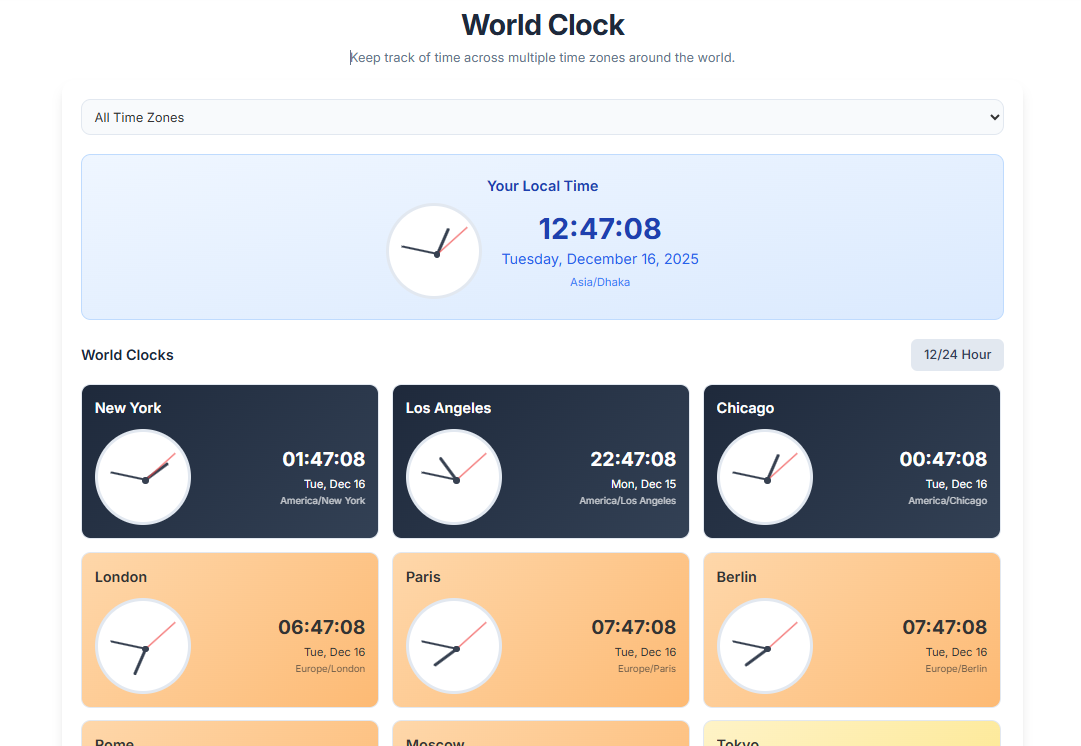
Dual Time Display: Unlike many basic digital clocks, Toolota offers a real-time analog clock alongside the digital display for both your local time and any added world zones. This is handled by the .analog-clock, .hour-hand, and .minute-hand CSS classes.
Time of Day Context: Custom CSS styles such as .timezone-day, .timezone-night, .timezone-dawn, and .timezone-dusk apply dynamic backgrounds to the clock cards. This key visual feature instantly lets you know if it’s a good time to reach out to someone in a different time zone.
The Toolota World Clock app is built using several different HTML and JavaScript parts that work together smoothly to make things easy for users.
The Input and Control Section
This is where users go to personalize how the World Clock looks and works.
Time Zone Selector (#timezone-select): This menu is filled automatically with a handpicked list of over 20 popular international time zones (like America/New_York, Asia/Tokyo, or Europe/London). Users choose their desired time zone here.
Custom City Name Input (#city-name): This text box lets users give their clock a custom, friendly name instead of the usual time zone label if they prefer.
Add Clock Button (#add-clock-btn): When clicked, this button triggers the addWorldClock() JavaScript function. This function checks if the input is valid, avoids adding duplicate time zones, creates a new clock object with a unique ID, and adds it to the list of world clocks.
The Local Time Display
A special section with a blue gradient background (bg-gradient-to-br from-blue-50 to-blue-100) serves as a main reference point for the user.
Local Digital Time (#local-time): Shows the current time in digital format (HH:MM:SS).
Local Analog Clock (#local-analog-clock): This part, styled with SVG and CSS, displays the time in a visual, clock-face format. The updateAnalogClock(‘local’, now) function carefully adjusts the hour, minute, and second hands to match the current local time.
Local Timezone (#local-timezone): Shows the time zone that the user’s computer or device is currently set to.
The Dynamic Clock Container
The main part of the app, the World Clocks section (#clocks-container), uses a flexible CSS Grid layout (grid-cols-1 md:grid-cols-2 lg:grid-cols-3) to neatly arrange the clock cards.
Clock Card Creation: The renderClocks() function goes through each entry in the worldClocks list. For every clock, it builds a new HTML card (clock-card).
Time Updates: Inside the updateAllTimes() function, the script calculates the correct time for each time zone using new Date(now.toLocaleString(‘en-US’, { timeZone: clock.timezone })). This calculated time then refreshes the digital display (#time-${clock.id}) and moves the hands on the analog clock for that specific card (clock-${clock.id}-…-hand).
Removing Clocks: Each card has a “remove” button with an onclick=”removeClock(${clock.id})” action. This makes it easy to delete any time zone you’ve added.
The Settings and Stats Panel
This area gives you global controls and live stats, which are key parts of the World Clock’s functionality.
Toggle Format Button (#toggle-format-btn): This button runs toggleTimeFormat(), switching the global is 24HourFormat setting. This instantly updates all digital clocks across the screen.
Clear All Button (#clear-all-btn): Offers a quick way to reset everything by calling clearAllClocks(), which asks for confirmation before clearing the worldClocks list.
Stats: The bottom panel keeps track of live stats using the updateStats function, giving you real-time information.
The JavaScript Engine: How It Works with Time
Think of the JavaScript code as the heart of this application—it takes care of everything, from setting things up initially to keeping everything current in real-time. The constant updates are handled by a simple piece of code: updateInterval = setInterval(updateAllTimes, 1000), which makes sure the analog and digital clocks update every second. There’s also a feature called saveClocks() that uses your browser’s storage to keep your clock settings even when you close the app—that’s a really useful productivity boost. All these elements come together to make the Toolota World Clock a handy tool. To keep this essential app working perfectly, it’s good to know about time zone rules, like those for Daylight Saving Time. If you’re curious, the Wikipedia page on Time Zones is a great place to learn more!
The World Clock tool gives users some really handy and visually appealing benefits for handling schedules across different time zones.
Real-Time Updates: It uses a straightforward setInterval feature set to 1000 milliseconds, so the clocks update every second. This makes sure the times shown are always accurate and current worldwide.
Visual Clues for Local Conditions: The background color changes dynamically to show whether it’s day, night, dawn, or dusk in the city. This gives users a quick visual hint about the time of day, which is super useful for coordinating with people in other places.
Flexible Display Options: Users can choose between a big digital clock and an attractive analog version, depending on their preference for reading time.
Easy Customization: It’s simple to add or remove clocks, and switching between 12-hour and 24-hour formats just takes a click. Users can also name their clocks, making the tool even more personal.
Sleek Interface: Built with Tailwind CSS, the design is modern, works well on any screen size, and looks great on mobile devices. A smooth notification system with fade-in and fade-out animations gives clear feedback when you do something.
Keeps Your Settings: The clocks are saved using localStorage, so your custom setup stays put even after you close and reopen the browser.
The Toolota World Clock is definitely a solid and dependable tool, but to make sure you get the best experience possible, there are a few points worth knowing.
Browser Compatibility: This tool uses modern web features like JavaScript (specifically Intl.DateTimeFormat) and CSS (including Tailwind and some custom animations). It works really well with most up-to-date browsers, but if you’re using an older or less common one, you might notice a few minor display glitches.
Time Zone Database: The way it handles time zone conversions relies on your browser’s built-in time zone database. While this is usually spot-on, extremely unusual or very recent changes to time zone rules might take a little while to show up correctly across all browsers.
Internet Connection: You’ll need an internet connection initially to load the tool’s HTML, CSS, and JavaScript files. But once it’s loaded, the main part that calculates the time will keep working perfectly using your device’s clock, even if you go offline.
Intended Use: It’s important to remember that the Toolota World Clock is meant purely for informational and utility purposes. Please don’t use it for anything illegal, harmful, or misleading.
Accuracy: The time displayed for each added time zone is consistently calculated based on your device’s current time, ensuring it’s accurate for your local settings.
To add a new time zone, simply select the desired location from the dropdown menu labeled ‘timezone-select’. Optionally, you can enter a custom city name in the adjacent text field (#city-name). Once ready, click the blue ‘Add Clock’ button (#add-clock-btn). The new World Clock card will instantly appear in the display grid below.
Yes, absolutely. You can easily toggle the time display format for all clocks simultaneously using the ’12/24 Hour’ button (#toggle-format-btn). Clicking this button executes the toggleTimeFormat() function, which switches between 12-hour (with AM/PM) and 24-hour time formats across every single digital time display, including the local World Clock.
The background color of each individual World Clock card changes dynamically to reflect the time of day in that specific time zone. The tool uses a function called getTimeOfDay() to apply different styles: timezone-day (for mid-day), timezone-night (for late evening/early morning), timezone-dawn, and timezone-dusk. This visual cue, powered by CSS gradients, helps you immediately assess the context of the remote time.
Yes, your settings are fully saved. The Toolota World Clock uses the browser’s localStorage to persistently store your list of added clocks (worldClocks), the next clock ID counter, and your preferred 12/24-hour time format (is24HourFormat). When you return to the page, your personalized global time dashboard will be loaded exactly as you left it.
Toolota is your all-in-one online tools platform. Fast, simple, and free utilities designed to make everyday digital tasks easier and smarter.
