
Pomodoro Timer
Boost productivity with focused work intervals and strategic breaks.
25:00
Work Session
Session 1 of 4
0
Completed
0
Focus Mins
1
Current Cycle
Boost productivity with focused work intervals and strategic breaks.
0
Completed
0
Focus Mins
1
Current Cycle
Want to get more done? Use our Pomodoro Timer tool to boost your productivity! It’s a free online app that helps you break up your workday into focused bursts of time—usually 25 minutes each—followed by short breaks. The idea is simple: intense focus followed by a quick rest really helps sharpen your concentration and cuts down on mental exhaustion.
Toolota’s version has a clean, full-screen design that cuts out distractions, keeping your attention fully on the task you’re working on. It’s a great way to put this popular time-management method into practice. This easy-to-use and attractive Pomodoro Timer helps you split your work into 25-minute chunks, which can lead to some amazing productivity boosts.
How Does It Work?
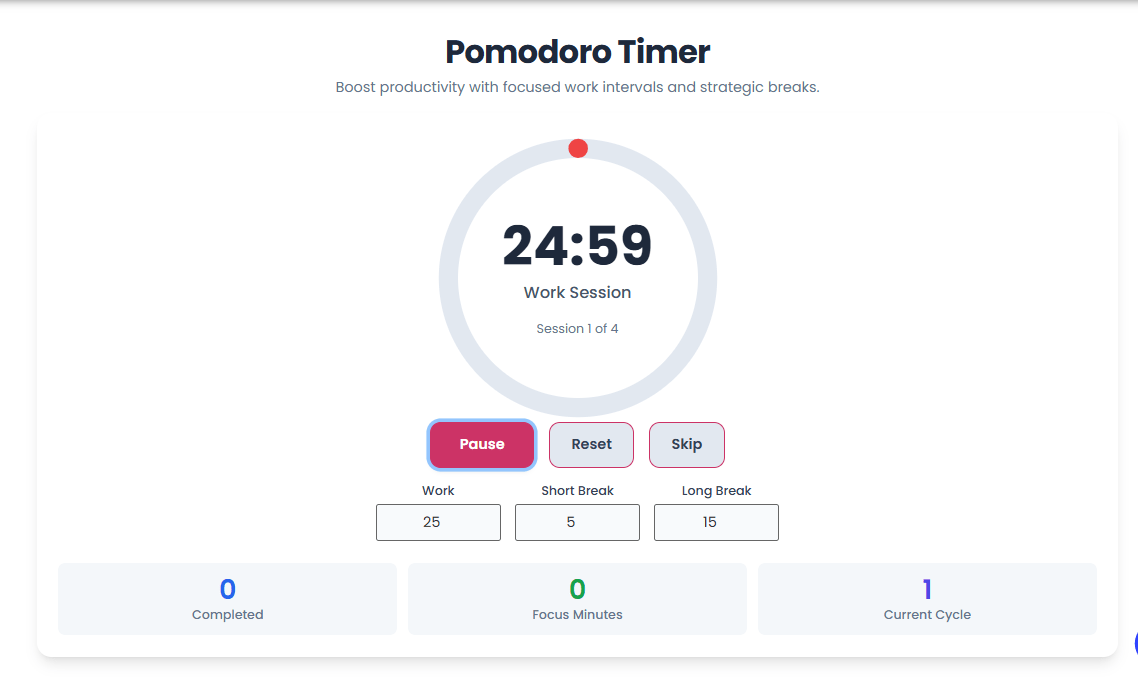
The timer cycles through three main stages: Work Session (your focused time), Short Break, and Long Break. It keeps track of how many sessions you’ve done in a set (like “Session 1 of 4”), making sure you take a longer break after every four work intervals. It’s the perfect solution for anyone who finds it hard to start tasks or keep their focus for long stretches. The whole setup is based on the idea that managing your time better leads to better work results.
Want to get more done? Use our Pomodoro Timer tool to boost your productivity! It’s a free online app that helps you break up your workday into focused bursts of time—usually 25 minutes each—followed by short breaks. The idea is simple: intense focus followed by a quick rest really helps sharpen your concentration and cuts down on mental exhaustion.
Toolota’s version has a clean, full-screen design that cuts out distractions, keeping your attention fully on the task you’re working on. It’s a great way to put this popular time-management method into practice. This easy-to-use and attractive Pomodoro Timer helps you split your work into 25-minute chunks, which can lead to some amazing productivity boosts.
How Does It Work?
The timer cycles through three main stages: Work Session (your focused time), Short Break, and Long Break. It keeps track of how many sessions you’ve done in a set (like “Session 1 of 4”), making sure you take a longer break after every four work intervals. It’s the perfect solution for anyone who finds it hard to start tasks or keep their focus for long stretches. The whole setup is based on the idea that managing your time better leads to better work results.
Toolota is all about giving you dependable, feature-packed tools to make your digital tasks smoother. Take our Pomodoro Timer, for example—it’s built with the latest web tech to make sure it works perfectly, no matter what device you’re using. We’ve really dug into the HTML and JavaScript to show you what makes this timer so special.
The whole app runs right on your device using straightforward HTML, CSS (Tailwind CSS), and plain JavaScript. This means it’s super fast and reliable because it doesn’t need any external servers to do its main job. Plus, we use localStorage to save your completed sessions and total focus time, so even if you close your browser, your progress is still there when you come back. That makes Toolota a great way to keep track of your long-term progress.
Visual Progress Circle: The timer uses an SVG circle with some smart properties called stroke-dasharray and
stroke-dashoffset to create a smooth, eye-catching progress bar. Every second, the updateProgress() function tweaks the stroke offset to show how much time is left.
Customizable Durations: You can set your own times for work sessions, short breaks, and long breaks using the number input fields in the controls section. This flexibility is key to making the tool work perfectly for your personal focus needs.
Visual and Auditory Feedback: When the timer is running, you’ll see a gentle pulsing animation on the circle (thanks to a ‘timer-active’ class) to let you know it’s active. Just as importantly, when a session ends, a simple, quiet beep plays. This sound alert, created using the Web Audio API, is perfect for situations where you don’t want to keep an eye on the screen. It’s a key feature for hands-free use. All these elements contribute to making our advanced Pomodoro Timer effective.
Sleek, Responsive UI: Built with the Tailwind CSS framework, the tool has a clean, modern look. It’s designed to be fully responsive and looks great whether you’re using it in a small window or taking up the whole screen. The layout neatly arranges the timer display, controls, and any stats in a straightforward column. We really focused on making it look good because we believe that enhances the overall experience for you
Taking a closer look at the Pomodoro Timer, it’s easy to see how cleverly it’s put together and how well it works. The JavaScript handles all the behind-the-scenes stuff, managing the timer’s state and switching between work and break times. Meanwhile, the HTML and CSS create that simple, easy-to-use interface we see on screen.
How It Manages Its State and Gets Started
At the heart of the timer, several JavaScript variables keep track of everything: isRunning, isPaused, currentSession (which tells us if it’s ‘work’, ‘shortBreak’, or ‘longBreak’), sessionCount, completedSessions, and totalFocusTime. When the timer first loads, it tries to grab any previously saved completedSessions and totalFocusTime from the browser’s storage. The timeRemaining and totalTime are initially set to the default 25 minutes (1500 seconds) for work sessions. Then, the updateDisplay() function is called to show the starting state. The updateStats() function makes sure the number of completed sessions and total focus minutes are right there for you to see immediately.
Handling User Input and Settings
The settings section lets you fully personalize the timer to your liking. There are three number input fields to adjust the work duration (which is 25 minutes by default), short break duration (default 5 minutes), and long break duration (default 15 minutes). Importantly, the event listeners tied to these inputs call resetTimer() whenever their values change, but only if the timer isn’t currently running or paused (!isRunning && !isPaused). This smart feature stops the timer from being accidentally reset in the middle of a session. The system also makes sure the new duration you set is applied right away to the current session type when the timer resets.
Let’s take a look at exactly how you can use the Toolota platform to fix PDF files. We’ll go through the easy-to-follow steps from start to finish.
The Main Upload Area: When you first visit the Toolota website, you’ll see a big, easy-to-use box for uploading files. You can simply drag your broken PDF right into this box, or click on it to find the file on your computer. This makes starting the repair process super simple.
Processing and Analyzing Your File: After you upload your file, it jumps right into the repair queue. You’ll see a progress bar and a message like “Analyzing PDF structure…” to let you know what’s happening. Behind the scenes, our special engine carefully examines the file to find out where the problems are—whether it’s in the header, a table that tracks different parts of the PDF, the font information, or the images.
The Safe Repair Engine: This is the heart of the Toolota tool. It works on Toolota’s secure servers and uses smart guessing techniques (called heuristic algorithms) to fix any problems with the file’s structure, save any readable information, and put together a PDF that follows Adobe’s rules. Importantly, it never changes your original file, so there’s no risk of making things worse.
Downloading Your Fixed PDF: Once the repair is done, you’ll see a preview of the fixed document (if a preview is possible) and a clear “Download Repaired PDF” button. Just one click starts the download. Everything you need—from uploading your file to downloading the fixed version—happens right on one clean webpage.
Rich Text & Editor Tools (For Result): Even though our main job is fixing PDFs, we make sure the end result is actually useful. The tool guides you through the process with clear instructions. Plus, if the PDF we fix looks like a standard document, we’ll even suggest some programs you can open it with. This way, you can easily use common formatting features like bolding text, italics, creating lists, and highlighting in different colors for any further work you need to do.
How Inputs Convert to AI Output: The “smarts” behind our tool comes from how well it recognizes patterns. It doesn’t just blindly guess at fixing the file; instead, it’s learned what common types of damage look like by processing millions of documents. This learning allows it to make smart corrections, essentially “healing” the file. It’s not just pulling out raw text; it aims to keep the original layout and design looking right.
The Timer Loop and Visual Progress
When the startTimer() function is called, it kicks things off by setting isRunning to true. It also changes the text on the start/pause button to ‘Pause’ and adds a nice pulse animation to show the timer is active. Then, it sets up the core timing mechanism using setInterval().
Inside this interval, the timeRemaining is reduced by one second (1000 milliseconds) repeatedly. During each tick, two important functions are triggered:
updateDisplay(): This takes the remaining time and formats it into the familiar “MM:SS” format (like 25:00), updating the display area. It then calls updateProgress().
updateProgress(): This function figures out what percentage of the session time has already passed. It uses this percentage to calculate a specific value (stroke-dashoffset) for an SVG circle element (called progress-circle). As time goes by, this causes the circle to appear filled in, giving a clear visual cue of progress. The smooth animation for this progress is handled by a CSS transition, ensuring it looks nice and not jumpy. This visual feedback is really important for making the Pomodoro Timer method work well.
Control Mechanisms (Start, Pause, Reset, Skip)
Start/Pause Button (start-pause-btn): The button has an event listener that checks the isRunning state. If isRunning is true, it means the timer is active, so it calls pauseTimer(). This function stops the interval, changes the button text to ‘Resume’, and turns off the pulse animation. If isRunning is false, it means the timer is paused or stopped, so it calls startTimer() to begin the timing loop.
Reset Button (reset-btn): This button stops the timer completely. It clears the interval, halts the animation, and then looks up the default duration for the current session type (like ‘work’ or ‘break’) from the settings. It uses this to reset both timeRemaining and totalTime back to the beginning.
Using our digital tool to implement the Pomodoro Timer technique offers some clear benefits for your focus and efficiency.
Speed: You can jump right into your focused work because the app loads quickly with client-side processing. Plus, the simple design means less time getting started and more time working.
Accuracy: The timer works with precise 1000ms intervals, so you know your work and break times are tracked exactly down to the second.
SEO Optimization: Even though the tool is about productivity, the method it uses—focused work—is key to creating high-quality SEO content. Better focus often means better content.
Clean UI/UX: The modern, full-screen, responsive design made with Tailwind CSS is all about making it easy to read and keeping distractions to a minimum so you can stay on task.
Copy & Download Convenience (Stats): While it’s not for creating content directly, the stats saved in localStorage are like a “data download” feature. You can keep track of and look back at your focus minutes and completed sessions over time. A structured approach like the Pomodoro Timer can definitely help you create more compelling content.
Prevents Burnout: The structured short and long breaks built into the technique help prevent mental exhaustion, which often leads to procrastination and lower-quality work.
To really make the most of the Toolota Pomodoro Timer, here’s what you should keep in mind:
Your focus drives the results: The timer works best when you’re fully committed to staying focused during each session. When it’s time to work, make sure to clear away any distractions.
AI content needs a check: This is a tool for managing your time, so if you use it for creating content, remember that after your focused creation time, you should set aside time to review your work and make sure it’s up to standard. The timer can help you plan both parts.
Stick to ethical use: Make sure to use the tool only for productive work that follows all rules and guidelines. Avoid using it for anything that could break terms of service or laws.
Follow the basic rules: Always give each session your full attention. If it’s a work session, focus on your tasks. If it’s a break, step away from your screen and truly relax to get the full cognitive benefits.
The Pomodoro Timer uses the browser’s localStorage API to persistently store two key metrics: completedSessions and totalFocusTime. When a ‘work’ session successfully concludes, the counter for completedSessions is incremented, and the set work duration is added to totalFocusTime (measured in minutes). This ensures your productivity statistics are saved across browser restarts.
The standard Pomodoro Timer cycle on Toolota consists of four work sessions. The tool explicitly tracks this using the sessionCount variable, which is displayed as “Session X of 4”. A long break is automatically scheduled only when the current session count is evenly divisible by four (e.g., Session 4 is complete, leading to the long break). For all other work sessions, a short break follows.
Yes, you can fully customize the durations. The control panel features three input fields: Work, Short Break, and Long Break. Simply enter your desired time (in minutes) into these fields. The application will use these new values for the timeRemaining when you start a new session or click the Reset button. This customization allows you to adjust the Pomodoro Timer to suit your personal concentration span.
When the Pomodoro Timer reaches zero seconds, it automatically stops the timer, plays a distinct notification sound created using the Web Audio API, and transitions to the next session type in the cycle (e.g., Work to Short Break). A small, animated notification banner appears in the corner, confirming the session transition (e.g., “Work session complete! Time for a short break.”) to provide clear, immediate feedback.

Toolota – 350+ Free Online Tools for PDF, AI, Design & More. Use any place, any time with out paying and signup needed.