No tools found matching your search.
SERP Snippet Preview - SEO Tools

SERP Snippet Preview

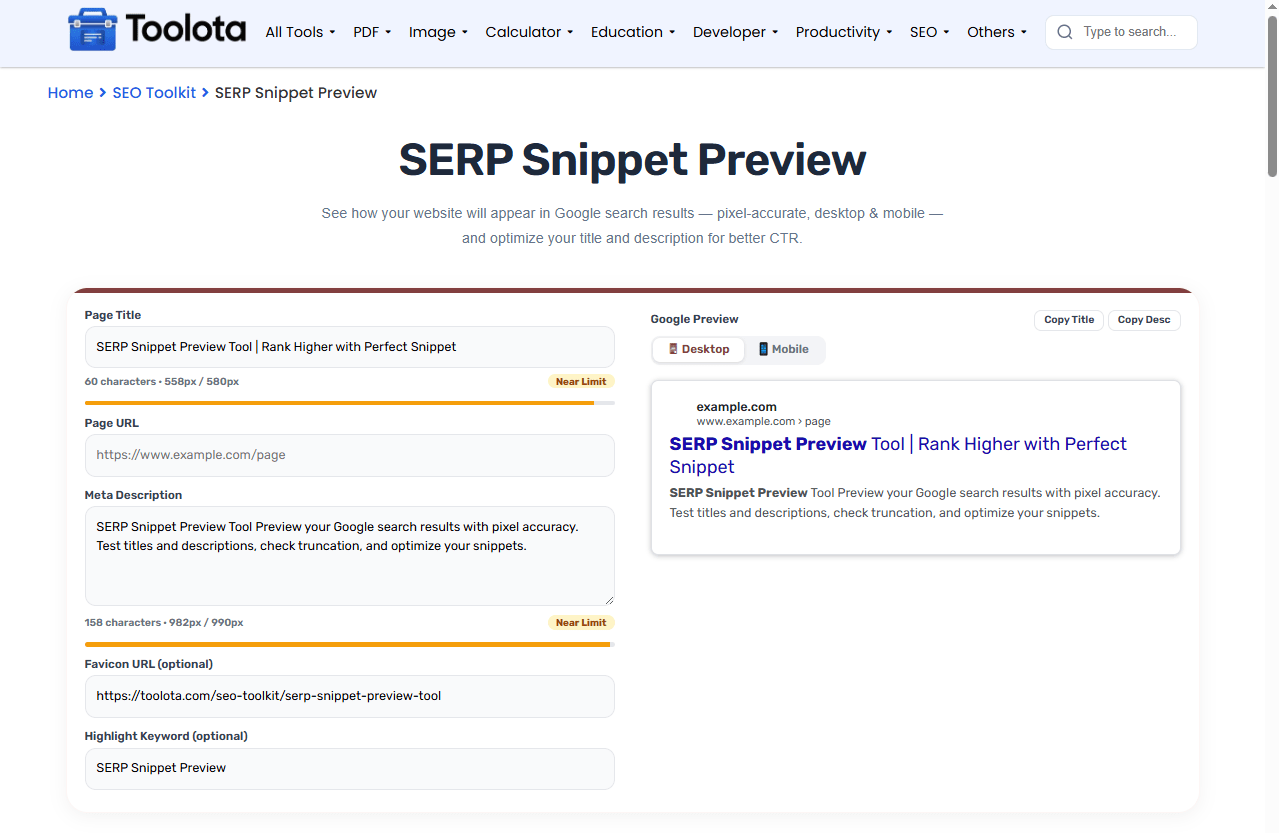
See how your website will appear in Google search results — pixel-accurate, desktop & mobile — and optimize your title and description for better CTR.

0 characters · 0pxEmpty
www.example.com https://www.example.com/page
Page Title Goes Here

This is how your meta description will look in search results. Make it catchy and relevant!
⚠ Title and/or description will be truncated by Google on this device.

Other Tools

SERP Snippet Preview Tool | Rank Higher with Perfect Snippet

SERP Snippet Preview Tool lets you see exactly how your webpage will appear in Google search results before you publish anything. You can test different titles and descriptions, switch between desktop and mobile views, and check if your content gets truncated. You may optimize your snippets for higher click-through rates with the aid of this tool, which displays the pixel width of each character. No matter if you’re a website owner or an SEO expert, getting your search snippet correct is crucial for boosting traffic.

Features Of This SERP Snippet Preview Tool

  • Real-time preview of your page title and meta description

  • Desktop and mobile viewport simulation

  • Character count and pixel width measurement

  • Color-coded status indicators (Good, Near Limit, Too Long)

  • Pixel-accurate truncation detection

  • Favicon display from your website URL

  • Keyword highlighting in titles and descriptions

  • One-click copy buttons for title and description

  • Google-style preview box matching actual search results

  • Automatic site name and breadcrumb path extraction

  • Visual warning when content exceeds display limits

  • Responsive preview that adapts to device selection

SERP Snippet Preview Tool Toolota

How To Use This SERP Snippet Preview Tool

1

Enter your page title —

Type your title into the Page Title field. The tool instantly shows a live preview.

2

Add your page URL —

Paste your website URL to see the correct site name and breadcrumb path.

3

Write your meta description —

Fill in the description field. The preview updates immediately as you type.

4

Check the pixel meters —

Watch the color-coded bars to see if your content stays within Google's limits.

5

Toggle between devices —

Click Desktop or Mobile to see how your snippet appears on each device.

6

Copy your optimized snippets —

Use the Copy Title and Copy Desc buttons to save your perfect snippets.

“How do I know if my title is too long? Just look at the pixel meter — if it turns red, Google will cut it off.”

Why Choose This SERP Snippet Preview Tool

⚡ Instant Feedback

See your snippet update in real-time as you type. No waiting, no refreshing — just immediate visual results.

📊 Pixel-Accurate Measurement

Most tools only count characters. This tool measures actual pixel width so you know exactly when truncation happens.

🔍 Truncation Alerts

Get a clear warning when your title or description will be cut off. Fix it before you publish.

📱 Device-Specific Previews

Google displays snippets differently on desktop and mobile. Switch views to check both with one click.

🎯 Keyword Highlighting

Enter a target keyword and see it highlighted in your preview. Check visibility at a glance.

📋 Easy Copy Export

Copy your optimized title and description directly with a single button. No manual copying needed.

Pro Tips For Perfect Snippets

  • Keep titles under 580 pixels on desktop — Google cuts off anything longer. Check the meter bar to stay safe.

  • Test with your target keyword — Add your primary keyword to the Highlight field and see exactly where it appears in the preview.

  • Use the mobile view first — Mobile has tighter limits (920 pixels for descriptions). Optimize for mobile and desktop will look great too.

Understanding Your SERP Preview Results

The preview box shows exactly what Google displays. The title appears in blue at roughly 20 pixels on desktop and 18 pixels on mobile. The description sits below in gray text. Each character has a specific pixel width depending on the font and letter shape — so “W” takes more space than “i”. The meter bars track total pixel width against Google’s known limits: 580 pixels for desktop titles and 920 pixels for mobile. Truncation occurs automatically if content goes beyond these constraints. The note of truncation warns you, it seems. With this, you may modify your content to precisely match Google’s display limits.

Frequently Asked Questions

What is a SERP snippet preview tool?

It’s a tool that simulates how your webpage title and description will appear in Google search results before you publish them.

It measures the exact pixel width of your text using the same font Google uses, then compares it to Google’s display limits.

Google cuts off titles that exceed pixel width limits. Desktop titles cut off around 580 pixels; mobile around 920 pixels.

Yes. Click the Desktop or Mobile buttons at the top of the preview panel to switch between views instantly.

It bolds your target keyword in the preview so you can see exactly where and how it appears in your snippet.

It’s pixel-accurate. The tool uses actual Google font rendering to measure text width, giving you precise truncation detection.