Wishlist Organizer – Showpitch Your Dream List | Toolota
Table of Contents
What This Tool Does
Let’s be honest—how many times have you seen something online, thought “I want that,” and then completely forgotten about it a week later? Or maybe you have a notes app filled with random product names and half-remembered prices. It’s a common problem in our digital shopping world. Here’s the thing: there’s a much better way to keep track of your desires, and it doesn’t involve a chaotic collection of bookmarks.
Enter the Wishlist Organizer, a free tool we’ve built that turns your fleeting wants into an organized, actionable plan. This isn’t just another list app. Think of it as your personal digital dream board combined with a budgeting assistant. It runs right in your browser, keeps your data private on your device, and gives you clarity on what you’re actually saving for. In my experience, the simple act of organizing wishes makes them feel more achievable.
What most people get wrong is thinking a wishlist is just for holidays. A great Wishlist Organizer is for year-round financial mindfulness—planning for a big tech upgrade, curating home decor ideas, or even budgeting for hobbies. Let’s explore how this tool works and why it might just change how you shop.
Why Choose Toolota
You might wonder, why not just use Google Keep or your phone’s notes? Well, you could. But it’s like using a screwdriver to hammer a nail—it kinda works, but it’s inefficient and messy. A dedicated Wishlist Organizer is designed for the specific job of tracking purchasable items.
The core difference is structure. In a notes app, an entry might be “new headphones… maybe the Sony ones? $250?? Check Amazon.” It’s unstructured data. Our tool provides defined fields: Product Name, Price, Priority, URL. This structure is powerful. It allows the tool to automatically calculate your total potential spend, sort items by price, and filter by priority. You’re not just recording a thought; you’re building a searchable, sortable database of your desires.
The visual prioritization is another game-changer. Seeing a high-priority item tagged in red immediately draws your eye. It creates a visual hierarchy of your wants. Suddenly, your list has a narrative: “This is what I want now, and this is what I want eventually.” That’s a level of clarity a paragraph in a notes app can never provide.
How This Tool Works: The Most Detailed Section
Alright, let’s get practical. Here’s how I approach using this tool, as if I were showing it to a friend. It’s refreshingly simple, which is its greatest strength.
Step 1: Adding Your First “I Want That” Item
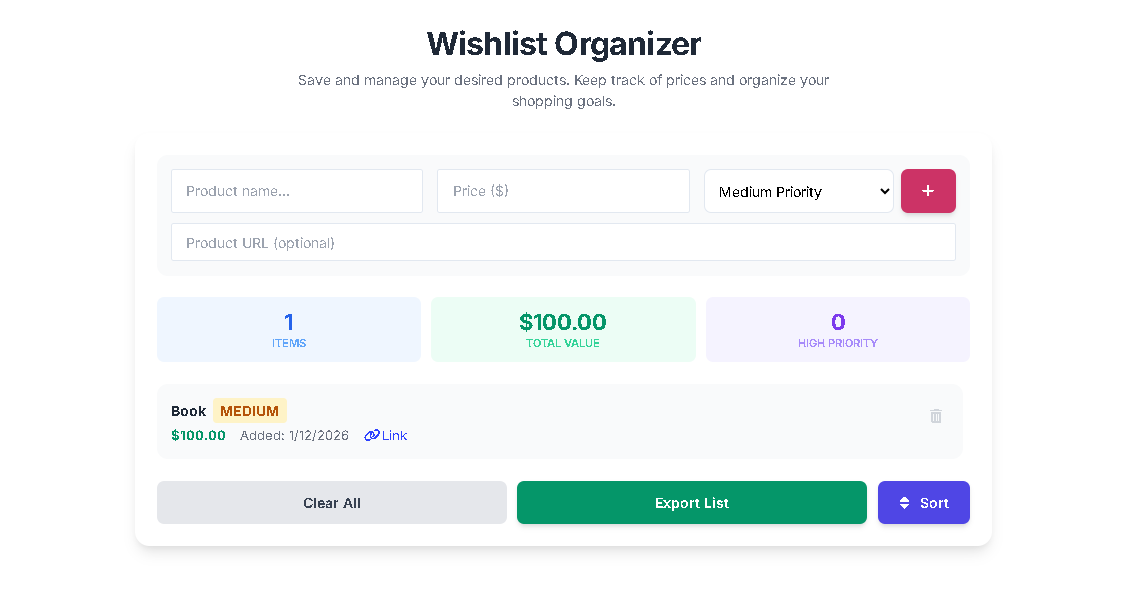
You’ll see a clean form at the top. Start by typing the product name into the first box. Be descriptive enough that you’ll remember it later—e.g., “Noise-Cancelling Over-Ear Headphones” is better than just “headphones.” Next, input the price. This is crucial. The psychological act of assigning a dollar amount is the first step in realistic budgeting. Then, use the dropdown to set a priority. Be honest with yourself! Is this a need-soon (High) or a nice-eventually (Low)? Finally, paste the product URL. This is the pro tip everyone should use. Months from now, that clickable link will save you 20 minutes of searching.
Hit the blue ‘+’ button or press Enter. You’ll see a smooth animation as the item slides into your list below, and a subtle notification confirms it’s saved. What’s happening under the hood? The tool instantly saves this entry to your browser’s local storage. No data is sent to any server; it lives on your computer. That’s privacy by design.
Step 2: Living With Your List – Sorting & Managing
Now your list is growing. The magic starts in the stats bar at the top. You’ll see three numbers update in real-time: Total Items, Total Value, and High Priority Count. That “Total Value” number is often an eye-opener—it’s the sum of all your listed dreams. A powerful motivator for saving or for trimming the list!
The sort button is your best friend. Click it to cycle through five different views:
Newest First: Your default, chronological view.
Price (High to Low): For when you’re planning a big purchase.
Price (Low to High): Great for finding quick wins or affordable treats.
Priority: Puts all your red High-priority items at the top. This is my most-used view for focused planning.
Alphabetical: Handy when your list gets long and you’re looking for something specific.
Step 3: Action Time – Exporting or Removing
Found the item on sale and finally bought it? Congrats! Click the trash can icon next to it to remove it from your list. Watch the “Total Value” dip—a small, satisfying reward for your purchase.
Want to share your list with a partner for your birthday? Or just keep a backup? Hit “Export List.” The tool instantly generates a clean, formatted .txt file with all your items, details, and the grand total, ready to print or email. It’s seamless.
Benefits This Tools
So, why use a Wishlist Organizer? The benefits are surprisingly practical.
Clarity Over Clutter: It moves wants from your brain (or 15 open tabs) into a single, serene interface. This mental decluttering reduces what psychologists call “decision fatigue.”
Informed Spending Decisions: With priorities and totals clear, you can make rational choices. Should you buy three medium-priority items or save for one high-priority one? The tool gives you the data to decide.
The “Cooling-Off” Period: Adding something to a list and seeing its price add to your total creates a natural pause. How many times have you added an item only to lower its priority or delete it a day later? That’s the tool preventing impulse buys.
Achievement Tracking: Removing a purchased item is weirdly gratifying. It turns buying from consumption into a goal-completion event.
Important Conditions & Guidelines for Use
To get the most out of this Wishlist Organizer, keep a couple of things in mind. It’s a front-end tool, meaning all the work happens in your browser. This is great for privacy and speed, but it has one limitation: your list is tied to the browser and device you created it on. If you use Chrome on your laptop, your list won’t automatically appear on Safari on your phone. The workaround? Use the Export feature to create a backup file you can reference anywhere.
Also, while the price field is fantastic for totals, it’s a static entry. If the product’s price changes online, your listed price won’t update automatically. Think of it as a snapshot of the price at the time of adding—it’s still invaluable for ballpark budgeting.
Frequently Asked Questions (FAQ)