Test your internet connection stability by pinging multiple servers. Get a comprehensive stability score, latency measurements, and recommendations for different online activities.
Internet Stability Checker is a browser-based diagnostic tool that measures your connection quality by pinging five major global servers—Google, Cloudflare, Amazon, Microsoft, and Apple. Unlike traditional speed tests that focus on download/upload numbers, this tool answers one critical question: Is your connection stable enough for the activities you care about?
Most people assume a “fast” internet connection equals a “good” connection. This is misleading.
A 200 Mbps connection that drops packets every 10 seconds or spikes from 20 ms to 300 ms randomly will ruin your Zoom calls, online gaming sessions, and even cloud backups. Stability is the invisible backbone of digital experiences.
Toolota built this Internet Stability Checker to expose what speed tests hide: latency variation, packet loss, and real-world reliability. It doesn’t measure bandwidth. It measures behavior.
Before clicking anything, it helps to understand the actual engineering behind this tool. The HTML file reveals a clean, JavaScript-powered engine that performs fifteen individual connection tests in under 60 seconds.
The tool targets five specific favicon.ico URLs:
https://www.google.com/favicon.ico
https://www.cloudflare.com/favicon.ico
https://www.amazon.com/favicon.ico
https://www.microsoft.com/favicon.ico
https://www.apple.com/favicon.ico
Why favicon.ico? These are tiny, lightweight files hosted on global CDNs. They load almost instantly under good conditions, making them perfect latency probes.
The Internet Stability Checker does not ping each server once. It runs three complete rounds:
| Round | Action |
|---|---|
| 1 | Ping all 5 servers → record latency |
| 2 | Ping all 5 servers → record latency |
| 3 | Ping all 5 servers → record latency |
Between each request, the script inserts a 200ms delay. This prevents local network flooding and mimics real-world mixed traffic.
Each test uses the Performance API (performance.now()). The timer starts the moment fetch() is called and stops when the server responds—or fails.
If a server does not respond, that attempt is marked as failed and contributes to your packet loss percentage.
Once all 15 requests complete, the tool calculates:
Average Latency – Sum of all successful response times ÷ number of successes
Packet Loss – (Failed requests ÷ 15) × 100
Jitter – Average absolute difference between consecutive latency values
Stability Score – Weighted algorithm starting at 100, deducting points for:
Latency > 50 ms → −5
Latency > 100 ms → −10
Latency > 150 ms → −20
Packet loss × 2
Jitter > 10 ms → −5
Jitter > 20 ms → −10
Jitter > 30 ms → −15
The final score (0–100) maps to a letter grade with corresponding gradient backgrounds:
| Grade | Score Range | Meaning |
|---|---|---|
| A+ | 90–100 | Excellent – Perfect for all activities |
| A | 75–89 | Very Good – Great for gaming & streaming |
| B | 60–74 | Good – Suitable for most activities |
| C | 40–59 | Fair – May experience some issues |
| D | 0–39 | Poor – Connection issues likely |
When your Internet Stability Checker report appears, you will see four key numbers.
This is the average response time across all successful pings.
Under 50 ms → Excellent for competitive gaming
50–100 ms → Good for most uses
100–150 ms → Noticeable delay
Over 150 ms → High latency
The percentage of requests that failed completely.
0% → Perfect
0.1% – 1% → Minor, usually unnoticeable
1% – 3% → Intermittent issues
Over 3% → Severe instability
The variation between consecutive ping responses.
Under 10 ms → Rock solid
10–20 ms → Slight variation
20–30 ms → Noticeable fluctuation
Over 30 ms → Erratic connection
A proprietary score from 0–100. This is not raw latency. It is a composite index factoring all three metrics above. Use this as your single source of truth for connection health.
One unique feature of this Internet Stability Checker is the activity grid. It translates technical metrics into real-world usability.
| Activity | Excellent Conditions | Good Conditions | Poor Conditions |
|---|---|---|---|
| 🎮 Gaming | Score ≥80, Latency <50 ms | Score ≥60, Latency <100 ms | Below thresholds |
| 📺 HD Streaming | Score ≥70 | Score ≥50 | Buffering likely |
| 📹 Video Calls | Score ≥75, Latency <150 ms | Score ≥55 | Frozen/stuttering |
| 💬 Messaging | Score ≥40 | N/A | Slow delivery |
| 🌐 Web Browsing | Score ≥50 | N/A | Pages load slowly |
| ☁️ Cloud Services | Score ≥70, Packet loss <2% | Score ≥50 | Sync failures |
Important: These recommendations are generated locally in your browser. No data is sent to any server. Your privacy remains intact.
This section matches exactly what you see when you open the Internet Stability Checker.
Headline: Large, bold “Internet Stability Checker”
Description: Explains multi-server ping testing
Status Display: “Click ‘Start Test’ to check your internet stability”
Button: Blue “Start Stability Test” button
Progress Bar: Gray, empty, 0% width
You click Start Stability Test
Button changes to “Testing…” and becomes disabled
Status updates appear in sequence:
“Running test round 1 of 3…”
“Running test round 2 of 3…”
“Running test round 3 of 3…”
Progress bar fills gradually as each server responds
Each request is spaced 200ms apart—visible as slow, steady progress
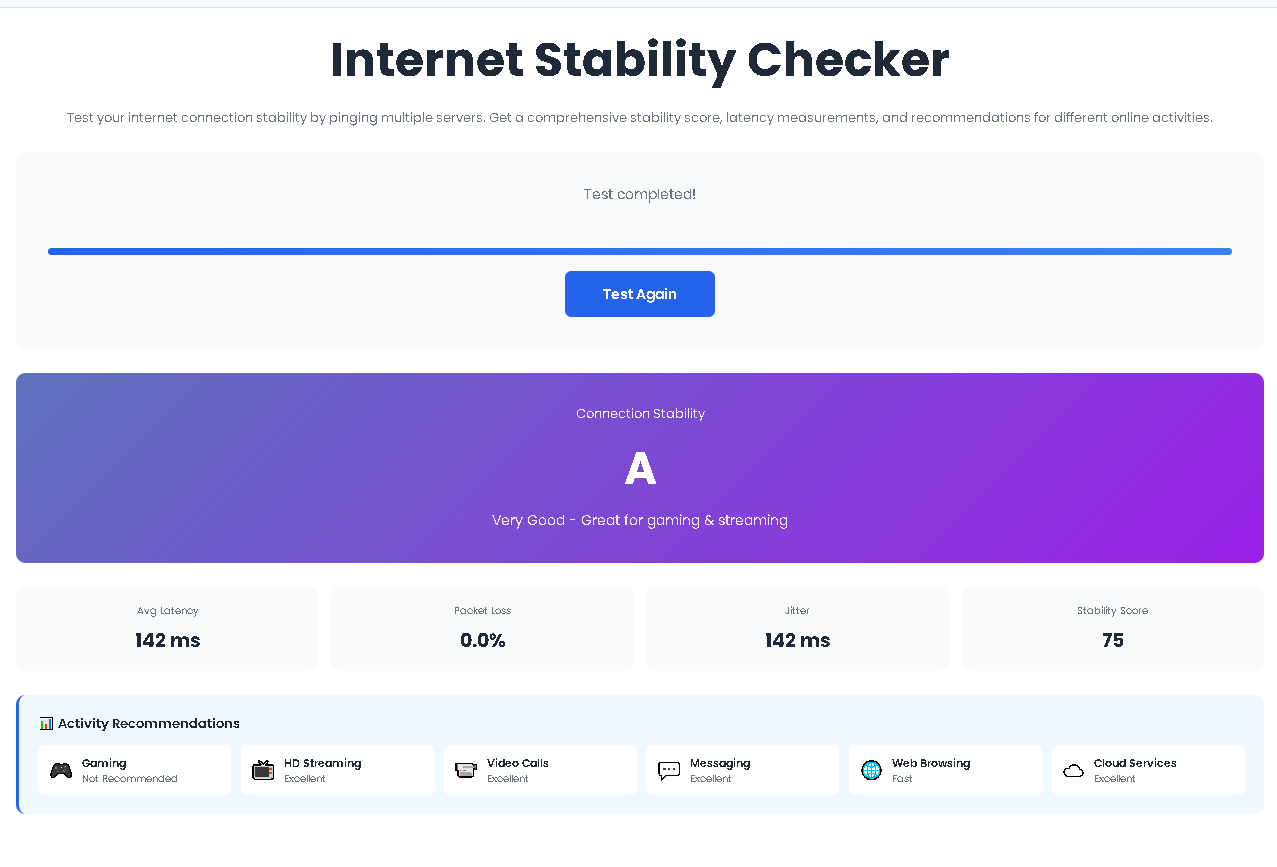
Status changes to “Test completed!”
Button enables and reads “Test Again”
Results section slides into view with:
Gradient rating card (A+ through D)
Four metric cards
Activity recommendation grid
This is a pure HTML/CSS/JavaScript tool. It runs in any modern browser—Chrome, Edge, Firefox, Safari, even on mobile. No app store, no permissions, no bloatware.
By testing five different global providers, you get a broader view than pinging local gateways. A fast response from Google but slow response from Amazon may indicate peering issues or ISP throttling.
Most free tools ignore jitter. This Internet Stability Checker treats jitter as a first-class metric. For real-time applications (VoIP, gaming, trading), jitter matters more than raw speed.
The A+ through D grading with gradient backgrounds is not decorative. It provides instant comprehension. You don’t need to be a network engineer to know A+ is good and D is bad.
Raw numbers confuse non-technical users. The activity grid answers: “Can I play Call of Duty?” or “Will my Zoom freeze?” directly. No interpretation needed.
There is no paywall, no email capture, no login required. Open the page, click the button, get results. This is diagnostic democracy.
The button changes to “Test Again” immediately. You can run the test back-to-back to see if issues are persistent or transient.
It measures latency (response time in milliseconds), packet loss (percentage of failed requests), and jitter (variation between responses) by pinging five major CDN servers three times each. It does not measure download speed, upload speed, or bandwidth.
Favicon.ico files are tiny, universally available, and cached minimally. They load quickly under good conditions and fail immediately under poor conditions. This makes them ideal latency probes without consuming significant data or triggering complex server-side processing.
Yes. The interface is fully responsive with viewport meta tags and mobile-optimized CSS. Tap the button, watch the progress bar fill, and scroll through results—all on a smartphone screen.
90–100 (A+): Excellent. No issues expected.
75–89 (A): Very good. Suitable for competitive gaming.
60–74 (B): Good. Minor fluctuations, generally reliable.
40–59 (C): Fair. Occasional lag/buffering.
0–39 (D): Poor. Frequent disruptions.
Toolota is your all-in-one online tools platform. Fast, simple, and free utilities designed to make everyday digital tasks easier and smarter.
