Accurate calculations with fully customizable tax rates.
Navigating today’s financial world can be tricky, and getting your tax figures right isn’t just a good idea—it’s crucial for staying compliant and setting the right prices. That’s where Toolota’s Tax Calculator comes in. It’s a smart, yet easy-to-use online tool created to take the guesswork out of tax math.
This isn’t just about adding a simple percentage It’s a complete solution that manages multiple layers of tax all at once. Whether you’re a business owner, freelancer, or just an individual, it gives you instant, accurate totals and a clear breakdown of everything.
Essentially, this calculator turns a potentially messy manual process into a smooth digital task You simply put in your base price, pick your tax type, and you can even add extra charges if needed. In just a few seconds, you get a detailed report showing your subtotal, the total tax, and your final grand total. Seeing exactly how each tax part adds up makes this tool incredibly useful for creating invoices, figuring out your pricing, and planning your finances. In a world where every dollar matters, having a dependable Tax Calculator isn’t something nice to have—it’s essential for keeping your finances clear and correct.
This tool is incredibly useful for a wide variety of people Small business owners who handle their own invoicing and pricing will find it essential for correctly applying sales tax or VAT to their products and services. E-commerce sellers operating in different areas can use it to quickly figure out the final price for customers, including any extra charges. Freelancers and consultants can make sure their quotes and invoices are spot-on, which helps them look professional and careful.
Even accountants and bookkeepers, who might already have advanced software, can use this as a handy tool for quick client questions or fast calculations Consumers making big purchases, especially online or in other countries, can use it to see the true final cost before they buy. Basically, anyone who wants to know, “How much will this actually cost after all taxes?” will find this Tax Calculator helpful. It’s designed to be easy for casual users but detailed enough for professionals, making it a great financial tool for just about anyone.
Using the Toolota Tax Calculator is easy, but knowing each step helps you get the most out of it. Let’s go through the process exactly as you’ll see it in the tool.
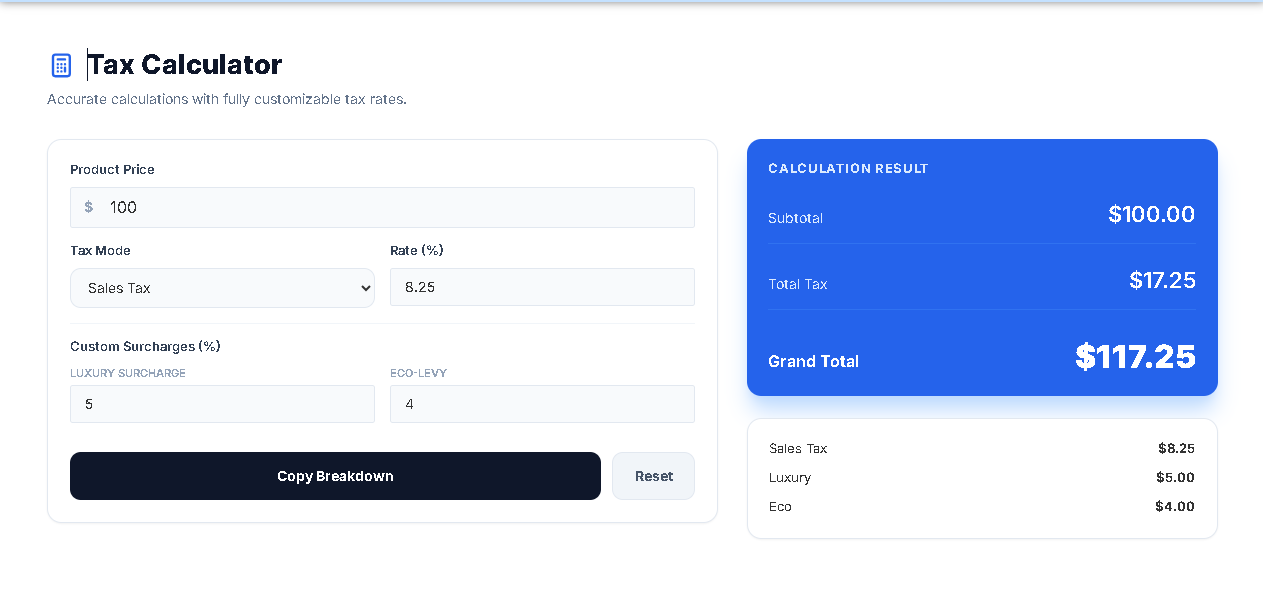
Step 1: Enter the Product Price Find the “Product Price” box at the top of the form. Click on it and type in the base price of your item or service. There’s already a dollar sign ($) in the field, so just enter the number itself (like “100” for $100). You can also include cents using a decimal point (like “99.99”). This is your subtotal—the price before any taxes are added.
Step 2: Choose Your Main Tax Type Just below the price, you’ll see the “Primary Tax Mode” dropdown menu. Click on it to see four choices: Sales Tax, VAT, GST, and Manual %. If you pick one of the first three (Sales, VAT, or GST), the “Primary Rate (%)” field will automatically fill in with a typical rate for that type. If your rate is different, or if you chose “Manual %,” you’ll move on to Step 3 to enter the exact percentage.
Step 3: Setting Your Main Tax Rate To set your primary tax rate, use the “Primary Rate (%)” field. Just type in the percentage that applies to your chosen tax. If you’ve picked a pre-set option like VAT, you’ll see a default number (like 20.0) already there. Feel free to change this to match your specific rate. This is the main tax percentage added to your product’s price.
Step 4: Adding Custom Fees (Optional) This is where the Tax Calculator really steps up. In the “Custom Surcharges” section, you can add extra percentage-based charges if needed.
Luxury Surcharge Use this for items that have special luxury or “sin” taxes, such as high-end electronics, jewelry, or tobacco.
Eco-Levy Use this for products with environmental fees or green taxes, like electronics, batteries, or certain plastics. Just enter a percentage in one or both fields if necessary. If an item doesn’t have these extra charges, you can leave the fields blank or set them to zero.
Step 5: Seeing Your Results Right Away As you input the numbers, the “Calculation Result” panel on the right will update automatically. There’s no need to press a “calculate” button. You’ll see the figures update in real time, showing you:
Subtotal This is your product’s original price.
Total Tax The combined total of all taxes and surcharges.
Grand Total The final amount the customer will pay (Subtotal plus Total Tax).
Step 6: Check Out the Detailed Breakdown
After you finish a calculation, you’ll see a “Detailed Breakdown” box pop up just below the results. This section is really important because it lists every tax and extra charge, showing you the percentage rate and the exact dollar amount for each one. Having all this info clearly laid out is super helpful for keeping your books accurate and for making things easy to explain to customers.
Step 7: Copy or Reset
Copy Breakdown Just hit the “Copy Breakdown” button. You’ll get a little message confirming that a clean, text version of your calculation has been copied to your clipboard. Now you can easily paste it into an invoice, email, or spreadsheet.
Reset If you want to start fresh, just click the “Reset” button. This will clear everything out so you can begin a new calculation.
Using a specialized tool like this Tax Calculator really gives you a significant edge over doing things manually or with disconnected processes.
Blazing Speed and Efficiency Tasks that might take minutes with a calculator and paper, including double-checking, can be handled in seconds. This kind of efficiency really adds up when you’re doing hundreds of calculations, saving businesses valuable hours on admin work each month.
Goodbye to Human Error Doing tax math by hand is so easy to mess up—think misplaced decimals, addition slip-ups, or forgetting that extra surcharge. An automated Tax Calculator, on the other hand, does the math flawlessly every single time, ensuring your finances are spot-on. This protects your bottom line and keeps you compliant.
Boosted Professionalism and Transparency Giving clients or customers a clear, itemized breakdown of costs really builds trust. It shows you’re thorough and honest, which means fewer arguments and fewer questions about how a final price was calculated. This professional touch is incredibly valuable.
Smarter Financial Choices Being able to run instant “what-if” scenarios helps you make better pricing decisions. You can instantly see exactly how changing your base price or a shift in tax laws affects your final profit margin. This kind of insight is essential for smart planning and staying ahead of the competition.
A Cost-Effective Choice As a free online tool from Toolota, it delivers serious calculation power without asking for any software cost, subscription fees, or training time. It’s an instant win for your return on investment, whether you’re an individual or a business.
One of the main advantages of this Tax Calculator is its ability to recognize the most common types of consumption taxes worldwide. Knowing which system to select is really important for accuracy.
Sales Tax This is common in places like the United States and Canada. It’s a tax applied to goods and services, usually when the final customer buys them. The rates can vary a lot depending on the state, county, or city. The calculator lets you enter the exact combined rate that applies to your specific transaction.
VAT (Value-Added Tax) This is the standard in the European Union, the UK, and many other countries. VAT is added at each step of making and selling a product or service. Businesses add VAT to their sales but can get back the VAT they paid on things they bought. In the end, the final customer pays it. The calculator uses a default rate of 20%, which is typical in the EU, but you can change it to match any country’s standard or lower rate.
GST (Goods and Services Tax) Countries such as Australia, India, Canada, and Singapore use this. GST is a single tax that replaces several other indirect taxes. It works much like VAT but might be managed differently. The default 10% rate in the calculator matches Australia’s GST, but you can set it to any rate you need.
Choosing “Manual %” This option is a great fallback. Use it for any tax or fee that doesn’t fit neatly into Sales Tax, VAT, or GST. This could be things like local city taxes, special taxes on certain services, or any other percentage charge you need to include in your total calculation.
Enter your product price, select a tax type (Sales, VAT, GST), and optionally add luxury or eco-levy surcharges. The calculator instantly shows your subtotal, total tax, and grand total with a detailed breakdown. This makes the Tax calculator ideal for quick, accurate estimates.
Our Tax calculator handles Sales Tax, VAT, GST, and custom percentage rates, plus optional Luxury and Eco surcharges. This allows you to layer multiple tax types in one calculation, giving you a complete view of the final cost.
Yes, the Tax calculator from Toolota is completely free, with no sign-up or download required. Use it as often as you need for business, e-commerce, or personal finance calculations.
Yes, click “Copy Breakdown” to copy a formatted summary—including subtotal, total tax, grand total, and itemized taxes—to your clipboard. This feature makes the Tax calculator perfect for pasting into invoices or reports.
Toolota is your all-in-one online tools platform. Fast, simple, and free utilities designed to make everyday digital tasks easier and smarter.
