
Shopping List Organizer
Manage your shopping items with ease.
0
Total
0
Done
0
Left
Categories:
Manage your shopping items with ease.
0
Total
0
Done
0
Left
A shopping list organizer is more than a simple notepad; it’s a structured system designed to transform the chaotic task of shopping into a streamlined, efficient process. In the digital age, this means moving beyond scribbled notes on paper or a basic phone memo. A true digital shopping list organizer allows you to categorize items, set priorities, track your progress in real-time, and save your lists for future use. It’s the modern solution for anyone who wants to save time, reduce stress, and ensure they never forget a crucial item again. The tool we’re examining today is a perfect example, offering a seamless blend of simplicity and powerful organizing features right in your web browser.
If you’ve ever arrived home from the store only to realize you forgot the milk, or spent extra time wandering aisles because your list was a disorganized jumble, you understand the problem. A traditional list is static and prone to human error. A digital shopping list organizer solves these pain points dynamically. It provides a clear visual structure, helps you group items by store section or priority, and allows for instant edits. For busy households, frequent shoppers, or anyone planning a large trip, this tool is indispensable. It turns planning from a chore into a quick, almost effortless task, ensuring you spend less mental energy on remembering and more on your day.
Let’s walk through exactly how to use this shopping list organizer, matching every step to the actual buttons and fields you see on screen.
Step 1: Access the Tool
Navigate to the Toolota Shopping List Organizer page using your preferred web browser (Chrome, Firefox, Safari, etc.). The tool loads instantly.
Step 2: Add Your First Item
Locate the “Item name…” input field at the top. Click into it and type the name of your first item, e.g., “Almond Milk.” Directly to the right, you’ll see the category dropdown menu. Click it and select the most appropriate category, such as “🛒 Groceries.” To finalize, click the blue “Add Item” button. You can also press the ‘Enter’ key after typing the item name for faster addition.
Step 3: Build and Categorize Your List
Repeat Step 2 for all items. Utilize the categories wisely:
🛒 Groceries: For all food and kitchen items.
💻 Electronics: For cables, batteries, appliances.
👕 Clothing: For apparel and accessories.
🏠 Home: For cleaning supplies, decor, tools.
📦 Other: For anything that doesn’t fit above.
Step 4: Organize via Drag-and-Drop
Perhaps you want items grouped by store section or priority. Simply click and hold on any item’s card, then drag it up or down the list. You’ll see a visual indicator (a blue top border) showing where it will drop. Release the mouse button to reorder your list. This tactile control is a core strength of this organizer.
Step 5: Track and Mark Progress
As you shop, mark items as purchased. Click the checkbox on the left side of each item card. The item will immediately gain a strikethrough and become slightly faded. Watch the “Completed” and “Remaining” statistics at the top update in real time.
Step 6: Filter Your View
If you’re in a specific store section, use the filter buttons (“All,” “🛒 Groceries,” etc.) to show only items from a single category. This simplifies your view and helps you focus.
Step 7: Manage Your List
To Remove a Single Item: Click the red “×” button on the right side of its card.
To Clear Finished Items: Click the green “Clear Completed” button. This removes all checked-off items at once.
To Start Anew: Click the “Clear All” button. A confirmation dialog will pop up to prevent accidental deletion.
Step 8: Close and Return
Simply close your browser tab. When you reopen the Toolota Shopping List Organizer, your complete list, with all its items, categories, and completion states, will be restored automatically.
This specific shopping list organizer from Toolota is packed with thoughtful features that elevate it from a simple list to a planning powerhouse:
Intuitive Item Addition: Quick-add field with category assignment.
Visual Category System: Icon-based categories make scanning effortless.
Interactive Drag-and-Drop: Physically rearrange your list order with your mouse.
Real-Time Statistics Dashboard: Instantly see Total, Completed, and Remaining item counts.
Persistent Local Storage: Your data is saved automatically in your browser—no “save” button needed.
One-Click Filtering: Isolate categories with dedicated filter buttons.
Bulk Actions: Clear all completed items or the entire list with a single click.
Clean, Responsive Design: Works flawlessly on desktop, tablet, and mobile phone screens.
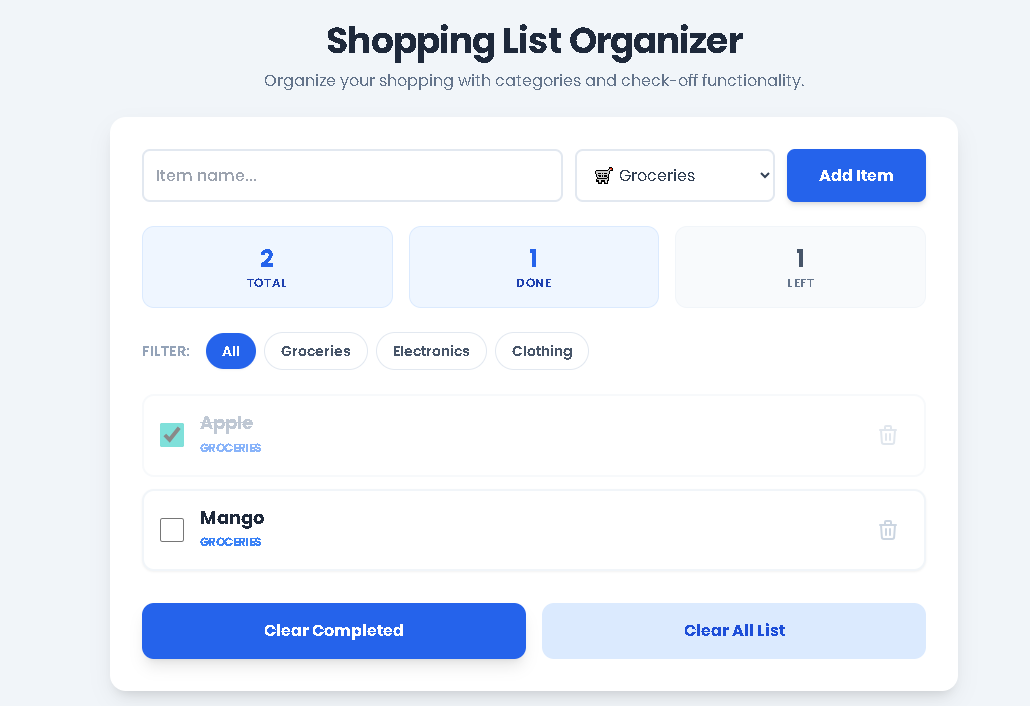
To get the most out of this shopping list organizer, keep these conditions in mind:
Input Quality Dictates Output: The usefulness of your list depends on the detail and accuracy of the items and categories you enter. “Pasta” is good; “Whole Wheat Penne Pasta” may be better.
Browser-Dependent Storage: Your list is saved to your specific browser and device. If you switch browsers or devices, your list will not automatically transfer.
Manual Review Recommended: While the tool is highly reliable, it’s good practice to glance over your list before heading to the store to ensure nothing is amiss.
General Use Intended: This tool is designed for lawful, personal shopping organization. It is not intended for commercial inventory management without appropriate adaptation and review.
This shopping list organizer uses your web browser’s built-in “local storage” technology. It saves the data directly on the device you are using. There is no account, login, or password required. Your list will persist even if you close the browser, as long as you don’t clear your browser’s site data.
Absolutely. The Toolota Shopping List Organizer is built with a responsive design. It will work perfectly on smartphones and tablets. You can add items, check them off, and filter categories just as you would on a desktop. The touch interface makes drag-and-drop reordering easy.
Since the list is stored locally in your browser, clearing your browsing history, cache, or site data will also delete your saved shopping list. For critical lists, consider taking a screenshot or copying the items to a separate note before performing a browser cleanup.
Yes, the tool is completely free to use with no hidden fees. Currently, the list is stored locally on your device and isn’t shareable via a link within the tool. To share, you could read items aloud, send a screenshot, or manually copy the items into a message. The core value is in personal organization and tracking.
Toolota is your all-in-one online tools platform. Fast, simple, and free utilities designed to make everyday digital tasks easier and smarter.