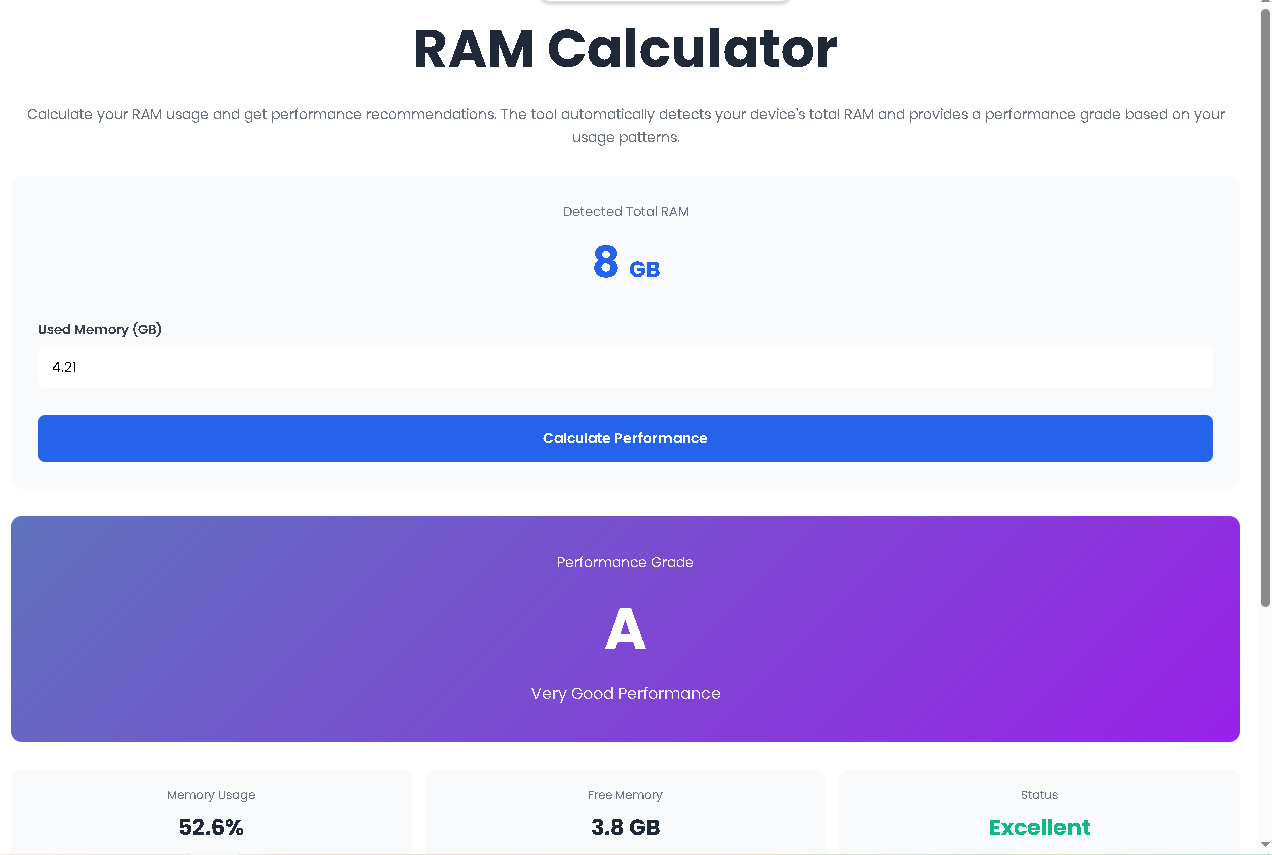
Calculate your RAM usage and get performance recommendations. The tool automatically detects your device's total RAM and provides a performance grade based on your usage patterns.
Let’s be honest. Most people know RAM is important, but they have no idea if their current memory is actually enough. You might own a laptop with 8GB RAM and feel it slowing down—but is it really the RAM? Or maybe you’re shopping for a new PC and can’t decide between 16GB or 32GB.
That’s exactly where RAM Calculator by Toolota steps in.
This isn’t another generic system info tool that floods you with jargon. It’s a clean, visual, and surprisingly accurate device space checker that tells you one thing: how well your RAM is handling your current workload.
You don’t need to install anything. You don’t need admin rights. You don’t even need to know what a gigabyte really means.
The RAM Calculator detects your device’s total RAM automatically. You simply enter how much memory you’re currently using—and within seconds, you receive:
A clear performance grade from A+ to D
Your exact usage percentage
How much free RAM you actually have left
A color-coded status (Excellent to Critical)
Personalized app and upgrade suggestions based on your device’s capacity and current load
Here’s a scenario most people don’t think about.
You buy a laptop with 16GB RAM. You assume it’s future-proof. But six months later, Chrome alone is eating 6GB, Slack is taking 2GB, Zoom is running, and Spotify is playing. You’re at 14GB used. The system starts swapping to disk. Everything feels sluggish.
Your total RAM is still 16GB. But your usable RAM is nearly zero.
This is why RAM Calculator focuses on percentage and free memory, not just the number you see on the box.
When you enter 14GB used on a 16GB machine:
Usage = 87.5%
Grade = C (Fair Performance)
Status = High (orange)
Free RAM = 2GB
Suggestions = ⚠️ Close unused applications + ⚠️ Consider upgrading RAM
The tool doesn’t shame your hardware. It simply shows you: “You’re pushing the limits. Here’s what fits your current load.”
This kind of feedback is invaluable for:
Remote workers juggling multiple apps
Students with budget laptops running research tabs + Zoom + documents
Casual gamers wondering why Fortnite stutters on 8GB
Editors testing if 16GB is enough for Premiere Pro
This is the most important section because it reflects the actual behavior of the HTML tool. Every step below is directly mapped from the real UI and JavaScript logic. You can follow this exactly and get the same result.
When you open the RAM Calculator, the tool immediately runs a browser-based API called navigator.deviceMemory.
If supported, your total RAM appears instantly (e.g., 8 GB, 16 GB).
If not supported, the tool estimates 8 GB as a safe default and labels it “Estimated Total RAM.”
🔍 No manual entry required here. This happens the moment the page loads.
This is the only field you need to fill.
Look at your Task Manager (Windows) or Activity Monitor (Mac).
Find how much RAM is currently in use.
Type that number into the “Used Memory (GB)” field.
✅ The tool accepts decimals (e.g., 3.5, 6.2).
❌ If you enter a number larger than your total RAM, an alert stops you.
One click triggers the full evaluation.
Behind the scenes, the JavaScript:
Divides used RAM ÷ total RAM
Multiplies by 100 to get usage percentage
Calculates free RAM
Runs the percentage through a grade assignment function with 6 distinct tiers
Matches the grade to a gradient color scheme
Generates conditional suggestions based on both total RAM and usage level
The results panel expands with four clear outputs:
A. Performance Grade Card
Letter grade (A+ to D)
Description (e.g., “Excellent Performance”)
Full-width gradient background that changes by grade
B. Memory Stats (3 Cards)
Memory Usage – Percentage with one decimal
Free Memory – Exact remaining GB
Status – Text changes color:
Excellent → Green
Moderate → Blue
High → Orange
Critical → Red
C. Recommended Applications List
Dynamic checklist based on your total RAM and current usage
Example: If you have 4GB total → suggestions are lightweight (browsing, email, docs)
Example: If you have 32GB total → suggestions include 4K editing, VMs, ML
If usage >85% → warning messages appear at the top of the list
✅ That’s it. Four steps. No hidden complexity.
Most tools give you generic advice like “close some apps.”
RAM Calculator by Toolota gives you conditional, tiered recommendations based on two variables:
| Total RAM | Suggested Workloads |
|---|---|
| ≤ 4 GB | 2–3 browser tabs, document editing, email, light apps |
| ≤ 8 GB | Multiple tabs, Office suite, basic photo editing, video streaming |
| ≤ 16 GB | Heavy multitasking, 1080p video editing, moderate 3D, modern games, 1–2 VMs |
| > 16 GB | 4K editing, 3D rendering, development, multiple VMs, ML, high-end gaming |
If usage > 85%, the tool prepends two critical warnings:
⚠️ Close unused applications
⚠️ Consider upgrading RAM
These appear above the positive recommendations. You see the urgent action first, then the capability list.
This two-layer logic makes the RAM Calculator far more useful than a simple percentage display. It adapts to who you are and what you own.
The grade system in RAM Calculator isn’t arbitrary. It’s calibrated to real-world responsiveness thresholds.
| Grade | Usage Range | Description | What It Means |
|---|---|---|---|
| A+ | < 50% | Excellent | Plenty of headroom. System feels snappy. |
| A | 50% – 64.9% | Very Good | Comfortable. Heavy apps still open quickly. |
| B+ | 65% – 74.9% | Good | Moderate load. Some slowdown with multiple tabs. |
| B | 75% – 84.9% | Moderate | Noticeable lag. Background apps should be closed. |
| C | 85% – 89.9% | Fair | High pressure. System may swap memory to disk. |
| D | ≥ 90% | Low | Critical. Upgrade or close heavily used apps immediately. |
Important: These thresholds are hardcoded in the tool’s assignGrade() function. They don’t change based on device age or brand. This consistency makes the RAM Calculator reliable across Windows, macOS, and Chromebooks.
🔸 Used RAM must be entered manually.
The tool cannot read your current system memory usage due to browser security restrictions. You must look it up yourself.
🔸 RAM detection depends on browser support.
Safari and some older browsers do not support navigator.deviceMemory. In those cases, the tool defaults to 8GB and labels it as an estimate.
🔸 Not a diagnostic tool.
This is a calculator, not a system profiler. It won’t detect memory leaks, faulty sticks, or background processes.
🔸 Grade thresholds are fixed.
They reflect general responsiveness expectations. However, your personal tolerance for slowdown may differ.
🔸 Recommendations are educational, not binding.
The tool suggests what typically fits your RAM class. It does not guarantee software compatibility or performance.
The RAM Calculator measures the percentage of your total RAM that is currently in use. It compares your manual input (used memory) against your device’s detected total RAM. It does not measure speed, frequency, or brand.
If your browser does not support the Device Memory API, the RAM Calculator cannot access your real hardware specs. In this case, it defaults to 8 GB and clearly labels it as an estimate. You can still use the tool—just be aware the total is not your exact number.
Yes—within its intended scope. The grade is calculated using fixed thresholds derived from common system responsiveness patterns. If the tool gives you a D grade, your RAM is under very high load. If it gives you an A+, you have significant free headroom.
Partially. The tool loads and functions, and you can enter used memory manually. However, mobile operating systems manage RAM very differently than desktops. The grade and suggestions are optimized for Windows, macOS, and ChromeOS devices, not iOS or Android.
Toolota is your all-in-one online tools platform. Fast, simple, and free utilities designed to make everyday digital tasks easier and smarter.
