Create beautiful pie charts to visualize proportions and percentages. Enter your data values and labels to generate an interactive chart with a detailed legend.
The Pie Chart Creator is a free online tool developed by Toolota that transforms raw numerical data into beautifully formatted pie charts within seconds. Unlike complex software that requires installation and training, this web-based solution operates directly in your browser, eliminating downloads, registrations, or subscriptions.
This intuitive tool addresses a fundamental need in data presentation: quickly converting values and categories into visual proportions. Whether you’re preparing a business report, academic presentation, marketing analysis, or personal project, the Pie Chart Creator provides immediate visual clarity to your data.
This versatile tool serves diverse user groups across multiple sectors:
Business Professionals: Marketing teams analyzing campaign spending, sales departments visualizing revenue streams, HR managers presenting demographic breakdowns, and executives needing quick visuals for stakeholder meetings.
Academic Users: Students creating visual aids for presentations and papers, researchers illustrating data distributions, and educators preparing teaching materials that clearly show proportional relationships.
Non-Profit Organizations: Teams demonstrating fund allocation, program impact distributions, donor demographic breakdowns, and budget utilization across different initiatives.
Small Business Owners: Entrepreneurs visualizing expense categories, product line performance, customer segment distributions, and market share analyses without investing in expensive software.
Content Creators: Bloggers, journalists, and social media managers needing quick, engaging visuals to accompany data-driven stories and reports.
Personal Users: Individuals tracking personal budgets, planning event budgets, analyzing time allocation, or visualizing any proportional data for personal decision-making.
Navigate to the Pie Chart Creator tool on the Toolota website. The interface loads immediately with two primary input fields prominently displayed.
In the first field labeled “Values (comma-separated):” input your data points as numbers separated by commas. For example: 30, 20, 25, 15, 10
Important Notes:
Use only numbers (decimals allowed)
Separate values with commas only (no spaces required but allowed)
Ensure all values are positive numbers
Example formats: 45,30,25 or 12.5, 8.75, 4.25
In the second field labeled “Labels (comma-separated):” input descriptive names for each value, maintaining the same order. For example: Marketing, Sales, Development, Support, Other
Labeling Guidelines:
Labels can include letters, numbers, and spaces
Maintain the same number of labels as values
Keep labels concise but descriptive
Example: Q1 Revenue, Q2 Revenue, Q3 Revenue, Q4 Revenue
Click the blue “Generate Chart” button. The tool immediately processes your inputs with the following validations:
Checks that both fields contain data
Verifies all values are valid positive numbers
Confirms equal numbers of values and labels
Calculates percentages based on total value
If errors exist, red messages indicate specific issues needing correction.
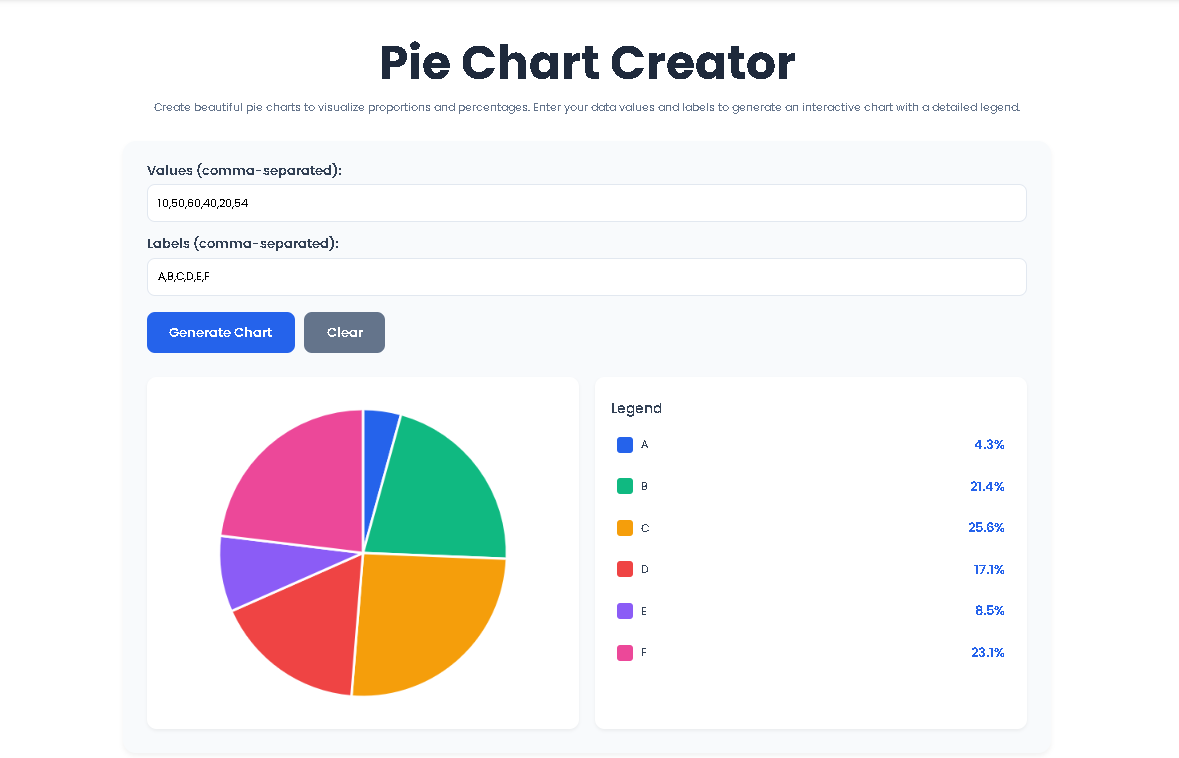
Upon successful generation, the chart section expands showing:
Visual Pie Chart: Color-coded circular chart with proportional segments
Interactive Legend: List showing each label, its color square, and calculated percentage
The chart automatically sizes to its container while maintaining proportional accuracy.
To create a new chart:
Edit values/labels directly and click “Generate Chart” again
Or click “Clear” to empty all fields and start fresh
Time Efficiency: Create presentation-ready pie charts in under a minute versus the 10-15 minutes typically required in spreadsheet software. The streamlined interface eliminates menu navigation and formatting steps.
Accuracy Assurance: Automated calculations remove human error from percentage computations. The tool validates inputs and ensures mathematical consistency across all visual elements.
Accessibility: Browser-based access means the Pie Chart Creator works on any device with internet connectivity. There are no compatibility issues across operating systems or device types.
Cost Effectiveness: Complete functionality remains free indefinitely, providing professional-grade visualization without software licensing fees or subscription costs.
Ease of Use: The intuitive two-field input system requires no technical training. Users of all skill levels achieve quality results on their first attempt.
Visual Consistency: Professional color schemes and layout standards ensure your charts maintain aesthetic quality suitable for formal presentations and publications.
Immediate Application: Generated charts can be screenshotted or downloaded for immediate use in documents, presentations, websites, or reports without additional editing.
Iterative Flexibility: Easily modify values and labels to compare different scenarios or correct errors without starting from scratch.
The Pie Chart Creator produces two interconnected output components:
The Visual Pie Chart: This circular graphic uses size-proportional slices to represent your data. Key visual elements include:
Segment Size: Larger values create wider slices visually emphasizing their proportion
Color Differentiation: Each segment receives a distinct color from our optimized palette for immediate visual distinction
Segment Order: Slices arrange clockwise starting from the top (12 o’clock position)
White Separators: Thin white lines between segments enhance definition and readability
The Data Legend: This accompanying panel provides the quantitative interpretation:
Color Reference: Small colored squares matching each chart segment
Category Labels: Your original descriptive labels for each data point
Percentage Values: Exact percentage calculations showing each value’s proportion of the total
Interactive Hover Effects: Background highlighting on hover improves readability
Percentage Calculation Method: The tool computes percentages using the formula: (Individual Value / Total of All Values) × 100. Results display to one decimal place for precision while maintaining readability.
Data Quality Determines Output: The accuracy and usefulness of generated charts depend entirely on input data quality. Garbage in = garbage out applies here as with all data visualization tools.
Manual Review Recommended: While calculations are automated, always review generated charts for logical consistency with your original data and intended message.
Appropriate Use Cases: Recognize that pie charts excel at showing proportions but poorly represent trends over time or precise comparisons between similar values. Use bar charts for those purposes.
No Data Storage: The Pie Chart Creator processes data client-side without transmitting to servers. This ensures privacy but means charts aren’t saved between sessions.
Browser Compatibility: While optimized for modern browsers, some extremely outdated browsers may not support the Canvas API functionality. Current Chrome, Firefox, Safari, and Edge work perfectly.
Export Limitations: The tool generates screen-ready visuals but doesn’t include direct export functions. Use screenshot tools or browser print functions to capture charts for documents.
Educational Purpose Emphasis: This Pie Chart Creator serves legitimate data visualization needs. It should not be used to misrepresent data or create misleading visuals intentionally.
The tool automatically divides each value by the sum of all values, then multiplies by 100 to create percentage figures. For example, with values 30, 20, and 50 (total 100), percentages would be 30%, 20%, and 50% respectively. The calculations happen in real-time and display to one decimal place for precision while maintaining readability.
Yes, the Pie Chart Creator fully supports decimal values. Input numbers like 12.5, 8.75, or 33.33 exactly as you would whole numbers. The percentage calculations maintain decimal accuracy throughout, though final display rounds to one decimal place. This allows for precise financial data, weighted averages, and statistical measurements.
First, check that you have equal numbers of values and labels separated by commas. Ensure all values are positive numbers (negative values aren’t valid for pie charts). If errors persist, use the clear function and re-enter data carefully. The tool provides specific error messages for common issues like mismatched counts or non-numeric values.
Technically, the tool can process numerous values, but for optimal visual clarity, we recommend 3-8 categories. Beyond 8 segments, pie charts become difficult to interpret as slices become too thin for clear distinction. For datasets with many categories, consider grouping smaller values into an “Other” category or using a different chart type.
Toolota is your all-in-one online tools platform. Fast, simple, and free utilities designed to make everyday digital tasks easier and smarter.
