Text Similarity Analyzer – Instant Match Detector | Toolota
Table of Contents
What This Tool Does
In today’s data-driven world, the need to quickly quantify visual information is more common than ever. Whether you’re a researcher analyzing microscope slides, a warehouse manager taking stock from a photo, or a hobbyist sorting collections, manually counting objects in an image is tedious and prone to error. This is where an automated Object Counter From Image becomes an indispensable tool.
Tips for Getting Accurate Counts
The versatility of the Text Similarity Analyzer makes it a valuable asset for a wide range of professionals and individuals:
Students & Academics: Perfect for checking essays, research papers, and theses for potential plagiarism or improper citation before submission.
Content Writers & Bloggers: Essential for ensuring blog posts, articles, and marketing copy are original and to avoid duplicate content penalties from search engines.
SEO Specialists & Digital Marketers: Analyze competitor content, audit website pages for internal duplication, and optimize content for uniqueness to improve search rankings.
Editors & Proofreaders: Quickly compare different drafts of a document to track changes in wording and thematic consistency.
Researchers & Journalists: Useful for comparing source materials, verifying quotes, and analyzing language patterns across different documents.
How This Tool Works: The Most Detailed Section
This section provides a step-by-step, accurate guide based on the tool’s actual interface and functionality. Follow these steps precisely for the best results.
Step 1: Image Upload
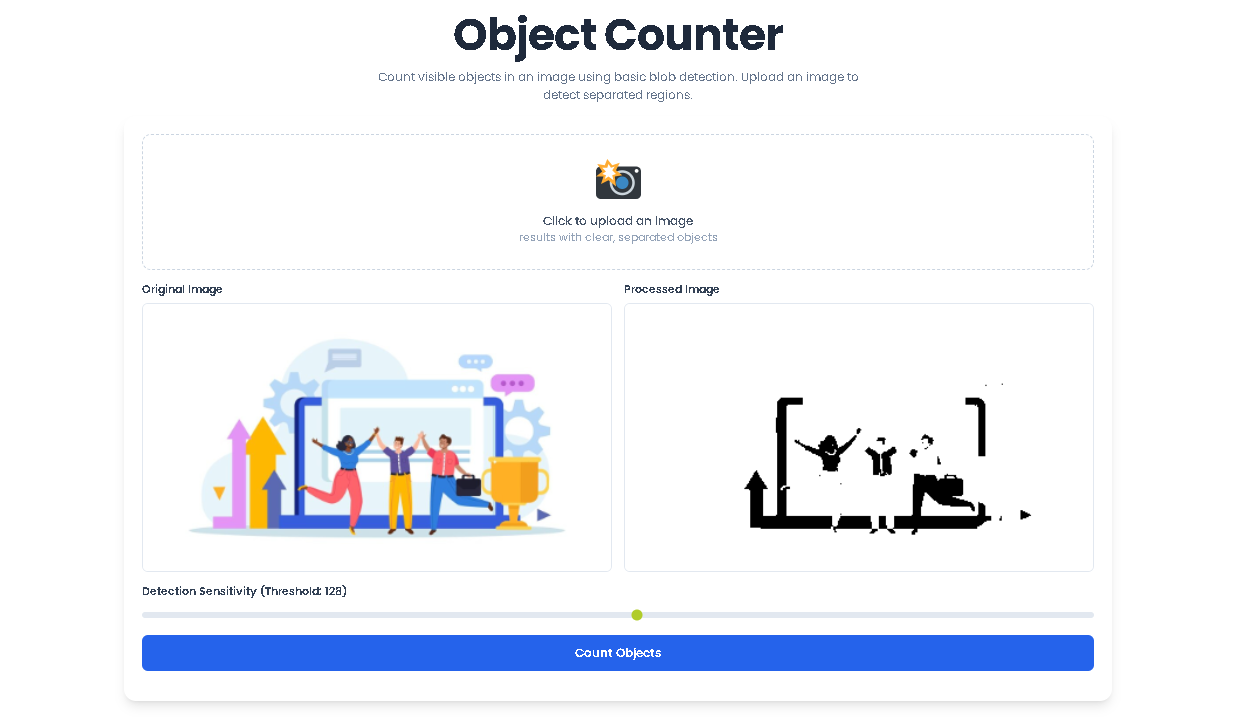
Locate the dashed border upload area with the camera emoji (). Click anywhere within this area to open your system’s file dialog. You can upload common image formats (JPG, PNG, etc.). For optimal processing speed and clarity, ensure your image is clear and well-lit. Once selected, the tool will automatically load and display your image in the “Original Image” canvas panel.
Step 2: Adjust Detection Sensitivity
After upload, the “Processed Image” panel and the sensitivity controls will appear. The tool immediately applies a default threshold to create a black-and-white (binary) version of your image. Use the slider labeled “Detection Sensitivity.” Moving it left (lower values like 50) makes the detection more sensitive, classifying more pixels as “object” (white). Moving it right (higher values like 200) makes it less sensitive, resulting in fewer white pixels. The <span style=”color: #3B82F6; font-weight: bold;”>Object Counter From Image </span> tool updates the processed preview in real-time as you adjust this slider. Your goal is to adjust it so that the objects you want to count appear as solid, distinct white blobs against a solid black background, with minimal noise or broken fragments.
Step 3: Initiate the Counting Process
Once you are satisfied with the processed preview, click the prominent blue “Count Objects” button. The tool’s JavaScript engine will execute a flood-fill algorithm on the processed (binary) image data. This algorithm scans the canvas, identifies all connected regions of white pixels, and tags each unique region as one object.
Step 4: Review the Results
The results section will appear, prominently displaying the final count in large, blue numerals. This number represents the total distinct blobs (objects) the tool detected in the processed image based on your chosen sensitivity setting. You can revisit Step 2, tweak the sensitivity, and click “Count Objects” again to see how the count changes with different threshold levels.
Benefits This Tools
Speed and Instant Results: Eliminate manual counting. Get results in under 10 seconds from upload to result.
100% Browser-Based & Private: No software to download or install. All processing happens on your device; your images are never uploaded to a server, ensuring complete data privacy.
Intuitive Visual Feedback: The side-by-side canvas view is crucial. It lets you see exactly how the tool is interpreting your image, making the sensitivity slider meaningful and adjustments intuitive.
Educational Value: For students and beginners, this tool provides a hands-on, tangible understanding of fundamental image processing concepts like thresholding and blob detection.
Cost-Effective Solution: It addresses a specific need perfectly without the bloat or cost of professional image analysis software. For well-separated objects, it can be remarkably accurate.
Clean, Focused UI: The interface, built with Tailwind CSS, is uncluttered and guides the user naturally through the four-step workflow without distraction.
Understanding the Technology: How Blob Detection Works
Toolota’s Object Counter From Image uses a classic computer vision pipeline. Understanding this can help you use the tool more effectively.
Phase 1: Grayscale Conversion and Thresholding
The tool first converts your colorful image to grayscale, weighing red, green, and blue channels to perceive luminance. It then applies the threshold value from your slider. Every pixel brighter than the threshold becomes pure white (value 255). Every pixel darker becomes pure black (value 0). This creates a high-contrast, binary image where potential “objects” are white shapes.
Phase 2: Connected Component Analysis (Flood Fill)
The core counting logic is Connected Component Analysis, implemented here as a flood-fill algorithm. The tool scans the binary image pixel-by-pixel. When it finds a white pixel that hasn’t been visited yet, it initiates a flood-fill: it marks that pixel and recursively explores all touching white pixels (up, down, left, right) to map the entire connected white region. This entire region is counted as one object. The algorithm then resumes scanning until no unvisited white pixels remain. The total number of initiated flood-fills is your final object count.
Phase 3: Visualization and Output
The processed canvas shows you the result of Phase 1 (the binary image). The count displayed is the direct output of Phase 2. This transparent process allows you to visually verify why the tool counted a certain number of objects.
Important Conditions & Guidelines for Use
Output Depends on Input Quality: The accuracy of the count is directly and entirely dependent on the quality of the uploaded image and the appropriateness of the chosen threshold. Garbage in, garbage out.
Not for Complex Scenes: This is a basic blob detector. It will fail with overlapping objects, textured backgrounds, objects with holes, or images where object color blends into the background.
No AI or Shape Recognition: The tool does not “recognize” objects (e.g., it cannot distinguish a car from a cat). It only counts connected white pixel regions.
Manual Review Recommended: For any critical application, the automated count should be treated as an estimate and verified manually, especially on complex images.
Fair Use: This free tool is provided for legitimate, non-harmful purposes. Toolota is not liable for decisions made based on the tool’s output.
Frequently Asked Questions (FAQ)