
Project Timeline Creator
Create and visualize your project timeline with Gantt-style bars.
Create and visualize your project timeline with Gantt-style bars.
No tasks yet. Add a task to see the timeline.
At its core, this is a Gantt-style Project Timeline creator. It is designed for teams who need to see the big picture without the headache of enterprise-level project management software. By simply inputting task names, start dates, end dates, and owner names, the tool instantly generates a visual bar chart.
The tool operates entirely within your browser and utilizes local storage. This means your Project Timeline data persists even after you close the tab, allowing you to return to your plan without signing up for an account. It is a perfect blend of simplicity and functionality, making professional timeline visualization accessible to everyone. Toolota has focused on creating a user interface that is clean, responsive, and fast, ensuring you spend less time managing the tool and more time managing your project.
Understanding the mechanics of the Project Timeline creator is simple because the interface mirrors real-world project planning logic. Let’s break down the exact user flow, based on the actual HTML and JavaScript functionality.
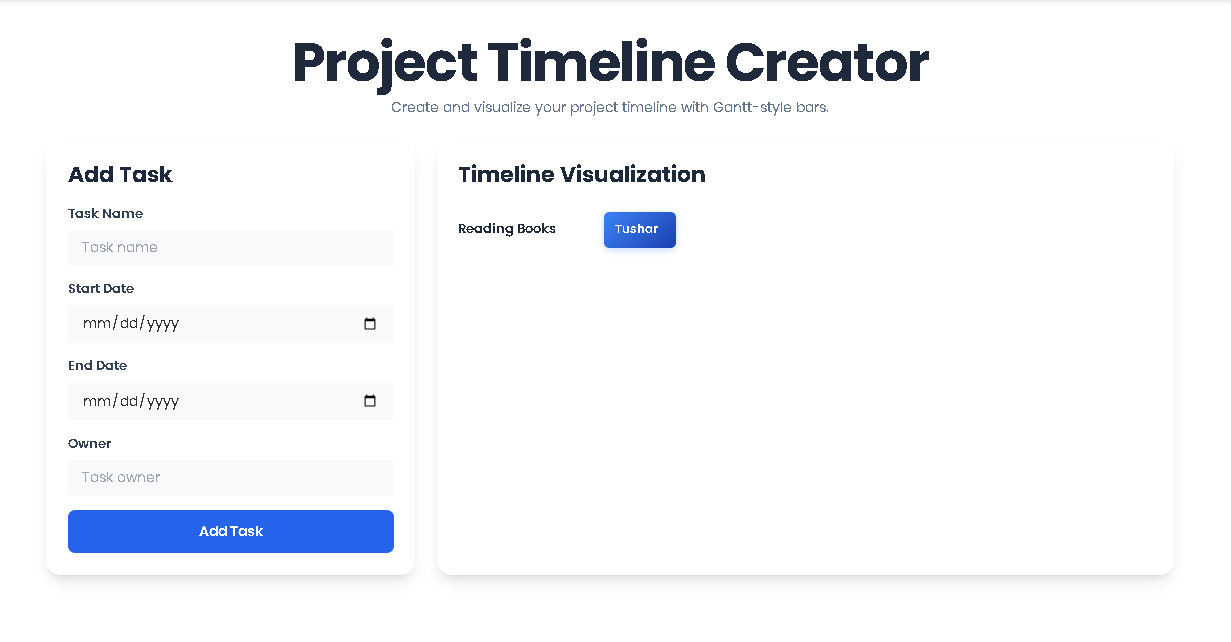
When you open the Project Timeline tool, you are greeted by a split-screen layout. On the left is the input form (the “Add Task” section), and on the right is the visualization area. Initially, the right panel displays a placeholder message: “No tasks yet. Add a task to see the timeline.” This confirms that the tool is ready for your input.
The first input field asks for the “Task Name.” This is the primary label for your activity. For a functional Project Timeline, this should be descriptive enough for team members to recognize immediately, such as “Design Homepage” or “Backend API Integration.” The tool requires this field to be filled; it is a critical piece of data for the visualization.
This is where your Project Timeline gains its structure. The tool provides HTML5 date pickers, making it easy to select dates without formatting errors. A key feature built into the JavaScript logic is date validation. If you accidentally set the “Start Date” after the “End Date,” the tool will alert you. This prevents illogical timeline entries and ensures the accuracy of your Gantt bars.
The “Owner” field is what makes this Project Timeline a “Smart Tool for Teams.” By assigning an owner, you add a layer of accountability and clarity. When the bar is rendered, the owner’s name (or initials) appears inside the colored bar, allowing anyone viewing the Project Timeline to immediately know who is responsible.
Once the form is complete, clicking the blue “Add Task” button triggers the core functionality. The data is packaged into a JavaScript object with a unique ID (based on the timestamp) and pushed into an array. The saveData() function then writes this array to the browser’s localStorage. This means your Project Timeline is now persistent.
The visualization is the heart of the tool. The script calculates the earliest start date across all tasks to establish a baseline. For every task, it calculates two things:
Offset: How many days after the start of the timeline the task begins.
Duration: How many days the task lasts.
It then renders a blue gradient bar (.tl-bar) that is positioned and sized accordingly. The label on the left shows the Task Name, and the bar displays the Owner. The result is a clean, scrollable Project Timeline that visually represents your project schedule.
Why should you choose this specific Project Timeline creator over a spreadsheet or a whiteboard? The advantages lie in its intelligent design and practical features.
You can build a complex Project Timeline in under a minute. There are no menus to navigate, no templates to choose from, and no sign-up forms. You simply add tasks, and the chart appears. This speed is invaluable for agile teams that need to adapt quickly.
A common pain point in manual planning is date errors. The JavaScript behind this Project Timeline automatically checks that end dates occur after start dates. This prevents the visual representation from breaking and ensures your plan is logically sound.
By including the “Owner” field directly in the visual bar, the tool eliminates ambiguity. When you look at the Project Timeline, you don’t just see a block of time; you see a responsibility. This feature aligns perfectly with the “Smart Tool for Teams” tagline.
The interface, styled with Tailwind CSS and the Poppins font, is clean and modern. The tool is fully responsive, meaning you can use it on a tablet or a desktop. The custom scrollbars and hover effects (like the button scaling) make the user experience feel polished and professional.
One of the standout technical features is the use of localStorage. Your Project Timeline data remains in your browser. You can close the window, come back the next day, and your tasks are still there. This offers the convenience of a desktop app within a web browser.
To get the most out of your Project Timeline, consider these strategic tips.
Instead of having one massive task called “Marketing Campaign,” break it into “Design Assets,” “Copywriting,” and “Media Buying.” This makes your Project Timeline more detailed and easier to track.
While you can put full names, consider using initials or first names to keep the bar text readable. Since the bar has an overflow: hidden property, a long name might get cut off. Keeping it concise ensures the Project Timeline remains scannable.
Even with validation, ensure your dates are realistic. A common mistake is creating a Project Timeline where tasks are scheduled back-to-back with no buffer, which can lead to project delays. Use the visual spacing to identify potential scheduling bottlenecks.
Using the Project Timeline tool by Toolota implies agreement with the following basic principles.
The accuracy and usefulness of the visual Project Timeline are entirely dependent on the data you enter. Toolota provides the mechanism for visualization, but the logic and scheduling are the responsibility of the user.
The tool uses your browser’s local storage. This data is specific to the browser and device you are using. Clearing your browser cache may result in the loss of your Project Timeline. It is recommended to use this tool for temporary planning or ensure you don’t clear the relevant site data.
This tool is designed for legitimate project management purposes. You agree not to use the Project Timeline creator to store misleading, illegal, or harmful information. It is intended for constructive team coordination and personal organization.
Since Toolota does not require an account or store your data on external servers, the privacy and security of your Project Timeline data rest with your local browser environment.
Currently, the Project Timeline is stored locally in your browser. To share it, you would need to use screen-sharing software or manually recreate the tasks in a colleague’s browser. The focus of this tool is on rapid personal or small-team visualization.
Your Project Timeline is saved! Thanks to the localStorage feature implemented in the code, your tasks are saved on your hard drive. When you return to the page, the renderTimeline() function loads the saved data, and your timeline reappears exactly as you left it.
The width of the bar in your Project Timeline is calculated based on the number of days between your start and end dates. The multiplier in the code (durationDays * 12) sets the width. If you have very short tasks (1 day), they will appear small, while long tasks will appear large. This visual scaling is intentional to give you a sense of duration.
The tool is designed to handle a large number of tasks. However, because the visualization scales linearly (adding more tasks makes the container taller), performance will depend on your browser’s capabilities. For most practical Project Timeline uses (under 50 tasks), the performance should be flawless.
Toolota is your all-in-one online tools platform. Fast, simple, and free utilities designed to make everyday digital tasks easier and smarter.