
Text Similarity Analyzer
Compare two texts and discover their similarity percentage based on word overlap and content analysis.
Similarity Score
0%
0
Common Words
0
Unique to A
0
Unique to B
0
Total Words
Visualize trends and time-series data with an interactive line graph. Enter comma-separated values and optional labels to generate your chart instantly.
The Line Graph Generator from Toolota is a free, web-based application designed to transform raw numerical data into a clear, visual line chart instantly. Unlike complex software that requires downloads, installations, or steep learning curves, this tool operates entirely within your browser. You simply provide a sequence of numbers, and the tool handles the scaling, plotting, and styling to produce a professional-looking graph. It’s built for speed, simplicity, and accessibility, making data visualization a task that takes seconds, not hours.
Whether you’re tracking sales over months, monitoring website traffic, recording temperature changes, or visualizing any time-series data, this Line Graph Generator provides the immediate graphical representation you need to identify trends, patterns, and outliers at a glance.
This tool is crafted for a wide range of users who need quick, hassle-free charts without the overhead of professional design or data analysis software.
Students & Educators: Perfect for creating graphs for reports, presentations, or homework assignments in subjects like math, science, economics, and geography.
Professionals & Analysts: Ideal for quickly sketching out data trends during meetings, preparing preliminary reports, or communicating data points in emails and internal documents.
Bloggers & Content Creators: A great resource for generating custom charts to embed in articles, blog posts, or social media content to make data-driven points more engaging.
Small Business Owners: Useful for visualizing simple metrics like monthly revenue, customer growth, or inventory levels without investing in specialized software.
Anyone Needing a Quick Chart: If you have a list of numbers and need to see what story they tell visually, this Line Graph Generator is your go-to solution.
This guide follows the exact workflow of the tool as coded in the HTML. Follow these steps to create your chart.
Step 1: Prepare Your Data
Gather the numerical values you want to plot. These should be in a logical sequence (like measurements over time). Have your corresponding labels ready if you have them (e.g., time periods, categories).
Step 2: Enter Your Data Values
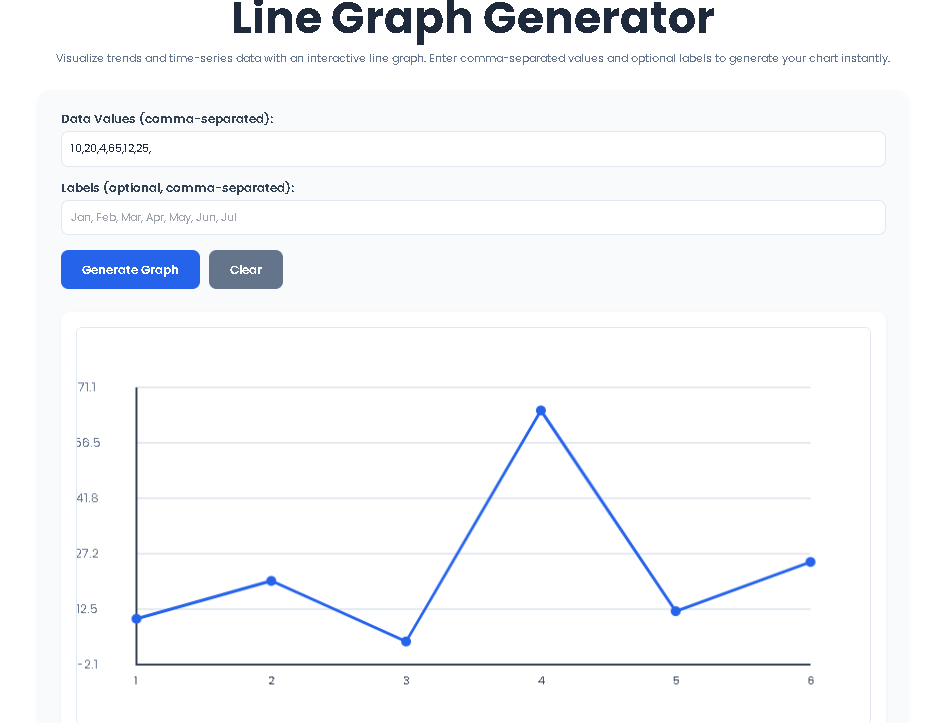
Locate the input field labeled “Data Values (comma-separated):”. Type or paste your numbers here, separating each value with a comma. For example: 10, 25, 15, 40, 30, 50, 45.
Tip: You can include spaces after the commas for better readability when typing, as the tool will trim them automatically.
Step 3: (Optional) Enter Your Labels
Find the field labeled “Labels (optional, comma-separated):”. If you want custom labels on the X-axis, enter them here in the same order as your data values. For example: Jan, Feb, Mar, Apr, May, Jun, Jul.
Important Note: If you leave this blank, the tool will use numbers (1, 2, 3…). If you provide a different number of labels than data points, the tool will default to “Point 1, Point 2…” for clarity.
Step 4: Generate Your Graph
Click the “Generate Graph” button. The tool’s JavaScript will now:
Parse your comma-separated values into an array of numbers.
Validate that all entries are valid numbers.
Process your labels (or generate defaults).
Calculate the graph’s scale and layout.
Draw the axes, grid lines, data line, data points, and labels onto the HTML5 canvas.
Step 5: View and Interpret Your Chart
Your line graph will appear in the canvas area below the buttons. Examine the trend line. Peaks indicate high values in your sequence, troughs indicate low values. Use the grid lines and Y-axis scale to estimate the precise value of each point.
Step 6: Clear or Modify
To start over, click the “Clear” button. This will empty both input fields and hide the graph canvas. You can then enter a completely new data set. To modify your current graph, simply edit the text in the input fields and click “Generate Graph” again.
Choosing Toolota’s Line Graph Generator offers distinct advantages that streamline the chart creation process.
Instant, Browser-Based Creation: There is zero download or installation required. The tool works on any modern web browser (Chrome, Firefox, Safari, Edge) on both desktop and mobile devices, providing true accessibility.
Dead-Simple User Interface: The clean, intuitive UI removes all friction. With just two primary input fields and a clear “Generate” button, you can go from data to graph in under a minute. There are no confusing menus or advanced settings to navigate.
Automatic Scaling & Styling: The tool intelligently analyzes your data set. It calculates the minimum and maximum values, creates an appropriately scaled Y-axis, and draws a clean grid for easy reading. You get a well-formatted graph without any manual adjustment.
Flexible Labeling: While the tool can automatically generate labels (like “1, 2, 3…” or “Point 1, Point 2…”), you have the option to provide custom labels (e.g., “Jan, Feb, Mar” or “Q1, Q2, Q3”) for a presentation-ready chart.
Visual Clarity with Data Points: The generated line chart doesn’t just connect the dots with a smooth line; it also places prominent circular markers on each precise data point. This makes it easy to identify the exact value of each entry in your sequence.
Responsive and Reusable: The graph canvas adjusts intelligently. If you resize your browser window, the graph will regenerate to fit the new dimensions perfectly. You can also change your input data and regenerate the graph as many times as you need.
Input – Data Values: This is the core requirement. The tool expects real numbers (integers or decimals like 5, -2.5, 17.8). Non-numeric entries will be filtered out, which may result in a graph with fewer points than you entered.
Input – Labels: These are purely textual identifiers for the X-axis. They do not affect the calculation or positioning of the data points, only their labeling.
Output – The Graph: The output is a visual plot containing:
A Y-axis (vertical) showing the numerical scale.
An X-axis (horizontal) showing your custom labels or defaults.
A light gray grid for easier value estimation.
A bright blue trend line connecting your data points.
Solid blue circles marking each individual data point.
Output Limitations: The graph is rendered directly to the webpage’s canvas. The current version of the tool does not include a direct “Download as Image” function. To save your graph, you would need to use your operating system’s screenshot functionality (like Snipping Tool on Windows or Screenshot on Mac).
To ensure you get the best results from this Line Graph Generator, please keep these conditions in mind:
Output Quality Depends on Input Quality: The accuracy and usefulness of the graph are directly tied to the accuracy and order of the numerical data you provide. Garbage in, garbage out.
Manual Review is Advised: While the tool automatically scales the graph, always take a moment to review the generated chart. Ensure the Y-axis range makes sense for your data and that all expected data points are plotted.
Intended for Legitimate Use: This tool is provided to help with data visualization for educational, professional, and personal projects. It must not be used to generate graphs for deceptive, illegal, or harmful purposes.
Basic Technical Requirement: You need a modern, updated web browser with JavaScript enabled, as the tool’s core functionality relies on client-side JavaScript to draw the graph.
The current version of Toolota’s Line Graph Generator is designed to plot a single data series (one line) at a time. To compare multiple sets of data, you would need to generate separate graphs for each series. Future updates may include multi-line functionality.
Not directly within the current user interface. The tool applies a standardized, clean visual style with a blue line and gray grid for consistency and readability. The styling is fixed in the code to keep the interface simple and focused on immediate generation.
Technically, you can enter a very long list of comma-separated values. However, for optimal readability and performance, it is recommended to keep your data series to a reasonable length. Extremely long datasets may result in a cluttered X-axis where labels overlap and the graph becomes difficult to interpret visually in the fixed canvas space.
First, check the message area above the graph canvas for a red error box. The most common issues are: 1) The “Data Values” field is empty, or 2) The field contains no valid numbers (e.g., you entered text). Ensure you have entered numbers separated by commas (like 5, 10, 15). If the problem persists, try refreshing the webpage to ensure all JavaScript has loaded correctly.
Compare two texts and discover their similarity percentage based on word overlap and content analysis.
Similarity Score
0%
0
Common Words
0
Unique to A
0
Unique to B
0
Total Words
In the digital age, where content is king, ensuring the uniqueness and originality of your writing is paramount. Whether you’re a student verifying the originality of an essay, a blogger checking for accidental self-plagiarism, or an SEO specialist analyzing competitor content, having a reliable tool to measure textual overlap is essential. This is where Text Similarity Analyzer comes in.
Toolota‘s Text Similarity Analyzer is a sophisticated, yet remarkably user-friendly, web-based application designed to compare two pieces of text and calculate their degree of similarity. It goes beyond a simple word-for-word match by employing the Jaccard similarity coefficient—a proven statistical method—to provide a precise percentage score. This tool instantly identifies shared vocabulary, highlights words unique to each text, and delivers clear, actionable insights, all within a clean, intuitive interface. It’s your instant detective for uncovering content matches, powered by intelligent algorithms right in your browser.
The versatility of the Text Similarity Analyzer makes it a valuable asset for a wide range of professionals and individuals:
Students & Academics: Perfect for checking essays, research papers, and theses for potential plagiarism or improper citation before submission.
Content Writers & Bloggers: Essential for ensuring blog posts, articles, and marketing copy are original and to avoid duplicate content penalties from search engines.
SEO Specialists & Digital Marketers: Analyze competitor content, audit website pages for internal duplication, and optimize content for uniqueness to improve search rankings.
Editors & Proofreaders: Quickly compare different drafts of a document to track changes in wording and thematic consistency.
Researchers & Journalists: Useful for comparing source materials, verifying quotes, and analyzing language patterns across different documents.
Using the tool is intentionally simple. Follow these steps to perform a complete analysis:
Navigate to the Tool: Go to the Text Similarity Analyzer page on the Toolota website.
Input Your First Text (Text A): Locate the first text box labeled “Text A.” Click inside it and paste or type the first document, paragraph, or text snippet you wish to analyze. This could be your original article, a student’s submission, or a competitor’s webpage content.
Input Your Second Text (Text B): Directly below, find the “Text B” text box. Enter the second text you want to compare against the first.
Initiate the Comparison: With both texts entered, click the prominent blue “Compare Texts” button. The tool will now process your input.
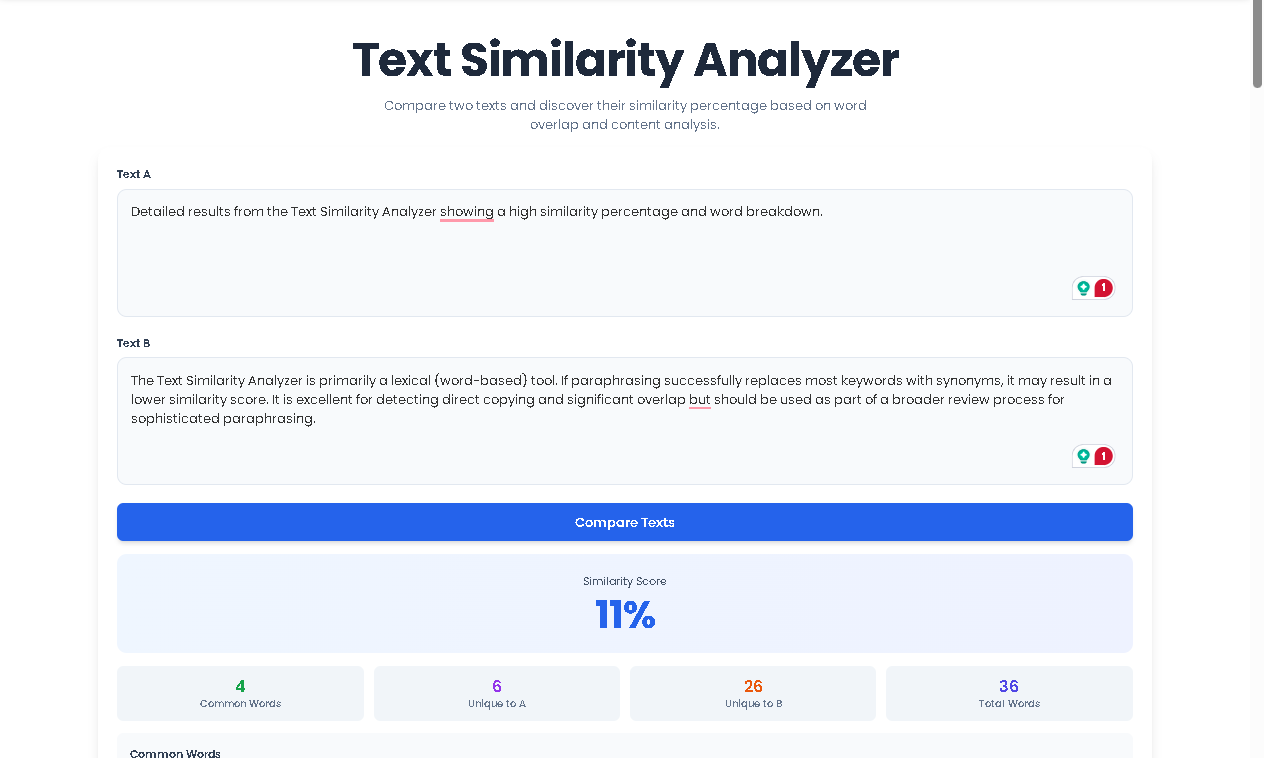
Review the Results Panel: Instantly, a new results section will appear below the button. This panel contains all the calculated data from the Text Similarity Analyzer.
Analyze the Output: Examine the key metrics:
The large, central Similarity Score (e.g., “65%”) gives you the overall match percentage.
The statistical boxes show counts for Common Words, Unique to A, Unique to B, and Total Unique Words.
The Common Words List displays the actual shared terms as interactive badges.
The Explanation paragraph summarizes the findings in plain English.
Image Suggestion 1: A screenshot of the Text Similarity Analyzer interface with two filled text areas and the “Compare Texts” button highlighted.
Alt Text: Toolota Text Similarity Analyzer interface ready for comparing two text documents.
Choosing Toolota‘s Text Similarity Analyzer offers distinct advantages that streamline your workflow and enhance accuracy:
Lightning-Fast & Real-Time Analysis: Get your similarity results in mere seconds. Simply paste your texts and click “Compare”—no lengthy uploads or processing waits.
High Accuracy with Jaccard Similarity: We move beyond basic matching. Our tool uses the Jaccard index, which compares the sets of unique words, providing a mathematically robust and meaningful similarity percentage that truly reflects content overlap.
SEO-Optimized Content Creation: Directly supports SEO efforts by helping you create unique content that stands out to search engines, a critical factor for ranking.
Clean, Distraction-Free User Interface: Built with a focus on user experience (UX), the tool features a minimalist design that makes the process straightforward, even for first-time users.
Detailed, Actionable Breakdown: Receive more than just a percentage. The tool breaks down the why behind the score with counts of common words, words unique to each text, and a visual list of shared terms.
Complete Data Privacy: Since all processing happens locally in your web browser, your sensitive texts are never sent to or stored on any external server.
Interpreting the output correctly is crucial for taking the right action.
The Similarity Percentage: This is the Jaccard similarity score. A 0% means no unique words are shared, while 100% indicates identical vocabulary sets (excluding common stopwords like “the,” “is,” etc.). A score between 10-30% might indicate thematic similarity, while scores above 50% suggest significant overlap that may require review.
Common Words Count: This number shows how many distinct, non-trivial words appear in both texts. A high count here directly contributes to a higher similarity score.
Unique Words to A/B: These metrics are incredibly valuable. They show you what each text brings to the table independently. For writers, this highlights your original contributions. For editors, it shows what was added or removed between versions.
Total Unique Words: This represents the size of the combined vocabulary universe of both texts, which is the denominator in the Jaccard calculation.
The Common Words List: Scanning this list helps you understand the nature of the overlap. Are they generic topic words, or unique technical terms? This qualitative insight complements the quantitative score.
To ensure you get the most accurate and useful results from the Text Similarity Analyzer, please consider:
Input Quality Determines Output: The analysis is based on the text you provide. Ensure copied text is clean and complete for a representative score.
Stopwords Are Filtered: Common function words (e.g., “the,” “and,” “in”) are automatically ignored, focusing the analysis on meaningful, content-bearing words.
Context is Key: The tool analyzes word overlap, not semantic meaning or paraphrasing. Two texts with different sentences but the same keywords will show similarity.
For Legal & Ethical Use: This tool is designed to aid in originality checking and content improvement. It must not be used for unethical plagiarism or to infringe on copyrights.
The Text Similarity Analyzer measures lexical overlap using the Jaccard similarity coefficient. It compares the sets of unique, meaningful words (excluding common stopwords) from two texts and calculates what percentage of the combined vocabulary is shared. It provides a statistical measure of word-for-word similarity.
A high similarity score indicates a significant overlap in vocabulary. For students, it may flag potential plagiarism. For content creators, it could mean duplicate content issues for SEO. However, context matters—some shared terminology is expected in technical fields. Use the “Common Words List” to see if the overlap is in generic or specific terms.
Absolutely. Toolota‘s Text Similarity Analyzer is a client-side tool. All calculations are performed directly within your own web browser. The text you paste is never uploaded to our servers or stored anywhere, guaranteeing complete privacy and security for your documents.
The Text Similarity Analyzer is primarily a lexical (word-based) tool. If paraphrasing successfully replaces most keywords with synonyms, it may result in a lower similarity score. It is excellent for detecting direct copying and significant overlap but should be used as part of a broader review process for sophisticated paraphrasing.
Toolota is your all-in-one online tools platform. Fast, simple, and free utilities designed to make everyday digital tasks easier and smarter.