Generate and verify file hashes (MD5, SHA‑1, SHA‑256, SHA‑512) locally in your browser—no uploads. Includes drag & drop, progress, compare mode, and export.
Drop a file here or choose from your device. Hashing happens locally.
| File | Size | Algorithm | Hash | Verify |
|---|
In the digital world, ensuring a file has not been altered, corrupted, or tampered with is a fundamental need. Whether you’re a developer distributing software, a system administrator verifying backups, or a researcher sharing datasets, the integrity of your files is paramount. This is where a File Integrity Checker becomes an indispensable tool.
At its core, a File Integrity Checker is a utility that generates a unique digital fingerprint—called a hash or checksum—for any given file. This fingerprint is a long string of letters and numbers produced by a cryptographic algorithm. The magic lies in its properties: even the smallest change in the source file (a single bit flipped) will produce a completely different hash. By comparing the hash of a downloaded file to the original, published hash, you can verify with mathematical certainty that the file is authentic and intact.
Without a reliable File Integrity Checker, you risk running corrupted software, analyzing tampered data, or distributing compromised files. This tool is your first line of defense in digital trust and security.
The File Integrity Checker by Toolota redefines this essential process by bringing it entirely to your browser. Unlike many online hash generators that require you to upload your files to a server—posing privacy and security risks—our tool performs all calculations locally on your device.
This client-side, no-upload approach means your sensitive documents, software installers, or personal data never leave your computer. The tool leverages modern Web Crypto APIs to compute hashes efficiently and securely. It’s designed for speed, simplicity, and absolute privacy, making it the ideal choice for professionals and casual users who value data sovereignty and quick results.
Let’s walk through the exact process using the tool’s interface. This guide mirrors the actual buttons, fields, and workflow you’ll experience.
Step 1: Upload Your File(s)
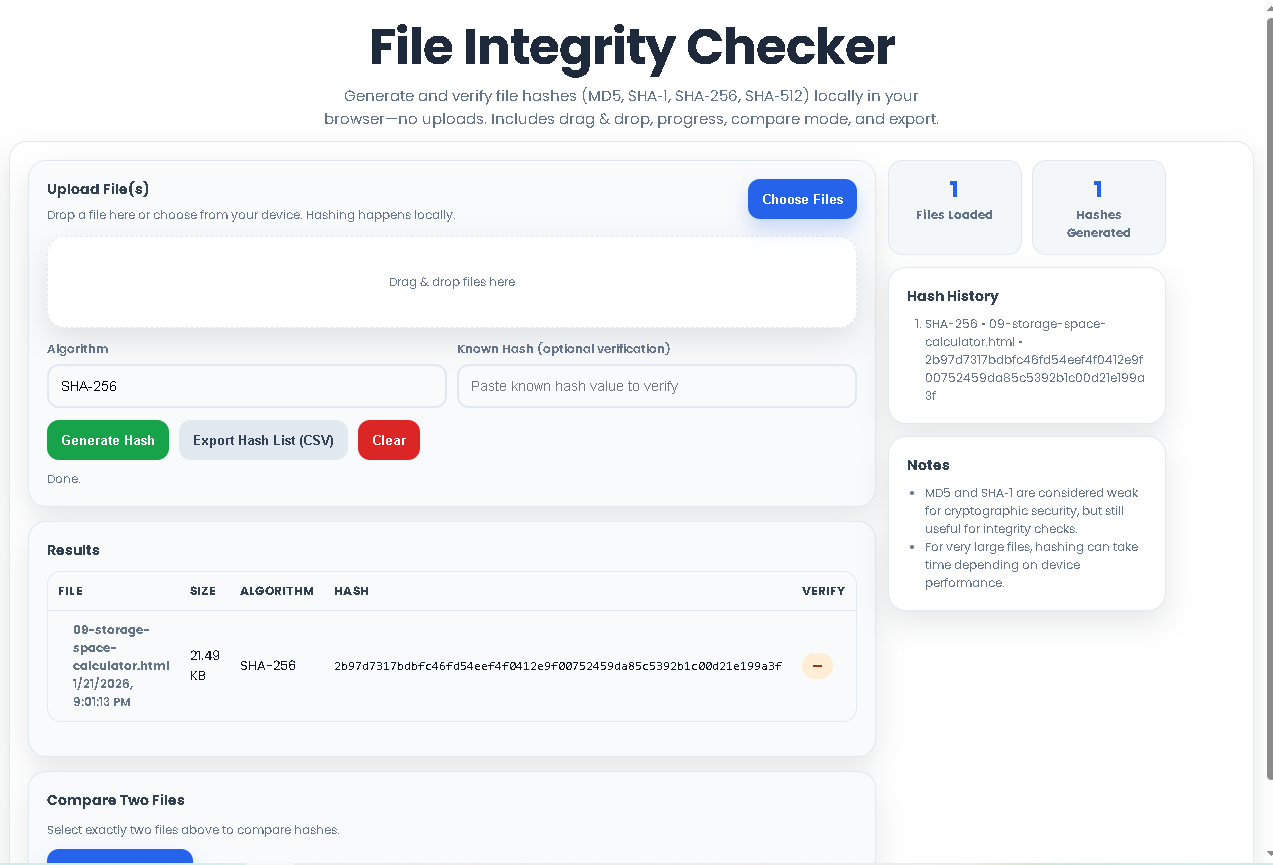
You have two intuitive options. First, click the “Choose Files” button to open your system’s file picker. Alternatively, use the dedicated drag-and-drop zone—simply drag your files from your desktop or folder and drop them into the dashed-border area. The interface will instantly list your files, showing their name, size, and modified date.
Step 2: Select Your Hash Algorithm
Use the dropdown menu labeled “Algorithm” to select the cryptographic hash function you need. The tool supports MD5, SHA-1, SHA-256 (selected by default for its balance of speed and security), and SHA-512. Your choice depends on your specific need for speed versus collision resistance.
Step 3: (Optional) Enter a Known Hash for Verification
If you already have a hash value you want to check against (e.g., from a software publisher’s website), paste it into the “Known Hash” input field. This allows the tool to automatically verify your result once the hash is generated.
Step 4: Generate the Hash
Click the green “Generate Hash” button. A progress indicator will show the status, especially helpful for large files. The tool processes the file in chunks locally, and the resulting hash will appear in the “Results” table. If you entered a known hash, the “Verify” column will immediately show a “Match” (green tag) or “No match” (red tag).
Step 5: Review, Compare, and Export Results
Review: The main table displays the hash for each file alongside its algorithm.
Compare: To compare two files, check the selection boxes next to them in the table and click the “Compare Selected” button. The result will tell you if their hashes are identical.
Export: To save all generated hash data, click “Export Hash List (CSV)” to download a spreadsheet-ready file.
History: Your recent hash operations are logged in the “Hash History” panel for quick reference.
Clear: Use the “Clear” button to reset the tool and start a new session.
Step 6: Interpret Your Results
A matching hash provides a high degree of confidence in file integrity. A non-matching hash indicates the file is different from the original source, signaling a potential download error, corruption, or malicious alteration.
Choosing the right algorithm is key. Here’s what each offers in the File Integrity Checker:
MD5: Produces a 128-bit (32-character) hash. Very fast but considered cryptographically broken for security purposes due to vulnerability to collision attacks. It remains perfectly suitable and widely used for basic integrity checks and non-adversarial scenarios (e.g., checking for accidental file corruption).
SHA-1: Produces a 160-bit (40-character) hash. Stronger than MD5 but also deprecated for security use. It’s often found in older systems and Git version control.
SHA-256: Part of the SHA-2 family, producing a 256-bit (64-character) hash. This is the current gold standard for security and integrity. It offers an excellent balance of performance and strong collision resistance, recommended for verifying software downloads and sensitive documents.
SHA-512: Also part of SHA-2, producing a 512-bit (128-character) hash. It is the most secure option available in this tool and is used in the most demanding cryptographic applications. It is slightly slower but provides the highest level of assurance.
Let’s walk through the exact process using the tool’s interface. This guide mirrors the actual buttons, fields, and workflow you’ll experience.
Step 1: Upload Your File(s)
You have two intuitive options. First, click the “Choose Files” button to open your system’s file picker. Alternatively, use the dedicated drag-and-drop zone—simply drag your files from your desktop or folder and drop them into the dashed-border area. The interface will instantly list your files, showing their name, size, and modified date.
Step 2: Select Your Hash Algorithm
Use the dropdown menu labeled “Algorithm” to select the cryptographic hash function you need. The tool supports MD5, SHA-1, SHA-256 (selected by default for its balance of speed and security), and SHA-512. Your choice depends on your specific need for speed versus collision resistance.
Step 3: (Optional) Enter a Known Hash for Verification
If you already have a hash value you want to check against (e.g., from a software publisher’s website), paste it into the “Known Hash” input field. This allows the tool to automatically verify your result once the hash is generated.
Step 4: Generate the Hash
Click the green “Generate Hash” button. A progress indicator will show the status, especially helpful for large files. The tool processes the file in chunks locally, and the resulting hash will appear in the “Results” table. If you entered a known hash, the “Verify” column will immediately show a “Match” (green tag) or “No match” (red tag).
Step 5: Review, Compare, and Export Results
Review: The main table displays the hash for each file alongside its algorithm.
Compare: To compare two files, check the selection boxes next to them in the table and click the “Compare Selected” button. The result will tell you if their hashes are identical.
Export: To save all generated hash data, click “Export Hash List (CSV)” to download a spreadsheet-ready file.
History: Your recent hash operations are logged in the “Hash History” panel for quick reference.
Clear: Use the “Clear” button to reset the tool and start a new session.
Step 6: Interpret Your Results
A matching hash provides a high degree of confidence in file integrity. A non-matching hash indicates the file is different from the original source, signaling a potential download error, corruption, or malicious alteration.
Ultimate Privacy & Security: All processing happens in your browser. Your files are never sent over the internet, eliminating the risk of interception or unauthorized access on a server.
Blazing Fast Local Processing: By using your computer’s own resources, hash generation is extremely fast for typical file sizes, with no latency from network uploads.
Multi-Algorithm Support: Cater to various standards and requirements, from legacy MD5 checks to modern, secure SHA-256 and SHA-512 hashes.
Intuitive Drag-and-Drop Interface: The user-friendly design makes the tool accessible to everyone, regardless of technical expertise.
Built-in Verification & Comparison: Go beyond simple generation. Instantly verify against a trusted source or compare two files to see if they are bit-for-bit identical.
Exportable Results: The CSV export function allows you to document and share verification results professionally.
Clean, Responsive UI: The interface is designed to work flawlessly on desktops, tablets, and mobile devices, with clear visual feedback and status indicators.
Input Defines Output: The accuracy of the hash is perfect relative to the input file. If the file is already corrupted before hashing, the tool will faithfully compute the hash of that corrupted version.
Algorithm Choice Matters: For security-sensitive verification (e.g., verifying a password manager download), always use SHA-256 or SHA-512. Reserve MD5 or SHA-1 for internal, non-security checks.
Manual Review is Key: While the tool provides automatic verification, always double-check that you are comparing hashes from a legitimate, authoritative source.
Performance with Large Files: Hashing multi-gigabyte files is possible but will depend on your device’s memory and processor speed. The tool provides progress feedback during this operation.
Legal Use Only: This tool is intended for legitimate integrity checking, digital forensics, and data validation purposes.
The File Integrity Checker is designed as a 100% client-side tool. All file reading and hash calculations are performed locally within your web browser using JavaScript. Your files are never uploaded to any server, ensuring complete privacy and security.
Verification is when you hash a file and compare it to a known, trusted value (e.g., from a developer’s website) to check for authenticity. Comparison is when you hash two different files using the same algorithm to determine if they are bit-for-bit identical, useful for finding duplicates or checking copy accuracy.
Yes, you can use it on large files. The practical limit is governed by your browser’s available memory, as the file needs to be read into memory. For extremely large files (e.g., over 10GB), performance may slow down. The tool processes files in chunks to be as efficient as possible.
While both will detect accidental corruption, SHA-256 is cryptographically secure and resistant to intentional tampering. MD5 is vulnerable to “collision attacks,” where a malicious actor could create a different file with the same MD5 hash. For any security-conscious verification, SHA-256 from the File Integrity Checker is the recommended choice.
Toolota is your all-in-one online tools platform. Fast, simple, and free utilities designed to make everyday digital tasks easier and smarter.
