
Feature Extractor
Extract basic numerical and text features from your input for data analysis and learning purposes.
Extracted Features
| Feature | Value |
|---|
Extract basic numerical and text features from your input for data analysis and learning purposes.
| Feature | Value |
|---|
The Feature Extractor by Toolota is a versatile, web-based utility designed to pull fundamental, yet insightful, numerical and textual characteristics from your content. In essence, it acts as a digital magnifying glass for your data, whether that data is written text or a digital image. Instead of manually counting words, calculating averages, or inspecting image properties pixel by pixel, this tool automates the process with a single click. It transforms raw, unstructured input—a paragraph, an article, a logo, or a photograph—into a structured table of quantifiable features. This immediate breakdown is invaluable for quick analysis, learning, content optimization, and basic data preprocessing tasks. The tool’s design philosophy centers on simplicity and speed, making advanced data extraction accessible to everyone without requiring coding skills or complex software.
In a world saturated with information, understanding the basic composition of your content is the first step toward improving it. Manually analyzing text for vocabulary diversity or an image for its color profile is tedious and prone to error. Toolota‘s Feature Extractor solves this by offering a centralized, instantaneous solution. It eliminates guesswork and provides objective metrics that can inform your decisions. For a writer, seeing a low “Vocabulary Richness” score might prompt a revision with more synonyms. For a social media manager, knowing the “Dominant Color” of an image can ensure brand consistency. For a student or researcher, quickly obtaining word and sentence counts aids in adhering to formatting guidelines. The tool’s dual functionality for both text and images makes it uniquely practical, serving a wide range of needs from academic and professional to personal projects, all within Toolota‘s ecosystem of reliable, user-centric utilities.
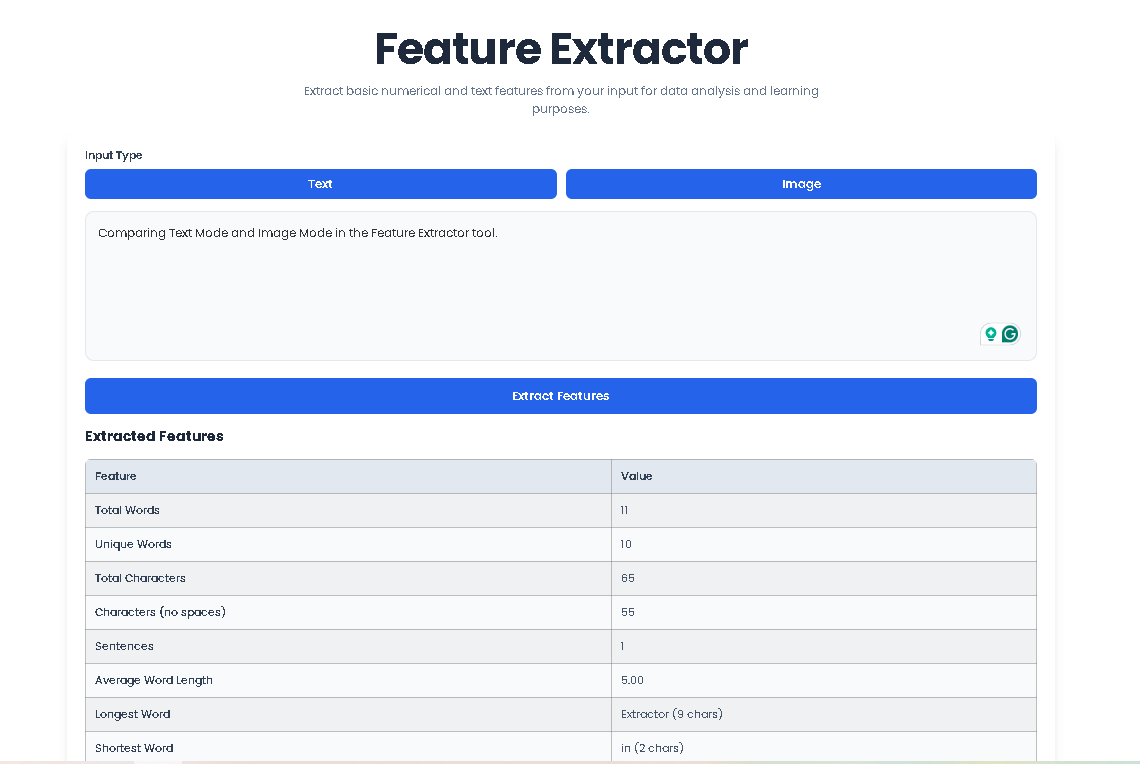
Using the Feature Extractor is an intuitive, three-step process. The interface is cleanly divided into input, action, and output sections. Follow these steps precisely to get accurate results.
Step 1: Select Your Input Mode
Upon loading the tool, you will see two prominent buttons labeled “Text” and “Image”. The “Text” mode is selected by default with a blue background.
To Analyze Text: Simply ensure the “Text” button is active (blue). You can now proceed to Step 2A.
To Analyze an Image: Click the “Image” button. The interface will switch, hiding the text box and revealing an image upload area.
Step 2A: Input Your Text (For Text Mode)
Locate the large text area with the placeholder “Enter your text here to extract features…”
Click inside the box and paste or type the text you wish to analyze. There is no word limit, but for extremely long texts, processing is nearly instantaneous.
Ensure your text is formatted as you want it analyzed. The tool counts everything you input.
Step 2B: Upload Your Image (For Image Mode)
In the image upload area, you will see a dashed-border box with an upload icon.
Click anywhere within this box. This action will open your computer’s file explorer window.
Select an image file (PNG, JPG, or GIF are supported, up to 10MB).
Once selected, a preview of your image will render automatically on a canvas below the upload area, confirming your selection.
Step 3: Extract and View Features
After providing your text or image, locate the large blue button at the bottom of the input section labeled “Extract Features”.
Click this button once.
Processing: For text, calculations happen in milliseconds. For images, the tool samples pixel data to compute color and brightness, which may take a second for larger images.
Results: Instantly, a new section titled “Extracted Features” will appear below the button. Your results are organized in a clean, two-column table with “Feature” on the left and its corresponding “Value” on the right. You can now review, interpret, or note down the extracted data.
The power of this tool lies in the specific metrics it delivers. Here is a detailed breakdown of what each output means.
For Text Analysis:
Total Words: The number of individual words, split by spaces.
Unique Words: The count of distinct words, ignoring case differences (e.g., “The” and “the” are the same). This is a key metric for vocabulary diversity.
Total Characters: The absolute count of every single character in the input, including letters, numbers, spaces, and punctuation.
Characters (no spaces): The count of characters excluding spaces, useful for certain character-limited contexts.
Sentences: The number of sentences, identified by standard sentence-terminating punctuation (. ! ?).
Average Word Length: The mean number of characters per word, indicating the complexity of words used.
Longest/Shortest Word: Identifies the word with the highest and lowest character count, displayed with its length.
Vowels & Consonants: Separate counts for vowel (a, e, i, o, u) and consonant letters.
Uppercase/Lowercase Letters: Counts of capital and small letters.
Numbers: Count of numeric digits (0-9) in the text.
Vocabulary Richness: A percentage calculated as (Unique Words / Total Words) * 100. A higher percentage suggests less repetitive word choice.
For Image Analysis:
Width & Height: The original dimensions of the uploaded image in pixels.
Aspect Ratio: The proportional relationship between width and height (e.g., 1.78 for a 16:9 image).
Total Pixels: The total number of pixels (Width * Height), indicating image resolution.
Dominant Color (RGB & HEX): The average color across all pixels, expressed in RGB (e.g., rgb(120, 85, 200)) and Hexadecimal (e.g., #7855C8) codes.
Average Brightness: A luminance score from 0 (black) to 255 (white), calculated from the pixel data.
Estimated Size: An approximation of the file size in Kilobytes (KB) based on the current canvas data.
The Feature Extractor is designed for a broad audience:
Writers & Editors: To check readability, word count, sentence structure, and vocabulary variety for blogs, articles, and reports.
Students & Educators: To analyze essay structure, meet word count requirements, and understand textual composition for assignments.
Digital Marketers & Social Media Managers: To extract dominant colors from brand assets for consistent branding and analyze ad copy.
Web & Graphic Designers: To quickly check image dimensions, aspect ratios, and color profiles for web development and design projects.
Data Analysts & Researchers: For basic data preprocessing, getting quick statistical summaries from text corpora, or initial image data inspection.
Language Learners: To practice and analyze text complexity and vocabulary usage.
Curious Individuals: Anyone who wants to learn more about the hidden numerical structure of their digital content.
Output Depends on Input Quality: The accuracy of features like “Sentences” or “Dominant Color” is directly tied to the quality and clarity of the input provided. Ensure text punctuation is correct and images are not corrupt.
Basic Analysis Scope: This tool extracts basic features. It does not perform advanced NLP (like sentiment analysis) or complex image processing (like object detection).
Browser-Based Processing: All calculations happen locally in your web browser. Your text or image data is not uploaded to any external server, ensuring privacy.
Use for Legal Purposes: The tool is intended for analysis of your original content, public domain materials, or content you have permission to analyze. Do not use it to process sensitive, personal, or copyrighted material without authorization.
Review AI-Generated Content: If analyzing text generated by an AI, use the Feature Extractor metrics as one of several checks for quality, structure, and originality.
The Feature Extractor is a free online tool that automatically calculates and displays key numerical characteristics from your input. For text, this includes word count, character count, sentence count, and vocabulary metrics. For images, it provides dimensions, pixel count, dominant color, and brightness. It’s designed for quick, actionable data insights.
To use the Feature Extractor on a document, simply open your document, select all the text you want to analyze (Ctrl+A or Cmd+A), copy it (Ctrl+C or Cmd+C), then paste it (Ctrl+V or Cmd+V) into the text area of the tool in “Text” mode. Click “Extract Features” to get an instant breakdown.
No, the current version of the Feature Extractor calculates the average dominant color and brightness across the entire uploaded image. For analysis of specific sections, you would need to crop the image to that specific area first, then upload the cropped version to the tool.
There is no strict, enforced character limit built into the tool, allowing you to paste very large texts. However, for performance and usability, extremely long texts (e.g., full-length novels) may cause slight browser slowdown during processing. It is optimally used for paragraphs, articles, essays, and reports of standard length.
Toolota is your all-in-one online tools platform. Fast, simple, and free utilities designed to make everyday digital tasks easier and smarter.