Filter large datasets using custom conditions. Apply operators to find specific values that match your criteria.
The Data Filter is a specialized, web-based utility designed to solve a common yet often tedious data analysis problem: extracting specific values from a larger set. Whether you’re a researcher sifting through experimental results, a student cleaning a dataset for a project, or a professional analyzing a list of metrics, manually scanning rows to find numbers greater than a threshold or entries containing certain text is inefficient.
This free tool from Toolota automates that process. It provides a clean, intuitive interface where you can paste your raw data, define precise conditions using familiar comparison operators (like “greater than” or “contains”), and receive an instant, filtered list of only the matching entries. It transforms what could be minutes of manual work into a task that takes seconds, requiring no software installation, spreadsheet expertise, or coding knowledge.
This tool is incredibly versatile and serves a wide range of users across different fields:
Students & Academics: Filter research data, experimental results, or survey responses to isolate relevant figures for papers and reports.
Data Analysts & Scientists: Perform quick, preliminary filtering on datasets before importing them into more advanced statistical software, saving valuable preprocessing time.
Business Professionals: Analyze sales figures, KPIs, inventory lists, or customer metrics to quickly identify values above or below targets.
Developers & Engineers: Sanitize and check log files, sensor outputs, or test results for specific numeric ranges or error codes.
Content Managers & Marketers: Filter lists of keywords, page metrics, or engagement scores to focus on top or underperforming items.
Anyone with a List: From personal finance numbers to workout logs, if you have a column of data in a text file or notes, this Data Filter can help you make sense of it.
Let’s walk through the exact process using the tool’s real interface. Follow these steps to filter your data accurately.
Step 1: Prepare and Input Your Data
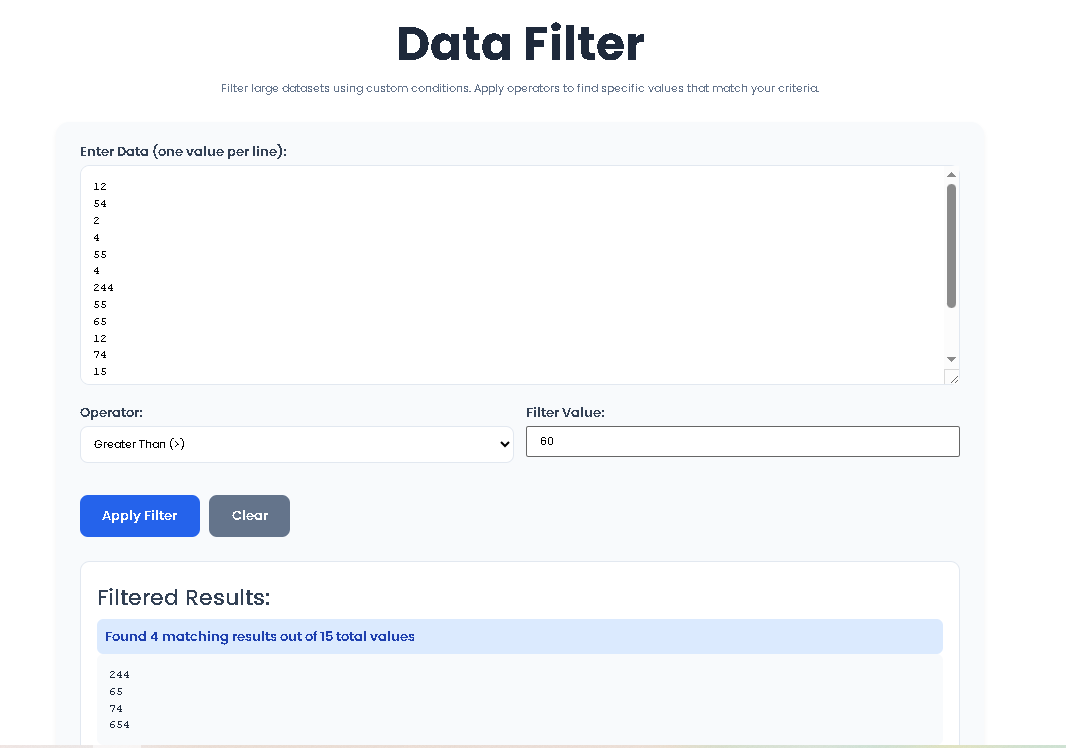
Navigate to the Data Filter tool page. In the large text box labeled “Enter Data,” paste or type your values. Crucially, each value must be on its own new line. For example:
150
42
87
23
150
99
Step 2: Select Your Filter Condition
In the “Operator” dropdown menu, choose the logical rule you want to apply.
For finding numbers above a certain point, select “Greater Than.”
For finding text that includes a specific word, select “Contains (text).”
Step 3: Define Your Filter Value
In the “Filter Value” input field, type the number or text string you want to compare against. To find all values over 50, you would enter 50 here. To find all lines containing the word “error,” you would enter error.
Step 4: Execute the Filter
Click the blue “Apply Filter” button. The tool will process each line of your data against the condition you’ve set.
Step 5: Review and Use Your Results
The “Result Section” will become active. First, look at the stats (e.g., “Found 3 matching results out of 6 total values”) to understand the scope of your filter. Below, the “Filtered Results” box will display only the lines that matched your criteria. You can now select and copy this clean list for your report, analysis, or next step.
Step 6: Clear and Start Anew (Optional)
To run a new filter, simply click the “Clear” button. This will reset the data field, filter value, and results, allowing you to start a fresh analysis.
Why choose this specific tool for your data filtering tasks?
Unmatched Speed and Efficiency: Filter thousands of data points in literal seconds, eliminating hours of manual scanning and potential human error.
Pinpoint Accuracy: The algorithmic Data Filter applies your condition perfectly to every single entry, ensuring no matching value is missed and no non-matching value is included.
Simplified Workflow for SEO & Marketing: Quickly filter keyword lists by search volume, filter URL lists by performance metrics, or analyze backlink data—all without leaving your browser.
Universal Accessibility: As a web tool, it works on any device (Windows, Mac, Chromebook) with a modern browser. There’s nothing to download or update.
Intuitive User Experience (UX): The clean, well-labeled interface from Toolota guides you naturally from input to result, with clear error messages if something is amiss (like using text with a numeric operator).
Seamless Integration: The final filtered output is plain text, making it trivial to copy and paste into Excel, Google Sheets, Word, email, or any data visualization tool.
Choosing the right operator is key to getting the results you expect. Here’s what each one does in the Data Filter:
Greater Than (>): Returns values strictly larger than your filter value. (Input 100, returns 150, 101, etc.).
Less Than (<): Returns values strictly smaller than your filter value. (Input 50, returns 42, 23, etc.).
Equal To (=): Returns values that exactly match your filter number. Useful for finding specific IDs or codes.
Greater Than or Equal (>=): Returns values that are larger than or exactly equal to your filter value.
Less Than or Equal (<=): Returns values that are smaller than or exactly equal to your filter value.
Contains (text): The only operator designed for text. It performs a case-insensitive search within each line. Entering admin will match “Administrator,” “admin.log,” and “SYSTEM_ADMIN.”
Pro Tip: For numeric filtering, the tool ignores non-numeric lines. If a line reads “45 items,” it will be treated as 45. For the “Contains” operator, the entire line is searched as plain text.
To ensure you get the best results from the Data Filter, keep these guidelines in mind:
Input Quality Dictates Output: The tool processes exactly what you provide. Ensure your data is clean, with one value per line, and remove any header rows if they are not meant to be filtered.
Choose the Correct Operator: Remember that operators like > and < are for numeric comparisons. Using them with a non-numeric filter value will trigger an error. Use “Contains” for text searches.
Review AI-Generated or Complex Data: If filtering data produced by another tool or AI, a quick manual scan of the results is always good practice to ensure the logic applied matches your intent.
Appropriate Use: This tool is designed for lawful data analysis of information you own or have permission to use. It is not for filtering personally identifiable information (PII) insecurely or for processing harmful content.
Data Privacy: As a client-side tool that runs in your browser, your data is processed locally on your machine and is not sent to a server, offering a layer of privacy for sensitive datasets.
The primary purpose of a Data Filter is to efficiently extract specific subsets of information from a larger dataset based on user-defined rules. It automates the process of scanning through rows of data to find values that meet certain numeric or text-based criteria, saving significant time and reducing errors compared to manual filtering.
he “Contains” operator performs a case-insensitive text search within each line of your input. If you set the filter value to “log,” it will match entries like “error_log.txt,” “SystemLog,” and “logging complete.” It searches for the sequence of characters anywhere in the line, making it perfect for filtering logs, keywords, or notes.
Yes, the tool is built to handle substantial amounts of data efficiently. While there’s a practical limit based on your browser’s memory, it can comfortably process tens of thousands of lines. For optimal performance with massive files (100,000+ lines), consider breaking your data into smaller chunks.
This error appears when you use a numeric comparison operator (like > or =) but your “Filter Value” input cannot be converted to a number (e.g., you typed “ten” instead of 10). To fix it, ensure you are entering a plain number (like 5, 3.14, or -20) when using these operators, or switch to the “Contains” operator if you intend to search for text.
Toolota is your all-in-one online tools platform. Fast, simple, and free utilities designed to make everyday digital tasks easier and smarter.
