Create professional bar charts to compare categorical or numeric data. Perfect for visualizing comparisons across different categories.
A Bar Chart Generator is a specialized online tool designed to transform raw, categorical data into a visual bar chart with minimal effort. Instead of wrestling with complex spreadsheet software or design programs, you can use a generator to input your data points and receive a clean, formatted chart in seconds. The tool provided here by Toolota is a prime example—a streamlined, web-based application that runs directly in your browser. It takes simple text inputs (like “Sales, Marketing, R&D” and “45, 62, 38”) and processes them into a structured visual comparison, plotting numeric values against distinct categories using rectangular bars of varying heights. This immediate translation from numbers to visuals is what makes a dedicated Bar Chart Generator an indispensable asset for quick analysis and clear communication.
The utility of a straightforward Bar Chart Generator spans numerous fields and expertise levels. This tool is specifically designed for:
Students & Educators: Perfect for creating visuals for school projects, theses, or classroom presentations without needing advanced software.
Bloggers & Content Creators: Ideal for enhancing articles, blog posts, or social media content with custom data visuals that engage readers.
Small Business Owners & Entrepreneurs: Great for visualizing sales figures, website traffic, customer feedback scores, or budget allocations for quick internal reviews or investor updates.
Marketers & Analysts: Useful for swiftly charting campaign metrics, A/B test results, or market research data for reports and dashboards.
Freelancers & Consultants: An efficient way to include professional-looking charts in client deliverables without investing in graphic design.
Anyone Needing a Quick Visual: If you have a list of numbers and categories that you want to see compared visually, this generator is for you. No technical expertise is required.
This section details the exact process based on the tool’s real, coded functionality. Follow these steps to create your chart accurately.
Step 1: Prepare Your Data
Before you even open the tool, organize your information. You will need two parallel lists:
A list of Labels: These are the names or categories for your data (e.g., Quarter 1, Quarter 2, Quarter 3, Quarter 4 or Apples, Oranges, Bananas).
A list of Values: These are the numerical figures corresponding to each label (e.g., 150, 220, 95, 310 or 45, 62, 38).
Step 2: Access the Tool Interface
Navigate to the Bar Chart Generator page. You will see a clean, card-based interface with two primary input fields clearly labeled.
Step 3: Enter Your Labels
Locate the first input field titled “Labels (comma-separated):”. Here, you must type your category names, separating each one with a comma. For example: Product A, Product B, Product C
Tip: You can include spaces after the commas for readability, as the tool will automatically trim them.
Step 4: Enter Your Values
Directly below, find the “Values (comma-separated):” field. Enter your numbers in the exact same order as your labels, also separated by commas. Example: 45, 62, 38
Critical: Ensure the order matches. “Product A” will be paired with the first number (45), “Product B” with the second (62), and so on.
Note: Only valid numbers are accepted. The tool will ignore non-numeric entries.
Step 5: Generate the Chart
With both fields filled, click the prominent blue button labeled “Generate Chart”. The tool’s JavaScript will now:
Validate that both fields contain text.
Split your comma-separated strings into arrays.
Convert the value strings into actual numbers.
Check that the number of labels matches the number of valid numeric values.
If any check fails, a red error message will appear explaining the issue (e.g., “Number of labels and values must match.”).
Step 6: View and Interpret Your Chart
If validation passes, the canvas container will appear below the buttons. The tool automatically:
Calculates the scale based on your highest value.
Draws a vertical (Y) axis and a horizontal (X) axis.
Adds light grid lines for reference.
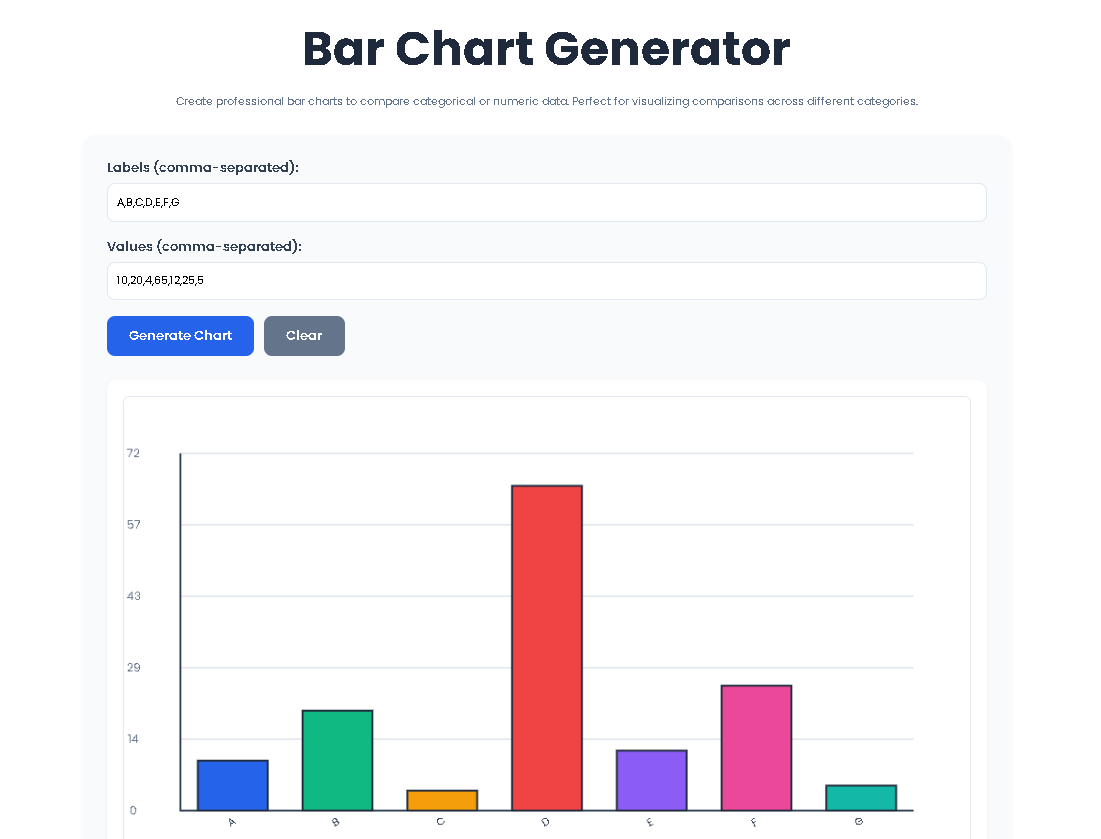
Plots each bar, assigning it a distinct, pre-set color from a palette (blue, green, orange, red, etc.).
Draws the height of each bar proportionally to its value.
Writes your labels along the X-axis at a -30 degree rotation for space efficiency.
Step 7: Clear and Start Over (Optional)
To create a new chart, simply click the grey “Clear” button. This will instantly empty both input fields, clear any error messages, and hide the chart canvas, allowing you to begin a fresh session.
Choosing a dedicated online tool like this Bar Chart Generator offers distinct advantages over manual or software-heavy methods:
Unmatched Speed and Efficiency: Go from a text list to a finished visual in under 30 seconds. This efficiency is invaluable when time is limited.
Guaranteed Accuracy: The automated scaling and plotting remove human error from calculating proportions and drawing bars to scale.
Zero Learning Curve: The two-field input system is intuitive for anyone, eliminating the need for tutorials or training required by full-featured software like Excel or Illustrator.
Accessibility and Convenience: Being web-based, the tool is accessible from any device with an internet connection—no installation or specific operating system required.
Clean, Consistent Output: Every chart follows the same polished design rules, ensuring a professional look that enhances your documents or presentations without extra design work.
It’s important to have realistic expectations about what this Bar Chart Generator provides:
Output Quality: The chart is rendered as a bitmap on an HTML Canvas. While perfectly clear on screen, the resolution is fixed (900×500 pixels). For very high-resolution prints, it may appear pixelated if enlarged significantly.
Input Dependency: The accuracy and usefulness of the chart are entirely dependent on the accuracy of the data you input. The tool visualizes what you provide.
Chart Type Limitation: This is specifically a Bar Chart Generator. It does not create pie charts, line graphs, scatter plots, or other chart types.
Customization Limits: The color scheme, font, and basic layout are pre-set for consistency and ease of use. Advanced customization (like custom colors or bar styles) is not part of this tool’s scope.
Saving Your Chart: While the tool itself doesn’t have a “download” button, you can save the generated chart. On most computers, right-clicking directly on the canvas will bring up a context menu with an option like “Save image as…” to save the chart as a PNG file to your device.
This generator is versatile. Here are some concrete scenarios where it excels:
Academic Reporting: Visualize survey results, experimental data, or historical comparisons for papers and presentations.
Business Intelligence Snapshots: Quickly chart weekly sales by region, monthly website visitors by source, or quarterly expenses by department.
Content Enhancement: Create simple charts to illustrate points in blog posts (e.g., “Comparison of Social Media Engagement Rates” or “Top 5 Recommended Tools”).
Personal Projects: Track and visualize personal goals, investment portfolio allocations, or fitness progress over time.
Brainstorming & Planning: Use the visual output to spot trends, outliers, or patterns during early-stage data analysis or team meetings.
The Bar Chart Generator relies on the order you provide. It processes your labels and values as sequential lists. The first label is paired with the first value, the second label with the second value, and so on. This is why it’s crucial to enter your data in corresponding order. The tool includes a validation check that alerts you if the number of items in each list doesn’t match, preventing a misaligned chart.
No, the current logic of this specific Bar Chart Generator is designed for positive values. The chart’s Y-axis starts at zero at the bottom, and bars are drawn upward from the baseline. Inputting a negative number may result in a bar that doesn’t render correctly or extends outside the intended chart area, as the scaling function isn’t built to handle values below zero.
There is no hard-coded limit in the validation, but practical limits exist due to the fixed canvas width (900 pixels). The tool calculates bar width and spacing dynamically. If you input a very large number of labels (e.g., 50), the individual bars will become very thin and likely unreadable, and the rotated labels may overlap excessively. For clear, effective charts, it’s recommended to use the generator for datasets with a manageable number of categories, typically under 15.
First, look for a red error message above the chart area. The Bar Chart Generator provides specific feedback. Common issues include: leaving one of the input fields completely blank, using a different number of items in the “Labels” and “Values” fields, or including non-numeric characters (like letters or symbols) in the “Values” field. Ensure your values are numbers separated only by commas.
Toolota is your all-in-one online tools platform. Fast, simple, and free utilities designed to make everyday digital tasks easier and smarter.
