Upload your CSV file and analyze column statistics instantly. Get comprehensive insights including count, min, max, mean, and sum.
In a world driven by data, the ability to quickly understand your information is crucial. The CSV Analyzer from Toolota is a free, web-based tool designed to cut through the complexity of data analysis. It provides immediate, at-a-glance statistical insights for any numeric column within your Comma-Separated Values (CSV) files. Forget about importing data into heavy spreadsheet software or writing preliminary scripts just to get basic metrics. This tool brings that fundamental analytical power directly to your browser in a clean, intuitive, and private interface. Whether you’re validating a dataset, preparing for a report, or simply exploring what your numbers contain, the CSV Analyzer serves as your first and fastest checkpoint for numerical data.
This tool is built for simplicity and accessibility, making it valuable for a wide range of users:
Data Analysts & Scientists: Quickly profile a new dataset or validate a column before deeper analysis.
Researchers & Academics: Instantly calculate basic statistics for experimental or survey data exported from other tools.
Small Business Owners & Marketers: Analyze sales figures, campaign metrics, or financial logs without advanced Excel knowledge.
Students & Educators: Learn about data statistics through hands-on interaction with real CSV files.
Content Creators & Bloggers: Fact-check numerical data or generate quick stats for articles and reports.
Anyone with a CSV File: If you have a file full of numbers and need to know the basics—count, range, average, total—this tool is for you.
Let’s walk through the exact process, mirroring the tool’s real interface. The entire workflow is designed to be completed in three simple actions.
Step 1: Upload Your CSV File
Navigate to the CSV Analyzer tool. Click the green “Choose CSV File” button. A file dialog will open. Locate and select the CSV file from your computer. The tool will display the selected file’s name below the button, confirming your upload. The system automatically begins parsing the file’s structure.
What’s happening behind the scenes? The tool reads the file content, identifies the first row as headers, and maps the subsequent rows of data.
Step 2: Select Your Target Column
Once parsing is complete, the “Select Column to Analyze” dropdown menu will appear directly below the upload area. Click the dropdown to see a list of all column headers extracted from your CSV file. Carefully select the column that contains the numerical data you wish to analyze. For example, you might choose “Revenue,” “Temperature,” “Score,” or “Units_Sold.”
Step 3: View Your Instant Statistical Summary
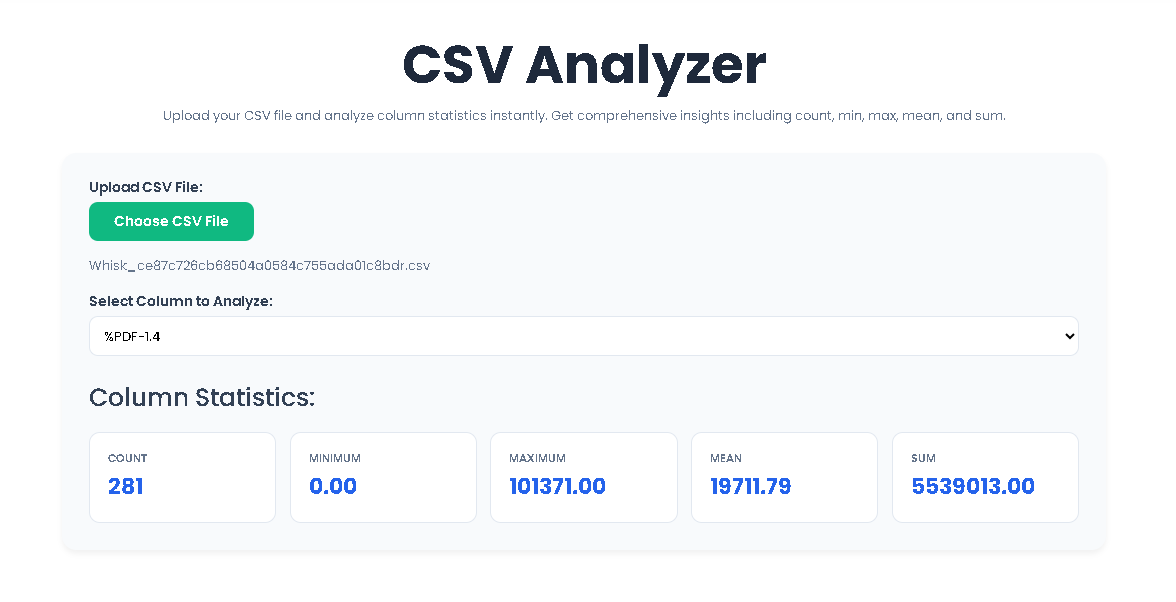
Immediately upon selecting a column, the tool springs into action. The “Column Statistics” section becomes active, revealing a grid of five stat cards:
Count: The number of valid numeric entries found in your selected column.
Minimum: The smallest number present.
Maximum: The largest number present.
Mean: The average (sum of all values divided by the count).
Sum: The total of all numeric values in the column.
Each value is calculated and displayed with two decimal places for precision. If you select a different column from the dropdown, the results update instantly to reflect the new data.
Choosing the right tool matters. Here’s why our CSV Analyzer stands out:
Speed and Instant Results: There is zero lag between uploading and insight. The analysis happens client-side in your browser, delivering five key statistics the moment you select a column.
Pinpoint Accuracy: The tool meticulously parses your CSV, differentiating between headers, numeric values, and non-numeric text to ensure calculations are based solely on valid numbers.
No-Signup, Zero-Cost Access: We believe in removing barriers. Access the full functionality of the CSV Analyzer immediately, without creating an account or providing personal information.
Clean, Intuitive UI/UX: The interface is designed with clarity in mind. From the friendly file upload button to the neatly organized stat cards, every element guides you smoothly from question to answer.
Complete Data Privacy: Your data never leaves your computer. All processing occurs locally within your web browser session. Toolota does not store, transmit, or have access to your uploaded CSV files.
Universal Accessibility: As a web tool, it works seamlessly across all modern devices and operating systems—Windows, macOS, ChromeOS, iOS, and Android.
The five metrics provided are the foundation of descriptive statistics. Here’s what they tell you about your data:
Count: This isn’t just the number of rows. It’s the number of numeric values. Empty cells, text entries (like “N/A” or “null”), or non-numeric strings in your column are intelligently filtered out. This count tells you the actual sample size for your analysis.
Min & Max: Together, these define the range of your data. They instantly show you the spread and can help identify potential outliers or data entry errors (e.g., a negative value where only positives are expected).
Mean (Average): The central tendency of your dataset. It’s a quick indicator of the “typical” value, useful for comparisons and high-level understanding.
Sum: The aggregate total. This is immediately valuable for financial data (total sales), operational data (total units produced), or resource data (total hours logged).
This combination offers a powerful, concise snapshot. For instance, a high count with a low mean and a high max might indicate a dataset with many small values and a few very large ones.
The applications are nearly endless, but here are some concrete examples:
Financial Quick-Check: Upload an expense report CSV. Select the “Amount” column to instantly see total spending (Sum), average transaction size (Mean), and the largest/smallest expenses (Min/Max).
Academic Research: Analyze survey responses scored on a scale of 1-5. The CSV Analyzer will show the count of respondents, the range of answers, and the average score in seconds.
Website Analytics: Export pageview or session duration data. Use the tool to find the average session length and identify outlier pages with exceptionally high or low engagement.
Inventory Management: Check a CSV export of product stock levels. Quickly find the total number of items in inventory (Sum) and see which product has the lowest stock (Min).
The Text Similarity Analyzer measures lexical overlap using the Jaccard similarity coefficient. It compares the sets of unique, meaningful words (excluding common stopwords) from two texts and calculates what percentage of the combined vocabulary is shared. It provides a statistical measure of word-for-word similarity.
A high similarity score indicates a significant overlap in vocabulary. For students, it may flag potential plagiarism. For content creators, it could mean duplicate content issues for SEO. However, context matters—some shared terminology is expected in technical fields. Use the “Common Words List” to see if the overlap is in generic or specific terms.
Absolutely. Toolota‘s Text Similarity Analyzer is a client-side tool. All calculations are performed directly within your own web browser. The text you paste is never uploaded to our servers or stored anywhere, guaranteeing complete privacy and security for your documents.
The Text Similarity Analyzer is primarily a lexical (word-based) tool. If paraphrasing successfully replaces most keywords with synonyms, it may result in a lower similarity score. It is excellent for detecting direct copying and significant overlap but should be used as part of a broader review process for sophisticated paraphrasing.
Toolota is your all-in-one online tools platform. Fast, simple, and free utilities designed to make everyday digital tasks easier and smarter.
